
If you have ever tapped an address on your iPhone and watched Apple Maps pop open while Google Maps sat in the corner like an ignored dinner guest, you are not alone. Many iPhone users prefer Google Maps for traffic data, business listings, saved places, transit details, offline maps, or simply because they have been using it since before their phone learned Face ID. So the big question is simple: can you make Google Maps the default on your iPhone?
The honest answer is: sometimes, depending on where you live and what version of iOS you use. In some countries and regions, Apple now lets users change the default navigation app through the iPhone’s Default Apps settings. In the United States and many other regions, however, iPhone users generally still cannot make Google Maps the universal system-wide replacement for Apple Maps. That means some links may still open in Apple Maps, especially when they come from Apple apps or system-level actions.
But do not throw your iPhone dramatically into a couch cushion just yet. There are smart workarounds that make Google Maps feel much closer to default. You can set Chrome as your default browser, use Gmail’s built-in default app preferences, rely on Google Search and Google Calendar links, customize CarPlay, save places in Google Maps, and create habits that make Apple Maps appear less often in your daily life.
Can You Set Google Maps as the Default Maps App on iPhone?
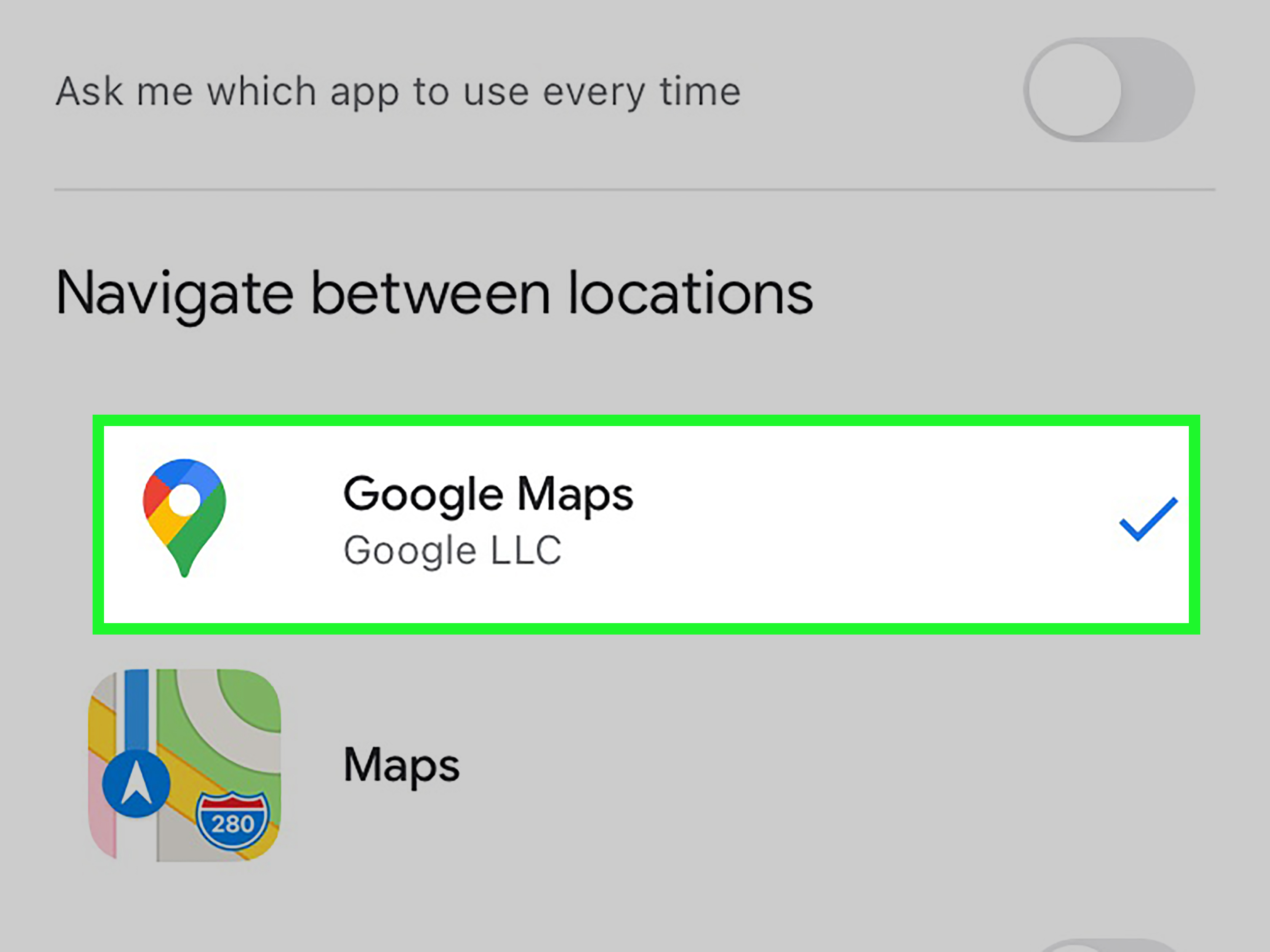
On newer versions of iOS, Apple includes a Default Apps section under Settings > Apps > Default Apps. This area lets you change certain app categories, such as browser, email, keyboard, password manager, translation, and in some regions, navigation. If your iPhone shows a Navigation option and Google Maps appears there, you can select it and use Google Maps when opening supported location links.
However, the catch is geography. Apple’s navigation default option is not universally available everywhere. For many iPhone users in the United States, the United Kingdom, Canada, Australia, Vietnam, and other markets, the Navigation setting may not appear at all. If you open Default Apps and do not see Navigation, your iPhone is not broken, your thumb is not cursed, and the settings menu is not hiding behind a secret trapdoor. The option simply may not be supported in your region.
Why Apple Maps Still Opens So Often
Apple controls many of the built-in experiences on iPhone. Siri, Contacts, Calendar, Spotlight Search, Messages, Safari, and system-level address recognition often work most naturally with Apple Maps. This is part convenience and part ecosystem design. Apple Maps is deeply integrated into iOS, while Google Maps is a third-party app that works brilliantly but does not always get the same system-level privileges.
That is why the answer to “Can I make Google Maps the default on my iPhone?” is not as simple as flipping one universal switch. Your iPhone can treat Google Maps as the preferred map app in certain apps and workflows, but it may still send some addresses to Apple Maps. Think of it as training your iPhone rather than replacing its entire navigation brain.
How to Check Whether Your iPhone Supports Default Navigation Apps
Before trying workarounds, check whether your iPhone already has the official setting. This takes less than a minute and may save you from reading twelve forum threads written by people who are also confused, mildly annoyed, and probably late for brunch.
Steps to Check Default Navigation Settings
- Open the Settings app on your iPhone.
- Scroll down and tap Apps.
- Tap Default Apps near the top.
- Look for a category called Navigation.
- If Navigation appears, tap it and choose Google Maps if available.
If you do not see Navigation, update iOS first. Go to Settings > General > Software Update. After updating, check again. If the option still does not appear, it likely is not available in your region.
Workaround 1: Set Chrome as Your Default Browser
One of the best ways to make Google Maps feel more like your default iPhone navigation app is to use Google Chrome as your default browser. When you browse with Chrome and tap map-related results, location cards, or directions, Google’s services are more likely to hand the route to Google Maps instead of Apple Maps.
How to Set Chrome as the Default Browser on iPhone
- Install Google Chrome from the App Store.
- Open Settings.
- Scroll down and tap Chrome.
- Tap Default Browser App.
- Select Chrome.
This does not make Google Maps the default for every address on your iPhone, but it helps when your map searches begin in the browser. For example, if you search “best tacos near me” in Chrome, tap a business listing, and choose directions, Google Maps is far more likely to be part of the journey. Also, tacos are a valid reason to optimize your phone settings. That is just practical living.
Workaround 2: Use Gmail’s Default App Settings
Gmail has its own default app preferences on iPhone. If you use Gmail for email, you can tell it to open map links in Google Maps. This is especially helpful if people often send you addresses, restaurant links, event locations, hotel confirmations, or “meet me here” emails that otherwise turn into a tiny Apple Maps ambush.
How to Use Google Maps for Address Links in Gmail
- Install Gmail and Google Maps from the App Store.
- Open Settings on your iPhone.
- Tap Gmail.
- Choose Default Mail App and select Gmail.
- Open the Gmail app.
- Tap the menu icon, then tap Settings.
- Look for Default apps.
- Under map or navigation options, choose Google Maps.
After this, addresses opened from Gmail should behave much more Google-friendly. If you live inside Gmail for work, travel, family planning, or your suspiciously large collection of restaurant reservation emails, this one setting can make a noticeable difference.
Workaround 3: Start Directions Directly in Google Maps
The simplest solution is also the least glamorous: open Google Maps first. Search for the place inside Google Maps, tap Directions, and start navigation from there. It sounds obvious, but it avoids the iPhone’s default app guessing game entirely.
This method is especially reliable for saved places, commute routes, transit planning, restaurant searches, and road trips. Google Maps also lets you save locations to lists, label important addresses, download offline areas, check business hours, view photos, compare routes, and read reviews. Once your favorite places live inside Google Maps, you spend less time fighting iOS and more time actually going somewhere.
Workaround 4: Add Google Maps to Your iPhone Dock or Home Screen
If you want Google Maps to behave like your go-to navigation app, make it physically easy to reach. Put it in your iPhone dock, on your first Home Screen, or inside a travel folder. This sounds small, but app placement changes behavior. If Google Maps is one tap away, you are less likely to start in Safari, Spotlight, or Messages and accidentally wake Apple Maps from its nap.
You can also create a Shortcuts automation or a simple Home Screen shortcut for common destinations such as Home, Work, School, Gym, Airport, or Grandma’s house. Grandma may still give directions using landmarks from 1987, but at least your phone will be modern.
Workaround 5: Use Google Maps with Apple CarPlay
Google Maps works with Apple CarPlay, which is excellent news for drivers who prefer Google’s route choices, traffic details, or interface. If your car supports CarPlay, install Google Maps on your iPhone, connect your phone to your car, and open Google Maps from the CarPlay screen.
You can also rearrange CarPlay apps from your iPhone. Go to Settings > General > CarPlay, select your car, and customize the app order. Move Google Maps to a prominent spot so it is easy to open while parked before you drive. Safety note: set your route before moving, because no destination is worth conducting a tiny touchscreen opera at a red light.
Workaround 6: Download Offline Maps Before You Travel
One reason many people prefer Google Maps is offline map support. This feature is useful for road trips, mountain towns, national parks, overseas travel, underground transit stations, and any place where your phone signal disappears like a magician with commitment issues.
How to Download Offline Maps in Google Maps on iPhone
- Open Google Maps.
- Tap your profile picture or initial.
- Tap Offline maps.
- Choose Select your own map.
- Adjust the map area and tap Download.
Offline maps can help with driving directions and location search in downloaded areas, though some live features, such as real-time traffic, require an internet connection. Before a trip, download the city or region you will visit, especially if you are relying on rental cars, unfamiliar roads, or your cousin’s “it’s only ten minutes away” estimate, which somehow means forty-three.
Apple Maps vs. Google Maps on iPhone: Which Should You Use?
Apple Maps has improved greatly over the years. It offers clean design, strong iOS integration, Siri support, privacy-focused features, offline maps in supported areas, and a polished experience for Apple Watch and CarPlay users. For many everyday iPhone owners, Apple Maps is perfectly capable.
Google Maps, however, remains a favorite for many users because of its massive business database, detailed reviews, strong search, transit coverage, traffic information, Street View, saved lists, location sharing, offline map tools, and cross-platform consistency. If you use Google Maps on a computer, Android tablet, work phone, or web browser, your saved places and search history can follow you more naturally across devices.
The best choice depends on how you navigate. If you ask Siri for directions constantly and love Apple Watch integration, Apple Maps may feel smoother. If you plan trips, compare restaurants, save lists, use public transit, or depend on Google reviews, Google Maps may feel more complete.
Common Problems and Quick Fixes
Google Maps Does Not Appear as a Default Navigation Option
Make sure Google Maps is installed and updated. Then check Settings > Apps > Default Apps. If Navigation still does not appear, your region may not support default navigation changes.
Address Links Still Open in Apple Maps
This is normal in many iPhone workflows. Try opening the link through Chrome, Gmail, Google Search, or Google Maps directly. Some Apple apps may continue using Apple Maps.
Siri Opens Apple Maps Instead of Google Maps
Siri is tightly connected to Apple Maps. You can try saying “Get directions to [place] with Google Maps,” but results may vary depending on iOS version, app permissions, and the type of request.
Google Maps Is Installed but Not Working Correctly
Update the app, restart your iPhone, check Location Services, and confirm that Google Maps has permission to access your location. Go to Settings > Privacy & Security > Location Services > Google Maps, then choose an appropriate permission level.
Should You Delete Apple Maps?
You can remove Apple Maps from your Home Screen or delete the app in some cases, but deleting it is not a perfect solution. Your iPhone may still prompt you to reinstall Apple Maps for certain system-level map actions. Removing Apple Maps can also make some location workflows less convenient. Instead of deleting it out of pure frustration, it is usually better to keep Apple Maps installed and make Google Maps easier to access.
Think of Apple Maps as the spare tire in your navigation trunk. You may not want to use it every day, but it can still be handy when a specific iPhone feature expects it.
Best Setup for Google Maps Fans on iPhone
For the smoothest Google Maps experience on iPhone, use this setup:
- Install and update Google Maps.
- Check Settings > Apps > Default Apps for a Navigation option.
- If available, choose Google Maps.
- Set Chrome as your default browser.
- Set Gmail as your default email app if you use Gmail.
- Choose Google Maps inside Gmail’s default app settings.
- Add Google Maps to your dock or first Home Screen.
- Move Google Maps forward in CarPlay.
- Download offline maps before travel.
- Save your common destinations inside Google Maps.
This combination will not guarantee that every address on your iPhone opens in Google Maps, but it gets you surprisingly close. More importantly, it reduces the number of times you mutter, “Why did it open that?” at your phone in public.
Real-Life Experience: Living with Google Maps on an iPhone
Using Google Maps on an iPhone is a little like bringing your favorite coffee mug to someone else’s office. It works, it feels familiar, and you are happier with it, but the building was not designed around your mug. The iPhone is built around Apple services, so even when Google Maps is installed, updated, and sitting proudly on your Home Screen, iOS may still nudge you toward Apple Maps in certain moments.
In daily life, the best experience comes from building small habits. For example, when planning a drive to a new restaurant, start in Google Maps instead of tapping an address from a text message. Search the restaurant, check reviews, preview parking, then tap Directions. This takes a few extra seconds, but it gives you the route in the app you actually want. It also helps avoid the classic “I thought this was taking me to the right entrance” adventure, also known as the reason parking lots have trust issues.
For commuting, Google Maps can be especially helpful because it learns your common routes and provides traffic-aware alternatives. If you drive to work, school, or the gym, save those places with labels. Then you can open Google Maps, tap the destination, and start directions quickly. Over time, this feels almost as seamless as a true default app setting.
For travel, Google Maps becomes even more valuable. Before visiting a new city, create a saved list for hotels, restaurants, attractions, parking garages, train stations, and backup coffee shops. Download offline maps for the area before leaving. When your signal weakens or airport Wi-Fi starts behaving like it was powered by a potato, you still have a map ready. This is where Google Maps shines on iPhone, even without full default status.
Email is another real-world example. If you receive hotel confirmations, meeting invitations, delivery addresses, or event details in Gmail, setting Gmail to open map links in Google Maps can save a lot of tapping. Instead of copying an address, switching apps, pasting it, and pretending this is “modern technology,” the link can open in the map app you prefer.
CarPlay is also a big part of the experience. Many drivers prefer Google Maps because its traffic rerouting feels familiar and its business search is strong. Once Google Maps is placed prominently on the CarPlay screen, it becomes easy to use every time you drive. The key is to set the destination before you start moving. Your future self, your passengers, and everyone near your bumper will appreciate it.
The biggest frustration is inconsistency. One link opens in Google Maps, another opens in Apple Maps, and a third asks which app you want as if your phone has suddenly become a tiny committee. The best mindset is to accept that iPhone navigation defaults are partly app-specific. You are not setting one master rule; you are improving the most common paths you use every day.
Overall, Google Maps can be your practical default on iPhone, even if it is not always the official system default. With the right settings and habits, most of your navigation can happen inside Google Maps. Apple Maps may still appear occasionally, but it no longer has to be the boss of every address you tap.
Conclusion
So, can you make Google Maps the default on your iPhone? In some countries and regions, yes, if the Navigation option appears under Default Apps. For many users, especially in regions where Apple does not offer that navigation setting, the answer is not fully. But you can get very close by setting Chrome as your default browser, configuring Gmail to use Google Maps, adding Google Maps to your dock, using it in CarPlay, downloading offline maps, and starting searches directly inside the app.
The iPhone may still have a soft spot for Apple Maps, but you are not stuck. With a few smart adjustments, Google Maps can become your everyday navigation command center. No jailbreaking, no weird hacks, no sacrificing your phone to the tech gods. Just better settings, better habits, and fewer surprise detours.