
If you use a Mac and still open apps by hunting through folders like you are on a digital scavenger hunt, we need to talk. Spotlight is one of the fastest tools built into macOS, and its keyboard shortcut is the tiny superpower that makes the whole system feel faster. Tap a couple of keys, type a few letters, and suddenly you are launching apps, finding files, jumping into settings, and looking suspiciously efficient.
The best part is that the Spotlight keyboard shortcut is not locked in a vault guarded by Apple engineers and one very serious robot. You can enable it, change it, disable it, and troubleshoot it right from your Mac’s settings. Whether you want the default shortcut back, want to assign something easier to remember, or need to fix a shortcut that mysteriously stopped working, this guide walks through it all in plain English.
In this article, you will learn how to set and enable a Spotlight keyboard shortcut on a Mac, how to change it safely, how to avoid shortcut conflicts, and what to do when Spotlight acts like it forgot its job description. We will also cover real-world usage tips so your shortcut does more than just sit there looking pretty.
What Is the Default Spotlight Keyboard Shortcut on a Mac?
On most Macs, the default keyboard shortcut for Spotlight is Command + Space. This opens or closes the main Spotlight search field. It is the classic Mac shortcut, the one many users learn before they even figure out where Downloads lives.
There is also a related shortcut: Option + Command + Space. That one opens a Finder search window with the search field selected. It is not exactly the same as the floating Spotlight bar, but it is still part of the Spotlight shortcut family and useful when you want to search files in a more traditional Finder view.
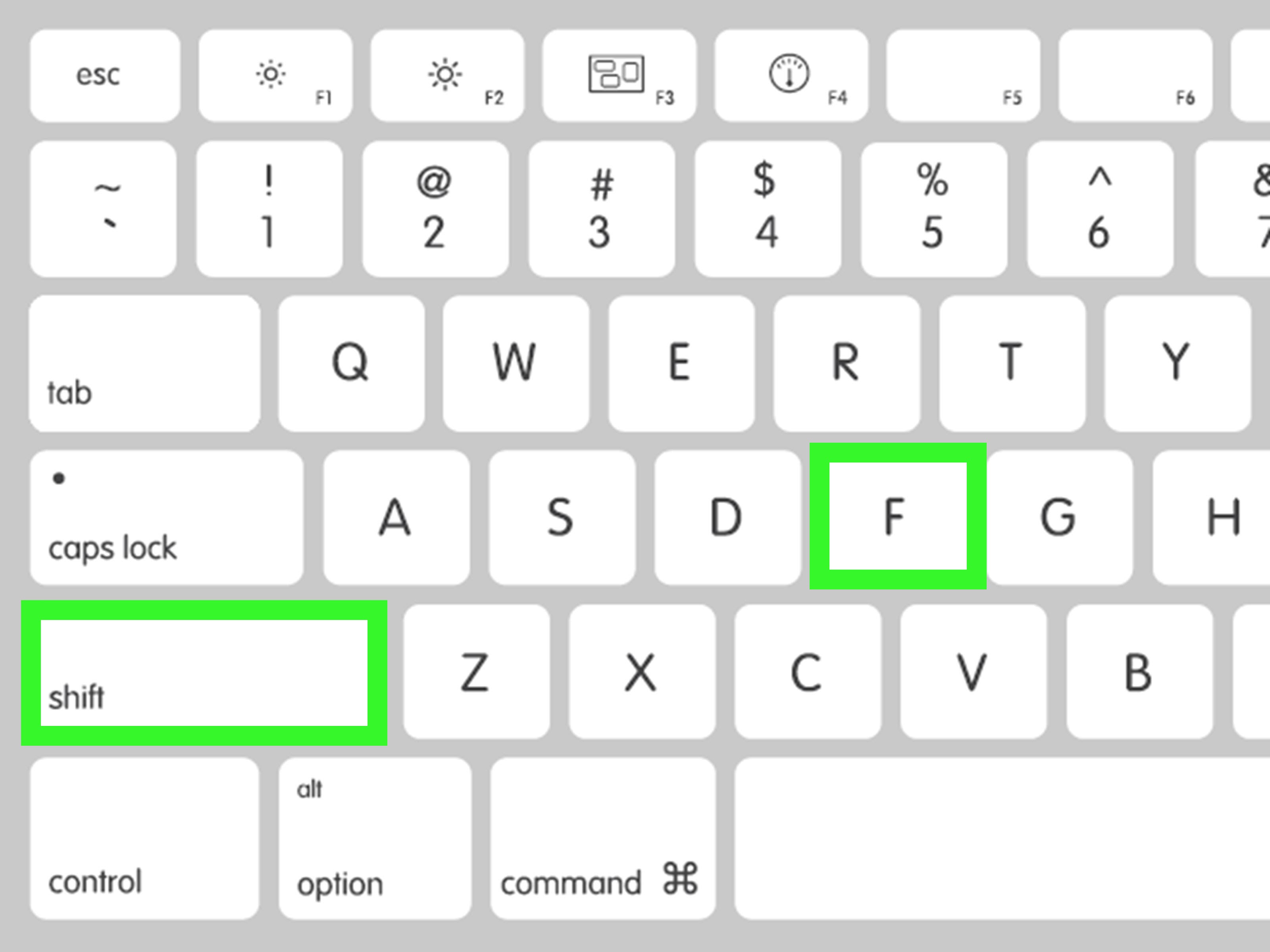
If you use an Apple keyboard, you may also be able to launch Spotlight with the Spotlight key or F4. However, this depends on your keyboard setup. If your top-row keys are set to work as standard function keys, you may need to press Fn + F4 instead. Yes, Mac keyboards can be a little dramatic about this.
Why Set or Change a Spotlight Shortcut?
There are several reasons you might want to customize your Spotlight shortcut instead of sticking with the default forever. The most common is convenience. If you launch Spotlight dozens of times a day, even a slightly easier shortcut can save time and reduce finger gymnastics.
Another reason is conflict. On some Macs, especially those using multiple input sources or language layouts, Command + Space may be assigned to switching input sources. When that happens, pressing the shortcut can do the wrong thing, nothing at all, or something so random it feels personal. Reassigning the shortcut fixes the issue.
Some users also disable Spotlight’s shortcut because they prefer a third-party launcher. Others simply want to keep the Finder search shortcut enabled while changing the main Spotlight trigger. macOS gives you room to do that without turning your keyboard settings into a science experiment.
How to Set and Enable a Spotlight Keyboard Shortcut on a Mac
Here is the cleanest way to enable or change your Spotlight shortcut in current versions of macOS.
Step 1: Open System Settings
Click the Apple menu in the top-left corner of your screen, then choose System Settings. If you are using an older version of macOS, the menu may say System Preferences instead. Same neighborhood, slightly older paint job.
Step 2: Go to Keyboard Settings
In the sidebar, click Keyboard. This is where macOS keeps many system-wide shortcut settings, including Spotlight. If you are the kind of person who enjoys customization, this area can become a very slippery slope.
Step 3: Open Keyboard Shortcuts
Click Keyboard Shortcuts. A new panel will appear with categories for Mission Control, Screenshots, Accessibility, Function Keys, Spotlight, and more.
Step 4: Select Spotlight
In the left column, click Spotlight. You should now see the available Spotlight-related shortcuts, including:
- Show Spotlight search
- Show Finder search window
Step 5: Enable the Shortcut
If the checkbox next to Show Spotlight search is unchecked, click it to enable the shortcut. This turns the Spotlight hotkey back on. If Spotlight has been mysteriously unavailable, this is the first place to check before blaming your keyboard, your cat, or the moon phase.
Step 6: Change the Key Combination
To set a different shortcut, double-click the current key combination next to Show Spotlight search, then press the new combination you want to use. Your new shortcut replaces the old one immediately.
A good custom shortcut usually includes at least one modifier key, such as Command, Option, Control, Shift, or Fn. Pick something easy to remember and unlikely to collide with a common app shortcut.
Step 7: Test It Right Away
Close System Settings and press your new shortcut. If Spotlight opens, congratulations. You have successfully trained your Mac to obey a new command. If it does not, keep reading, because macOS occasionally likes to add a plot twist.
How to Re-Enable the Default Spotlight Shortcut
If you changed the shortcut and now regret your choices, go back to System Settings > Keyboard > Keyboard Shortcuts > Spotlight. Double-click the custom shortcut and press Command + Space to set it back.
If things are especially messy, you can also use Restore Defaults in the Keyboard Shortcuts panel. That resets macOS keyboard shortcuts to their original settings. It is the shortcut version of saying, “Let’s all take a deep breath and start over.”
How to Enable the Finder Search Window Shortcut
Do not ignore the second Spotlight-related shortcut. Show Finder search window can be extremely useful, especially if you prefer searching inside Finder rather than using the floating Spotlight interface.
By default, this shortcut is usually Option + Command + Space. If it is disabled, just check the box next to it. If you want to customize it, double-click the existing shortcut and type a new one.
This is great for people who search for documents, folders, and file types all day long. Spotlight is fast, but Finder search gives you more room to filter results and browse without feeling rushed.
What to Do If the Spotlight Shortcut Is Not Working
If your Spotlight keyboard shortcut does nothing, try these fixes in order.
1. Make Sure the Shortcut Is Enabled
Go back to System Settings > Keyboard > Keyboard Shortcuts > Spotlight and verify that Show Spotlight search is checked. It sounds obvious, but obvious fixes pay rent.
2. Check for Shortcut Conflicts
macOS can warn you when a shortcut conflicts with another one. If you use multiple keyboard input sources, Command + Space or Option + Command + Space may be tied to input switching instead of Spotlight. Change the conflicting shortcut or assign Spotlight something else.
If a warning icon appears next to a shortcut, that is macOS politely telling you two commands are trying to occupy the same parking space.
3. Test Another Shortcut Combination
If your chosen keys still do not work, assign a different combination. Some app-specific shortcuts can interfere, and a cleaner combo may solve the problem instantly.
Examples of workable alternatives include Control + Space, Option + Space, or Control + Command + Space, assuming those are not already taken on your setup.
4. Check Your Function Key Settings
If you are trying to use F4 to open Spotlight and nothing happens, visit System Settings > Keyboard > Keyboard Shortcuts > Function Keys. If your Mac is set to use the top-row keys as standard function keys, you may need to press Fn + F4 instead of plain F4.
This is especially important for users with external keyboards, compact keyboards, or keyboards that were clearly designed by people who enjoy surprises.
5. Rebuild the Spotlight Index
If the shortcut opens Spotlight but results are incomplete, slow, or weird, the issue may not be the shortcut at all. It may be the Spotlight index. In that case, rebuild the index by opening System Settings > Spotlight, clicking Search Privacy, adding your disk or folder to the privacy list, waiting a few seconds, then removing it so macOS reindexes it.
This can take a while, especially on a Mac with lots of files. During indexing, Spotlight may feel sluggish, but it usually improves once the process finishes.
How to Add Spotlight to the Menu Bar
If you prefer having a clickable backup in case your shortcut stops cooperating, you can add the Spotlight icon to the menu bar. Open System Settings, go to Menu Bar, and make sure Spotlight is set to appear there.
The menu bar icon is not as fast as a keyboard shortcut, but it is handy for new Mac users, shared computers, or moments when your fingers forget their assignments.
Best Practices for Choosing a Custom Spotlight Shortcut
Not every key combination makes a good macOS shortcut. The best Spotlight hotkey should feel easy, natural, and conflict-free.
Keep It Comfortable
Choose a shortcut you can press without twisting your hand into a shape usually seen only in yoga classes and printer repair videos. If it feels awkward on day one, it will feel worse after week three.
Avoid Popular App Shortcuts
Do not steal common shortcuts like Command + F, Command + N, or Command + W. Those are heavily used across apps, and replacing them will turn normal computing into a sitcom.
Think About Your Workflow
If you use Spotlight to launch apps all day, make it extremely easy to reach. If you use it occasionally, a slightly more complex shortcut is fine. Match the shortcut to your habits instead of choosing something that looks cool in theory but never feels right in practice.
How Spotlight Helps You Work Faster on a Mac
Once you set and enable the right Spotlight keyboard shortcut, the payoff is immediate. You can launch apps without touching the Dock, open documents without digging through Finder, search settings without wandering through menus, and even run quick calculations or conversions from one small search field.
For example, instead of opening Finder, clicking Applications, scrolling to Terminal, and opening it, you can press your Spotlight shortcut, type Terminal, and hit Return. That is the difference between “I am getting work done” and “I am sightseeing inside my own computer.”
In newer macOS versions, Spotlight can also surface actions and shortcuts more intelligently, which makes the keyboard-first experience even more powerful. That makes having a reliable Spotlight hotkey more valuable than ever.
Common Mistakes to Avoid
When setting a Spotlight keyboard shortcut on a Mac, users usually run into the same handful of problems.
- They forget to enable the checkbox for Show Spotlight search.
- They assign a shortcut that conflicts with input-source switching.
- They try to use F4 without checking function key behavior.
- They confuse the main Spotlight shortcut with the Finder search window shortcut.
- They blame the shortcut when the real problem is broken or incomplete indexing.
Avoid those five mistakes and you are already ahead of a large percentage of the internet.
Final Thoughts
Setting and enabling a Spotlight keyboard shortcut on a Mac is one of those tiny changes that makes a surprisingly big difference. The default Command + Space shortcut is already excellent, but macOS gives you the flexibility to change it, disable it, restore it, or fine-tune related search shortcuts based on how you work.
If your current setup feels clunky, do not just live with it out of habit. Open Keyboard Shortcuts, test a few options, and choose a shortcut that makes your Mac feel faster every single day. That is the real magic of good keyboard shortcuts: they remove friction so quietly that after a while, you forget the friction was ever there.
And that, dear Mac user, is how you stop clicking your way across the desktop like it is 2009.
Experience Section: Real-World Use Cases and Everyday Lessons From Using a Spotlight Shortcut on Mac
After using Macs for work, writing, editing, and general life admin, one pattern becomes painfully clear: the people who love their Macs most are usually the ones who stop relying on endless clicking. A good Spotlight keyboard shortcut changes the rhythm of using a Mac. It makes the machine feel more immediate, almost like it is listening for instructions instead of waiting for you to dig through menus.
One of the first real benefits shows up in app launching. Instead of dragging your cursor to the Dock, searching visually for the right icon, and clicking it, you press your shortcut, type two or three letters, and hit Return. Safari, Notes, Terminal, Calendar, Preview, and System Settings all open in seconds. After a few days, using Spotlight starts to feel less like a feature and more like muscle memory.
Students often get the biggest payoff. A student writing a paper might use Spotlight to jump from Pages to a PDF, then to Safari, then back to Notes, all without breaking concentration. That sounds small, but reducing those little delays matters when you are working under pressure. The shortcut turns the Mac into a faster study tool because it removes the friction between intention and action.
Office workers and remote employees benefit in a different way. When your day is filled with Slack, Zoom, spreadsheets, folders, screenshots, and calendar invites, the default Mac interface can start to feel crowded. Spotlight cuts through the clutter. Many users end up launching almost everything through it because it is faster than hunting through multiple desktops, Finder windows, or the Dock.
There is also a confidence factor. Once you assign a shortcut that feels natural, you start trusting it. That trust leads to more keyboard-driven habits, and those habits make the whole system feel faster. It is a domino effect, but a helpful one.
Another common experience is troubleshooting. Many Mac users think Spotlight is broken when the real issue is a disabled checkbox, an input-source conflict, or incomplete indexing. Once they fix the shortcut settings and rebuild the index if needed, Spotlight usually goes back to being reliable. That moment is surprisingly satisfying. It is like discovering your car was not out of gas, the parking brake was just on.
Even creative users benefit. Designers, photographers, and video editors often need to open project folders quickly, locate reference files, or jump into utilities without leaving their workflow. A working Spotlight shortcut becomes the fastest doorway into those resources. It is not flashy, but it is incredibly practical.
The biggest lesson from experience is simple: the best Spotlight shortcut is the one you will actually use every day. If Command + Space works, keep it. If it conflicts with your language settings or another tool, change it. The goal is not to impress anyone with a fancy hotkey. The goal is to make your Mac feel smoother, faster, and less annoying. That is a worthy mission for two little keys.