
Downloading a resume from LinkedIn sounds like it should be as easy as clicking a giant button labeled “Make Me Employable.” Unfortunately, the internet prefers scavenger hunts. The good news: once you know where LinkedIn hides the right menus, exporting your LinkedIn profile as a PDF or downloading a previously uploaded resume takes only a few minutes.
This guide explains exactly how to download and export a LinkedIn resume in five easy steps, plus how to find resumes you uploaded for LinkedIn job applications, how to request your LinkedIn data archive, and what to check before sending the file to a recruiter. Whether you need a quick LinkedIn PDF resume, a backup of your work history, or a cleaner version for job applications, you are in the right place.
What Does “Download a LinkedIn Resume” Actually Mean?
Before we click anything, let’s clear up a common confusion. People use the phrase “LinkedIn resume” in three different ways:
- A PDF copy of your LinkedIn profile: LinkedIn can turn your profile into a simple resume-style PDF from your profile page on desktop.
- A resume you previously uploaded to LinkedIn: These are files you used for LinkedIn job applications, usually through Easy Apply.
- A custom resume built from your LinkedIn profile: Some users may have access to LinkedIn Resume Builder or use third-party resume builders to turn LinkedIn profile content into a tailored resume.
The fastest method is usually saving your LinkedIn profile as a PDF. It is handy when you need a quick backup, a basic resume draft, or a snapshot of your current profile. However, it is not always the best final resume for a serious job application. Think of it as instant coffee: useful, fast, and occasionally life-saving, but not the same as a carefully brewed cup.
How to Download and Export a LinkedIn Resume: 5 Easy Steps
Step 1: Update Your LinkedIn Profile Before Exporting
Before you export anything, review your LinkedIn profile. The PDF version pulls information from your profile, so outdated job titles, old skills, missing dates, and vague descriptions will travel straight into your downloaded file. LinkedIn is not a mind reader. It will not magically turn “Did stuff at company” into “Increased customer retention by 18% through a redesigned onboarding workflow.”
Start with your headline, About section, experience, education, licenses, certifications, skills, and contact details. Make sure your current role is accurate. Add measurable achievements wherever possible. For example, instead of writing “Managed social media,” write “Managed three social media channels and increased monthly engagement by 42% in six months.” Numbers help recruiters understand scope, impact, and credibility.
Also check your profile language. LinkedIn’s profile PDF export works best when the profile and language settings are in English. If your profile uses unsupported characters or a non-English language setting, the PDF may not render correctly or the export option may not appear. If you are preparing an English-language resume for U.S. employers, this is the right time to clean up phrasing, spelling, and formatting.
Step 2: Open LinkedIn on a Desktop Browser
To save your LinkedIn profile as a PDF, use LinkedIn on a desktop or laptop browser. This matters because the “Save to PDF” profile export feature is not available in the LinkedIn mobile app. If you are staring at your phone and wondering why the option is missing, congratulations: it is not you, it is the app being the app.
Go to LinkedIn.com and sign in. From the top navigation bar, click the Me icon, then choose View profile. This takes you to your own profile page. You can also save another member’s profile as a PDF if the feature is available to you, but most job seekers are looking to export their own profile for applications, records, or editing.
For the smoothest experience, use an updated browser such as Chrome, Edge, Firefox, or Safari. If LinkedIn behaves oddly, disable aggressive browser extensions temporarily, refresh the page, or try a private browsing window. Career progress should not be defeated by one grumpy extension named “CouponMegaWizard3000.”
Step 3: Click “More” or “Resources” in the Introduction Section
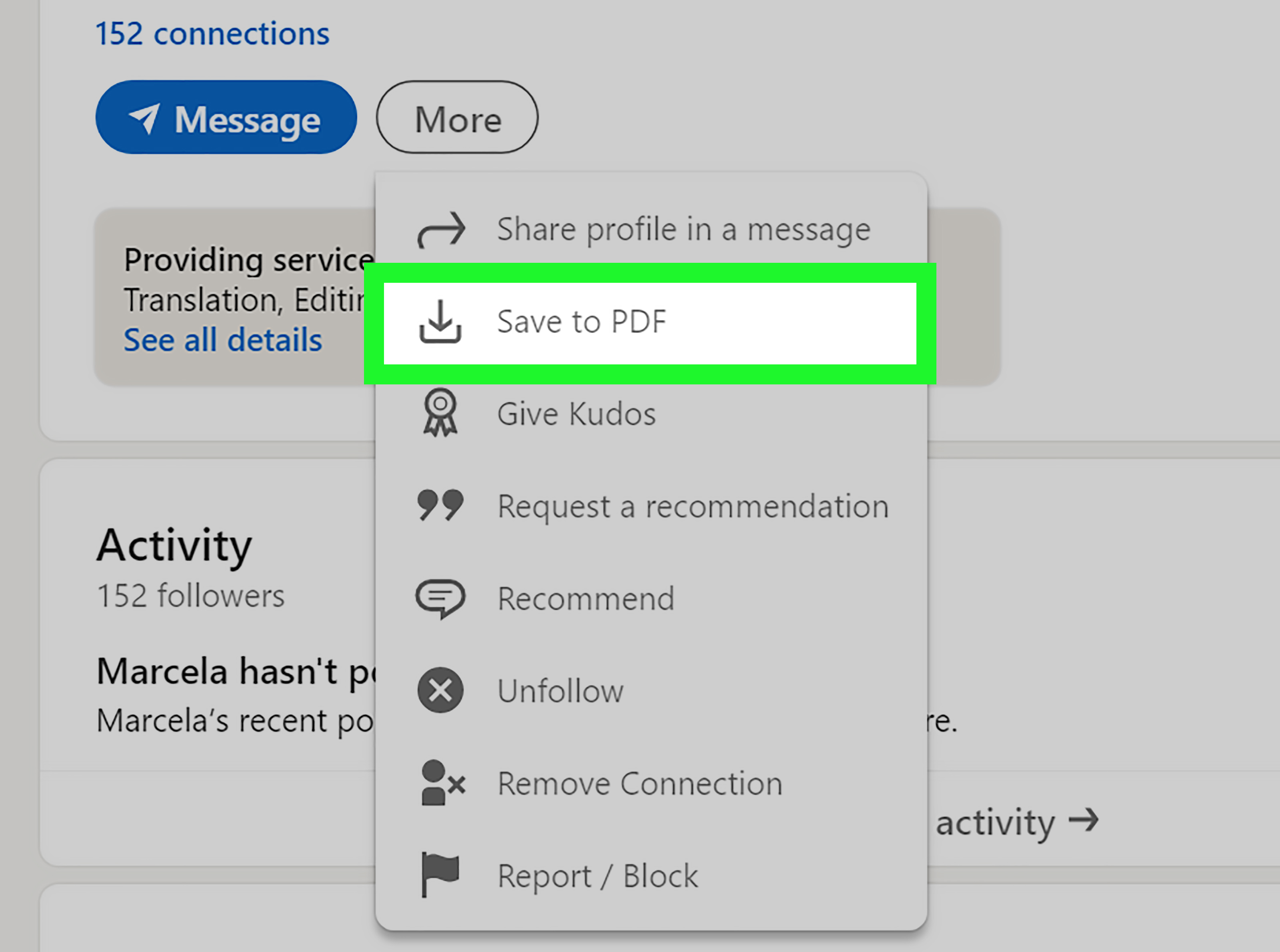
Once you are on your profile, look at the introduction section near your name, headline, location, and profile buttons. Depending on your account layout, you may see a button labeled More or Resources. Click it to open the dropdown menu.
In that menu, look for Save to PDF. This is the option that exports your LinkedIn profile into a resume-style PDF. LinkedIn occasionally tests interface changes, so button names may vary slightly by account. If you do not see the option, confirm that you are on desktop, your profile language is English, and you are viewing a profile that supports the export feature.
It is also worth knowing that LinkedIn limits profile PDF downloads. The limit can apply when saving your own profile and other members’ profiles, so if you are downloading dozens of profiles for research, recruiting, or networking, you may hit a monthly cap. For a normal job seeker downloading one or two copies of their own LinkedIn resume, this is rarely a problem.
Step 4: Select “Save to PDF” and Download the File
Click Save to PDF. LinkedIn should automatically generate and download a PDF file based on your profile. The file usually lands in your browser’s default Downloads folder unless you have changed your browser settings.
After downloading, rename the file immediately. A clear file name looks more professional and makes your life easier later. Use a format such as:
- FirstName-LastName-LinkedIn-Resume.pdf
- FirstName-LastName-Product-Manager-Resume.pdf
- FirstName-LastName-Data-Analyst-Resume-2026.pdf
Avoid file names like resume-final-final-newest-USE-THIS-one.pdf. We have all been there, but recruiters do not need to witness the archaeological layers of your job search.
Open the PDF and review it carefully. Check whether sections appear in the right order, whether bullets are readable, and whether important achievements are included. A LinkedIn PDF resume can be convenient, but it may not have the same polish as a resume built in Word, Google Docs, or a dedicated resume tool.
Step 5: Edit, Tailor, and Export a Better Application Version
The downloaded LinkedIn PDF is useful, but do not treat it as automatically ready for every job. A LinkedIn profile is usually broader than a resume. It may include more roles, more skills, more projects, and more general language. A strong resume, especially for U.S. job applications, should be targeted to a specific role.
Use the PDF as a starting point. Compare it with the job description you want to apply for. Identify the most important requirements, keywords, tools, certifications, and responsibilities. Then tailor your resume to show the best matching evidence. If a software engineering job emphasizes Python, APIs, cloud deployment, and team collaboration, those ideas should appear naturally in your resume if they honestly match your experience.
For example, a LinkedIn profile might say: “Worked on backend systems and internal tools.” A stronger resume bullet might say: “Built Python-based internal tools that reduced manual reporting time by 30% for a 12-person operations team.” Same person, same job, much better signal.
When possible, keep a master resume and create role-specific versions. LinkedIn’s PDF export is excellent for speed, but tailored resumes win interviews more often than generic ones. The robot scanner wants keywords. The human recruiter wants clarity. The hiring manager wants proof. Your job is to make all three stop squinting.
How to Download a Resume You Previously Uploaded to LinkedIn
If you uploaded a resume while applying for jobs on LinkedIn, you may be able to download that original file again. This is different from exporting your profile as a PDF. You are retrieving a file you already uploaded, not creating a new resume from your profile.
On Desktop
- Click Jobs at the top of your LinkedIn homepage.
- Click Preferences on the left side.
- Choose Resumes and application data under the My qualifications section.
- Click the More menu next to the resume you want.
- Select Download.
On Mobile
- Tap the Jobs icon in the LinkedIn app.
- Tap Preferences.
- Open Resumes and application data.
- Tap the More menu next to the resume.
- Choose Download.
LinkedIn stores a limited number of recently uploaded resumes for job applications. Usually, this applies to resumes uploaded through LinkedIn’s application flow, not resumes submitted on an external company website after clicking an “Apply” button. If you applied on a company’s own careers page, LinkedIn may not have a downloadable copy of that file.
How to Export Your LinkedIn Data Archive
There is another export option worth knowing: your LinkedIn data archive. This is not the same as a resume PDF, but it can be useful if you want a broader backup of your LinkedIn account information, profile data, connections, messages, recommendations, articles, or activity.
To request your LinkedIn data archive, go to Me, choose Settings & Privacy, select Data privacy, and find Get a copy of your data. From there, you can request specific data categories or a larger archive. LinkedIn generally sends an email when the archive is ready. A smaller data request may arrive quickly, while a larger archive can take longer.
This option is especially useful for professionals who treat LinkedIn as part of their career record. If you have years of recommendations, posts, connections, and profile edits, having an occasional backup is smart. It is the career equivalent of saving your work before the laptop battery hits 1%.
Common Problems When Exporting a LinkedIn Resume
The “Save to PDF” Option Is Missing
First, make sure you are using LinkedIn on desktop, not the mobile app. Next, check whether your profile language is set to English. If the option still does not appear, LinkedIn may not have made the feature available to your account, or the interface may be temporarily testing a different layout.
The PDF Looks Too Generic
That is normal. LinkedIn’s export is designed for convenience, not custom design. If the PDF looks plain, use it as a draft. Copy the strongest content into a clean resume template and tailor it to the job.
The Resume Is Too Long
Your LinkedIn profile may include more detail than a standard resume. For most U.S. job seekers, one page is common for early-career candidates, while two pages can work for experienced professionals. Cut older, less relevant information and focus on results that match your target role.
The Formatting Breaks or Characters Look Strange
Special characters, non-English language settings, unusual symbols, and formatting inconsistencies may affect the export. Simplify section text, use standard punctuation, and try again from a desktop browser.
You Cannot Find an Uploaded Resume
If the resume was not uploaded through LinkedIn’s job application system, it may not be stored in your LinkedIn resume settings. Search your computer, cloud storage, email attachments, or the job application portal where you originally submitted it.
Best Practices Before Sending a LinkedIn PDF Resume
Downloading the file is only half the job. Before sending it to a recruiter, hiring manager, or application portal, run through a quick quality check.
- Check contact information: Make sure your email address, phone number, location, and LinkedIn URL are current.
- Use a professional headline: “Marketing Manager | B2B SaaS | Demand Generation” is stronger than “Open to opportunities.”
- Prioritize achievements: Replace task lists with outcomes, metrics, and business impact.
- Match the job description: Include relevant skills and keywords naturally.
- Keep it readable: Short bullets beat giant paragraphs. Recruiters are busy, not medieval scholars decoding scrolls.
- Save a backup copy: Keep both the original LinkedIn PDF and your edited resume version.
LinkedIn Resume PDF vs. Traditional Resume: Which Should You Use?
A LinkedIn resume PDF is great when you need speed. It is useful for networking conversations, quick backups, informal sharing, and building a first draft. It can also help if you have not updated your resume in years and need to reconstruct your work history quickly.
A traditional resume is better when you are applying for a specific job. It gives you more control over layout, section order, keywords, and emphasis. You can remove irrelevant details, highlight the most important achievements, and create a stronger match for applicant tracking systems.
The best approach is to use both. Keep your LinkedIn profile complete and current, export it when needed, and maintain a polished resume document for applications. Your LinkedIn profile supports your professional brand. Your resume sells your fit for one role. They should agree with each other, but they do not need to be identical twins wearing matching conference badges.
Example: Turning a LinkedIn Export Into a Stronger Resume Bullet
Let’s say your LinkedIn profile says:
Responsible for customer support, onboarding, and account communication.
That is accurate, but it sounds like a job description. A resume should show performance. A better version could be:
Onboarded 85+ new customers, improved first-response time by 22%, and created support templates that reduced repeated ticket handling.
Now the reader sees scale, action, and results. This is why exporting your LinkedIn profile should be the beginning of the process, not the finish line. Download first, improve second, apply third, refresh inbox obsessively fourth. That last one is optional, but very human.
Real-World Experiences: What People Learn After Exporting a LinkedIn Resume
The first experience many job seekers have with downloading a LinkedIn resume is relief followed immediately by suspicion. The file downloads quickly, opens neatly, and looks official enough. Then they notice the summary is too broad, the job descriptions read like a profile instead of a resume, and the skills section includes items they clicked five years ago because a coworker endorsed them for “Microsoft Office” with the enthusiasm of a golden retriever.
One common lesson is that LinkedIn profiles are built for discovery, while resumes are built for selection. On LinkedIn, it makes sense to include a wide range of experiences because recruiters may search for different terms. Your profile can mention projects, volunteer work, publications, certifications, and career interests. A resume, however, needs discipline. It should answer one question quickly: “Is this person a strong fit for this job?” When applicants export their profile and compare it with a job posting, they often realize the PDF is a helpful raw material, not the final product.
Another experience involves forgotten achievements. Many professionals update LinkedIn more often than their resume. They add a new certification, announce a promotion, post about a project, or list a tool they recently learned. When they export the profile, they rediscover details that never made it into their formal resume. This can be a gift. A sales manager may remember a revenue win. A teacher may find a curriculum project. A developer may spot a technology stack that matches a new role. In that sense, the LinkedIn export becomes a career memory jogger.
There is also the “oops” moment. Exporting a LinkedIn resume exposes weak spots fast. Maybe the About section is written in the third person. Maybe an old internship still says “incoming.” Maybe two job titles do not match the resume already being sent to employers. Maybe a profile has a polished headline but experience bullets with no measurable results. Seeing everything in PDF form makes inconsistencies more obvious because the content feels like a document instead of a profile page.
Experienced job seekers usually develop a simple workflow. First, they update LinkedIn. Second, they export the profile as a PDF for backup. Third, they download any saved application resumes from LinkedIn if needed. Fourth, they create a tailored resume for each role. Finally, they keep file names organized by job type or company. It is not glamorous, but neither is losing the perfect resume version fifteen minutes before an application deadline.
The biggest takeaway is this: LinkedIn can help you move faster, but it should not make you careless. Use the platform’s download and export tools to save time, recover information, and build a strong foundation. Then add human judgment. Clean the language. Cut the fluff. Match the role. Show results. A LinkedIn resume export can open the door, but a tailored resume is what walks through it with confidence, a firm handshake, and hopefully no typo in the first line.
Conclusion
Learning how to download and export a LinkedIn resume is simple once you know which version of “resume” you need. To export your LinkedIn profile as a PDF, use LinkedIn on desktop, open your profile, click More or Resources, and select Save to PDF. To download a resume you previously uploaded for applications, go to Jobs, open Preferences, choose Resumes and application data, and download the file from there.
The smartest move is to treat your LinkedIn PDF resume as a starting point. It gives you a quick copy of your professional history, but a targeted resume gives you a better chance of matching the job, passing applicant tracking systems, and impressing real humans. Export the file, review it, improve it, and tailor it before sending. Your future selfand possibly your future managerwill appreciate the effort.
Note: LinkedIn menus and feature availability may vary by account, device, language setting, region, and product updates. If the profile PDF option does not appear, try LinkedIn on a desktop browser and check your profile language settings.