
Combining photos on Android sounds like something that should require a design degree, a paid app, and at least one dramatic sigh. Good news: it does not. Whether you want to place two pictures side by side, create a birthday collage, compare a “before and after,” or make a social media post that does not look like it was assembled during a power outage, your Android phone can handle it.
The easiest ways to combine photos on Android are to use Google Photos, Samsung Gallery, or Canva. These tools are free to start, beginner-friendly, and useful for different needs. Google Photos is best for quick collages. Samsung Gallery is excellent if you own a Galaxy phone and want a built-in option. Canva is the best choice when you want more control over templates, text, backgrounds, and social media sizing.
In this guide, you will learn how to combine photos on Android in three free and easy ways, plus practical tips for choosing the right layout, keeping image quality sharp, avoiding awkward cropping, and making your final photo look intentional instead of “my thumb slipped.”
Why Combine Photos on Android?
People combine pictures for all kinds of useful reasons. Sometimes you want to show progress, such as a room makeover, fitness transformation, haircut, recipe result, or art project. Other times, you want a compact collage for Instagram, Facebook, WhatsApp, a school project, a product listing, or a family memory board.
Combining photos also makes sharing easier. Instead of sending six separate images and forcing your friends to play detective, you can merge them into one clean visual. A photo collage can tell a story faster than a long caption. It can show a trip, compare options, highlight steps in a process, or turn a pile of random camera-roll moments into something that looks planned.
Before you start, decide what kind of combined image you need:
- Side-by-side image: Best for comparisons, before-and-after shots, and simple pairings.
- Grid collage: Best for birthdays, travel memories, recipes, pets, events, or product photos.
- Freeform collage: Best for creative layouts, mood boards, social posts, and designs with text.
Now let’s get into the three easiest methods.
Method 1: Combine Photos with Google Photos
Google Photos is one of the easiest ways to combine photos on Android because many Android phones already have it installed. It is simple, fast, and great for creating a clean collage without downloading another app. If your goal is to merge photos quickly and move on with your life, Google Photos is the “coffee before conversation” option.
Best for Quick Collages and Side-by-Side Photos
Google Photos works well when you want to combine two to six images into one collage. It offers collage templates and basic layout customization, including border adjustments and different design styles. It may not provide the same level of creative control as a full design app, but for everyday use, it is more than enough.
How to Combine Photos in Google Photos on Android
- Open the Google Photos app on your Android phone.
- Select the photos you want to combine. You can usually tap and hold one photo, then tap additional photos.
- Tap Create or the + option, depending on your app version.
- Choose Collage.
- Select a template or layout that fits your photos.
- Adjust the border, spacing, or style if the editor offers those options.
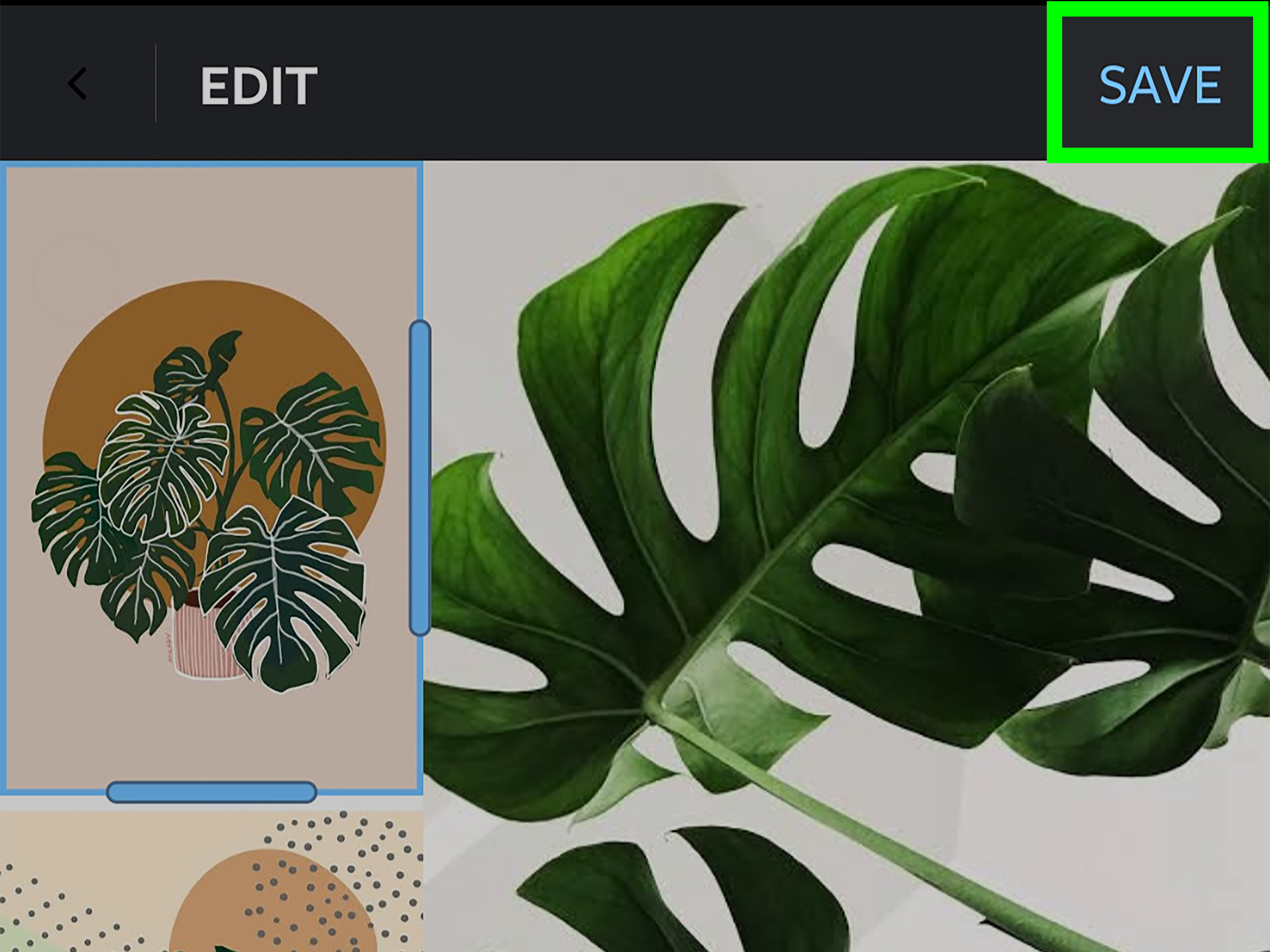
- Tap Save to store the final combined image in your library.
When Google Photos Is the Best Choice
Use Google Photos when speed matters more than advanced design. For example, if you want to combine two pictures of your dog looking innocent before and after destroying a pillow, Google Photos is perfect. Select the photos, create a collage, save it, and send the evidence to the family group chat.
Google Photos is also helpful because your photos are already organized there. You can search for people, places, screenshots, dates, or objects, then quickly turn selected images into a collage. That makes it ideal for travel recaps, food photos, school memories, and simple comparison images.
Pros and Cons of Google Photos
Pros: It is free, widely available, easy to use, and requires almost no learning curve. It is excellent for quick photo combining and basic collage layouts.
Cons: It has fewer creative tools than design apps. If you want stickers, brand colors, advanced text, layered designs, or precise social media templates, you may want a more flexible tool like Canva.
Method 2: Combine Photos with Samsung Gallery
If you use a Samsung Galaxy phone, you may already have a powerful photo-combining tool hiding in plain sight. Samsung Gallery can create collages directly from your phone’s built-in photo app. No extra download, no account setup, no “please subscribe to unlock the button you already tapped” nonsense.
Best for Samsung Galaxy Users
Samsung Gallery is especially convenient because it works locally with photos stored on your device. It lets you select multiple images, choose the collage option, arrange the layout, and save the finished image. Some Galaxy devices also support freeform collage features, allowing more flexible positioning and arrangement.
How to Combine Photos in Samsung Gallery
- Open the Gallery app on your Samsung Galaxy phone.
- Tap and hold to select the photos you want to combine.
- Tap Create.
- Choose Collage.
- Select a layout or freeform collage option if available.
- Adjust the photo arrangement, spacing, background, or frame style.
- Tap Save to export the finished image.
Why Samsung Gallery Is So Convenient
The biggest advantage is that Samsung Gallery feels native because it is native. You do not have to upload photos to another service or learn a new design system. It is right there in the app where your photos already live. This makes it a strong choice for anyone who wants to combine photos privately and quickly.
Samsung Gallery is also useful for people who take lots of screenshots, product photos, receipts, or comparison images. For example, if you are comparing three furniture options, you can combine them into one image and send it to a friend with the caption, “Please help before I buy another beige thing.”
Pros and Cons of Samsung Gallery
Pros: It is built into Galaxy devices, easy to access, and good for fast collages. It may offer more native layout flexibility than some basic collage tools.
Cons: It is mainly for Samsung users, and available features can vary by phone model, software version, and region. If you use a Pixel, Motorola, OnePlus, or another Android phone, Google Photos may be your built-in-style option instead.
Method 3: Combine Photos with Canva
Canva is the best free option when you want your combined photo to look designed rather than merely assembled. It is ideal for Instagram posts, Pinterest graphics, YouTube thumbnails, invitations, business promos, school projects, mood boards, and anything that requires text, colors, backgrounds, or templates.
Best for Social Media, Templates, and Creative Layouts
Canva offers photo collage templates, grids, frames, text tools, backgrounds, stickers, and resizing options. You can start with a blank canvas or choose a ready-made design. This is helpful when you know the final format you need, such as an Instagram square, story, flyer, poster, presentation slide, or Facebook post.
How to Combine Photos in Canva on Android
- Install and open the Canva app on your Android phone.
- Search for photo collage or choose a design size such as Instagram Post.
- Select a free template or start with a blank design.
- Upload your photos from your phone gallery.
- Drag each image into a grid, frame, or layout area.
- Add text, backgrounds, icons, borders, or stickers if needed.
- Tap Download or Share to save your combined photo.
When Canva Is the Smartest Choice
Choose Canva when presentation matters. Google Photos is great for “here are the pictures.” Canva is better for “here are the pictures, and yes, I have my life together for at least this one post.”
For example, if you are creating a birthday collage, Canva lets you add a title, decorative elements, colors, and a polished layout. If you are making a small business product comparison, you can add labels, prices, arrows, and brand colors. If you are making a school project, you can arrange photos neatly and include captions without opening a desktop editor.
Pros and Cons of Canva
Pros: Canva gives you more creative control, many free templates, easy text tools, social media sizes, and polished design options. It is excellent for collages that need to look professional or fun.
Cons: Some templates, photos, graphics, and advanced tools may require Canva Pro. It also takes a bit longer than Google Photos or Samsung Gallery because there are more design choices. In other words, Canva gives you freedom, and freedom sometimes means spending ten minutes choosing between two shades of blue that look exactly the same to everyone else.
Which Free Method Should You Use?
The best app depends on what you are trying to create. Here is the simplest way to decide:
- Use Google Photos if you want the fastest way to combine photos on most Android phones.
- Use Samsung Gallery if you have a Galaxy phone and want a built-in collage maker.
- Use Canva if you want templates, text, social media layouts, and more creative control.
If you are combining two photos for a before-and-after image, Google Photos or Samsung Gallery is usually enough. If you are making a visual for Instagram, a blog post, a flyer, or a small business promo, Canva is the better pick.
Tips for Making Better Combined Photos on Android
1. Choose Photos with Similar Lighting
A collage looks cleaner when the photos have similar brightness and color. If one image was taken in sunlight and another was taken in a dark room where happiness goes to nap, the final collage may feel uneven. Use your photo editor to brighten, crop, or adjust images before combining them.
2. Crop Before You Combine
Do not wait until the final collage to fix every photo. Crop each image first so the important subject is centered. This is especially helpful for faces, food, products, pets, documents, and comparison images.
3. Pick the Right Orientation
Use a horizontal layout for side-by-side comparisons. Use a square layout for Instagram posts. Use a vertical layout for Pinterest, stories, tutorials, or step-by-step images. Matching the layout to the platform saves you from awkward cropping later.
4. Do Not Overload the Collage
Just because you can combine twelve photos does not mean you should. A cluttered collage can look like a tiny photo stampede. For most uses, two to six images are enough. If every image is important, create multiple collages instead of one chaotic masterpiece.
5. Leave Space Around the Edges
Many apps and social platforms crop previews slightly. Keep faces, text, and important details away from the edges. Think of the border as a safety zone, not wasted space.
6. Use Text Only When It Helps
Labels such as “Before,” “After,” “Day 1,” “Day 30,” or “Option A” can make a combined photo much clearer. But do not cover the image with paragraphs of text. If the viewer needs reading glasses and emotional support, it is too much.
Common Problems and Easy Fixes
The Collage Option Is Missing
If you do not see the collage option in Google Photos or Samsung Gallery, update the app first. Also try selecting photos from the main photo feed instead of an album. Some features may move around after app updates, so check menus such as Create, More, Utilities, or the plus button.
The Final Image Looks Blurry
Blurry results usually happen when the original images are low resolution, heavily zoomed, or downloaded from messaging apps that compressed them. Use the original camera photos whenever possible. In Canva, choose a standard image download format and avoid repeatedly saving and re-uploading the same file.
The Photos Are Cropped Weirdly
Use layouts that match your photo shapes. Portrait photos often look better in vertical frames, while landscape photos fit horizontal grids. If a face or object is cut off, tap the image inside the frame and reposition it before saving.
The App Adds a Watermark
Google Photos and Samsung Gallery generally do not add watermarks to basic collages. Canva’s free designs can be exported without a Canva watermark when you use free elements. However, if you add premium images, graphics, or templates, you may be asked to pay or replace those elements before downloading.
Practical Examples of Combining Photos on Android
Here are a few real-world examples where combining photos is useful:
- Fitness progress: Place Day 1 and Day 60 photos side by side to show visible change.
- Home projects: Combine before, during, and after shots of a room makeover.
- Recipes: Show ingredients, cooking steps, and final dish in one grid.
- Product listings: Combine front, back, close-up, and detail photos for online selling.
- Travel memories: Turn several vacation photos into one shareable collage.
- School work: Combine diagrams, project photos, or experiment stages into one clean image.
- Pet evidence: Put the “innocent face” next to the destroyed slipper. Justice matters.
Experience-Based Notes: What Actually Works Best in Real Life
After using Android photo-combining tools in everyday situations, the biggest lesson is simple: the fastest app is not always the best app, and the most powerful app is not always necessary. Google Photos is usually the best starting point because it is already familiar. When you only need to combine two or three photos, opening a heavy design app can feel like renting a moving truck to carry a sandwich. Google Photos handles quick collages well, especially for personal sharing, family updates, progress pictures, and casual side-by-side comparisons.
For Samsung users, Samsung Gallery feels even faster because it works directly inside the phone’s native gallery. The process is smooth: select images, tap Create, choose Collage, adjust, save. There is very little friction. This matters more than people think. When a tool is easy, you actually use it. When it asks for a login, permissions, a tutorial, a subscription screen, and your emotional availability, you close it and go make coffee.
Canva becomes the better choice when the final image needs to impress someone other than your cousin. If the collage is for social media, marketing, invitations, classroom materials, or a blog graphic, Canva’s templates save time and make the result look polished. The app is especially helpful when you need text labels, brand colors, arrows, icons, or a specific size. For example, a small business owner can combine four product photos, add a price label, include a logo, and export a clean square post without touching a laptop.
The most common mistake is trying to combine too many photos into one image. A good collage needs breathing room. Four clear photos usually look better than ten tiny ones. Another common mistake is ignoring image orientation. Mixing tall portrait photos with wide landscape photos can create awkward cropping unless you choose the layout carefully. When in doubt, crop first. A thirty-second crop can save the final collage from looking like everyone in the photo leaned out of frame at the worst possible moment.
Lighting also makes a huge difference. Combining one bright outdoor photo with one yellow indoor photo can make the collage feel mismatched. Before merging, use basic edits like brightness, contrast, warmth, and crop. You do not need to become a professional photo editor. Just make the pictures look like they belong in the same family reunion.
For before-and-after photos, side-by-side layouts work best. Keep both photos the same size, use similar angles, and add small labels if needed. For memories, a grid layout is usually more pleasing. For creative projects, use a freeform layout in Samsung Gallery or a Canva template. For documents or screenshots, keep the background plain and avoid decorative stickers. Your phone bill does not need confetti.
Another practical tip: always save a copy rather than overwriting originals. Most apps create a new combined image, but it is still smart to keep the original photos untouched. This gives you room to remake the collage later in a different size or style. You may want a square version for Instagram, a vertical version for stories, and a horizontal version for a blog or presentation.
Overall, the best workflow is simple. Use Google Photos for speed, Samsung Gallery for built-in Galaxy convenience, and Canva for polished designs. Once you understand which tool fits which job, combining photos on Android becomes easy, fast, and surprisingly satisfying. It is one of those small phone skills that saves time again and again, like knowing how to take a screenshot or silence a group chat before it becomes a full-time job.
Conclusion
Combining photos on Android is easy once you choose the right tool. Google Photos is the fastest all-around method for simple collages. Samsung Gallery is a convenient built-in option for Galaxy users. Canva is the best free choice for creative layouts, social media graphics, text, and templates.
For quick side-by-side images, start with Google Photos or Samsung Gallery. For anything that needs polish, branding, captions, or a specific design size, use Canva. Keep your layout simple, crop before combining, use similar lighting, and avoid cramming too many images into one collage. Your final photo should tell a story clearly, not look like your camera roll sneezed.
Note: This article is based on current real-world Android photo editing features and official app guidance from major photo and design tools. Source links are intentionally not included in the article body for cleaner publishing.