
Google Drive is wonderful until it starts looking like a digital junk drawer: tax PDFs beside vacation photos, client files next to half-finished spreadsheets, and one folder named “Final_FINAL_v7_really_final” staring at you with judgment. Naturally, many users ask the same question: Can you hide folders in Google Drive?
The honest answer is: Google Drive does not have a traditional “hide folder” button like some operating systems do. You cannot right-click a folder and make it invisible only to yourself. Google Drive is built around ownership, sharing permissions, search, and organizationnot secret trapdoors. However, you can still make folders harder to see, harder to access, or less distracting by using two practical workarounds.
In this guide, we’ll walk through how to hide folders in Google Drive using two simple methods: restricting access through sharing settings and cleaning up visibility by moving, renaming, organizing, or removing shared folders from your view. These are not spy-movie tricks, but they work well for privacy, decluttering, and keeping sensitive files away from the wrong audience.
Can You Actually Hide a Folder in Google Drive?
Before we start clicking around like a raccoon in a filing cabinet, let’s clarify what “hide” means in Google Drive.
Google Drive does not offer a native feature called “Hide folder.” Unlike Windows or macOS, where you may be able to mark a folder as hidden, Drive focuses on access control. In other words, Google Drive cares less about whether a folder looks invisible and more about who can open it, edit it, share it, or find its contents.
That matters because there are two different goals people usually mean when they say they want to hide a Google Drive folder:
- You want to hide a folder from other people. This is a privacy and permissions issue.
- You want to hide a folder from yourself or your main Drive view. This is an organization and clutter issue.
The best workaround depends on which goal you have. If the folder contains private documents, contracts, invoices, school records, or sensitive work files, you should focus on permissions. If the folder is simply annoying to see every time you open Drive, you should focus on organization.
Workaround 1: Restrict Folder Access So Only Specific People Can Open It
The closest thing to truly hiding a folder in Google Drive is limiting who has access. If people cannot open the folder, the folder is effectively hidden from them in any meaningful way. They may not see it at all in some situations, or they may see a grayed-out folder they cannot open, depending on the folder location and Drive behavior.
This workaround is best when you own the folder or have permission to manage sharing settings. It is especially useful for personal files, confidential business folders, financial documents, private photos, HR materials, legal paperwork, and client work.
How to Restrict Access to a Google Drive Folder
- Open Google Drive on your computer.
- Find the folder you want to protect.
- Right-click the folder.
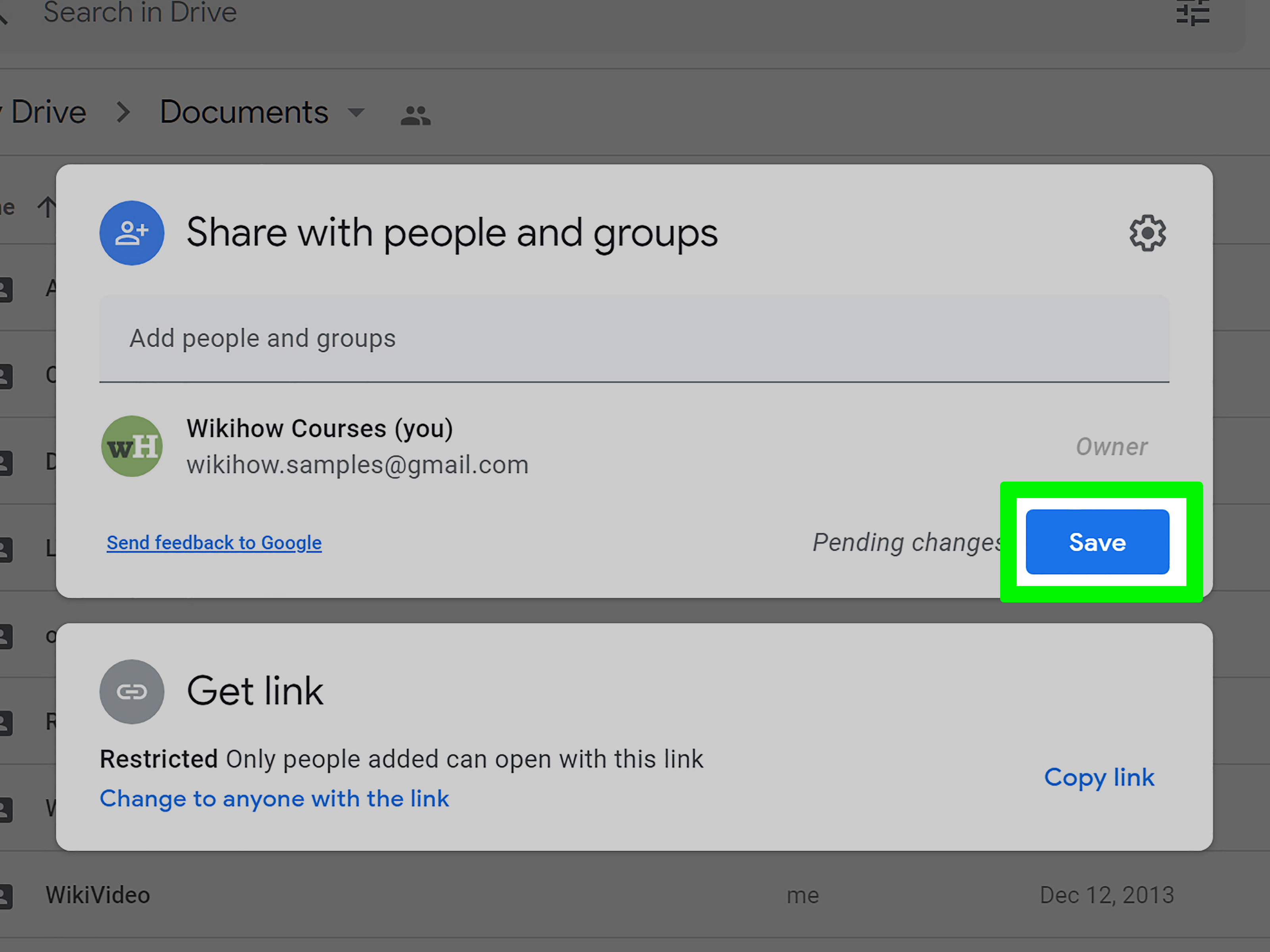
- Select Share.
- Look under People with access and remove anyone who should not have access.
- Under General access, change the setting to Restricted.
- Click Done or Save.
When a folder is set to Restricted, only the people you specifically approve can open it. This is much safer than leaving it set to “Anyone with the link,” which is basically the digital equivalent of taping your house key under a doormat and hoping only polite people find it.
When to Use Limited Access Folders
Google Drive also supports limited access behavior for folders in certain sharing situations. This is helpful when you have a larger shared folder but want one subfolder to be visible or accessible only to a smaller group.
For example, imagine you have a shared project folder called “Marketing Campaign.” Inside it, you might have subfolders for design assets, meeting notes, ad copy, and budget planning. The whole team may need access to most of the project, but only managers should access the budget folder. In that case, a limited access folder can help separate sensitive content without creating a completely separate Drive structure.
This is one of the most practical ways to “hide” folders from collaborators. You are not adding a cloak of invisibility. You are building a locked room inside a shared workspace.
Important Permission Rules to Remember
Google Drive folder permissions can be surprisingly powerful, but they can also be sneaky if you do not understand inheritance. Files and subfolders often inherit permissions from their parent folder. That means if a parent folder is shared with a person or group, items inside that folder may also be shared with them unless you use the right access controls.
Here are the big rules:
- If someone has access to a parent folder, they may also have access to the files and subfolders inside it.
- If you want a file to be more private than the folder around it, place it in a separate folder with stricter permissions.
- If a folder is shared with “Anyone with the link,” changing individual files may not be enough to protect everything.
- If you do not own the folder, you may not be able to change all sharing settings.
A good privacy habit is to right-click the folder, open Share, and review both People with access and General access. Do not assume a folder is private just because you forgot sharing it three years ago. Google Drive remembers. Google Drive always remembers.
Example: Hiding a Personal Finance Folder
Let’s say you have a folder named “2026 Taxes and Bank Records.” It contains W-2 forms, bank statements, receipts, and documents that should not be floating around your Drive like loose napkins.
To protect it, create a folder in My Drive, move those files into it, right-click the folder, select Share, remove unnecessary people, and set General access to Restricted. If you need to share it with your accountant, add only that accountant’s email address and give the lowest practical permission level, such as Viewer, unless editing is required.
This method does not merely hide the folder from casual view. It protects the folder from unauthorized access, which is far more important than making it look mysterious.
Workaround 2: Move, Rename, Remove, or Organize Folders to Keep Them Out of Sight
The second workaround is for people who want a cleaner Google Drive experience. Maybe the folder is not secret. Maybe it is just annoying. Maybe it is old, irrelevant, or shared by someone who apparently believes every meeting needs seven folders and a spiritual support spreadsheet.
In that case, your goal is not security. Your goal is visibility control. Google Drive gives you several organization tools that can make a folder less prominent without deleting it.
Option A: Move the Folder Into an Archive Folder
One simple trick is to create a folder called Archive, Old Projects, Reference, or something equally boring. Then move folders you do not need every day into that location.
To do this:
- Open Google Drive.
- Click New.
- Select Folder.
- Name it something like “Archive” or “Old Files.”
- Right-click the folder you want to hide from your main view.
- Select Organize, then Move.
- Choose your archive folder and click Move.
This does not make the folder invisible. It simply removes it from your most visible workspace. Think of it as putting rarely used kitchen gadgets in the top cabinet. The waffle maker still exists, but it is no longer judging you from the counter.
Option B: Rename the Folder So It Is Less Obvious
Renaming a folder can help reduce attention, especially if the folder name reveals sensitive information. A folder named “Divorce Papers,” “Layoff Planning,” or “Secret Birthday Party for Mom” is doing too much emotional labor in plain sight.
Instead, use neutral names such as:
- Records
- Reference Files
- Admin
- Archive 2026
- Project Notes
Renaming is not a security feature. Anyone with access can still open the folder. But it can prevent unnecessary curiosity if someone is viewing your screen or browsing a shared area with permission.
Option C: Remove Shared Folders From “Shared With Me”
If someone shared a folder with you and you no longer want to see it, you can often remove it from your Shared with me section.
Here is how:
- Open Google Drive.
- Click Shared with me in the left sidebar.
- Right-click the file or folder you no longer want to see.
- Click Remove.
This does not delete the original folder for everyone else. It simply removes it from your Drive view. The owner still owns it, collaborators may still access it, and the folder may reappear if you open it again through a link. Also, some items stored in shared drives may not be removable this way.
This is a great workaround for old class folders, former client materials, outdated team resources, and random shared items that have overstayed their welcome like a browser tab from 2021.
Option D: Use Shortcuts Instead of Keeping Everything in One Place
Google Drive shortcuts can help you organize files and folders without duplicating them. A shortcut points to the original item, which means you can keep the actual folder in a less visible place while placing a shortcut somewhere convenient.
This is useful when a folder belongs in an archive but you still need occasional access. Put the original folder where it belongs, then create a shortcut in a project dashboard or personal workspace. If you later remove the shortcut, the original folder remains intact.
Which Workaround Should You Choose?
Choose Workaround 1 if the folder contains sensitive information or if you need to hide it from other users. This is the best option for privacy and security.
Choose Workaround 2 if the folder is not sensitive but you want to reduce clutter. This is the best option for organization, focus, and making your Drive feel less like a digital storage unit after a tornado.
In many cases, the smartest approach is to use both. Restrict access to private folders, then move them into a clearly organized archive or admin folder. That way, the folder is both protected and out of your everyday view.
What Not to Do When Trying to Hide Google Drive Folders
Some “hiding” tricks sound clever but create bigger problems. Avoid these common mistakes:
Do Not Rely on Obscure Folder Names Alone
Naming a folder “zz_old_misc_do_not_open” might keep your eyes away from it, but it does not protect the contents. If someone has access, they can still open it.
Do Not Assume Removing a Shortcut Deletes Access
Deleting a shortcut removes only the shortcut. It does not delete the original folder or change who can access it.
Do Not Share Sensitive Folders With “Anyone With the Link”
This setting can be convenient, but it is risky for private documents. Use Restricted whenever a folder contains personal, financial, legal, academic, or confidential business information.
Do Not Forget About Parent Folder Permissions
If a private file sits inside a broadly shared folder, it may inherit access from the parent folder. For sensitive files, create a dedicated folder with tighter permissions.
Practical Experience: What Actually Works Best in Real Google Drive Use
After working with messy Drive setups, shared folders, client handoff systems, editorial calendars, project archives, and personal document libraries, one thing becomes clear: most people do not need a secret hide button. They need a better system.
The first experience-based lesson is that permissions beat camouflage every time. If a folder is sensitive, do not waste energy hiding it under a boring name and hoping nobody clicks it. Open the sharing settings and check exactly who has access. The most common privacy problem in Google Drive is not that folders are too visible. It is that users forget they shared something months or years ago. A folder may have started as a harmless collaboration space, then slowly turned into a storage box for files that were never meant for the original audience.
The second lesson is that “Shared with me” is not meant to behave like your personal filing cabinet. It is more like a stream of things other people have handed to you. Trying to perfectly organize every shared item can become a productivity trap. For important shared folders, create shortcuts in your own organized structure. For irrelevant folders, remove them from view when possible. For suspicious or spammy folders, report or block them instead of opening them out of curiosity. Curiosity is great for museums, less great for unknown shared files.
The third lesson is to create a simple folder architecture before Drive becomes chaotic. For example, a clean system might include top-level folders such as Active Projects, Admin, Finance, Personal, Archive, and Shared Resources. Sensitive folders go into the right category and receive restricted permissions. Old folders move into Archive. Frequently used folders get starred. Random clutter gets removed or ignored.
The fourth lesson is that naming conventions matter. A folder called “Stuff” will betray you. So will “New Folder,” “New Folder (1),” and “Actually Use This One.” Clear names make Drive easier to manage, while neutral names can reduce oversharing of sensitive context. For example, “Medical Records” may be accurate, but “Personal Records” may be more discreet if you often share your screen.
The fifth lesson is to schedule a quick Drive privacy check every few months. Open your most important folders, click Share, and review access. Remove former contractors, old classmates, outdated clients, and people who no longer need the folder. Also check whether general access is restricted. This five-minute habit can prevent awkward surprises later.
Finally, remember that hiding and organizing are not the same thing. Hiding is about reducing visibility. Securing is about controlling access. Organizing is about making things easier to find. A strong Google Drive setup uses all three ideas: private folders are restricted, old folders are archived, and important folders are easy for the right people to find.
Conclusion
Google Drive does not include a simple “hide folder” feature, but you still have smart options. If you want to hide a folder from other people, use sharing settings, restricted access, and limited access folders where available. If you want to hide a folder from your everyday view, move it into an archive, rename it, remove it from “Shared with me,” or use shortcuts to keep your workspace clean.
The key is knowing your real goal. For privacy, manage permissions. For clutter, organize your Drive. For both, combine the two methods and enjoy the rare luxury of opening Google Drive without immediately wanting to take a nap.
Note: Google Drive settings and menu labels may change over time, but the core idea remains the same: use access controls for privacy and organization tools for visibility.