
Note: This guide is written for people trying to unlock a Samsung J7 they legally own or are helping a family member recover with permission. It does not cover bypassing Factory Reset Protection, removing another person’s account, or using shady “magic unlock” tools that usually create more problems than they solve.
The Samsung Galaxy J7 may not be the newest phone on the block, but it still has that reliable “old pickup truck” energy: simple, sturdy, and surprisingly useful when treated right. Whether you found your old J7 in a drawer, bought one secondhand, or want to move it from one carrier to another, the word “unlock” can mean several different things. That is where many people get stuck before they even touch the screen.
In real life, “unlock a Samsung J7” usually means one of three things: unlocking it from a carrier so it can use another SIM card, recovering access when you forgot the screen lock, or resetting the phone so you can set it up again. Those are very different jobs. Mixing them up is like using a pizza cutter to open a bank account: technically both involve circles, but the plan is not going anywhere.
This guide breaks down three practical, legal, and realistic ways to unlock a Samsung J7. You will learn when each method makes sense, what information you need before starting, what data may be lost, and how to avoid the most common Samsung J7 unlock headaches.
Before You Start: What Kind of “Unlock” Do You Need?
Before tapping buttons like a nervous squirrel on a keyboard, identify the lock you are dealing with. A carrier lock stops the phone from working on another wireless network. A screen lock stops access to the phone’s home screen because of a forgotten PIN, password, or pattern. A Google account lock, often called Factory Reset Protection or FRP, appears after a reset and asks for a Google account previously synced to the phone.
The fix depends on the lock. A carrier unlock is handled by the wireless provider. A forgotten screen lock usually requires account recovery or a factory reset. FRP is a security feature, not a puzzle to “crack.” If the Samsung J7 asks for a previously used Google account after reset, the legitimate solution is to sign in with that account, recover the account through Google, or contact Samsung or the seller with proof of ownership.
Way 1: Unlock a Samsung J7 From Its Carrier
If your Samsung J7 works with one carrier but rejects another SIM card, you probably need a carrier unlock. This is also called a SIM unlock or network unlock. It does not remove your screen password, erase your photos, or reset your phone. It simply allows the device to connect to compatible wireless networks after the carrier approves the unlock.
When This Method Works
Use this method if your Samsung J7 shows messages such as “SIM network unlock PIN,” “Network locked,” “Invalid SIM,” or “Contact carrier” after inserting a different SIM card. It is also the right method if you bought the phone from AT&T, Verizon, T-Mobile, Cricket, Metro, Boost, or another carrier and want to use it with a different provider.
The phone must usually meet basic requirements. The account should be in good standing, the device should not be reported lost or stolen, and the phone may need to be paid off. Prepaid phones often require a period of active service before they qualify. Carrier rules change, so the exact timeline depends on where the Samsung J7 came from.
How to Request a Carrier Unlock
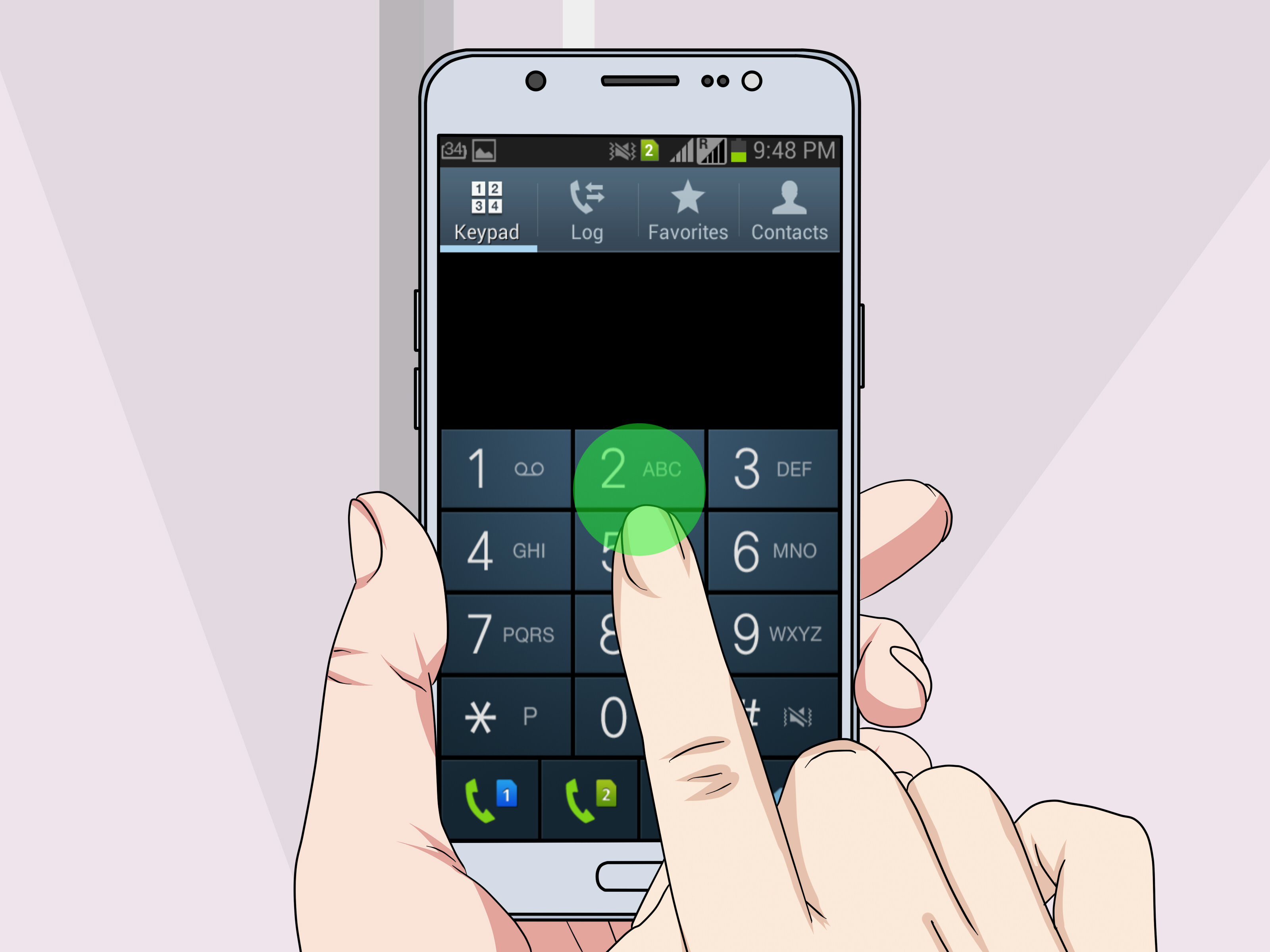
Start by finding your IMEI number. On many Samsung J7 models, you can open Settings > About phone. If the phone is accessible, you can also dial *#06# to display the IMEI. Write it down carefully. One wrong digit can turn a simple unlock request into customer-service ping-pong.
Next, contact the original carrier or use its official unlock portal. AT&T has a device unlock request system, and some eligible Samsung devices may unlock automatically once requirements are met. T-Mobile states that eligible devices may be unlocked remotely, while some phones require extra steps. Verizon’s current policy depends on plan type, payment status, and service history, especially after recent updates to its unlocking rules.
After approval, restart the Samsung J7 and insert the new SIM card. If the phone asks for an unlock code, enter only the official code from the carrier. Do not buy random codes from suspicious websites that look like they were designed during a thunderstorm. If the new SIM still does not work, check whether the J7 model supports the new carrier’s network bands. An unlocked phone still needs technical compatibility.
Carrier Unlock Checklist
- Confirm the Samsung J7 is not reported lost, stolen, or blacklisted.
- Make sure the device is paid off or meets prepaid service requirements.
- Find the IMEI number before contacting support.
- Use only the original carrier’s official unlock process.
- Test the phone with a compatible SIM card after approval.
The biggest advantage of a carrier unlock is that it keeps your data intact. Your photos, apps, contacts, and messages stay where they are. The downside is that you cannot force the unlock yourself if the carrier says the phone is not eligible. In that case, ask for the exact reason in writing. Sometimes the issue is simple, such as an unpaid balance or a phone that has not been active long enough.
Way 2: Recover Access With Your Samsung or Google Account
If you forgot the Samsung J7 screen lock, your first instinct may be to search for “unlock Samsung J7 without password.” Be careful. Many results promise a miracle and then deliver a download button wearing a fake mustache. Modern Android security is designed to protect your data, so there is usually no safe, official way to remove a forgotten screen lock without either knowing the correct credentials or erasing the phone.
Samsung’s SmartThings Find is useful for locating, locking, or erasing a Galaxy device remotely when the proper Samsung account and remote settings are already enabled. However, the old remote unlock option is not something users should rely on today. Samsung has changed SmartThings Find features for security reasons, and current official guidance focuses on locating, locking, and erasing rather than casually removing a forgotten PIN.
What You Can Try First
If you still remember the Google account or Samsung account on the phone, try recovering those accounts before resetting anything. Go through official Google account recovery if you forgot the password. If you recently changed your Google password, wait before performing a factory reset because account verification may temporarily delay setup after the reset.
If the phone is online and connected to your Samsung account, SmartThings Find may help you locate it, protect it, or erase it remotely. If it is connected to your Google account, Google Find Hub may also help you locate, lock, or factory reset the device. These tools are not loopholes; they are account-based recovery and security tools. They work best when you prepared them before getting locked out.
Important Warning About Data
If you cannot remember the screen lock, and the phone does not offer a supported account recovery option, the realistic official path is usually erasing the device. That means photos, downloads, app data, and local files stored only on the phone may be lost. Data backed up to Google, Samsung Cloud, Google Photos, or another backup service may be restored after setup.
This is why backups matter. They are boring until the exact day they become heroic. A Samsung J7 can be old enough that a family photo, a contact list, or an important note may exist only on the device. Before wiping anything, pause and check whether the data is backed up anywhere else. Look at Google Photos, Google Contacts, Samsung Cloud, Google Drive, or old microSD cards.
Way 3: Factory Reset the Samsung J7 and Set It Up Again
A factory reset is the last-resort method for a Samsung J7 with a forgotten screen lock. It removes the lock by erasing the phone and returning it to setup mode. This is effective, but it is not gentle. Think of it as moving out of a house by launching the furniture through the roof. It gets the job done, but you should understand the consequences first.
When a Factory Reset Makes Sense
Use a factory reset if the Samsung J7 is yours, you cannot remember the screen lock, account recovery does not solve the problem, and you accept that local data may be erased. It may also help if the phone is glitching badly, stuck on startup, or being prepared for a fresh setup. If you can still access the phone, remove your Google account before resetting it, especially if you plan to sell or give away the device.
Factory Reset Protection is important here. If the J7 was reset using hardware buttons while a Google account was still on it, the phone may ask for a previously synced Google account during setup. This protects lost or stolen phones from being wiped and reused. For legitimate owners, the solution is to sign in with the correct account or recover it through Google. For secondhand buyers, the cleanest solution is to ask the previous owner to remove the phone from their account properly.
Factory Reset From Settings
If you can still access the phone, the best reset method is through Settings. Back up important data first. Then look for Settings > Backup and reset > Factory data reset or Settings > General management > Reset > Factory data reset, depending on the J7 model and Android version. Review what will be erased, confirm, and let the phone restart.
This method is cleaner because the device knows the reset was started by someone with access to the phone. It also gives you a chance to remove accounts, back up files, and sign out before wiping everything. If you are selling the Samsung J7, remove both Google and Samsung accounts before the reset so the next owner does not inherit an expensive paperweight with a login screen.
Factory Reset With Hardware Buttons
If you are locked out, a Samsung J7 model with a physical Home button typically uses a button combination to enter recovery mode. Power the phone off. If it will not power off because it asks for the lock screen, allow the battery to run down, charge it briefly, and then continue. Press and hold Volume Up + Home + Power until the recovery screen appears. Use the volume keys to highlight Wipe data/factory reset, press Power to select, confirm the reset, and then choose Reboot system now.
After the reset, set up the phone normally. If it asks for a Google account previously used on the device, enter that account. Do not try to bypass this protection. If you bought the phone used and cannot contact the prior owner, gather proof of purchase and contact Samsung support or the seller. A legitimate paper trail is far better than a questionable “FRP removal” shortcut from a site that also thinks blinking banner ads are a lifestyle.
Common Problems When Unlocking a Samsung J7
The Phone Is Carrier Unlocked but Still Has No Signal
An unlocked phone is not automatically compatible with every carrier. The Samsung J7 was released in multiple variants, and different models support different network bands. A J7 made for one U.S. carrier may not work perfectly on another, especially for LTE data or voice features. Check the exact model number, such as SM-J700, SM-J727, or another carrier-specific version, and compare it with the new carrier’s bring-your-own-device compatibility checker.
The Reset Worked, but Google Verification Appeared
This is Factory Reset Protection doing its job. It does not mean the phone is broken. It means the phone wants proof that the person setting it up is connected to the account previously used on the device. Use the original Google account, recover the password, or contact the previous owner if the phone was purchased secondhand.
The Phone Asks for a PUK Code
A PUK code is different from a phone unlock code. It relates to the SIM card, usually after the SIM PIN has been entered incorrectly too many times. Contact the wireless carrier that issued the SIM card. Do not guess repeatedly, because too many wrong attempts can permanently disable the SIM.
SmartThings Find Does Not Show an Unlock Button
That is expected for many users today. SmartThings Find remains useful for finding, locking, and erasing Samsung devices, but the old remote unlock feature has been removed or limited for security reasons. If an article promises that SmartThings Find will definitely unlock your J7 without data loss, treat it like a sandwich found in a parking lot: maybe do not trust it.
Best Practices Before You Ever Get Locked Out Again
Once you regain access to your Samsung J7, take a few minutes to prevent the same problem from happening again. Set a screen lock you can remember but others cannot guess. Add a recovery phone number and recovery email to your Google account. Turn on backups for contacts, photos, messages, and device settings. Write down your account email somewhere safe, not in a note saved only on the locked phone. That is like hiding the spare key inside the house.
If you plan to sell or give away the Samsung J7, remove your Google account, remove your Samsung account, back up anything important, and then factory reset from Settings. After the reset, let the new owner start from the welcome screen. This avoids FRP confusion and makes the handoff much smoother.
If you are buying a used Samsung J7, test it before paying. Insert your SIM card, connect to Wi-Fi, and make sure the device can reach the home screen after a reset. Ask the seller to remove all accounts in front of you. A cheap phone is not a deal if it comes with someone else’s Google lock attached like digital chewing gum.
Real-World Experiences With Unlocking a Samsung J7
One common Samsung J7 experience starts with a simple carrier switch. A user buys a low-cost J7 from a friend, inserts a new SIM card, and sees an error message. The phone is not broken; it is locked to the original carrier. The best move is to identify the carrier, check the IMEI, and request an official unlock. The frustrating part is that the current owner may not be the original account holder. In that case, the carrier may require proof of purchase or may refuse the request if the phone does not meet its policy. This is why secondhand buyers should ask, “Is it carrier unlocked?” before handing over cash.
Another familiar situation is the forgotten pattern lock. Many people used a Samsung J7 as a backup phone, left it in a drawer for two years, and then expected their brain to remember a pattern invented during a completely different era of life. Spoiler: the brain often files that information under “probably gone forever.” If the data is backed up, a factory reset is usually straightforward. If the data is not backed up, the situation becomes more painful because modern Android security does not provide a simple official way to peek inside the phone without the lock.
Families also run into Samsung J7 unlock issues when a parent gives an old phone to a child or relative. The phone may look reset, but during setup it asks for the previous Google account. This usually means the device was reset without first removing the account. The fix is not a hack; the previous owner should sign in, remove the account, and reset the phone properly. When everyone is in the same room, this takes minutes. When the seller has vanished into the online marketplace fog, it becomes a customer support adventure with dramatic background music.
Travelers sometimes discover carrier locks at the worst possible moment. They land in another country, buy a local SIM card, and their Samsung J7 refuses to cooperate. The lesson is simple: unlock before you travel. Carrier approvals can take time, and compatibility should be checked in advance. A phone that works on Wi-Fi can still be locked from using local mobile service. Wi-Fi at the hotel is nice, but it does not help much when you are standing outside trying to call a ride.
Repair shops see another pattern: people confuse a screen lock, SIM lock, and Google account lock. A customer may say, “I need my Samsung J7 unlocked,” but the real issue is a SIM PUK code or a Google verification screen. The fastest solution begins with naming the lock correctly. If the phone rejects another carrier’s SIM, talk to the carrier. If it asks for a screen PIN, recover the account or reset the phone. If it asks for a previously synced Google account, use account recovery or proof of ownership.
The biggest experience-based takeaway is this: the safest Samsung J7 unlock method is rarely the flashiest one. Official carrier portals, Google account recovery, Samsung tools, and proper factory reset steps may sound less exciting than a one-click miracle program, but they are far less likely to damage your data, install junk software, or leave you stuck at a worse screen than before. Unlocking a Samsung J7 is not about beating the phone. It is about choosing the right door and using the right key.
Conclusion
There are three realistic ways to unlock a Samsung J7: request a carrier unlock, recover access through legitimate account tools, or factory reset the device and set it up again. The right choice depends on the type of lock. A carrier lock needs the original carrier. A forgotten screen lock may require account recovery or a reset. A Google verification lock requires the previously synced account or proof of ownership.
The Samsung J7 may be older, but the security rules around it are still serious. Avoid suspicious bypass tools, keep your accounts updated, and back up important data before trouble arrives. With the right method, a locked J7 can go from “tiny rectangle of frustration” back to a useful phone again.