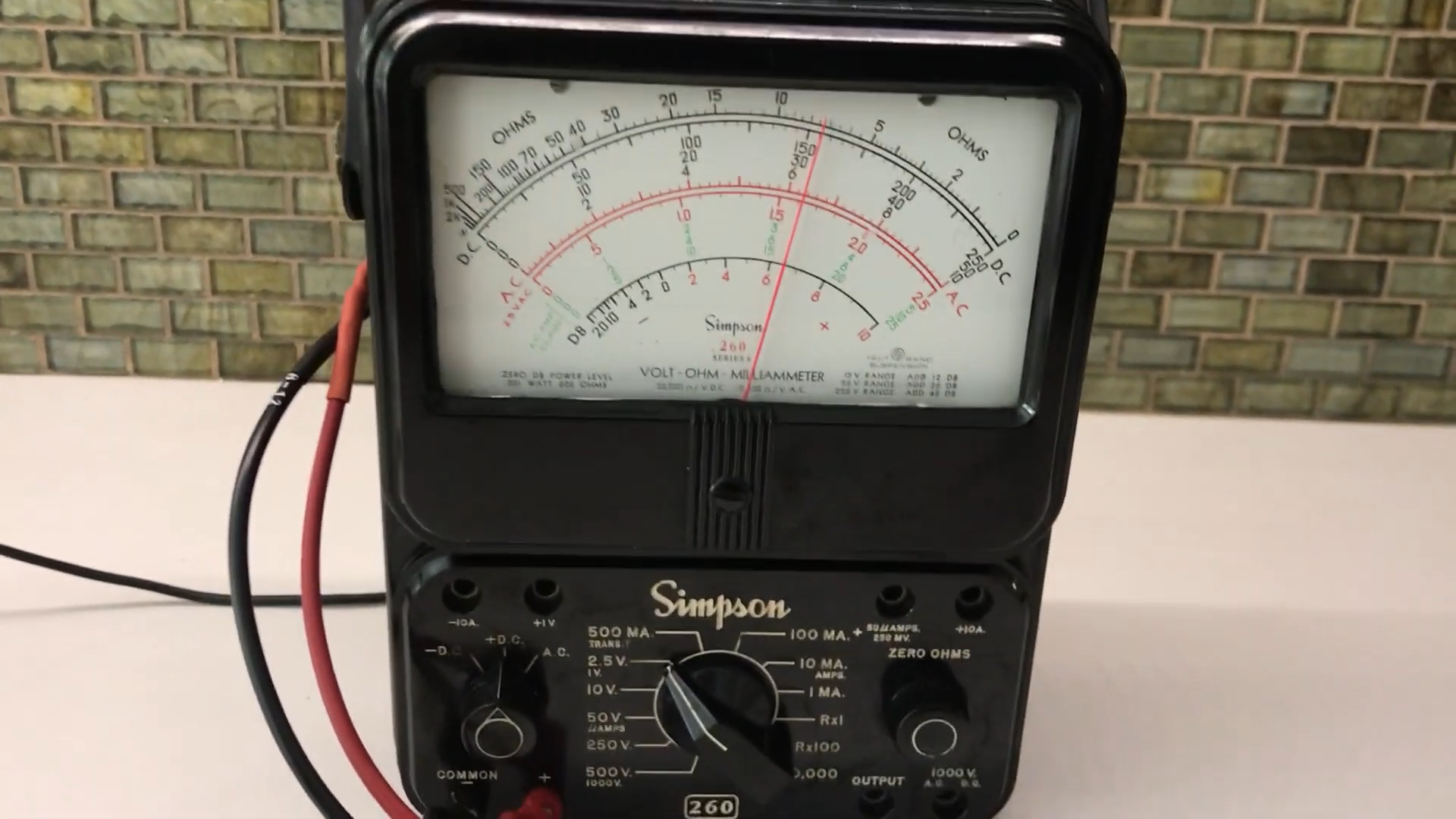

There are many ways to check whether your WiFi is working. You can open a browser, run a speed test, stare suspiciously at the router, restart everything in the house, or ask the family tech person the ancient question: “Is the internet down, or is it just my laptop being dramatic?” But one of the most charming answers comes from an unexpected place: a classic analog multimeter.
Yes, the same type of needle-swinging volt-ohm-milliammeter that once lived on workbenches, repaired radios, diagnosed car wiring, and made electronics students sweat during lab exams can be turned into a visible WiFi status monitor. In one clever DIY concept, a vintage Simpson 260-style meter is connected to a small WiFi-enabled microcontroller, such as an ESP8266, which regularly pings internet servers. Instead of showing volts or resistance in the usual way, the meter needle becomes a live indicator of network health.
The result is wonderfully nerdy and surprisingly useful. When the internet is healthy, the needle rests in a predictable range. When latency climbs, the needle moves higher. When the connection fails, the needle can wag back and forth like a tiny mechanical panic alarm. It is part network diagnostic tool, part desk sculpture, part “please stop blaming the printer” household peacekeeping device.
What This Classic Multimeter WiFi Project Actually Does
Despite the catchy idea, the multimeter is not directly measuring WiFi radio waves. It is not sniffing packets, decoding 802.11 frames, or judging your router’s fashion choices. Instead, the project uses the meter as an analog display for information gathered by a microcontroller.
Here is the basic idea: a small device connects to your home WiFi network, sends ping requests to a list of remote servers, measures the response time in milliseconds, and converts that number into a voltage. The analog multimeter reads that voltage, and its needle moves accordingly. A low ping produces a modest needle deflection. A high ping pushes the needle farther across the scale. If the device cannot reach the network or detects repeated ping failures, the meter can be programmed to sweep or “wag,” making the problem obvious from across the room.
That is what makes the build so satisfying. It takes invisible network behavior and turns it into motion. You do not need to unlock your phone, open an app, or explain to someone what “packet loss” means before coffee. You just look at the meter. If the needle is calm, the internet is probably alive. If it is twitching like a squirrel in a thunderstorm, something is wrong.
Why Ping Matters When Checking WiFi
Ping is one of the oldest and most useful network tests. It sends a small request to another device or server and waits for a reply. The time it takes for the message to go out and come back is called round-trip time, usually measured in milliseconds. In everyday language, people often call this latency.
Low latency means your connection responds quickly. High latency means your connection is slow to react, even if your download speed looks impressive on paper. That distinction matters. A video may buffer because bandwidth is limited, but a video call may freeze because latency and jitter are bad. Online games can feel terrible even when your speed test says everything is “fast.” A website may technically load, but every click feels like sending a letter by horseback.
A classic multimeter WiFi monitor focuses on this responsiveness. By pinging several servers and averaging the results, it can show whether the connection is not only alive but also behaving normally. If your usual ping is around 20 to 40 milliseconds and the needle suddenly jumps toward the danger zone, you have a clue that congestion, interference, router trouble, or ISP issues may be happening.
Why Use an Analog Multimeter Instead of a Digital Screen?
A digital display is precise, but an analog needle is expressive. That is the secret sauce. A number such as “37 ms” is useful if you are actively reading it. A needle, however, can be understood instantly. It gives you a sense of trend, rhythm, and instability.
Analog multimeters are especially good at showing changes over time. If a voltage fluctuates, the needle moves. If the signal is steady, the needle rests. This makes the meter feel alive in a way that a digital readout often does not. For a WiFi monitor, that physical motion becomes a simple language: steady means stable, high means slow, wild means trouble.
There is also the aesthetic factor. A vintage multimeter has personality. It looks like something from a laboratory, a garage, or a Cold War-era communications room. Pairing it with a tiny WiFi microcontroller creates a delightful contrast: old-school measurement hardware displaying modern internet anxiety. It is steampunk, but with fewer goggles and more practical value.
The Core Parts Behind the Build
1. A Classic Analog Multimeter
The star of the project is the analog meter itself. A Simpson 260-style VOM is a perfect candidate because it has a large, readable needle and a handsome vintage face. Other analog meters can work too, as long as they can safely display a low DC voltage and are not too valuable to modify or dedicate to the project.
The meter becomes a display rather than a traditional testing instrument. In many builds, the scale is interpreted creatively. For example, 10 milliseconds of ping might become 10 percent of full scale, 73 milliseconds might become 73 percent, and anything beyond 100 milliseconds might simply max out the reading. The exact mapping is up to the builder.
2. An ESP8266 or Similar Microcontroller
The ESP8266 is popular because it is inexpensive, compact, and has built-in WiFi. It can connect to a home network, ping remote servers, calculate response times, and output a signal that can be converted into a meter-readable voltage. An ESP32 or Raspberry Pi Pico W could also be used, depending on the builder’s comfort level and preferred programming environment.
The microcontroller is the “brain.” It decides which servers to test, how often to test them, how to handle failed responses, and how to translate network status into needle movement.
3. A Voltage Output Circuit
Most microcontrollers do not output a perfectly smooth analog voltage directly. Many use PWM, or pulse-width modulation, which can be filtered through a resistor-capacitor circuit to create a smoother voltage. Some builders may use a digital-to-analog converter for better precision. The goal is to feed the meter a safe, controlled voltage that corresponds to ping time.
This is where calibration matters. You do not want to overload the meter movement. A careful builder should use resistors, test with a known voltage, and verify the scale before letting the microcontroller drive the meter full time.
4. A List of Test Servers
Pinging only one server can be misleading. That server might block ping requests, experience temporary issues, or be far away. A better design cycles through multiple reliable targets and calculates an average. If several servers fail, the device can assume the local connection or internet path is having trouble.
This does not prove every website is working, but it gives a useful snapshot of internet reachability. In practical terms, it answers the question most people care about: “Is our connection generally online?”
What the Needle Can Tell You
A well-calibrated WiFi ping meter can communicate several useful things at a glance.
Internet Is Up
If the needle rests in its normal range, your home network is connected and remote servers are responding. That does not mean every app is perfect, but it suggests the main internet path is alive.
Latency Is Rising
If the needle drifts higher than usual, the connection may be getting slower. This can happen during peak evening hours, while someone is uploading large files, when a router is overloaded, or when WiFi interference increases.
The Connection Is Intermittent
A needle that jumps, falls, and jumps again may indicate unstable performance. This is where analog motion shines. A digital number might flash too quickly to interpret, but a moving needle makes instability visible.
The Network May Be Down
If the meter enters a programmed warning motion, such as wagging back and forth, the device may be unable to ping its targets. That can mean the WiFi network is disconnected, the router lost internet access, DNS is failing, or the remote targets cannot be reached.
What the Meter Cannot Tell You
As fun and helpful as this project is, it is not a complete network analyzer. It cannot directly measure WiFi signal strength in dBm unless the microcontroller is programmed to report RSSI separately. It cannot identify which neighbor’s router is crowding your 2.4 GHz channel. It cannot guarantee that Netflix, Zoom, or your bank website is working. It also cannot prove your ISP is blameless.
Ping has limitations. Some servers block ping. Firewalls, NAT devices, and network policies can affect results. A successful ping shows that a target is reachable, but it does not guarantee that higher-level services, such as a web server, are functioning correctly. Think of the meter as a quick dashboard light, not a full mechanic’s inspection.
How to Interpret the Readings
Every network is different, but a simple interpretation scale can help:
- 0–20 ms: Excellent responsiveness, especially for nearby servers.
- 20–50 ms: Normal for many home connections and everyday browsing.
- 50–100 ms: Noticeable delay may appear in gaming, video calls, or remote work tools.
- 100 ms and above: Slow or congested connection; worth investigating.
- No response: Possible outage, routing issue, WiFi drop, DNS problem, or blocked ping target.
For best results, the meter should be compared against your own baseline. A rural DSL connection, a fiber connection, and a crowded apartment WiFi network will not behave the same way. The useful question is not always “Is this number perfect?” but “Is this number normal for my setup?”
Real-World Troubleshooting Examples
The Work-From-Home Mystery
Imagine you are on a video meeting and the audio starts sounding like a robot trapped in a blender. You glance at the meter. The needle is suddenly high and unstable. That tells you the issue may not be the meeting app. Someone may be uploading a giant file, the router may be struggling, or the ISP may be congested.
The Gaming Lag Investigation
A gamer complains that the WiFi is “trash.” Very technical diagnosis, naturally. The meter shows normal latency while the complaint is happening. That suggests the problem might be the game server, the gaming device, a weak local WiFi signal in that room, or background downloads on the console. The internet connection itself may not be fully down.
The Router Placement Problem
If the meter behaves well when placed near the router but shows instability in another room, it may be revealing a local WiFi coverage issue. Thick walls, metal surfaces, furniture, baby monitors, microwaves, and crowded 2.4 GHz channels can all make WiFi less reliable.
Ways to Improve WiFi When the Meter Looks Unhappy
If the needle says your connection is struggling, start with practical fixes before buying new hardware. Move your device closer to the router. Place the router in a central, open location instead of hiding it behind a television, inside a cabinet, or next to a microwave. Restart the modem and router in the correct order. Check whether too many devices are using bandwidth at once.
Use the right WiFi band when possible. The 2.4 GHz band generally travels farther but is slower and more crowded. The 5 GHz and 6 GHz bands can be faster and more responsive but have shorter range and are more affected by distance and walls. For smart plugs and low-bandwidth devices, 2.4 GHz may be fine. For gaming, streaming, and video calls, 5 GHz or 6 GHz may perform better when signal strength is good.
If problems continue, test with Ethernet. A wired connection helps separate WiFi problems from ISP problems. If Ethernet works perfectly but WiFi does not, the issue is probably wireless coverage, interference, router settings, or client device behavior. If Ethernet also shows high latency or outages, the modem, ISP, or upstream connection deserves attention.
Safety Tips Before Building One
This project should stay in the low-voltage electronics world. Do not connect a modified meter circuit to mains power. Do not guess at wiring. Use current-limiting resistors and verify output voltage with a separate trusted meter before connecting your vintage display. If you are using a valuable collectible meter, consider leaving it unmodified and connecting through the existing voltage input instead of altering the movement.
It is also smart to label the finished device clearly. Once a multimeter is repurposed as a WiFi display, you do not want someone grabbing it later to test an outlet. That is how a charming project becomes a smoky educational moment.
Why This Project Feels So Brilliant
The beauty of the classic multimeter WiFi monitor is not that it replaces professional tools. It does not. The beauty is that it makes invisible information visible in a friendly, physical way. It turns network status into something anyone can understand without logging into a router dashboard.
It also gives old hardware a second life. Many analog meters are too useful to throw away but too inconvenient to use daily. Repurposing one as a ping meter preserves its character while giving it a new job in the modern home. The needle that once diagnosed amplifiers and power supplies can now diagnose whether your smart speaker is ignoring you because of WiFi or because it has developed an attitude.
Experience Notes: Living With a Classic Multimeter WiFi Gauge
The best part of a classic multimeter WiFi monitor is how quickly it becomes part of the room. At first, it feels like a novelty. People notice the old meter, ask what it does, and smile when the answer is, “It tells us if the WiFi is behaving.” But after a few days, it stops being a conversation piece and becomes a household instrument, like a thermostat or a clock.
One useful experience is learning what “normal” looks like. During quiet morning hours, the needle may sit low and steady. Around evening, when phones, laptops, TVs, game consoles, and smart devices all start sipping from the same bandwidth smoothie, the needle may rise a little. That rise is not necessarily a crisis. It becomes a pattern. You begin to understand your network’s daily personality, including its lazy afternoons and dramatic weekends.
The meter is especially helpful when people report vague problems. “The internet is slow” can mean almost anything. Maybe a website is overloaded. Maybe a laptop is installing updates. Maybe the router is hidden behind furniture like it owes someone money. With the meter in view, the first question becomes easier: is the wider connection healthy right now? If the needle is steady, you can look at the specific device. If the needle is swinging wildly, you know to investigate the network first.
It also teaches patience in a very analog way. Modern troubleshooting often feels like refreshing screens, opening apps, and reading logs full of tiny numbers. The multimeter slows the process down just enough to make it understandable. You see the needle rise when a large upload starts. You see it settle after the router reboots. You see it twitch when a microwave or crowded WiFi channel causes trouble. The movement feels honest.
For families, roommates, or small offices, the meter can reduce unnecessary arguments. Instead of everyone guessing, there is a shared visual indicator. If the needle is calm, the internet is probably not the villain. If the needle is wagging, nobody has to debate it. The meter has spoken, and it speaks with vintage authority.
Another pleasant surprise is how decorative it can be. A polished wooden enclosure, a softly lit scale, and a neatly routed cable can make the project look intentional rather than hacked together. It can sit on a shelf near the router or on a desk where remote workers can glance at it before blaming a conference call. It is functional art for people who think blinking LEDs are nice but moving needles have soul.
The experience also reveals the limits of quick diagnostics. Sometimes the meter says the internet is fine, yet one app still fails. That is not a flaw; it is a lesson. Connectivity has layers. WiFi, router, DNS, ISP routing, remote servers, and application services all have their own ways of causing trouble. The meter answers one important question, not every question. Used correctly, it narrows the search instead of pretending to be magic.
In the end, a classic multimeter WiFi monitor is memorable because it turns a common frustration into something visible, playful, and useful. It is a reminder that good tools do not always need glossy screens. Sometimes a needle, a microcontroller, and a little curiosity are enough to make the invisible internet feel wonderfully mechanical.
Note: This article is for educational DIY inspiration. Always keep projects low-voltage, protect the meter movement, and avoid modifying electrical equipment unless you understand the circuit and safety risks.