
That little apple.com/bill charge on your bank statement can feel like a mystery novel, except the villain is a forgotten free trial and the plot twist costs $9.99 a month. Whether you accidentally bought an app, forgot to cancel a subscription, paid for an in-app purchase you did not mean to approve, or spotted a charge you do not recognize, the good news is this: Apple gives users several clear ways to cancel, review, and request refunds.
The slightly less magical news? Canceling and refunding are not the same thing. Canceling a subscription helps stop future charges. Requesting a refund asks Apple to return money for a past purchase. And if the payment was made through Apple Pay to a third-party merchant, Apple may not be the company that can approve the refund. Tiny detail, big difference.
This guide explains how to cancel or refund a payment from Apple in four easy ways, with simple steps, realistic examples, and practical tips to help you avoid future billing surprises. Think of it as a financial cleanup session for your Apple Account, minus the emotional damage of deleting 11,000 blurry screenshots.
Before You Start: Know What Kind of Apple Payment You Have
Before you start tapping buttons like you are defusing a tiny digital bomb, identify the type of charge. Apple payments usually fall into a few common categories:
- App Store purchases: paid apps, games, in-app upgrades, game currency, or premium features.
- Apple subscriptions: Apple Music, Apple TV+, iCloud+, Apple Arcade, Apple Fitness+, or app subscriptions bought through the App Store.
- Media purchases: movies, TV shows, music, audiobooks, or books from Apple services.
- Apple Pay purchases: payments made with Apple Pay at stores, websites, or apps.
- Family Sharing charges: purchases made by family members using the shared payment method.
If the charge appears as apple.com/bill, it may be for an app, subscription, media purchase, iCloud storage, or another Apple service. If it came from a store or business where you used Apple Pay, the merchantnot Appleusually controls the refund. That distinction will save you time, stress, and possibly one dramatic support chat.
Way 1: Request a Refund From Apple Online
The fastest way to request a refund for an eligible App Store, iTunes Store, Apple Books, Apple subscription, or other Apple service purchase is through Apple’s official Report a Problem website.
How to request an Apple refund
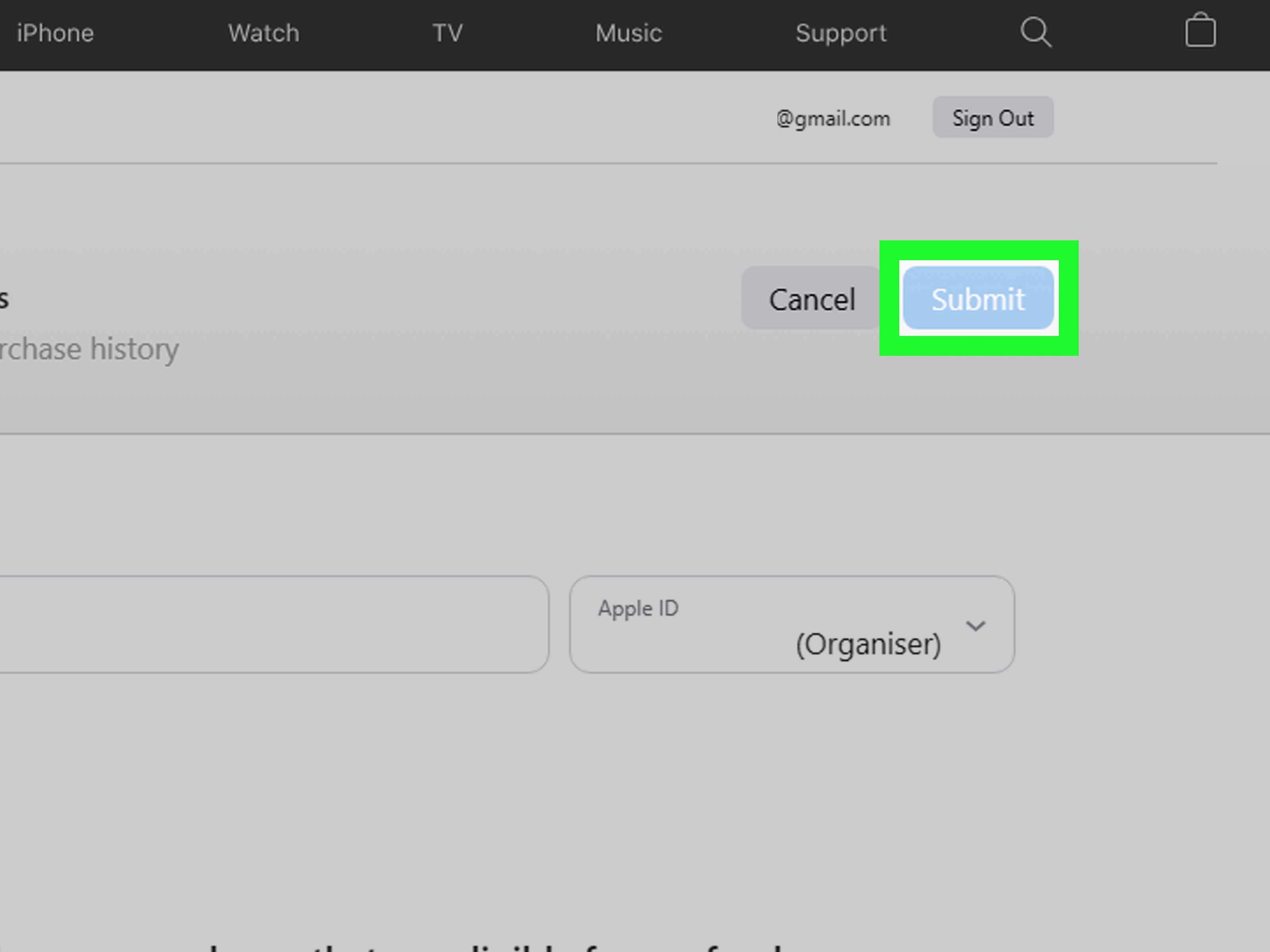
- Go to reportaproblem.apple.com.
- Sign in with the Apple Account used to make the purchase.
- Choose “I’d like to”.
- Select “Request a refund”.
- Choose the reason for your refund request.
- Select the app, subscription, in-app purchase, or content item.
- Click or tap Submit.
Apple usually asks you to pick a reason, such as accidental purchase, unauthorized purchase, wrong item, or a product that did not work as expected. Keep your explanation honest and brief. You do not need to write a courtroom speech. “I accidentally purchased this subscription and did not intend to continue it” is much better than “My thumb betrayed me in a moment of tragic touchscreen confusion,” even if both are emotionally accurate.
Example: Accidental in-app purchase
Suppose your child bought a $49.99 pack of dragon gems in a game. First, check the purchase in your Apple purchase history. Then go to reportaproblem.apple.com, select the purchase, and request a refund. Apple will review the request and decide whether the purchase is eligible.
How long does an Apple refund take?
After you submit a refund request, Apple typically needs 24 to 48 hours to provide an update. If approved, the money returns to the same payment method used for the purchase. Apple Account balance refunds may appear in up to 48 hours, credit card, debit card, Apple Pay, Apple Cash, and many other payment methods may take up to 30 days, and mobile phone billing refunds may take up to 60 days depending on the carrier.
Important refund limits
Not every Apple purchase is refundable. Eligibility can vary based on the item, country or region, payment status, and Apple’s review. If the charge is still pending, you usually need to wait until the receipt is issued before requesting a refund. If there is an unpaid order on your Apple Account, Apple may require you to pay that balance before requesting a refund.
Way 2: Cancel an Apple Subscription to Stop Future Charges
If your problem is a recurring charge, requesting a refund is only half the job. You also need to cancel the subscription so it does not renew again. Otherwise, you may win today’s refund battle and still lose next month’s $14.99 war.
How to cancel a subscription on iPhone or iPad
- Open the Settings app.
- Tap your name at the top.
- Tap Subscriptions.
- Select the subscription you want to cancel.
- Tap Cancel Subscription.
If you do not see a Cancel button, or you see an expiration message, the subscription may already be canceled. In many cases, you can keep using the subscription until the end of the paid billing period.
How to cancel a subscription on Mac
- Open the App Store.
- Click your name or sign in.
- Choose Account Settings.
- Scroll to Subscriptions and click Manage.
- Select the subscription and click Cancel Subscription.
How to cancel from a Windows PC
On Windows, Apple subscriptions may be managed through the Apple Music app or Apple TV app. Sign in, view your account, find subscriptions, and choose the subscription you want to cancel. If you still use iTunes for Windows, you may also be able to manage older Apple media account settings there.
Canceling does not automatically refund you
This is the part that causes the most confusion. Canceling stops renewal, but it does not always return money for the current billing period. If you were charged today and want the money back, cancel the subscription first, then request a refund through reportaproblem.apple.com. In other words: cancel to stop the leak, request a refund to mop the floor.
Way 3: Find and Verify an Apple Charge You Do Not Recognize
Sometimes the hardest part is not asking for a refund. It is figuring out what the charge even was. Apple purchases may be grouped, delayed, or charged after a free trial ends. A family member’s purchase may also appear on the organizer’s payment method.
Check your Apple purchase history
You can view your purchase history from your Apple Account. On iPhone or iPad, open the App Store, tap your profile picture, and choose Purchase History. You may be asked to sign in. If you know the exact charge amount, search for that amount. If you need older purchases, change the date filter from the last 90 days to a wider range.
Search your email receipts
Search your inbox for phrases like “receipt from Apple” or “invoice from Apple.” Look for the charge amount, purchase date, Apple Account email, and item name. This is especially helpful if you have more than one Apple Account, which is surprisingly easy to do if you have ever used a personal email, work email, or ancient address from the era when usernames had unnecessary numbers.
Check Family Sharing
If you are the Family Sharing organizer and purchase sharing is turned on, purchases from family members may be billed to your shared payment method. Before assuming fraud, ask family members if they bought an app, movie, game upgrade, or subscription. This conversation may be awkward, but it is still cheaper than guessing.
What to do if you still do not recognize the charge
If the charge appears in your Apple purchase history and is eligible, request a refund. If it does not appear, try signing in with other Apple Accounts. If you still cannot find it, contact Apple Support. If you believe your Apple Account has been used without permission, change your Apple Account password, review trusted devices, and add extra purchase protections.
Way 4: Handle Apple Pay, Merchant, or Card-Issuer Refunds
Not every payment involving Apple is actually billed by Apple. If you used Apple Pay at a coffee shop, clothing store, ride-share app, subscription website, hotel, or online retailer, Apple Pay acted like a secure wallet. The merchant still controls the sale and refund policy.
How Apple Pay refunds usually work
For purchases made with Apple Pay, contact the merchant first. Provide your receipt and any details the merchant asks for, such as the last four digits associated with the Apple Pay card number. When the merchant processes the refund, the money generally returns to the payment card used through Apple Pay. It may take several days or longer to show on your card statement.
How to view Apple Pay transactions
- Open the Wallet app on your iPhone.
- Tap the card used for the purchase.
- Review the latest transactions.
- Tap a transaction to see more details or report an issue if available.
Manage preauthorized Apple Pay payments
Some websites and apps use Apple Pay for recurring or deferred payments, such as subscriptions, automatic reloads, monthly bills, or installment payments. In Wallet, you may be able to view preauthorized payments and tap Manage with Merchant to adjust or cancel directly with the company.
In some cases, Wallet may allow you to revoke payment authorization. However, revoking payment authorization is not the same as canceling the subscription or service contract. To be safe, always cancel directly with the merchant as well. Otherwise, the merchant may keep billing you another way, and nobody wants a subscription that survives like a horror movie villain.
When to dispute a charge with your bank or card issuer
If you believe a charge is unauthorized, duplicated, or wrong, and Apple or the merchant cannot resolve it, contact your card issuer promptly. U.S. consumer billing rules give cardholders rights when disputing billing errors, but deadlines matter. Keep receipts, emails, screenshots, cancellation confirmations, and support chat records. A clear paper trail is boring until you need it; then it becomes your superhero cape.
Common Apple Refund and Cancellation Problems
The charge is pending
If the charge is pending, wait until it fully posts and you receive a receipt. Apple may not allow a refund request until the transaction is complete.
The subscription is not listed
If you cannot find a subscription under your Apple Account, it may be under another Apple Account, billed directly by the app developer, charged through a website, or connected to a different family member’s account.
The app says Apple must refund you
If the purchase was made through Apple’s in-app purchase system, Apple usually handles the refund request. If the purchase was made outside Apple’s billing system, the developer or merchant usually handles it.
The refund was approved but the money is missing
Check the refund status at reportaproblem.apple.com. If Apple says the refund was processed but you do not see the money after the expected window, contact your bank, card issuer, carrier, or financial institution.
You were charged after canceling
Look at the cancellation date and renewal date. If the subscription renewed before you canceled, you may still have been charged for the new cycle. Request a refund if you believe the charge should be reversed.
How to Prevent Accidental Apple Charges
The best refund is the one you never need to request. Apple gives users several tools to prevent accidental purchases, especially on shared family devices.
Use Screen Time restrictions
On iPhone or iPad, Screen Time can block in-app purchases, require approval, and limit access to certain types of purchases. This is especially useful if children use the device. It is also useful if you personally cannot be trusted around “limited-time offer” buttons. No judgment. Game designers are very good at making shiny things look urgent.
Require a password for purchases
Set your device to require a password, Face ID, or Touch ID for purchases. This extra step can stop accidental taps and reduce surprise charges.
Review subscriptions monthly
Once a month, open Settings, tap your name, and check Subscriptions. Cancel anything you no longer use. If a subscription’s main benefit is “I forgot I had it,” it may be time to let it go.
Keep receipts organized
Create an email folder for Apple receipts. When a charge appears on your statement, you can quickly match it to a receipt instead of digging through your inbox like a digital archaeologist.
Real-World Experiences: What People Learn When Canceling or Refunding Apple Payments
After handling Apple billing issues, most people learn the same lesson: the refund process itself is usually simple, but the detective work before it can be annoying. A charge may look mysterious because Apple sometimes bills purchases after a short delay, groups multiple small purchases together, or uses a label such as apple.com/bill that does not immediately say “your weather app subscription renewed while you were making coffee.”
One common experience involves free trials. A person downloads a fitness app, starts a seven-day trial, uses it once, and then completely forgets about it. A week later, the annual plan renews. The first instinct is panic. The better move is calm and mechanical: cancel the subscription, find the receipt, request a refund, and explain that the renewal was not intended. Apple may approve or deny the request, but submitting it quickly and clearly gives the user the best chance.
Another common situation is the family purchase surprise. Parents often discover charges for game currency, premium app features, or streaming rentals. The important thing is not to start by blaming the device, the child, or “the cloud.” First, check Family Sharing and purchase history. If a child made the purchase accidentally, request a refund and then use Screen Time restrictions to prevent repeat charges. The second part matters. Without prevention, the same issue can return wearing a different app icon.
Some users also run into confusion between Apple Pay and Apple billing. For example, someone may pay for a subscription on a website using Apple Pay and then look under Apple subscriptions to cancel it. Nothing appears. That is because Apple Pay was only the payment method; the subscription belongs to the merchant. In that case, the user needs to cancel through the merchant’s website or app. Wallet may help identify preauthorized payments, but it does not always cancel the underlying service agreement.
There is also the emotional roller coaster of refund timing. A refund may be approved, yet the money does not appear immediately. This can feel like the refund vanished into the same dimension as missing AirPods. In reality, the processing time depends on the payment method. Apple Account balance may update faster, while banks, card issuers, Apple Pay card refunds, Apple Cash, or mobile billing may take longer. The practical lesson is to check the claim status first, then contact the financial institution if the expected processing window has passed.
The smoothest experiences usually come from users who keep records. They save receipts, take screenshots of cancellation confirmations, note the date they requested a refund, and avoid submitting multiple confusing requests for the same charge. They also avoid waiting months before acting. Whether you are dealing with Apple, a merchant, or your card issuer, quick action and clean documentation make the process easier.
The final lesson is simple: cancellation is maintenance, refunding is recovery. Cancel subscriptions you no longer want before renewal dates. Use refund requests when a charge already happened and there is a valid reason to ask for money back. And once you clean up your Apple billing, spend five minutes reviewing purchase settings. Future you will be grateful, probably while holding coffee and not discovering another surprise subscription.
Conclusion
Learning how to cancel or refund a payment from Apple is mostly about choosing the right path. Use reportaproblem.apple.com for eligible Apple-billed purchases, cancel subscriptions from your Apple Account to stop future renewals, review purchase history to identify confusing charges, and contact the merchant for Apple Pay purchases made outside Apple’s billing system. If a charge is unauthorized or unresolved, your card issuer may be the next step.
The key is to act quickly, keep records, and remember that canceling and refunding are different actions. Once you understand that, Apple billing becomes much less mysteriousand your bank statement becomes a little less dramatic.
SEO Tags