
Changing your MSN password is one of those tiny digital chores that feels boring right up until it saves your inbox, your photos, your Microsoft 365 files, your Xbox profile, and possibly your sanity. The good news? MSN email accounts are managed through your Microsoft account, so the process is much more straightforward than people expect. The slightly less glamorous news? You still need to pay attention to verification codes, recovery options, and password strength unless you enjoy arguing with login screens like they are tiny courtroom judges.
Whether you use an old @msn.com address, Outlook.com, Hotmail, Live, or another Microsoft account alias, your password is changed through Microsoft’s account security page. In this guide, you will learn how to change MSN password in eight clear steps, what to do if you forgot your password, how to create a stronger replacement, and how to protect your account after the change.
This guide is written for everyday users, not cybersecurity robots wearing sunglasses. Let’s get your MSN password updated without turning the process into a three-act drama.
What Is an MSN Password Today?
Before jumping into the steps, it helps to clear up one common confusion. MSN used to be a major Microsoft web portal and email brand. Many people still use older MSN email addresses, but those accounts are now handled through the broader Microsoft account system. That means your MSN password is usually the same password you use for Microsoft services such as Outlook.com, OneDrive, Skype, Xbox, Microsoft Store, and Microsoft 365.
In simple terms: when you change your MSN password, you are usually changing your Microsoft account password. That is powerful, convenient, and a little like changing the master key to your digital apartment building. Make the new key strong.
How to Change MSN Password: 8 Steps
Step 1: Go to the Microsoft Account Security Page
Open your browser and go to the official Microsoft account sign-in page. Do not search randomly and click the first dramatic-looking result. Password changes should always begin from Microsoft’s official account site or from a trusted Microsoft app. This reduces the risk of landing on a fake sign-in page designed to steal your login details.
Once you are on the Microsoft account page, sign in using your MSN email address and current password. If your account uses a different alias, such as an Outlook or Hotmail address, use the email address connected to the Microsoft account you want to update.
A useful habit is to check the address bar before entering your password. The page should belong to Microsoft. If the web address looks strange, misspelled, or suspicious, close it. Your browser is not being rude; it is trying to keep you from stepping on a digital rake.
Step 2: Open the Security Section
After signing in, look for the Security section in your Microsoft account dashboard. This is where Microsoft places password controls, sign-in options, verification settings, recent activity, and other account-protection tools.
You may be asked to verify your identity before viewing sensitive security settings. This is normal. Microsoft may send a code to your backup email address, phone number, authenticator app, or another security method already connected to your account.
If you no longer have access to your recovery email or phone number, do not ignore that problem. Update your security information as soon as possible, because recovery details are what help prove that you are really the account owner if you ever get locked out.
Step 3: Select “Change Password”
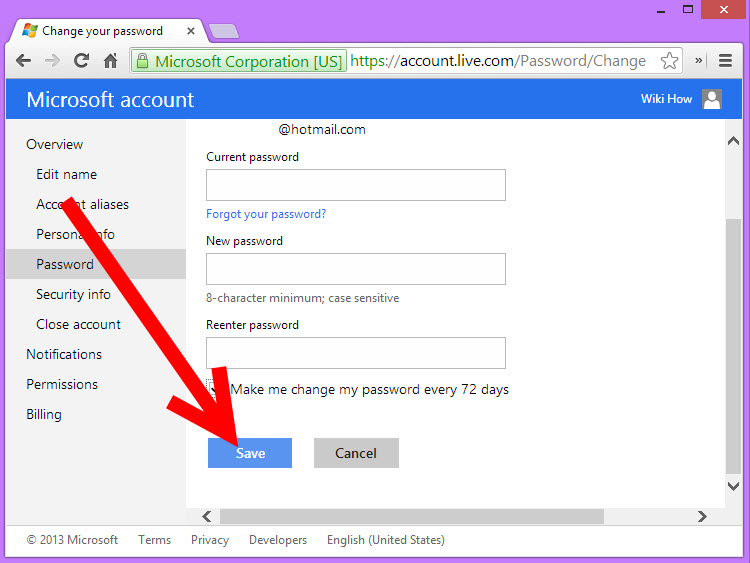
Inside the Security area, choose Change password. Microsoft may ask you to enter your current password again. This extra check helps prevent someone from changing your password just because you left your laptop open while getting coffee.
If you are already signed in on a trusted device, the process may feel quick. If Microsoft notices anything unusual, such as a new device or location, it may require additional verification. That can feel annoying, but it is the useful kind of annoying, like a smoke alarm that interrupts dinner but saves the kitchen.
At this point, do not rush. Password mistakes often happen when people type too fast, copy the wrong saved password, or forget which Microsoft account they are changing. Confirm that the account shown on the screen is the MSN account you actually want to update.
Step 4: Enter Your Current Password
Type your current MSN or Microsoft account password into the required field. If you use a password manager, allow it to fill the password only if the website address is correct. A password manager can be your best friend, but it should never be treated like a magic vending machine for credentials.
If your current password does not work, check basic issues first. Make sure Caps Lock is not on, confirm the email address is correct, and try typing the password slowly. If it still fails, you may need to use Microsoft’s password reset process instead of the normal password change page.
This difference matters: changing a password usually means you know the old one; resetting a password means you forgot it or cannot sign in. Both are useful, but they are not the same road.
Step 5: Create a Strong New Password
Now create your new password. This is the part where many people type the name of a pet plus “123” and hope the internet will be kind. Please do not do that. The internet is not kind. The internet is a raccoon with Wi-Fi.
A strong MSN password should be long, unique, and hard to guess. A passphrase can work well because it is easier to remember and harder to crack. For example, a phrase made from unrelated words, mixed with numbers or symbols where allowed, is usually stronger than a short “complex” password that follows a predictable pattern.
Do not reuse a password from another site. If one site has a data breach, attackers often try the same email and password combination on Microsoft accounts. This tactic is called credential stuffing, and it works mainly because people reuse passwords. Your password should be loyal to one account only. No password should be dating the entire internet.
Also avoid obvious personal details such as your birthday, school name, favorite team, phone number, or anything someone could guess from your social media profiles. If your password could be guessed by someone who has seen your Instagram bio, it is not a password; it is a welcome mat.
Step 6: Confirm the New Password
Microsoft will ask you to type the new password again. This confirmation field helps catch typos before they become login problems. Take a few extra seconds here. Make sure the password is exactly what you intend to use.
If you use a password manager, save the new password immediately after the change is accepted. If you write it down temporarily, store it somewhere private and move it into a secure password manager as soon as possible. Do not save it in a plain text file named “passwords,” because that is basically putting a treasure map on your desktop.
After confirming the password, submit the change. Microsoft should display a message that the password was changed successfully. You may receive a security notification by email. That message is normal when it comes from Microsoft’s official account-protection domain, but you should still be careful with any email that asks you to click a link and sign in.
Step 7: Sign Back In on Your Devices
Once your MSN password changes, you may need to sign in again on devices and apps connected to your Microsoft account. This can include Outlook, Windows Mail, Microsoft 365 apps, OneDrive, Skype, Xbox, and mobile email apps.
If your email stops syncing after the password change, do not panic. Open the app settings, update the saved password, or remove and re-add the account if necessary. Most sync issues after a password change are not disasters; they are just apps being dramatic because their old login token no longer works.
For better security, review where your Microsoft account is signed in. If you see a device or session you do not recognize, take action from the security dashboard. A password change is helpful, but checking active sessions and recent activity gives you a clearer picture of whether someone else may have accessed the account.
Step 8: Review Security Info and Turn On Two-Step Verification
After changing your MSN password, review your account security information. Make sure your recovery email address, phone number, and verification methods are current. If your recovery phone number belongs to a phone you lost three years ago, your account security is basically depending on a ghost.
Consider enabling two-step verification or another multi-factor authentication method. With two-step verification, signing in requires your password plus another proof, such as a code, an authenticator app approval, or another trusted method. This makes it much harder for someone to access your account even if they somehow learn your password.
Microsoft also offers modern sign-in options such as Microsoft Authenticator and passwordless sign-in. These tools can improve account security and reduce dependence on memorized passwords. At minimum, make sure your account has more than one recovery method. If you ever lose access to one method, you will be very glad you prepared a backup.
What If You Forgot Your MSN Password?
If you cannot remember your MSN password, use Microsoft’s password reset process instead of the standard change-password page. On the sign-in screen, choose the option for a forgotten password, verify your identity, and follow the prompts to create a new password.
Microsoft may ask where to send a verification code. This could be a backup email address, phone number, or authenticator app. If you recognize one of the options, choose it, receive the code, and enter it on the Microsoft page. Then create a new password and sign in again.
If you do not recognize or cannot access the verification options, Microsoft may direct you to an account recovery form. Fill it out as accurately as possible. Use a device and location where you have signed in before, if available. Provide details such as previous passwords, email subjects, contacts, Skype names, Xbox information, or billing details if they apply to your account. The goal is to prove ownership without giving Microsoft support agents the ability to simply hand over accounts, which would be convenient for you but also convenient for thieves. Bad trade.
How to Choose a Better MSN Password
A better password does not have to look like a cat walked across your keyboard during a thunderstorm. In fact, long and memorable is often more practical than short and chaotic. A strong approach is to use a unique passphrase that combines unrelated words, numbers, and symbols in a way that is easy for you to remember but hard for others to guess.
Here are practical rules for a stronger MSN password:
- Use a password you have never used anywhere else.
- Make it long enough to resist guessing and cracking attempts.
- Avoid names, birthdays, addresses, school names, and common phrases.
- Do not use obvious substitutions such as “P@ssw0rd!” because attackers know those tricks too.
- Store it in a trusted password manager instead of relying on memory alone.
- Turn on two-step verification for extra protection.
For example, a weak password might be Summer2026! because it is short, seasonal, and predictable. A stronger idea would be a longer phrase made of unrelated words with added variation. The exact password should be private, of course. Do not copy examples from articles, because thousands of other people can see them too. A sample password in a blog post is not a secret; it is a celebrity.
Common Problems When Changing an MSN Password
You Do Not Receive the Verification Code
Check your spam folder, confirm that your recovery phone number or email address is correct, and wait a few minutes before requesting another code. If you request too many codes quickly, you may trigger temporary security limits. Also make sure your phone has signal and your email inbox is not full.
Your New Password Is Not Accepted
Microsoft may reject a password if it does not meet requirements or appears too weak. Try a longer, more unique password. Avoid reusing an old password or making a tiny change such as adding one number at the end.
Your Email App Stops Working
After changing your password, older apps may need the new password entered manually. Open the app’s account settings and update the credentials. If the app still refuses to cooperate, remove the account and add it again. It sounds dramatic, but it often works.
You See Suspicious Recent Activity
If your Microsoft account shows unfamiliar sign-ins, immediately secure the account. Change the password, update security information, enable two-step verification, and review connected devices. Also check email forwarding rules and filters, because attackers sometimes hide rules that quietly forward messages to another address.
Security Checklist After Changing Your MSN Password
Changing the password is step one. Securing the account is the victory lap. After updating your MSN password, run through this quick checklist:
- Review recent sign-in activity for unfamiliar locations or devices.
- Update recovery email addresses and phone numbers.
- Enable two-step verification or Microsoft Authenticator.
- Sign out of devices you no longer use.
- Check Outlook forwarding rules, inbox rules, and connected apps.
- Update your password manager with the new password.
- Never share verification codes with anyone.
That last point deserves extra attention. A Microsoft verification code is like a one-time key. No real support agent, friend, employer, or online buyer needs it. If someone asks for your code, they are probably trying to get into your account. Do not hand them the keys and then wonder why the furniture is missing.
Why Changing Your MSN Password Regularly Still Matters
You do not need to change your password every Tuesday just because the moon looked suspicious. However, you should change your MSN password whenever you suspect unauthorized access, reuse the same password elsewhere, lose a device, receive a Microsoft security alert, or learn that another website where you used the same password had a breach.
Password changes are especially important for older MSN accounts. Many old email addresses are connected to years of personal information, receipts, password resets, family messages, cloud files, and account registrations. If someone controls your email, they may be able to reset passwords for other services too. Protecting your MSN account protects much more than your inbox.
Experiences and Practical Lessons From Changing an MSN Password
One of the most common experiences people have when changing an MSN password is realizing how many services depend on that one Microsoft account. At first, it seems like a simple email update. Then Outlook asks for the new password. Then OneDrive wants attention. Then the Windows Mail app raises its hand. Then an Xbox console in the living room acts offended. This is normal. A Microsoft account often works as a central identity for many services, so changing the password can ripple across devices.
A practical lesson is to prepare before clicking the final change button. Make sure you know which devices use the account. Have your phone nearby for verification codes. Open your password manager if you use one. Confirm that your recovery email is accessible. These small preparations turn a stressful password change into a five-minute task instead of a scavenger hunt starring your own login history.
Another real-world experience involves forgotten recovery details. Many people created their MSN account years ago, sometimes with a backup email they no longer use or a phone number that has retired to the great SIM card museum in the sky. When Microsoft asks for verification, they suddenly discover that their recovery setup belongs to a past version of themselves. That is why updating security information after changing your password is not optional housekeeping. It is account insurance.
People also learn quickly that password reuse is a bad bargain. Maybe an old shopping site gets breached. Maybe a forgotten forum leaks passwords. If the same password was used for MSN, attackers may try it there too. This is why a unique password matters. Your email account is the recovery hub for many parts of your online life. Treat it like the front door, not like a garden shed.
For families, changing an MSN password can reveal another issue: shared passwords. A parent may have the password saved on a tablet, a teenager may use the same account for Xbox, or an old laptop may still sync email. After the change, some devices will need to be updated. This is a good moment to decide who should actually have access. Shared accounts may seem convenient, but they can create confusion and security risks. Separate accounts are usually cleaner, safer, and less likely to cause “Who changed the password?” debates at dinner.
One more useful lesson: do not ignore security emails from Microsoft, but do not blindly click them either. If you receive a notice about a password change or unusual sign-in, open your browser and go directly to your Microsoft account instead of clicking random links. This habit protects you from phishing emails that pretend to be urgent security alerts. Real security is calm, careful, and slightly suspicious in a healthy way.
Finally, the best experience is the boring one: you change the MSN password, save it securely, verify your recovery methods, turn on two-step verification, and nothing exciting happens afterward. That is the dream. In cybersecurity, boring means safe. Fireworks belong at celebrations, not in your inbox.
Conclusion
Changing your MSN password is not complicated, but it is important. Because MSN accounts are managed through Microsoft accounts, one password can protect your email, cloud files, Microsoft apps, and connected services. The safest approach is simple: use the official Microsoft account security page, verify your identity, choose a long and unique password, update your devices, review recent activity, and turn on two-step verification.
The process may take only a few minutes, but the security benefits can last much longer. Think of it as replacing a flimsy front-door lock with something sturdier. Not glamorous, maybe, but extremely satisfying when the digital raccoons come sniffing around.
Note: This article is written for legitimate account owners who want to change or recover their own MSN or Microsoft account password. For best results, always use Microsoft’s official account security pages and keep your recovery information up to date.