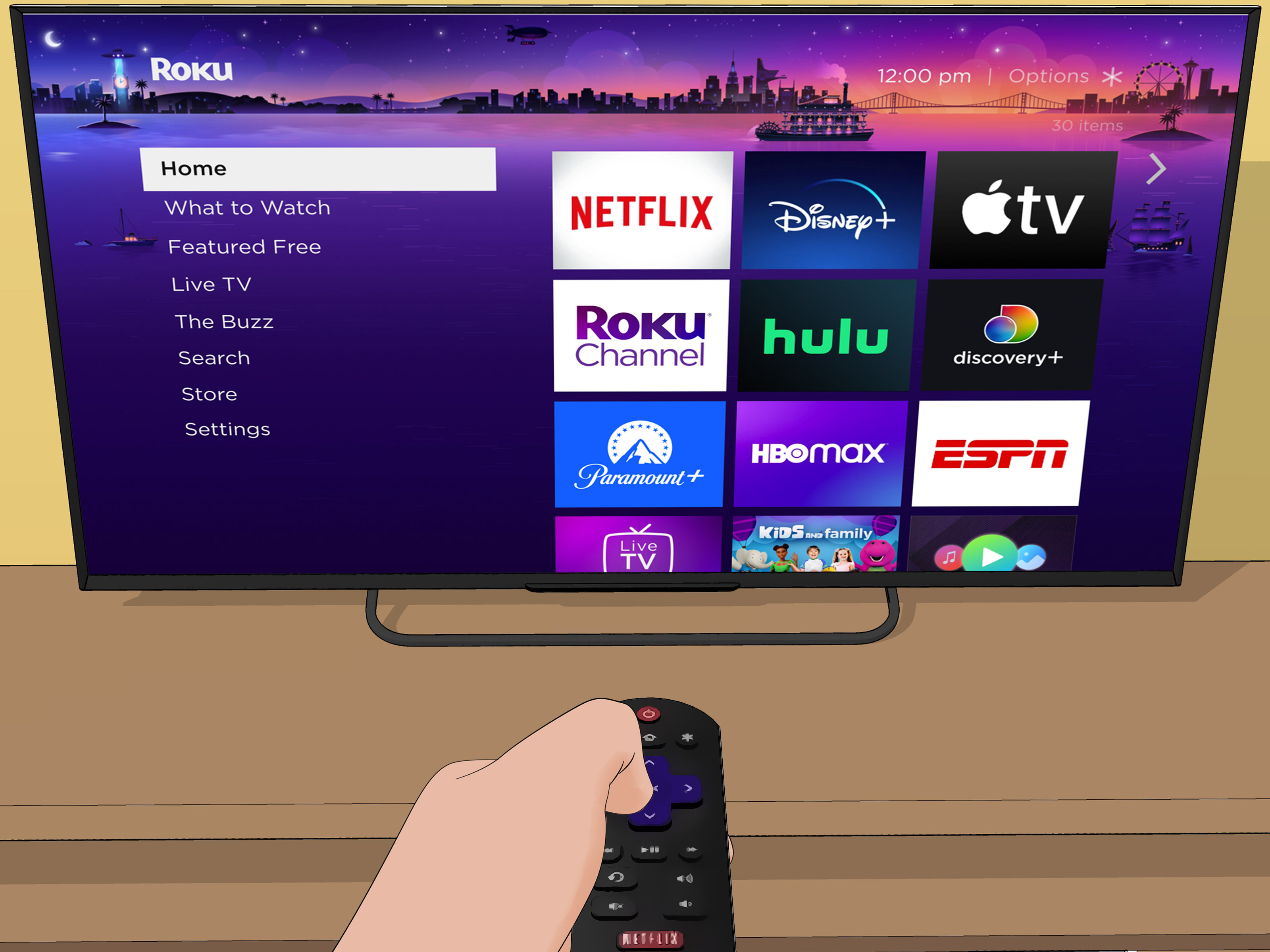

Your Roku remote has one job: make the tiny streaming box obey. So when you press Home, Back, or Volume and nothing happens, it feels personal. One minute you are ready to watch your comfort show; the next minute you are waving a purple-buttoned wand at the TV like a frustrated wizard.
The good news is that a Roku not responding to remote commands is usually fixable. Most cases come down to weak batteries, blocked infrared signals, lost pairing, a frozen Roku device, Wi-Fi issues, or a remote that needs a reset. Before you order a replacement remote or threaten to cancel movie night, work through these nine easy fixes in order.
This guide covers Roku simple remotes, Roku voice remotes, rechargeable Roku remotes, Roku TV remotes, and the Roku mobile app. Start with the basics, because yes, the “obvious” fix is often the one that saves the evening.
Why Is My Roku Not Responding to the Remote?
A Roku remote can stop working for several reasons. A simple Roku remote uses infrared, so it needs a clear line of sight to the Roku player or Roku TV. A Roku voice remote uses a wireless connection and must be paired with the device. If the batteries are low, the remote is too far away, the Roku device is frozen, or the remote lost its pairing, button presses may do absolutely nothing.
Sometimes the remote is not the villain. The Roku device itself may be stuck, the TV’s HDMI port may be causing interference, or the phone app may be on a different Wi-Fi network. In other words, don’t blame the remote until you have checked the whole little streaming ecosystem.
Fix 1: Identify Which Roku Remote You Have
Before you start pressing every button like you are entering a video game cheat code, figure out what kind of remote you are using. This matters because different Roku remotes fail in different ways.
Roku Simple Remote
A Roku simple remote does not have a microphone button, voice search button, or pairing button. It works with infrared light, which means you must point it directly at the Roku device or the front of your Roku TV. If the Roku player is hidden behind the TV, inside a cabinet, or blocked by a soundbar, the remote may seem dead even when it is perfectly fine.
Roku Voice Remote
A Roku voice remote usually has a microphone or voice button. It communicates wirelessly and must be paired with your Roku. Because it does not need direct line of sight, you can point it at the ceiling, the couch, or your dog and it may still work. However, if pairing breaks, it may stop controlling the Roku completely.
Roku Rechargeable Voice Remote
Some Roku remotes are rechargeable and do not use replaceable AA or AAA batteries. If yours has a USB charging port, charge it fully before assuming it has failed. A rechargeable remote with a drained battery is not broken; it is simply taking a very dramatic nap.
Fix 2: Replace or Recharge the Batteries
Start here. It is boring, but it works. Weak batteries can make a Roku remote behave strangely: delayed button presses, random disconnects, no response, or volume buttons that work one minute and disappear into the void the next.
Remove the old batteries and insert a fresh matching pair. Avoid mixing old and new batteries or different brands. Make sure the plus and minus ends match the markings inside the battery compartment. If you see corrosion or dust on the battery contacts, gently clean them with a dry cloth.
For rechargeable Roku remotes, plug the remote into a reliable USB power source and let it charge. If the remote has been completely drained, give it enough time before testing again. A quick ten-second charge is not a rescue mission; it is a polite introduction.
Fix 3: Check Line of Sight and Remove Obstacles
If you have a Roku simple remote, line of sight is everything. The remote sends an infrared signal, and that signal needs a clear path. If a decorative candle, game console, stack of mail, soundbar, or enthusiastic houseplant blocks the Roku sensor, your remote may not respond.
Point the remote directly at the front of the Roku device or Roku TV. Move closer and try again. If your Roku streaming stick is plugged behind the TV, remember that a simple infrared remote will not work well with a device hidden from view. In that case, you may need a compatible voice remote or the Roku mobile app.
Also check sunlight and bright reflections. Strong light hitting the TV area can sometimes interfere with infrared signals. If the remote works at night but acts weird during sunset, the problem may not be haunted electronics. It may just be the sun being extra.
Fix 4: Restart the Roku Remote
A remote can occasionally get stuck in a bad state. Restarting it is quick and harmless.
For Battery-Powered Roku Remotes
Remove both batteries. Press any two buttons on the remote to discharge leftover power. Reinsert the batteries, making sure the negative end goes in correctly. Replace the cover and test the remote again.
For Rechargeable Roku Remotes
If your rechargeable remote has a pairing button, hold it for about 20 seconds. If it does not have a pairing button, press and hold the Back and Home buttons together for about 20 seconds. Wait for the status light to stop flashing, then charge the remote if needed.
This step is especially useful when the remote lights up but refuses to control anything. It is the remote-control version of “turning yourself off and back on again.” Honestly, many of us could use that feature.
Fix 5: Restart Your Roku Device
If the remote is fine but the Roku device is frozen, button presses may not register. A system restart refreshes the Roku without deleting your apps, accounts, or settings.
If you can still control the Roku using the mobile app or TV buttons, go to Settings > System > Power > System restart. Some Roku models do not show a Power submenu; if so, go to Settings > System > System restart.
If you cannot navigate the menu, unplug the Roku device or Roku TV from power. Wait at least 10 seconds, then plug it back in. For a Roku TV, pressing the power button on the remote is not the same as a true system restart, so unplugging is often more effective.
After the Roku returns to the Home screen, test the remote again. If it suddenly works, congratulations: your Roku just needed a tiny vacation.
Fix 6: Re-Pair Your Roku Voice Remote
If you have a Roku voice remote and it is not responding, pairing may have failed. Pairing tells the Roku device, “This is my remote, please listen to it instead of ignoring it like a group chat.”
How to Pair a Roku Remote With a Pairing Button
Bring the remote close to the Roku device. Open the battery compartment or check the back of the remote for a pairing button. Press and hold the pairing button for about five seconds, or until the status light flashes. Wait for the pairing message on the TV screen and follow the prompts.
How to Pair a Roku Remote Without a Pairing Button
If your remote does not have a pairing button, press and hold the Back and Home buttons together for about five seconds. When the status light flashes, keep the remote close to the Roku and wait for pairing to complete.
If pairing fails, restart both the Roku device and the remote, then try again. Use fresh batteries and stay close to the device during pairing. A weak battery can interrupt the process and make the remote look more broken than it really is.
Fix 7: Use the Roku Mobile App as a Temporary Remote
The Roku mobile app can save you when the physical remote refuses to cooperate. Install the official Roku app on your iPhone or Android phone, connect your phone to the same Wi-Fi network as your Roku device, open the app, select your Roku, and tap the remote icon.
This is especially helpful when you need to restart the device, check settings, update software, or re-pair a remote. If the app cannot find your Roku, confirm that both devices are on the same network. Also check whether mobile app control is enabled on the Roku under Settings > System > Advanced system settings > Control by mobile apps.
Be careful with VPNs, guest networks, and mobile hotspots. If your phone is on one network and your Roku is on another, the app may not detect it. Same couch, same room, different Wi-Fi network: still a problem.
Fix 8: Update Roku Software and Recheck TV Controls
If your Roku remote controls navigation but not TV power or volume, the issue may be TV control setup rather than a dead remote. Roku voice remotes can be set up to control power, volume, and mute on many TVs, but not every TV supports every function.
First, update your Roku software. Go to Settings > System > System update > Check now. After updating, set up TV controls again by going to Settings > Remotes & devices > Remotes > Your remote > Set up remote for TV control.
If voice commands are not controlling TV power or volume, check HDMI-CEC in your TV settings. Different TV brands use different names for CEC, so you may see terms like Anynet+, Bravia Sync, Simplink, VIERA Link, or something equally determined to sound mysterious.
Remember: if only the power and volume buttons are failing, your Roku remote may still be paired correctly. The fix may be TV control setup, not remote replacement.
Fix 9: Check HDMI Interference, Network Problems, and Factory Reset Last
Roku Streaming Stick models plug directly into an HDMI port behind the TV. In some setups, HDMI interference can affect remote performance, especially with wireless remotes. If your remote works only when you stand close to the TV or pairing keeps failing, try moving the Roku stick away from the HDMI port with an HDMI extender if your model supports it.
Network issues can also cause trouble, especially with voice remotes and the Roku mobile app. Restart your router by unplugging it, waiting 20 to 30 seconds, and plugging it back in. Then restart your Roku. After the network returns, test both the physical remote and the app.
If nothing works, consider a factory reset only as a last resort. A factory reset erases settings, removes accounts from the device, and returns the Roku to setup mode. Use it when the Roku is badly stuck, you are selling the device, or every safer fix has failed.
To factory reset from the menu, go to Settings > System > Advanced system settings > Factory reset. If you cannot access the menu, look for a physical reset button or pinhole on the Roku device or Roku TV. Follow the on-screen instructions after the reset.
When Should You Replace the Roku Remote?
Replace the remote if it has physical damage, battery corrosion that cannot be cleaned, buttons that are stuck or broken, overheating, charging failure, or no response after fresh batteries, restarting, and re-pairing. If the remote feels hot, stop using it immediately and place it on a hard, non-flammable surface until it cools.
Before buying a new remote, make sure it is compatible with your Roku model. Some Roku TVs work best with manufacturer-specific remotes, while Roku players may support simple remotes, voice remotes, or rechargeable voice remotes depending on the device.
Quick Troubleshooting Checklist
- Replace or recharge the remote batteries.
- Confirm whether you have a simple remote or voice remote.
- Remove anything blocking the Roku sensor.
- Restart the remote.
- Restart the Roku device by unplugging it or using System restart.
- Re-pair the Roku voice remote.
- Use the Roku mobile app as a temporary remote.
- Update Roku software and set up TV controls again.
- Try a factory reset only after safer fixes fail.
Real-Life Experience: What Usually Works When a Roku Remote Stops Responding
In real-world use, the fix that works most often is also the least glamorous: batteries. Roku remotes can seem alive enough to flash a light or control volume occasionally, while still being too weak to pair reliably or send consistent commands. This creates the classic “but I just changed the batteries” situation. The key is using a fresh matching pair and checking the direction carefully. One backward battery can turn a movie night into a troubleshooting seminar.
The second most common experience is the blocked-signal problem. Many people place a Roku player behind a TV to keep the setup clean. That looks great until a simple infrared remote cannot see the device. If the remote works only from one weird angle, line of sight is the prime suspect. Moving the Roku player forward by a few inches can fix what feels like a major technical failure. It is not elegant, but neither is standing in the corner of the room aiming the remote like a pool cue.
Voice remotes create a different kind of confusion. Because they do not need to be pointed directly at the TV, users often assume they are magical. They are not magical; they are paired. When pairing breaks, the remote may still have power but no relationship with the Roku device. Re-pairing close to the Roku usually solves this. The status light is your friend here. If it flashes, the remote is trying. If it never flashes, look at batteries, charging, or possible hardware failure.
The Roku mobile app is the best backup plan. It is especially useful when the physical remote is lost under a blanket, chewed by a pet, or temporarily promoted to “decorative plastic rectangle.” The app lets you navigate settings, restart the Roku, and sometimes recover control without touching the original remote. The catch is that your phone and Roku must be on the same Wi-Fi network. If your phone is using cellular data, a VPN, a guest network, or a different router band, the app may not find the device.
Another common experience involves Roku TVs. A Roku TV may look off when you press the power button, but that does not always mean the system has restarted. A full unplug-and-replug power cycle can clear glitches that the normal power button does not. For stubborn TVs, removing the remote batteries, unplugging the TV, waiting, and then restarting everything in order can bring the remote back. It sounds too simple, but streaming devices are tiny computers, and tiny computers love a clean reboot.
Volume and power issues deserve their own category. If navigation works but volume does not, the remote is probably not dead. The TV control settings may need to be reconfigured, especially after changing TVs, switching HDMI ports, updating software, or replacing the remote. Running the TV control setup again often fixes it. Also, some TVs support volume but not power through certain control methods, so expectations matter.
The most important lesson is to avoid jumping straight to factory reset. A factory reset is useful, but it is the digital equivalent of moving out because one drawer is stuck. It wipes settings and requires setup again. Save it for the end, after batteries, line of sight, remote restart, device restart, pairing, app control, software updates, and network checks have all failed.
In most homes, a Roku remote not responding is not a disaster. It is usually a small failure in power, pairing, signal path, or software state. Work through the fixes calmly, keep the phone app ready as backup, and resist the urge to aggressively press the same button 47 times. The remote heard you the first time; it just needed help remembering its job.
Conclusion
When your Roku is not responding to the remote, start simple. Check the batteries, confirm the remote type, clear the line of sight, restart the remote, and restart the Roku device. If you have a voice remote, re-pair it. If the physical remote is unusable, switch to the Roku mobile app long enough to update settings or restart the system. For power and volume problems, redo TV control setup. Keep factory reset as the final option, not the opening move.
A Roku remote problem can feel annoying, but it is usually not complicated. With a little patience and the right order of fixes, you can get back to streaming without replacing the device, calling in a tech genius, or explaining to your family why the remote is “having a personal journey.”
Note: This article is written for general Roku troubleshooting and web publishing. Exact menu names may vary slightly by Roku model, TV brand, remote type, and software version.