
If you have an Android phone, congratulations: you are already carrying a barcode scanner in your pocket. You do not need to buy a chunky store-gun scanner, wear a headset, or dramatically yell “price check on aisle five.” In most cases, all you need is your phone’s camera, Google Lens, or a built-in QR shortcut. Whether you are scanning a product barcode, opening a restaurant menu, connecting to Wi-Fi, checking a ticket, or comparing prices while pretending you are “just browsing,” Android makes barcode scanning surprisingly easy.
The tricky part is that not every Android phone handles scanning the same way. Some devices scan barcodes directly from the Camera app. Others lean on Google Lens. Samsung phones often include a QR shortcut in Quick Settings. Some newer Android features can even scan a code that is already on your screen, which feels a little like your phone performing a magic trick on itself.
This guide breaks down how to scan a barcode on an Android phone, when to use built-in barcode scanners, when to use Google Lens, when a third-party app actually makes sense, and how to avoid scanning your way into a sketchy website. If you want fast, practical, real-world advice without tech jargon doing backflips in every paragraph, you are in the right place.
What Counts as a Barcode on Android?
When people search for barcode scanners, they often mean two slightly different things. The first is a traditional barcode, like the UPC code on cereal, shampoo, books, or electronics packaging. The second is a QR code, which is technically a type of barcode too, but it looks like a square maze designed by a caffeinated geometry student.
Your Android phone may be able to scan both. That matters because the result is not always the same. A QR code often opens a website, login screen, digital menu, payment page, or app prompt. A traditional barcode usually helps identify a product, compare prices, pull up details, or support retail and inventory tasks. In other words, one code says, “Here is a link,” and the other says, “Here is what this thing is.”
If your goal is to scan a product barcode on Android, Google Lens or a dedicated barcode scanner app may be more useful than the basic QR shortcut. If your goal is to scan a QR code for a menu, ticket, or sign-in page, the built-in camera will often do the job just fine.
The Fastest Ways to Scan a Barcode on an Android Phone
1. Use Your Android Camera App First
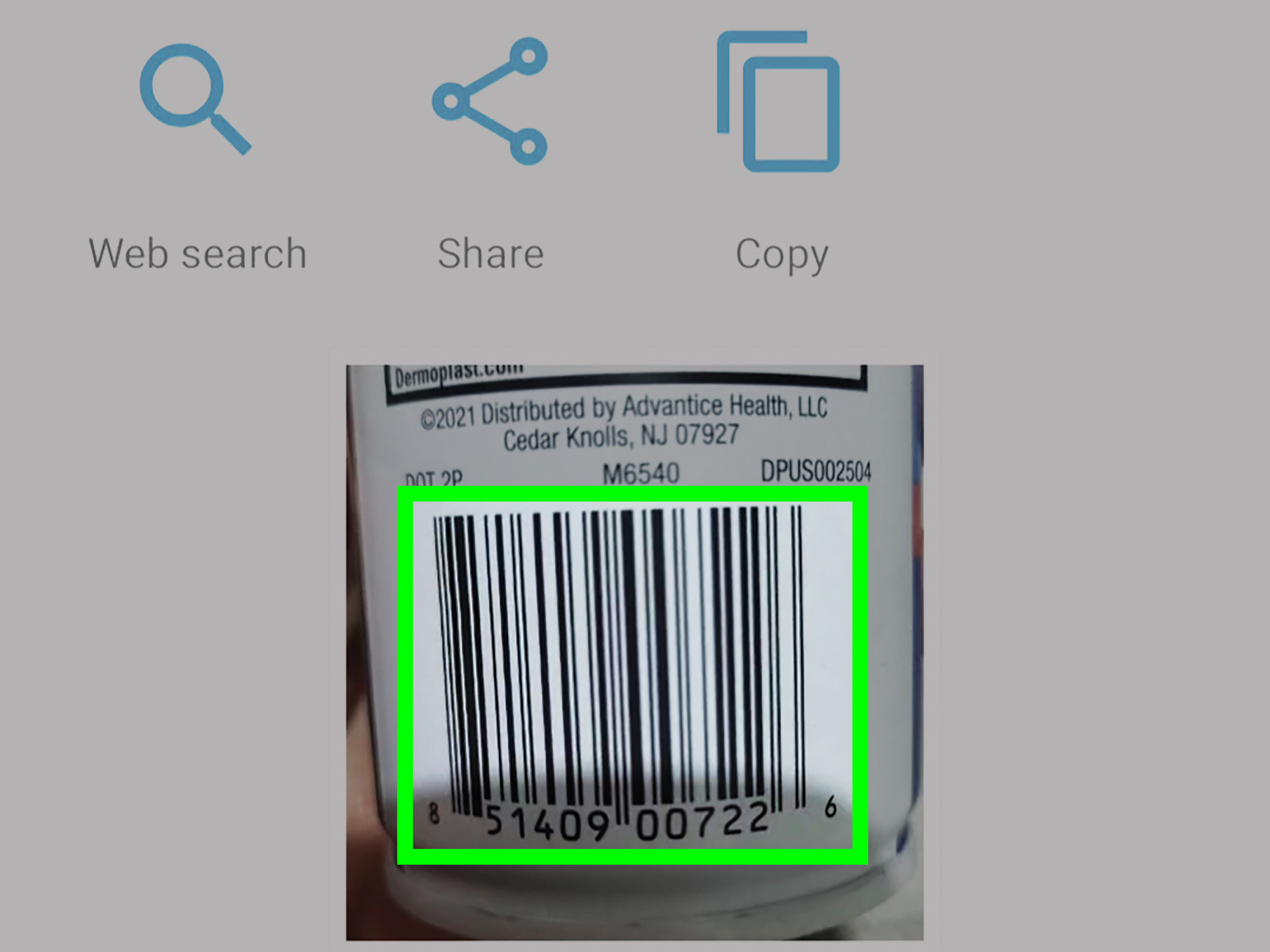
The easiest method is the obvious one: open the Camera app and point it at the code. On many Android phones, the native camera can recognize QR codes automatically. Hold your phone steady, keep the barcode centered, and wait for a banner, link, or prompt to appear. Tap that prompt, and you are in business.
This is the best starting point because it is fast, built in, and requires no extra downloads. If you are scanning a QR code from a poster, menu, sign, package insert, or event pass, your camera may recognize it within a second or two. The main rule is simple: use regular Photo mode, not Portrait mode, not Video mode, and definitely not a ten-filter beauty mode that turns the barcode into modern art.
If nothing happens, do not panic and do not immediately download the first neon-colored scanner app you see in the Play Store. Your phone may rely on Google Lens or a manufacturer-specific tool instead.
2. Use Google Lens for QR Codes and Product Barcodes
Google Lens is the real workhorse for Android barcode scanning. It can scan QR codes, identify products, recognize text, and help with everything from shopping to translation. On many Android devices, Lens is available through the Google app, the search bar camera icon, Google Photos, or baked right into the camera experience.
To use it, open the Google app and tap the Lens icon, or open your camera if your device has Lens integration. Then point the phone at the barcode. If it is a product barcode, Lens may show product matches, shopping results, or related information. If it is a QR code, it usually displays the destination link or action. This is especially useful when you are comparing prices in a store, identifying a product box without obvious branding, or trying to figure out whether that “limited-edition protein bar” is actually worth your money.
Google Lens is also a smart choice when the camera app does not react to the code. Think of Lens as the coworker who actually reads the instructions before pressing buttons.
3. Use the QR Scanner in Quick Settings
Some Android phones include a built-in QR scanner shortcut in Quick Settings. Swipe down from the top of the screen and look for a tile labeled something like “QR scanner” or “Scan QR code.” Tap it, and a dedicated scanner opens without making you launch the full camera app.
This option is handy when you want fewer distractions and a cleaner scanning experience. It is also useful for people who like fast shortcuts and dislike hunting through apps like they are searching for buried treasure.
4. Use Manufacturer Features on Samsung and Similar Phones
If you have a Samsung Galaxy device, you may have more than one path to scan a code. Samsung often supports QR scanning through the Camera app and a Quick Settings shortcut. On some Galaxy devices, you may also see options tied to setup tools or browser-related scanning features. Other manufacturers, including Motorola, also support barcode or QR recognition through camera search tools connected to Google Lens.
The practical takeaway is this: if your Android phone is from Samsung, Motorola, or another major brand, check both the camera settings and your Quick Settings menu before assuming scanning is unavailable. A lot of users think the feature is missing when it is really just hiding in plain sight, quietly judging them.
How to Scan a Barcode That Is Already on Your Phone Screen
This is one of the most common frustrations. You receive a QR code in a text, on a website, in an email, or inside a screenshot. Then you realize your camera cannot scan your own screen unless you own a second phone, and suddenly technology feels personal.
Use Chrome and Google Lens
If the code appears on a webpage in Chrome, you may be able to use Google Lens right from the browser. On supported Android devices, Chrome can work with Lens to inspect an image or scan a visible QR code or barcode. This is one of the cleanest ways to handle on-screen codes without awkwardly borrowing another person’s phone like it is 2014.
Use Google Photos for Screenshots
Another easy method is to take a screenshot, open it in Google Photos, and use Lens there. This works well when the code is in a message, social post, PDF, digital flyer, or saved image. Google Photos can often detect the code and surface the associated action.
Use Circle to Search if Your Phone Supports It
Some newer Android devices support on-screen scanning through Circle to Search and related Google features. If available on your phone, this can be one of the fastest ways to scan a QR code that is already displayed on the device itself. It reduces the whole “open, save, switch apps, hope for the best” routine into something much smoother.
When You Actually Need a Third-Party Barcode Scanner App
For most people, the built-in camera and Google Lens are enough. But there are still situations where a dedicated barcode scanner app for Android makes sense. If you need scan history, batch scanning, inventory management, CSV export, warehouse workflows, or support for less common barcode formats, a specialty app can be useful.
That said, this is where common sense needs to clock in. A good scanner app should have a clear purpose, decent reviews, recent updates, and reasonable permissions. If a flashlight barcode reader wants access to your contacts, microphone, location, calendar, and firstborn child, back away slowly. A scanner app typically needs camera access. That is normal. A shopping or inventory app may also request storage access. That can be normal too. But overly broad permissions are a red flag.
It is also smart to keep Google Play Protect enabled. That gives Android another layer of security if you decide to install a scanner app outside your normal comfort zone. In general, stick with trusted developers and avoid apps that look like they were named by a random word generator in a hurry.
Why Your Android Phone Is Not Scanning the Barcode
Sometimes the scanner fails, and the reason is boringly simple. The barcode may be too small, too far away, blurry, damaged, curved around a bottle, hidden in glare, or printed on packaging that reflects light like it is trying to signal aircraft. Before assuming your phone is broken, try these quick fixes.
Clean the Camera Lens
A smudged lens is the classic villain here. Give it a quick wipe with a soft cloth. Your phone camera does not need spa treatment, but it does appreciate basic hygiene.
Adjust Distance and Angle
Hold the phone straight on rather than at a steep angle. Move a little closer, then a little farther away. Many phones need a moment to focus before the barcode becomes readable.
Improve the Lighting
Good lighting helps a lot, especially with product barcodes and glossy packaging. If needed, turn on the flashlight or move to a brighter spot.
Use the Right Tool for the Right Code
If the camera app is not recognizing a product barcode, switch to Google Lens. Basic camera QR detection is not always as strong with standard retail barcodes as it is with QR codes.
Check for Disabled Settings or Software Updates
On some phones, QR scanning can be toggled on or off in the Camera settings. Also, outdated software can cause features to behave strangely. If scanning used to work and now feels moody, check for app and system updates.
Barcode Scanner Safety: Yes, This Part Matters
Scanning a barcode feels harmless because the code itself looks like a weird little square puzzle. But a QR code can launch a website, login page, download, or payment portal in seconds. That is why barcode scanner safety on Android matters more than many users realize.
Before tapping the result, preview the link if your phone shows one. Read the domain name. Look for misspellings, extra characters, or suspicious urgency. Be especially careful with QR codes on parking meters, posters, public signs, emails, random packages, and messages that pressure you to act immediately. Fake sticker overlays and scam codes are very real.
If a code sends you to a login page, payment screen, or file download you were not expecting, stop there. It is better to type the official website manually or use the brand’s app than to gamble with a mystery redirect. Convenience is great, but not so great that it should escort your passwords out the front door.
Real-World Ways People Use Android Barcode Scanners
Barcode scanning is one of those features that sounds small until you start noticing how often it shows up. Shoppers scan product barcodes to compare prices online. Travelers scan boarding passes and ticket codes. Restaurant customers scan table tents for menus. Students scan codes for campus events or downloads. Home users scan a Wi-Fi QR code to connect a new device without typing a password that looks like a raccoon ran across the keyboard.
Businesses use Android barcode scanners for stock counts, deliveries, asset tracking, and pop-up retail. Resellers use them to identify products quickly. Book buyers use barcodes to check editions and prices. DIY sellers scan packaging and labels while managing inventory from a phone instead of a full desktop setup. In short, your Android phone is not just scanning squares. It is saving time in a hundred tiny ways.
Conclusion
If you want the simplest answer to how to scan a barcode on an Android phone, start with the Camera app. If that does not work, move to Google Lens. If the code is on your screen, use Chrome, Google Photos, or an on-screen feature like Circle to Search if your phone supports it. And if you need advanced features for work or retail, a trusted third-party barcode scanner app can still be worth it.
The best part is that modern Android barcode scanners are no longer niche tools for cashiers, warehouse teams, or extremely determined coupon hunters. They are built into everyday phones and ready for everyday tasks. Once you know where the tools live and how to use them safely, scanning a barcode on Android becomes one of those small digital skills that quietly makes life easier. Not glamorous, maybe. But very satisfying.
Everyday Experiences With Barcode Scanners on Android
Real-life experience with barcode scanners on Android is usually less dramatic than tech marketing suggests, but honestly, that is part of the charm. The feature works best when it disappears into your routine. One day you use it to scan a QR code on a coffee shop table. The next day you are checking a product barcode in a store, comparing the price online, and silently congratulating yourself for not paying eight dollars extra for the exact same cable in slightly shinier packaging. It feels ordinary, and that is exactly why it is useful.
A common experience for Android users is discovering that the fastest scanner is often the one already built into the phone. Many people start by assuming they need a separate app, only to realize the Camera app or Google Lens can do the job in seconds. That small moment of discovery tends to change how people use their phones. Suddenly, the camera is not just for photos and awkward screenshots of recipes. It becomes a search tool, a shopping tool, and a practical shortcut for small daily problems.
There is also a learning curve that almost everyone goes through. At first, people point the phone too close to the code, hold it at a strange angle, or try to scan in dim lighting. Then they adjust, hold steady, and realize barcode scanning is mostly about patience and positioning. Once that clicks, the process becomes second nature. You stop fighting the camera and start working with it.
Another familiar experience is the difference between QR codes and product barcodes. QR codes are usually quick and obvious: scan, tap, done. Product barcodes can feel more hit or miss, especially on curved packaging, glossy wrappers, or tiny labels. That is where Google Lens often feels more helpful than a basic QR scanner. Users who shop often, resell items, or manage inventory tend to appreciate this difference quickly. They learn which tool is best for which job, and that makes the whole experience much smoother.
People also notice how often scanning happens on-screen now, not just in the physical world. A code arrives in a message, appears in a screenshot, or sits inside a webpage, and suddenly the challenge is not reading the code but reading it from the same device displaying it. Once users discover Chrome, Google Photos, or another on-screen scanning method, it feels like unlocking a hidden level. It is one of those features that sounds minor until the day you really need it.
Of course, not every barcode scanning experience is perfect. Sometimes a phone refuses to focus. Sometimes the banner does not appear. Sometimes the code opens a sketchy-looking page, and your internal alarm bells start performing a full drum solo. That is why experienced Android users usually become more cautious over time. They preview links, avoid random public stickers, and think twice before entering payment details after a scan. In that sense, using barcode scanners on Android becomes a mix of convenience and judgment.
Overall, the experience is best described as quietly powerful. Barcode scanners on Android do not feel flashy, but they solve real problems quickly. They help people move faster, compare smarter, connect easier, and cut out friction from everyday tasks. And once you get used to having that tool in your pocket, going back to manual searching feels a little like choosing to use a paper map while standing next to a GPS. Technically possible, sure. But why make life harder?