
Formatting a microSD card to FAT32 sounds like the kind of task that should take twelve seconds and zero emotional investment. Then Windows hides the FAT32 option, macOS calls it “MS-DOS (FAT),” your camera insists the card is “unsupported,” and suddenly you are negotiating with a tiny plastic rectangle like it owes you rent.
The good news: formatting a microSD card to FAT32 is not difficult once you know which tool to use, what card size you are dealing with, and why FAT32 is still hanging around like the reliable old flip phone of file systems. This guide explains how to format a microSD card to FAT32 on Windows and Mac, when FAT32 is the right choice, when exFAT is better, and how to avoid the most common “oops, I erased the wrong drive” disaster.
Important note before we begin: formatting erases the microSD card. Back up your files first. If the card contains vacation photos, dashcam clips, 3D printer files, drone footage, Nintendo homebrew files, BIOS update files, or anything else you would be sad to lose, copy it somewhere safe before touching the Format button.
What Does FAT32 Mean, and Why Use It?
FAT32 is an older file system used to organize data on storage devices such as USB drives, SD cards, and microSD cards. It is not glamorous. It does not wear sunglasses indoors. But it is famous for one thing: compatibility.
A microSD card formatted as FAT32 can usually be read by Windows, macOS, Linux, many cameras, Android devices, handheld game consoles, car stereos, 3D printers, drones, retro gaming devices, Raspberry Pi projects, smart TVs, and assorted gadgets that look like they were designed by a committee of engineers and one raccoon.
FAT32 vs. exFAT vs. NTFS
Before formatting, it helps to know what you are choosing:
- FAT32: Best for broad compatibility, especially with older devices. It has a 4 GB maximum individual file size limit.
- exFAT: Better for larger cards and large files, such as 4K video clips over 4 GB. Modern Windows and Mac computers support it well.
- NTFS: Best for Windows system drives and Windows-focused storage. Many cameras, consoles, and embedded devices do not support it well.
The biggest FAT32 limitation is the 4 GB per-file size cap. That means one file cannot be larger than 4 GB. A 128 GB card formatted as FAT32 can still hold lots of data, but no single video, archive, or disk image can exceed that limit. If you are recording long 4K videos, exFAT is usually the better choice. If your device specifically demands FAT32, then FAT32 it is. The gadget has spoken.
When Should You Format a MicroSD Card to FAT32?
You should format a microSD card to FAT32 when a device requires it or behaves better with it. Common examples include older digital cameras, trail cameras, car audio systems, dashcams, handheld consoles, BIOS update tools, retro gaming handhelds, some 3D printers, and certain single-board computer projects.
Many 32 GB and smaller microSD cards are already sold as FAT32. Cards 64 GB and larger are commonly sold as exFAT because SDXC cards are generally associated with exFAT formatting. However, some devices still ask for FAT32 even when the card is 64 GB, 128 GB, or larger. That mismatch is why so many people search for how to format a microSD card to FAT32 on Windows and Mac in the first place.
Before You Format: A Quick Safety Checklist
Formatting is simple, but it is also powerful. It is the computer equivalent of “Are you sure?” followed by a trapdoor. Use this checklist before you begin:
- Back up the card: Copy anything important to your computer or cloud storage.
- Use a reliable card reader: A flaky adapter can interrupt formatting or make the card disappear mid-process.
- Confirm the drive letter or disk number: This matters a lot on Windows and Mac Terminal.
- Remove other external drives: This reduces the chance of formatting the wrong device.
- Know your card size: Windows may not show FAT32 for cards larger than 32 GB in the normal graphical formatter.
How to Format a MicroSD Card to FAT32 on Windows
Windows gives you several ways to format a microSD card. The easiest method depends on the card size. For 32 GB or smaller cards, File Explorer or Disk Management usually works. For cards larger than 32 GB, the FAT32 option may not appear in the regular Windows format menu, even though many devices can read larger FAT32 volumes.
Method 1: Format to FAT32 Using File Explorer
This is the beginner-friendly method and works best for microSD cards of 32 GB or less.
- Insert the microSD card into your computer using a card reader or SD adapter.
- Open File Explorer.
- Click This PC.
- Find the microSD card under Devices and drives.
- Right-click the card and choose Format.
- Under File system, select FAT32.
- Enter a simple volume label, such as CAMERA, DRONE, or SDCARD.
- Leave Quick Format checked for a normal format.
- Click Start, then confirm.
When the process finishes, safely eject the card before removing it. Yes, safely ejecting feels old-fashioned. So does flossing. Both help prevent regrets.
Method 2: Format to FAT32 Using Disk Management
Disk Management is useful when File Explorer does not behave, the card has odd partitions, or Windows sees the card but does not show it properly in This PC.
- Right-click the Start button.
- Select Disk Management.
- Find your microSD card by checking the size carefully.
- Right-click the card’s partition and choose Format.
- Select FAT32 if it is available.
- Give the card a short label.
- Choose Quick Format for routine use.
- Click OK and confirm.
If FAT32 does not appear, the card is likely larger than Windows wants to format as FAT32 through the graphical tool. This is common with 64 GB, 128 GB, 256 GB, and larger cards.
Method 3: Format to FAT32 Using Command Prompt
Command Prompt can format drives, but you must be careful with drive letters. One wrong letter and your external backup drive becomes a cautionary tale.
- Insert the microSD card.
- Open File Explorer and confirm the card’s drive letter, such as E: or F:.
- Open the Start menu, type cmd, right-click Command Prompt, and choose Run as administrator.
- Type the command below, replacing E: with your actual card letter:
Press Enter and follow the prompts. This can take a while, especially for larger cards. If Windows says the volume is too large for FAT32, your current Windows build or formatter path may still be limiting FAT32 creation. In that case, use the SD Association formatter for standard SD formatting or a reputable FAT32 formatting utility if your device specifically requires FAT32 on a large card.
Method 4: Use the Official SD Memory Card Formatter
The SD Association provides an official SD Memory Card Formatter for Windows and Mac. It is designed specifically for SD, SDHC, SDXC, SDUC, microSD, microSDHC, microSDXC, and microSDUC cards. This tool is often safer than random utilities because it formats cards according to SD card standards.
However, there is one important detail: the official formatter generally chooses the file system based on the card type and capacity. That means SDHC cards from 4 GB to 32 GB are typically formatted as FAT32, while SDXC cards of 64 GB and larger are typically formatted as exFAT. This is excellent for standards-based formatting, but it may not help if your unusual device demands a 128 GB card in FAT32.
Use the official formatter when you want the card restored to a clean, standards-friendly state. Use a dedicated FAT32 formatter only when your device manual specifically requires FAT32 and the normal tools will not offer it.
How to Format a MicroSD Card to FAT32 on Mac
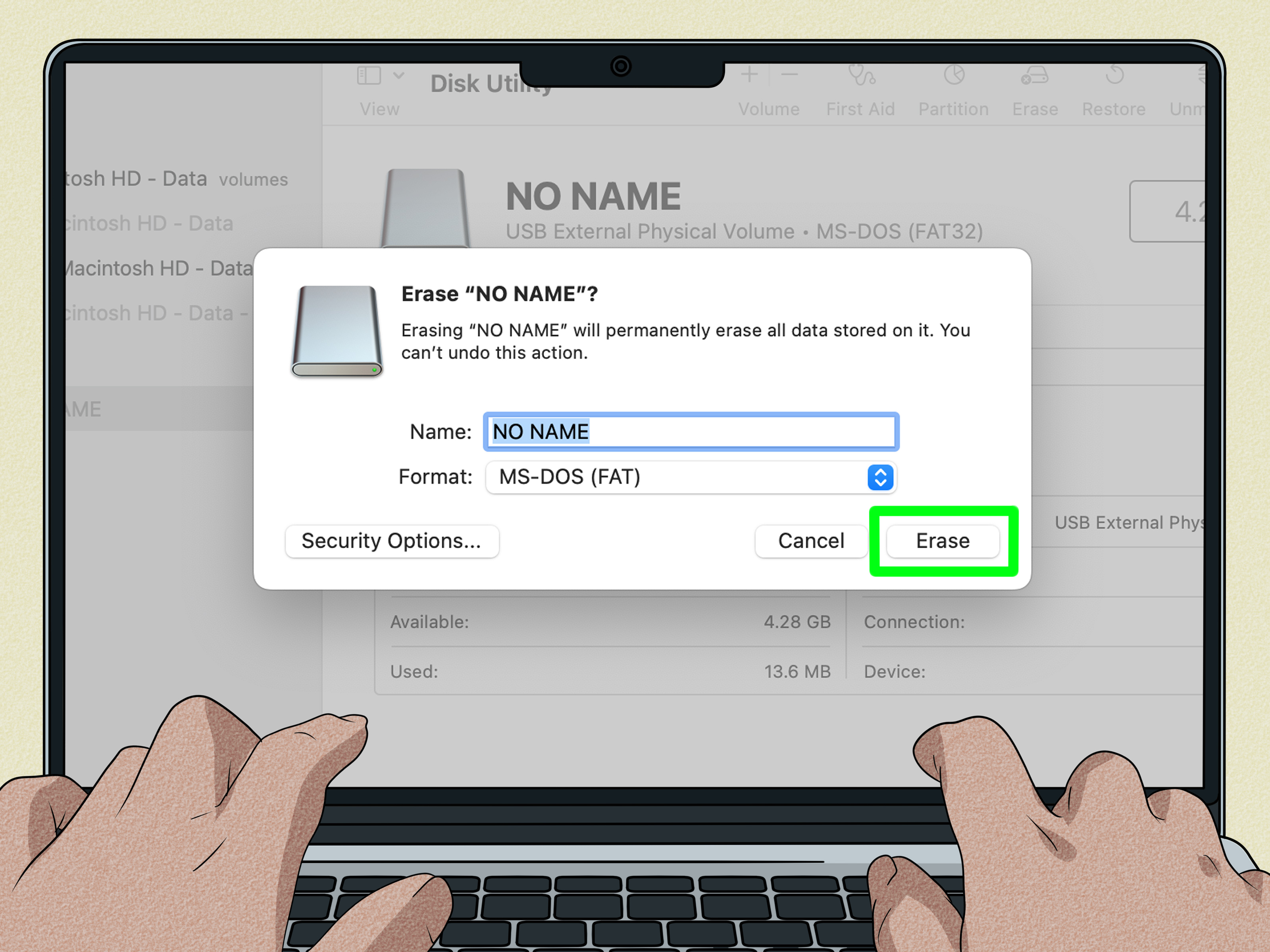
On macOS, FAT32 appears under a slightly confusing name: MS-DOS (FAT). Do not panic. Apple is not asking you to install a time machine to 1995. In Disk Utility, MS-DOS (FAT) is the option commonly used for FAT formatting, and macOS will apply the appropriate FAT variant for the device.
Method 1: Format to FAT32 Using Disk Utility
This is the easiest way to format a microSD card to FAT32 on a Mac.
- Insert the microSD card using a card reader or adapter.
- Open Disk Utility. You can find it in Applications > Utilities, or search for it with Spotlight.
- In Disk Utility, click View and choose Show All Devices.
- Select the physical microSD card, not just the volume underneath it.
- Click Erase.
- Enter a simple name, such as SDCARD.
- For Format, choose MS-DOS (FAT).
- For Scheme, choose Master Boot Record for maximum compatibility with cameras, car stereos, and older devices.
- Click Erase.
- When finished, eject the card before removing it.
If your device is picky, Master Boot Record is often the friendliest partition scheme. GUID Partition Map is modern and useful for many drives, but some older gadgets look at it and immediately develop trust issues.
Method 2: Format to FAT32 on Mac Using Terminal
Terminal gives you more control, but it also gives you more rope. Use it carefully.
- Insert the microSD card.
- Open Terminal.
- Type the following command to list disks:
Find your microSD card by size and name. It may appear as something like /dev/disk2 or /dev/disk4. Double-check this. Triple-check it if coffee has not happened yet.
Then run the following command, replacing /dev/disk2 with the correct disk identifier:
This command erases the selected disk, formats it as FAT32, names it SDCARD, and uses Master Boot Record. When it finishes, eject the card from Finder or use:
Choosing the Right Allocation Unit Size
Some formatting tools let you choose an allocation unit size, also called cluster size. For most users, the default is fine. Smaller clusters waste less space when storing many tiny files. Larger clusters can work better for big media files, but may waste space when storing small files.
For cameras, drones, dashcams, and handheld devices, default settings are usually the safest. The device cares more about predictable compatibility than your heroic attempt to optimize clusters like a storage wizard in a cape.
Can You Format a 64 GB or 128 GB MicroSD Card to FAT32?
Yes, in many cases you can format a 64 GB or 128 GB microSD card to FAT32, but whether you should depends on the device. FAT32 can work on larger volumes, but Windows graphical tools often do not offer FAT32 for cards above 32 GB. This is a Windows formatting limitation, not necessarily a device-reading limitation.
If a device manual says it supports up to 32 GB cards, do not assume a 128 GB FAT32 card will work. Some older devices have hardware, firmware, or addressing limits. If the manual says “FAT32 required” but supports larger cards, then a large FAT32 format may be appropriate.
Common Problems and Fixes
FAT32 Does Not Appear in Windows
If FAT32 is missing from the format menu, your card is probably larger than 32 GB. Try Command Prompt, the official SD card formatter, or a trusted third-party FAT32 formatting tool. Always download formatting tools from the developer’s official site, not from suspicious “download everything” websites wearing too many pop-ups.
The Device Still Does Not Recognize the Card
Try formatting again using Master Boot Record instead of GUID Partition Map. Also check the device’s maximum card capacity. Some older cameras and stereos simply cannot use large cards, even if they are formatted correctly.
The Card Shows the Wrong Capacity
This can happen after the card was used for bootable operating systems, Raspberry Pi images, recovery media, or multi-partition projects. Use Disk Management on Windows or Disk Utility on Mac with “Show All Devices” enabled, then erase the entire card rather than only one partition.
Files Larger Than 4 GB Will Not Copy
That is a FAT32 limitation, not a broken card. Use exFAT if your device supports it and you need files larger than 4 GB.
The Format Fails or Takes Forever
Try another card reader, another USB port, or a different computer. If the card repeatedly fails, the card may be damaged, fake, or near the end of its life. MicroSD cards are wonderful, but they are not immortal. They are more like tiny librarians with a stressful job.
Best Practices After Formatting
After formatting your microSD card to FAT32, test it before relying on it. Copy a few files to the card, eject it properly, reinsert it, and confirm the files are readable. If the card is for a camera, drone, dashcam, or console, put it in the device and let the device create its own folders.
For cameras and dashcams, it is often best to format the card inside the device after preparing it on your computer. Many devices create their preferred folder structure during an in-device format. Think of it as letting the gadget arrange its own sock drawer.
My Practical Experience Formatting MicroSD Cards to FAT32
In real-world use, the most common reason people need FAT32 is not because they love vintage file systems. It is because a device refuses to cooperate with anything else. I have seen this happen with car stereos, dashcams, older point-and-shoot cameras, handheld emulation devices, BIOS update tools, and 3D printers. The computer says, “exFAT is modern and sensible.” The device says, “Never heard of her.”
The first lesson is simple: format for the device, not for the computer. Your Windows PC or Mac may read NTFS, exFAT, APFS, and other file systems without complaint, but the target device may only understand FAT32. If the microSD card is going into a camera, read the camera manual. If it is going into a 3D printer, check the printer’s documentation or community notes. If it is going into a car stereo, prepare yourself emotionally, because car infotainment systems can be dramatic little gremlins.
The second lesson is to avoid assuming that a successful format means the device will accept the card. I have formatted cards perfectly on a computer only to have the device reject them because the card capacity was too high, the partition scheme was wrong, or the device wanted the card formatted internally after insertion. For example, an older device may accept a 32 GB FAT32 card but ignore a 128 GB FAT32 card. That does not mean the formatting failed. It means the device has limits that no amount of polite clicking can overcome.
The third lesson is that card readers matter more than people think. A poor-quality adapter can cause formatting errors, slow transfers, or disappearing drives. If your card keeps failing during formatting, try a different reader before blaming the card. Also avoid yanking the card out immediately after the progress bar finishes. Eject it properly. Modern operating systems cache data, and removing storage too quickly can cause corruption. The card is small, but it still deserves a dignified exit.
The fourth lesson is to label your cards clearly. A simple name like CAMERA32, DASHCAM, MUSIC, PRINTER, or RETROSD can save confusion later. This is especially helpful when formatting through Terminal or Command Prompt because drive names and sizes help you identify the correct target. Formatting the wrong disk is one of those mistakes that teaches a lesson with the subtlety of a falling piano.
The fifth lesson is to keep expectations realistic. FAT32 is excellent for compatibility, but it is not ideal for every job. If you plan to store large video files, disk images, or backups, the 4 GB file limit will annoy you quickly. For modern cameras and large media files, exFAT is usually better when supported. FAT32 is the format you choose when compatibility is the mission. exFAT is the format you choose when large files need room to stretch.
Finally, when a microSD card will be used for something important, test it. Do not format a card five minutes before a wedding shoot, a road trip, a drone flight, or a firmware update and simply hope for the best. Copy files, eject, reinsert, verify, and test it in the device. A few minutes of testing can save hours of troubleshooting and an impressive vocabulary of frustrated noises.
Conclusion
Formatting a microSD card to FAT32 on Windows or Mac is straightforward once you understand the quirks. On Windows, File Explorer and Disk Management are easiest for 32 GB and smaller cards, while larger cards may require Command Prompt or a trusted formatter. On Mac, Disk Utility makes the process simple through the MS-DOS (FAT) option, and Terminal offers a more advanced route with the diskutil command.
FAT32 remains useful because it works with a huge range of devices, especially older or specialized gear. Its biggest drawback is the 4 GB individual file size limit, so use exFAT when your device supports it and you need large files. Above all, back up your data, choose the correct drive, use Master Boot Record for older-device compatibility, and test the card before trusting it with anything important.
Note: This article is based on current practical guidance from major operating system documentation, SD card standards guidance, and real-world storage compatibility practices. Always follow your device manufacturer’s instructions when they differ from general computer formatting steps.