
Rocket League already asks you to control a flying car, read a bouncing ball, manage boost, and somehow remember where the goal is. Custom maps take that perfectly reasonable challenge and say, “Greatnow fly through thirty spinning rings above a volcano.”
Community-created Rocket League maps can turn ordinary practice into aerial obstacle courses, dribbling challenges, races, parkour levels, sports mini-games, and multiplayer chaos. They are especially useful for improving aerial car control, recoveries, first touches, boost management, and consistency without repeating the same Free Play routine until your controller begins filing a workplace complaint.
This guide explains five practical ways to set up and play custom maps on Rocket League, covering Steam Workshop access, the Epic Games version, standalone map loaders, LAN sessions, and map testing for creators.
Before You Begin: What You Need to Know
Full custom maps are primarily a PC feature. PlayStation, Xbox, and Nintendo Switch players can use built-in Custom Training packs and official arenas, but they do not have normal access to arbitrary Steam Workshop files or Windows-based map loaders.
Your setup also depends on where you own Rocket League:
- Steam owners have the cleanest route because Rocket League includes native Steam Workshop integration.
- Epic Games Store players generally need a standalone custom map loader and downloaded map files.
- Players setting up multiplayer maps need every participant to use the same map version and loading method.
Rocket League is no longer available to new Steam users, although existing Steam owners continue to receive support. Therefore, downloading the free Epic Games Store edition does not automatically give you access to Rocket League’s native Steam Workshop menu.
1. Subscribe Through the Native Steam Workshop
The official Steam Workshop is the easiest way to play Rocket League custom mapsprovided Rocket League is already in your Steam library. Steam handles the downloading, updating, and storage, which means you spend less time rearranging folders and more time missing the first ring on an aerial course.
How to install a Rocket League Workshop map
- Open Steam and select Rocket League in your library.
- Open the game’s Community Hub and choose the Workshop tab.
- Browse or search for a map, such as a rings course, dribbling challenge, obstacle course, or mini-game.
- Click Subscribe on the map page.
- Allow Steam to finish downloading the Workshop item.
- Launch Rocket League.
- Open Play, locate the Workshop section available to the Steam build, and select the downloaded map.
Psyonix originally implemented the system so that subscribed maps download automatically and appear inside Rocket League’s Workshop menu. If a newly subscribed map is missing, close Rocket League completely, let Steam finish its downloads, and reopen the game.
Best use cases
This method is ideal for single-player training and frequently updated maps. Steam automatically delivers revisions published by the map creator, reducing the chance that you will be practicing on version 1.2 while your friends are attempting to join version 1.7.
Popular options include aerial courses, giant rings maps, air-hockey arenas, shooting challenges, and obstacle maps. Rocket League’s own community spotlights have highlighted Workshop content as a way to practice mechanics such as tight aerial movement and vertical car control.
2. Use Lethamyr’s Custom Map Loader on Epic Games
Epic Games Store players do not have Rocket League’s native Steam Workshop browser, but they can load community maps with a standalone tool such as Lethamyr’s Custom Map Loader. This approach is designed for Windows and is especially convenient for maps downloaded from Lethamyr’s website.
The loader works by temporarily replacing the game’s Underpass arena with the selected custom map. You then launch Underpass through Free Play or a LAN match, and Rocket League loads the replacement map instead. It is basically map-based identity theft, but the victim is Underpass.
Basic setup process
- Download the Custom Map Loader from its official creator page.
- Install the application and open it.
- Point the loader to your Rocket League installation folder.
- For a typical Epic installation, look under
C:\Program Files\Epic Games\rocketleague. - Create or select a folder where your downloaded custom maps will be stored.
- Download a compatible map package and import its ZIP file into the loader.
- Select the map and click the loader’s load or install option.
- Launch Rocket League with Easy Anti-Cheat disabled if the loading method requires modified game files.
- Open Free Play or a LAN match and select Underpass, not Tokyo Underpass.
The creator’s setup documentation states that imported maps are loaded by opening Underpass in Free Play or a LAN match. The loader can also install commonly required textures, which helps prevent maps from appearing as a beautiful modern-art exhibition made entirely of gray checkerboards.
Repair the original arena afterward
When you finish, use the loader’s repair function before returning to normal play. This restores the original Underpass files. Keeping a replacement map installed while entering an official mode that expects the normal arena may cause errors or file conflicts.
3. Import Steam Workshop Maps Into a Standalone Loader
You do not need to limit yourself to maps hosted on one creator’s website. Epic Games players can also import compatible Rocket League Workshop maps into a standalone loader, provided the map creator offers a direct download or the map file can be legally obtained outside Steam’s subscription system.
This method combines the selection of the Steam Workshop with the loading process used by the Epic Games edition.
How to organize manually downloaded maps
- Find a Rocket League map with a legitimate direct-download option.
- Download the map archive from the creator’s approved page.
- Extract the ZIP file if your loader cannot import it directly.
- Place each map inside its own clearly named folder.
- Confirm that the actual
.udkor compatible map file is not buried inside several unnecessary folders. - Open the Custom Map Loader and select your map-storage directory.
- Refresh the map list, choose the new map, and load it.
- Open Underpass in Free Play or LAN mode.
Lethamyr’s support documentation describes importing downloaded Workshop content into a map folder and notes that the folder can be stored almost anywhere, as long as the loader is pointed to the correct location.
Avoid suspicious Workshop download sites
Do not install random executables that claim to be “required map downloaders.” A Rocket League map normally consists of map files, textures, configuration data, or a ZIP archivenot a mysterious program named something like TotallySafeMapInstaller_FINAL_v9.exe.
Download community content from the map creator, a recognized Rocket League mapping community, Steam Workshop, or another established hosting platform. Scan archives before extracting them and avoid tools that request unrelated account credentials.
4. Play Custom Maps With Friends Through a LAN Session
Playing alone is useful, but custom maps become significantly funnier when several people are attempting the same impossible jump and everyone insists the map is broken.
For a local multiplayer session, each PC should have the same custom map file, the same map version, and the same arena replacement loaded. Rocket League officially permits third-party mods in offline and LAN play when Easy Anti-Cheat is turned off, but normal online private matches are a different feature and should not be confused with LAN play.
How to prepare a LAN custom-map match
- Install Rocket League on every participating Windows PC.
- Connect the computers to the same local network.
- Install the same Custom Map Loader on each machine.
- Copy the exact same map version to every player.
- Have every player load that map as the Underpass replacement.
- Turn off Easy Anti-Cheat for the offline or LAN session when required.
- Have one player create a LAN match using Underpass.
- Have the other players join through Rocket League’s LAN browser.
If one player sees the normal Underpass arena while everyone else sees a giant air-hockey table, that player has not loaded the replacement correctly. If someone loads a different version, mismatched objects, spawns, or collision data may prevent the session from working.
What about virtual LAN software?
Virtual LAN applications have historically been used to connect distant players as though they were on the same network. However, this setup introduces additional firewall, routing, latency, and security concerns. Use only reputable networking tools, restrict the network to people you trust, and never disable your firewall completely just because a tutorial from six years ago says, “Trust me, bro.”
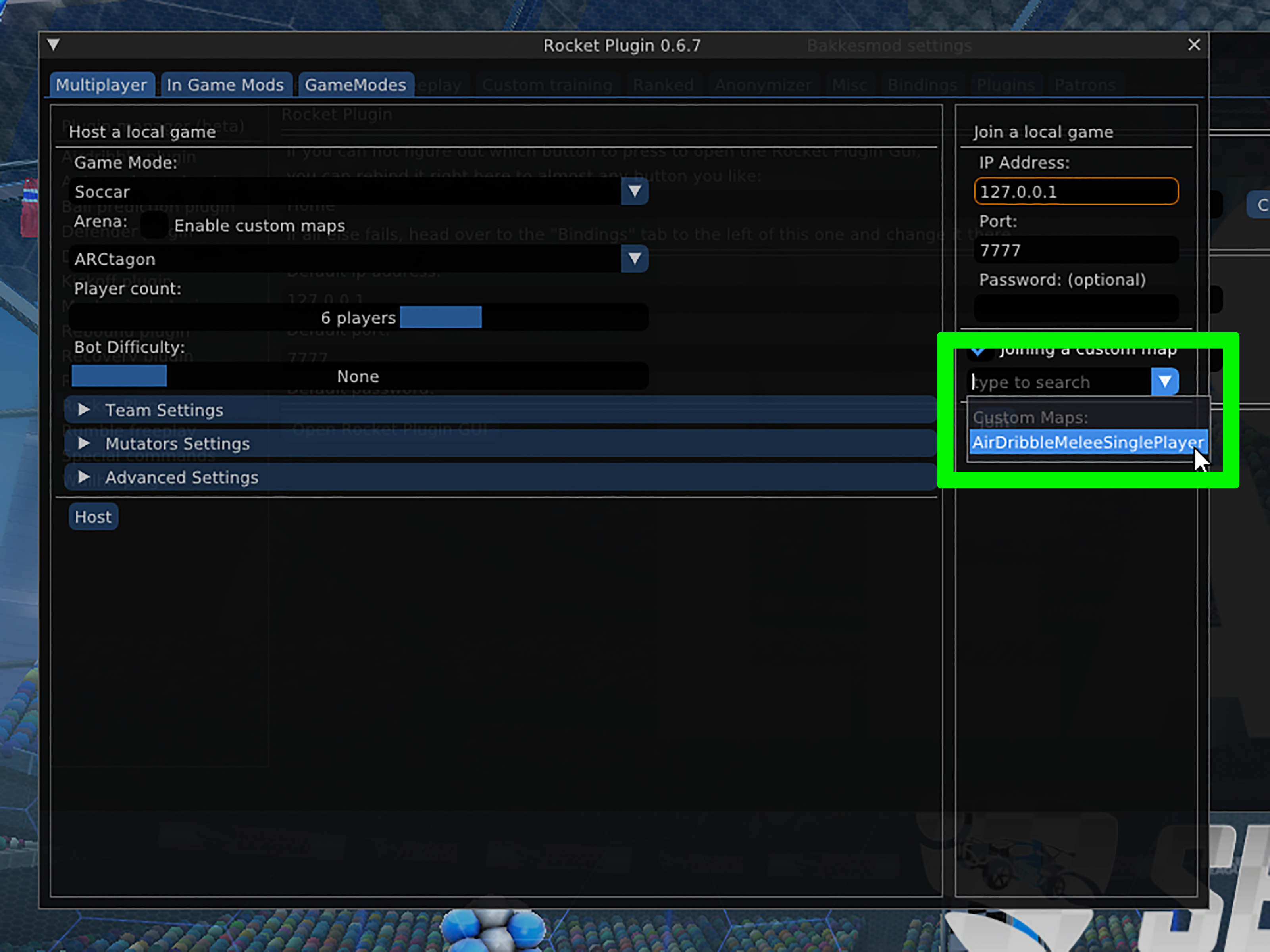
Older guides often recommend BakkesMod and Rocket Plugin for hosting custom multiplayer sessions. Those instructions may no longer apply to current Rocket League builds following the April 2026 Easy Anti-Cheat update, so do not assume that an older plugin workflow remains compatible.
5. Create, Test, and Publish Your Own Map Through Steam
The fifth method is for players who look at a rings map and think, “This is nice, but it needs moving lasers and a tunnel shaped like a toaster.” Steam owners can create or test compatible maps and publish them through the Workshop using Psyonix’s Workshop Uploader.
General creator workflow
- Build the map with the appropriate Unreal Development Kit workflow and Rocket League mapping resources.
- Cook or export the level into a compatible map format.
- Place the map and its required assets inside a clean project folder.
- Open Rocket League’s installation directory through Steam.
- Navigate to the game’s
Binariesfolder. - Launch
WorkshopUploader.exe. - Add the map title, description, preview image, and visibility settings.
- Upload the project to the Steam Workshop.
- Subscribe to the map and test it through Rocket League’s Workshop menu.
Psyonix’s official upload guide explains that the Workshop Uploader is packaged with the Steam game files and is intended for publishing custom level content.
Test before publishing publicly
Start with private or friends-only visibility when possible. Verify the spawn points, goals, boost pads, collision boundaries, lighting, textures, reset behavior, and performance. Drive into every suspicious corner. Players will eventually discover any hole in your collision mesh, usually within seven seconds of loading the map.
Also test the map at different frame rates and graphical settings. A visually impressive arena is less impressive when half the lobby’s computers begin producing enough heat to toast bread.
Common Rocket League Custom Map Problems
The map does not appear
Restart Rocket League, verify that Steam completed the Workshop download, or refresh the standalone loader. For manually imported maps, check whether the map file is hidden inside an extra nested folder.
Underpass loads normally
Confirm that you selected the correct Rocket League installation folder. Epic Games and Steam copies use different default paths. Also make sure you selected Underpass rather than Tokyo Underpass.
The map has missing or broken textures
Some older maps rely on shared Workshop texture packages. Check the creator’s instructions and install only the required assets from trusted sources. Newer loaders may install common textures automatically.
Rocket League reports modified or damaged files
Restore the original arena with the map loader’s repair option or verify the game installation through Steam or the Epic Games Launcher. Do this before returning to official online modes.
A loader or plugin stops working after an update
Do not repeatedly force an outdated mod to run. Epic Games specifically warns that Rocket League updates can break third-party tools and recommends waiting for the tool’s developer to release a compatible version.
Friends cannot join the same map
Confirm that everyone has the identical map version and has loaded it before joining. Compare file names and modification dates rather than relying on “I downloaded the purple one from that website.”
Player Experiences and Practical Lessons From Custom Maps
The first lesson many players learn is that custom maps expose weaknesses with alarming efficiency. A player may feel comfortable with aerials in regular matches, enter a rings course, and immediately discover that “comfortable with aerials” actually meant “can hit the ball while facing approximately forward.” Rings maps remove the ball and force you to control the car itself. Without a shot to chase, every unnecessary adjustment becomes obvious.
Beginners often make faster progress by choosing a simple map and completing short sections repeatedly. Trying the most famous extreme-difficulty course on day one can be entertaining, but it may teach more frustration than technique. A basic aerial course with wide gates is better for learning controlled takeoffs, gentle air-roll adjustments, and boost feathering. Once those movements become predictable, narrower rings and sharper turns start to feel possible rather than personally insulting.
Dribbling maps create a different experience. Standard Free Play lets you reset after a bad touch, but a purpose-built course makes each mistake visible. Players quickly notice whether they are accelerating too abruptly, turning underneath the ball, or watching the car instead of the ball’s position. The best improvement often comes from slowing down. Completing a course at moderate speed builds more useful control than launching the ball into the ceiling at supersonic speed and calling it “an aggressive training strategy.”
Custom obstacle maps also make recoveries more interesting. Falling from a platform or hitting a wall at an awkward angle forces players to practice landing on their wheels, preserving momentum, and using powerslides correctly. These skills transfer surprisingly well to normal matches, where a quick recovery can determine whether you rotate back into defense or spend three seconds upside down contemplating your life choices.
Multiplayer maps deliver less predictable lessons. Air hockey, sumo, races, hide-and-seek arenas, and oversized fields may not resemble ranked Soccar, but they improve adaptability. Players learn unfamiliar bounces, unusual camera angles, creative movement, and rapid decision-making. More importantly, these modes reduce training fatigue. Practicing mechanics is easier when the session feels like a game rather than unpaid mechanical labor.
One practical habit is to keep a small rotation of maps instead of downloading fifty at once. Use one map for aerial control, one for ground dribbling, one for shooting or redirects, and one purely for fun. Spend ten to twenty focused minutes on a training map before playing normal matches. This creates a clear purpose without exhausting the mechanic before you get a chance to use it.
It also helps to track progress with simple benchmarks. Record the time needed to finish a course, the highest level reached without resetting, or the number of successful attempts in ten minutes. A saved replay or short video can reveal improvements that are difficult to notice during daily practice. The first run may look like a shopping cart falling down an escalator; two weeks later, the movement may be smoother, faster, and far more deliberate.
Finally, custom maps work best when treated as a supplement rather than a complete replacement for regular Rocket League. Rings courses improve aerial control, but they do not teach opponent awareness. Dribbling maps improve touches, but they do not teach when to pass. Mini-games improve creativity, but they may not fix rotation habits. Combine custom map practice with Free Play, Custom Training, replay review, and real matches for the strongest results.
Conclusion
The best way to play Rocket League custom maps depends on your platform and goal. Existing Steam owners should begin with the native Workshop because it offers the simplest installation and update process. Epic Games players can use a standalone Custom Map Loader for solo offline practice, import compatible community maps, or organize LAN sessions in which every player loads the same files.
Creators can go one step further by testing and publishing original levels through Steam’s Workshop Uploader. Whichever method you choose, protect your game installation, restore modified files before online play, and follow Rocket League’s current Easy Anti-Cheat and third-party software rules.
Then pick a map, warm up your boost finger, and prepare to learn that the third ring was apparently the final boss all along.