
Note: This article is written in standard American English, based on accurate macOS folder-management practices, and formatted as copy-ready HTML for web publishing.
Creating folders on a Mac sounds like the kind of skill you learn once, master forever, and never think about againuntil your Desktop starts looking like a digital junk drawer after a yard sale. Screenshots are everywhere. Downloads are multiplying. That “Final-Final-Really-Final.pdf” file is hiding somewhere between a vacation photo and a tax document. The good news? macOS gives you several simple ways to create folders, and once you know them, organizing your Mac becomes a lot less dramatic.
Whether you are using a MacBook Air, MacBook Pro, iMac, Mac mini, or Mac Studio, the basic folder tools are built into Finder, Apple’s file-management app. You can create a new folder with the menu bar, a keyboard shortcut, a right-click action, or even Terminal if you like doing things the slightly nerdy but very efficient way. This guide focuses on 3 simple ways to create folders in Mac, plus practical organization tips, naming examples, common mistakes, and real-world experience to help you keep your files under control.
By the end, you will know how to create a folder on Mac, make folders faster, organize selected files into a folder, create nested folders, and avoid tiny Finder frustrations that make people whisper, “Why is this harder than opening a pickle jar?”
Why Creating Folders on Mac Matters
Folders are the foundation of file organization on macOS. They help group related documents, photos, videos, downloads, work files, school assignments, design assets, invoices, and anything else your Mac collects during daily life. Without folders, Finder becomes a crowded room where every file is talking at once.
A smart folder system helps you:
- Find files faster without relying only on Spotlight search.
- Keep your Desktop clean and easier to scan.
- Separate work, personal, school, and creative projects.
- Back up files more logically to iCloud Drive, external drives, or cloud storage.
- Reduce duplicate files and confusing file names.
The best part is that creating a folder on a Mac takes only a few seconds. The bigger challenge is knowing which method fits the moment. Let’s start with the easiest and most traditional option.
Method 1: Create a Folder on Mac Using Finder
The most beginner-friendly way to create a folder on Mac is through Finder. Finder is the smiling blue-and-white face icon in your Dock, and it is where you browse your Mac’s files, drives, folders, and connected storage locations.
Step-by-Step: Create a New Folder in Finder
- Click the Finder icon in the Dock.
- Go to the location where you want the folder, such as Desktop, Documents, Downloads, or iCloud Drive.
- Click File in the menu bar at the top of the screen.
- Select New Folder.
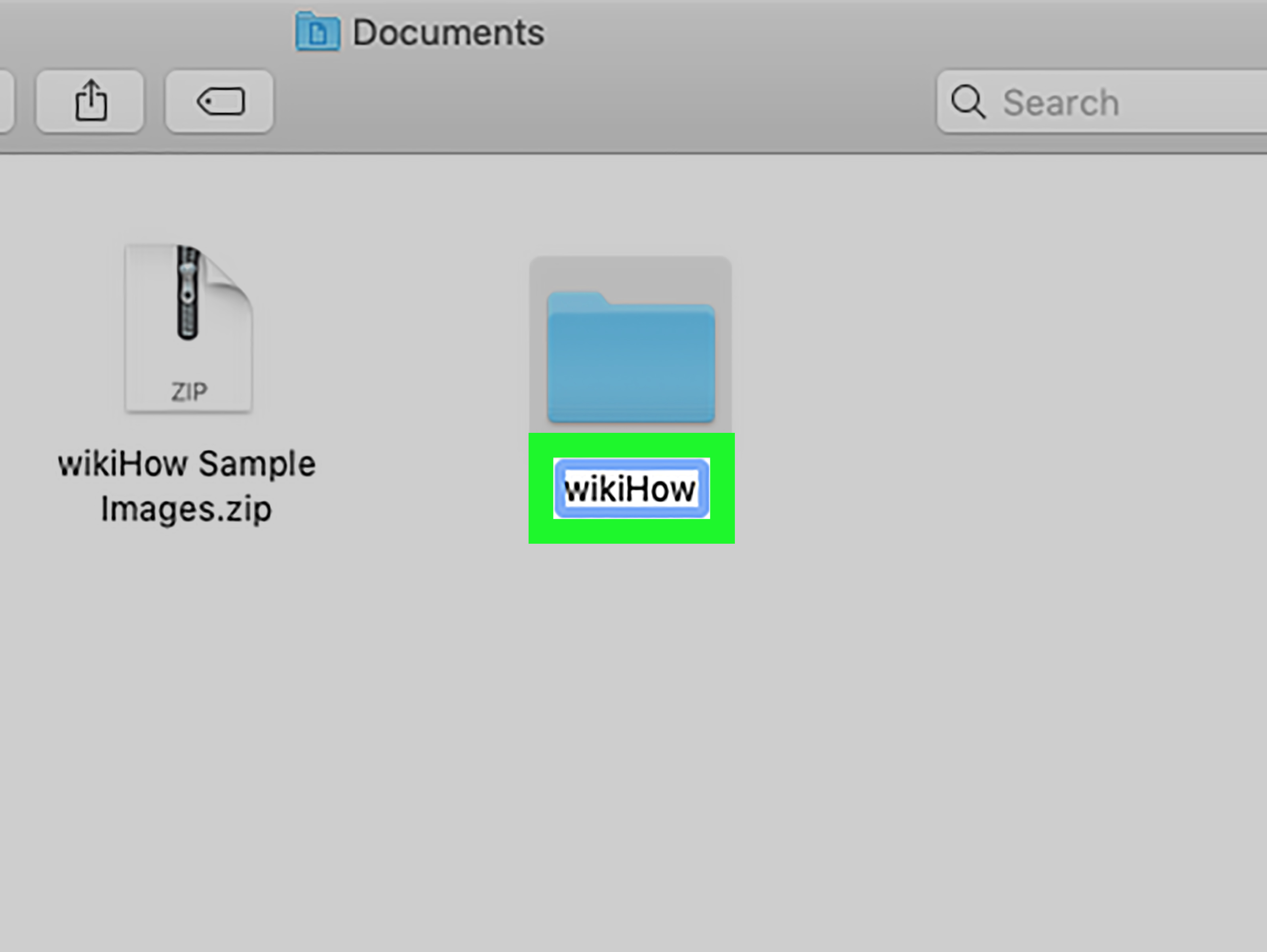
- Type a folder name.
- Press Return to save the name.
That’s it. Your new folder appears in the location you selected. If you create it in Documents, it stays in Documents. If you create it on the Desktop, it appears directly on the Desktop. Finder is polite like thatit puts the folder where you asked, not where it feels emotionally inspired.
Example Folder Names That Actually Help
A folder named “Stuff” may feel charming today, but future-you will not be impressed. Use clear, specific names that describe what belongs inside. For example:
- 2026 Tax Documents
- Client Invoices
- Vacation Photos – Hawaii
- Resume and Cover Letters
- Website Redesign Assets
- School Projects – Spring Semester
Good folder names reduce search time and prevent the classic “I know I saved it somewhere” mystery, which is the Mac version of losing your keys while holding your keys.
What If “New Folder” Is Dimmed?
Sometimes the New Folder option may be unavailable. This usually means you are in a location where macOS does not allow you to create a folder, or you do not have permission to modify that folder. Try creating the folder in Documents, Desktop, Downloads, or another user-owned location. If you are inside a protected system folder, Finder may block changes for safety reasons.
Method 2: Create a Folder on Mac With a Keyboard Shortcut
If you like speed, the Mac keyboard shortcut for creating a new folder is your new best friend. It is fast, clean, and makes you look like you know what you are doingeven if five minutes ago you were searching “where did my Downloads folder go?”
The Keyboard Shortcut for a New Folder
To create a new folder in Finder, press:
Shift + Command + N
This shortcut creates a new empty folder in the current Finder location. After the folder appears, type a name and press Return.
How to Use the Shortcut Properly
- Open Finder.
- Navigate to the folder or location where you want the new folder.
- Press Shift + Command + N.
- Enter the folder name.
- Press Return.
This method is ideal when you are sorting files quickly. For example, imagine you are cleaning up your Downloads folder. You can create folders named Receipts, Installers, Images, and Work Docs in seconds, then drag files into the right places.
Create a Folder From Selected Files
Mac also has a handy shortcut for turning selected files into a folder. First, select the files you want to group. Then press:
Control + Command + N
Finder creates a new folder containing those selected items. This is especially useful when your Desktop is covered with screenshots, PDFs, images, or project files. Instead of creating a folder first and dragging files into it manually, macOS does the cleanup in one move.
Example: Organize Screenshots Fast
Suppose your Desktop has 18 screenshots from a design review. Select those screenshots, press Control + Command + N, then rename the new folder Design Review Screenshots. Congratulations: your Desktop just went from “crime scene” to “productive professional” in about four seconds.
Method 3: Create a Folder on Mac Using Right-Click or Terminal
The third simple way depends on your style. If you prefer visual controls, use the right-click menu in Finder. If you are comfortable with commands, use Terminal. Both methods create folders, but they suit different workflows.
Option A: Create a Folder With Right-Click
Right-clicking is one of the easiest ways to create a folder on the Desktop or inside Finder.
- Open Finder or go to your Desktop.
- Right-click in an empty area.
- Select New Folder.
- Type a name for the folder.
- Press Return.
If your Mac does not seem to right-click, try clicking with two fingers on the trackpad. You can also hold the Control key while clicking. That is Apple’s way of saying, “We support right-clicking, but we are going to make it feel like a secret handshake.”
When Right-Click Works Best
The right-click method is great when you are already working visually. For example, if you are arranging files on the Desktop, you can right-click an open space, create a folder, name it, and drag related files into it. It is simple, direct, and does not require remembering shortcuts.
Option B: Create a Folder With Terminal
Terminal is the command-line app on macOS. It lets you type commands to perform tasks, including creating folders. This method may look intimidating at first, but the basic command is very simple.
To create a folder in Terminal, use:
For example:
This creates a folder named ProjectFiles in the current Terminal location.
Create a Folder With Spaces in the Name
If your folder name has spaces, put it in quotation marks:
Without quotation marks, Terminal may treat each word as a separate item. Terminal is powerful, but it is not a mind reader. It will happily misunderstand you with confidence.
Create Multiple Folders at Once
Terminal is especially useful when you want to create several folders at the same time. For example:
This creates four folders at once. If you are setting up a new project, class, client workspace, or content calendar, this can save time.
Create Nested Folders
To create folders inside folders, use the -p option:
This creates a folder structure like this:
The -p option tells Terminal to create any missing parent folders along the way. It is a handy tool when building a project structure from scratch.
Best Practices for Organizing Folders on Mac
Knowing how to create folders is useful. Knowing how to organize them well is even better. A cluttered folder system can become just as confusing as no system at all. The goal is not to create 400 folders named “Misc.” The goal is to make your files easy to find.
Use a Simple Main Folder Structure
Start with broad categories, then create subfolders only when needed. For example:
- Work
- Personal
- Finance
- Photos
- School
- Projects
Inside each main folder, you can create more specific folders. Under Finance, you might have Taxes, Receipts, Invoices, and Bank Statements.
Add Dates When They Matter
Dates are helpful for projects, reports, events, tax files, and recurring documents. A consistent date format keeps folders sorted neatly. Try using:
Using the year first helps folders appear in chronological order when sorted by name.
Avoid Overloading the Desktop
The Desktop is convenient, but it should not become permanent storage for everything you have ever touched. Use it for temporary files, then move items into proper folders at the end of the day or week. A cleaner Desktop can also make your Mac feel calmer and easier to use.
Use Finder Tags for Extra Organization
Folders are not the only organization tool on macOS. Finder tags let you label files and folders with colors or keywords. For example, you can tag folders as Urgent, Client Work, Personal, or Archive. Tags are helpful when one file could belong to more than one category.
Keep Folder Names Search-Friendly
Use words you would actually search for later. Instead of Docs, use Insurance Documents. Instead of New Folder 7, use Podcast Episode Notes. Your future self will thank you, possibly with snacks.
Common Mistakes When Creating Folders on Mac
Mistake 1: Creating Too Many Tiny Folders
Folders should simplify your system, not turn it into a maze. If a folder contains only one file and probably always will, ask whether it really needs to exist. Too many layers can make files harder to find.
Mistake 2: Using Vague Folder Names
Names like Stuff, Things, Random, and Old are not helpful. They are emotional support folders. Use descriptive names that explain the folder’s purpose.
Mistake 3: Saving Everything in Downloads
The Downloads folder is a temporary landing zone, not a long-term filing cabinet. Clean it regularly. Move important items to Documents, iCloud Drive, or a dedicated project folder.
Mistake 4: Forgetting iCloud Drive Sync
If you create folders in iCloud Drive, they may sync across your Apple devices. This is useful, but it also means changes can appear on your iPhone, iPad, or another Mac. Be mindful when moving or deleting folders from iCloud Drive.
Mistake 5: Ignoring Permissions
If macOS prevents you from creating a folder in a certain location, there is usually a reason. System folders and app-controlled directories may restrict changes. Create folders in user-friendly places like Desktop, Documents, Downloads, or your home folder.
Practical Examples: Folder Systems You Can Copy
For Students
This structure keeps classes separated by semester and subject. It is much better than saving everything to the Desktop and hoping academic success emerges from chaos.
For Freelancers
This system helps separate client materials and makes invoicing easier. It also reduces the risk of sending the wrong file to the wrong client, which is always a spicy little disaster.
For Photos
Organizing photos by year and event keeps your library easier to browse, especially if you export images from the Photos app or store camera files manually.
For Work Projects
This structure gives each project a clear home and prevents important assets from floating around in random places.
Troubleshooting: Why Can’t I Create a Folder on My Mac?
You Are in a Read-Only Location
Some folders are protected by macOS. If you are browsing system directories or app package contents, Finder may not let you create a new folder. Move to a regular location like Documents or Desktop and try again.
The Folder Name Is Not Allowed
macOS allows many characters in folder names, but some characters can cause problems depending on the app or file system. Avoid using colons, slashes, or names that begin with a period unless you know exactly why you need them.
You Are Not in the Folder You Think You Are
Finder windows can be deceptive when several tabs or views are open. Check the Finder sidebar or enable the path bar from the View menu so you can see where you are. Creating a folder in the wrong location is common, especially when organizing quickly.
Your Keyboard Shortcut Is Not Working
Make sure Finder is the active app. The Shift + Command + N shortcut creates a folder in Finder, but in another app it may perform a different action or do nothing. Click a Finder window first, then try again.
Personal Experience: What I Learned From Organizing Folders on Mac
My biggest lesson from creating folders on Mac is that the method matters less than the habit. At first, I treated folders like emergency containers. Whenever my Desktop became embarrassing, I created one giant folder called something like Clean Up Later. That sounded responsible for about twelve minutes. Then I made Clean Up Later 2. Eventually, I had a museum of digital avoidance. The folders existed, but they did not help because they had no plan.
The system that worked best was simple: create folders before the mess grows. When starting a new project, I make a main folder immediately. Inside it, I create basic subfolders such as Research, Drafts, Images, and Final. This takes less than a minute, especially with Shift + Command + N, but it saves a surprising amount of time later. Instead of asking, “Where did I save that logo?” I already know it belongs in the Images folder. Very glamorous? No. Very effective? Absolutely.
I also learned that the Desktop should be treated like a kitchen counter. It is fine to use it while working, but it should not become long-term storage. If you leave every file there, eventually you run out of space, patience, and the will to visually process anything. Creating a folder on the Desktop is useful for quick sorting, but I try to move finished folders into Documents, iCloud Drive, or an external drive once the work is done.
The keyboard shortcut became my favorite method because it keeps me moving. When organizing a batch of files, I can create folders quickly without reaching for menus. But the right-click method is still the easiest when I am casually cleaning the Desktop. Terminal is the method I use when setting up multiple folders at once, especially for projects that need the same structure every time. For example, creating folders for Copy, Images, Exports, and Archive with one command feels oddly satisfying, like folding laundry but without the laundry.
One practical habit that made a huge difference was using consistent folder names. Dates go first when time matters. Client names stay consistent. Final files go into a folder actually named Final Files, not Done, Use This, or Seriously This One. Funny names are tempting, but search-friendly names win every time.
Another useful experience: do not over-organize. At one point, I created so many nested folders that finding a document felt like exploring a tiny administrative cave system. A good folder system should be shallow enough to browse and specific enough to understand. Usually, two or three levels are enough for everyday users.
In short, creating folders on Mac is easy, but staying organized comes from repeating a few small habits. Create the folder early. Name it clearly. Put files where they belong. Review messy areas like Downloads once a week. Your Mac will feel cleaner, your files will be easier to find, and you will spend less time searching for documents with names you vaguely remember. That is not just organization; that is digital peace with a nice aluminum finish.
Conclusion
Learning 3 simple ways to create folders in Mac gives you more control over your files and a cleaner daily workflow. You can use Finder’s menu bar for a traditional approach, press Shift + Command + N for speed, right-click for convenience, or use Terminal when you want to create folders in bulk. Each method is simple, practical, and built into macOS.
The real secret is not just creating foldersit is creating useful folders. Choose clear names, avoid unnecessary clutter, organize files by project or category, and clean up temporary locations like Downloads and Desktop regularly. With a thoughtful folder system, your Mac becomes easier to use, your files become easier to find, and your digital life feels much less like a drawer full of mystery cables.