
Minecraft is already the digital equivalent of a bottomless toy box: castles, creepers, redstone contraptions, suspiciously square cows, and that one friend who always digs straight down despite being warned since 2011. But mods? Mods are where Minecraft puts on a cape, drinks a potion, and becomes whatever your imagination can survive.
Learning how to install Minecraft mods can turn the game into a cozy farming sim, a high-tech factory builder, a monster-filled adventure, a shader-powered postcard, or a wildly complicated engineering class disguised as fun. The trick is knowing which installation method fits your version of Minecraft, your comfort level, and the type of mod you want to use.
This guide covers five practical ways to install Minecraft mods, including beginner-friendly launchers, manual Java Edition setup, modpacks, Prism Launcher, and Bedrock Edition Add-Ons. We will also talk about safety, version matching, common mistakes, and real-world installation experience so your modding journey feels less like fighting the Ender Dragon with a wooden spoon.
Before You Install Minecraft Mods: Know Your Edition
The most important first step is knowing which version of Minecraft you play. Minecraft Java Edition and Minecraft Bedrock Edition handle mods differently. Java Edition is the classic home of community mods, custom loaders, massive modpacks, and third-party launchers. Bedrock Edition uses Add-Ons, behavior packs, resource packs, and Marketplace content instead of traditional Java mod files.
If you are on Windows, macOS, or Linux and use the Minecraft Launcher with Java Edition, you can install loaders like Forge, Fabric, or NeoForge. If you play on console, mobile, or the Windows Bedrock version, you will usually work with Add-Ons and Marketplace content. That difference matters because a Java .jar mod will not magically work on Bedrock. Minecraft is powerful, but it is not a wizard with a file converter hat.
Quick Modding Checklist
- Check whether you are using Java Edition or Bedrock Edition.
- Back up your worlds before adding mods.
- Match the mod to your Minecraft version.
- Match the mod to the correct loader: Forge, Fabric, NeoForge, or another supported platform.
- Download mods only from trusted sources such as established mod platforms or official project pages.
- Read dependency notes. Many mods need extra library mods to work.
1. Install Minecraft Mods with CurseForge
CurseForge is one of the easiest ways to install Minecraft mods, especially if you are new to modding and would rather not hunt through folders like an archaeologist searching for ancient dirt. The CurseForge app helps you browse mods and modpacks, create profiles, install compatible files, and keep things organized.
Best For
This method is best for beginners, modpack fans, and players who want a clean interface for managing different Minecraft setups. It is also helpful if you enjoy trying large modpacks such as technology packs, exploration packs, magic packs, or kitchen-sink packs that combine dozens or even hundreds of mods.
How It Works
- Install the CurseForge desktop app.
- Select Minecraft from the supported games list.
- Browse for a mod or modpack.
- Create a new profile or add the mod to an existing profile.
- Launch the modded profile through the app.
The big advantage is convenience. CurseForge handles profile separation, which means one modded setup does not have to crash into another like two minecarts on a badly planned rail system. You can keep one profile for a farming modpack, another for a performance-focused setup, and another for your chaotic “what happens if I install 87 mods at once?” experiment.
Pro Tip
Use separate profiles for different mod lists. Never dump every mod you find into one profile and hope for peace. Mods are like villagers: useful individually, but once you crowd too many into one tiny space, strange noises begin.
2. Install Minecraft Mods with Modrinth
Modrinth is another excellent way to install Minecraft mods and modpacks. It has become especially popular among players who like a modern interface, open-source projects, and simple one-click mod management. The Modrinth app can install, update, and manage mods without forcing you to manually drag files around your computer.
Best For
Modrinth is great for players who want a clean, fast modding experience. It is also a strong choice for Fabric-based mods, performance mods, shaders, resource packs, and modpacks. Many creators publish on both Modrinth and CurseForge, so checking both platforms can help you find the right version of a project.
How It Works
- Install the Modrinth app.
- Sign in if needed.
- Create a Minecraft instance or browse existing modpacks.
- Choose the Minecraft version and mod loader.
- Install mods directly from the app.
- Launch the instance and test it before adding more mods.
One of the best features of app-based modding is dependency handling. Some mods require extra support libraries. For example, a mod may need Fabric API, Architectury API, Cloth Config, GeckoLib, or another library to run properly. A good launcher can often tell you what is missing or install dependencies automatically. That saves you from the classic “game crashes, no explanation, emotional damage” experience.
CurseForge vs. Modrinth
Both platforms are useful. CurseForge has a huge library and long history. Modrinth has a sleek interface and is popular with many modern mod developers. The better choice depends on where your desired mod is hosted, which launcher you prefer, and whether your friends are using the same modpack. In multiplayer, matching the exact pack and version is not optional. Minecraft servers are picky. They do not accept “close enough” as a technical standard.
3. Manually Install Mods with Forge, Fabric, or NeoForge
Manual installation gives you more control. It is also the method that makes you feel like a real computer person for about six minutes, right until you forget where the mods folder is. Still, manual installation is not difficult once you understand the pattern.
For Minecraft Java Edition, most mods require a mod loader. The common modern choices are Forge, Fabric, and NeoForge. Each loader supports different mods. A Forge mod usually will not run on Fabric unless the creator specifically provides a Fabric version. A NeoForge mod must be installed in a NeoForge environment. Fabric mods often need Fabric Loader and Fabric API.
Best For
Manual installation is best for players who want precise control over individual mods, custom private mod lists, server matching, testing, or learning how Minecraft modding actually works behind the curtain.
How to Install Mods Manually
- Run vanilla Minecraft once for the version you want to mod.
- Download and install the correct mod loader: Forge, Fabric, or NeoForge.
- Open the Minecraft Launcher and select the new loader profile.
- Launch the game once, then close it.
- Find your Minecraft folder.
- Open or create the
modsfolder. - Place compatible
.jarmod files into that folder. - Restart Minecraft using the correct loader profile.
Finding the Minecraft Mods Folder
On Windows, the Java Edition folder is usually located at %appdata%\.minecraft. On macOS, it is commonly under ~/Library/Application Support/minecraft. On Linux, it is often found at ~/.minecraft. Inside that folder, you should see or create a folder called mods.
Do not place Java mods into the resourcepacks folder. Do not place them into saves. Do not place them randomly on the desktop and glare at the screen. The mods folder exists for a reason, and it appreciates being respected.
Forge, Fabric, and NeoForge: What Is the Difference?
Forge has been one of the classic Minecraft mod loaders for many years and is still used by many large content mods. Fabric is known for lightweight performance, fast updates, and a large ecosystem of utility and optimization mods. NeoForge is a newer continuation in the Forge-style ecosystem and is increasingly used by modern mods that support newer Minecraft versions.
The practical rule is simple: use the loader required by the mod. If the mod page says Fabric, install Fabric. If it says Forge, install Forge. If it says NeoForge, install NeoForge. Guessing does not work here. Minecraft will not reward optimism with compatibility.
4. Install Modpacks with a Launcher
Installing individual mods is fun, but installing modpacks is often easier. A modpack is a curated collection of mods, configs, resource packs, and sometimes custom quests or progression systems. Instead of choosing every mod yourself, you install a full experience built around a theme.
For example, a survival modpack might add new biomes, stronger mobs, food systems, backpacks, and better villages. A tech modpack might add power generation, machines, pipes, automation, and enough menus to make your brain feel like redstone dust. A magic modpack might add spells, rituals, wands, and mysterious books that definitely should not be opened in a basement at midnight.
Best For
Modpacks are best for players who want a complete experience, multiplayer groups, beginners who do not want to solve compatibility issues, and anyone who wants to jump straight into a themed version of Minecraft.
How to Install a Modpack
- Open a trusted launcher such as CurseForge, Modrinth, or another reputable Minecraft launcher.
- Search for a modpack by name, category, version, or popularity.
- Read the description, Minecraft version, loader type, and hardware recommendations.
- Click install.
- Allocate enough memory if the pack is large.
- Launch and let the first load take its time.
Hardware Matters
Some modpacks are lightweight. Others are basically Minecraft wearing a backpack full of bricks. If a modpack includes hundreds of mods, shaders, custom world generation, and advanced textures, it may need more memory and a stronger computer. If your game freezes at startup, lower your expectations before blaming the sheep.
A common starting point for many medium modpacks is around 4 GB to 6 GB of allocated RAM. Larger packs may need more. However, giving Minecraft too much RAM can also cause performance problems, so do not simply slide the memory setting to the moon and expect miracles.
5. Install Minecraft Bedrock Add-Ons
Bedrock Edition does not use Java-style mod loaders. Instead, it uses Add-Ons, resource packs, behavior packs, and Marketplace content. These can change textures, mobs, items, recipes, world behavior, and more. The process is usually simpler than Java modding, especially when content comes from the Minecraft Marketplace.
Best For
This method is best for players on mobile, console, Windows Bedrock Edition, and anyone who wants supported content without manually managing Java mod loaders. It is also the most practical option for younger players or families who want a smoother, safer installation path.
How to Activate Bedrock Add-Ons
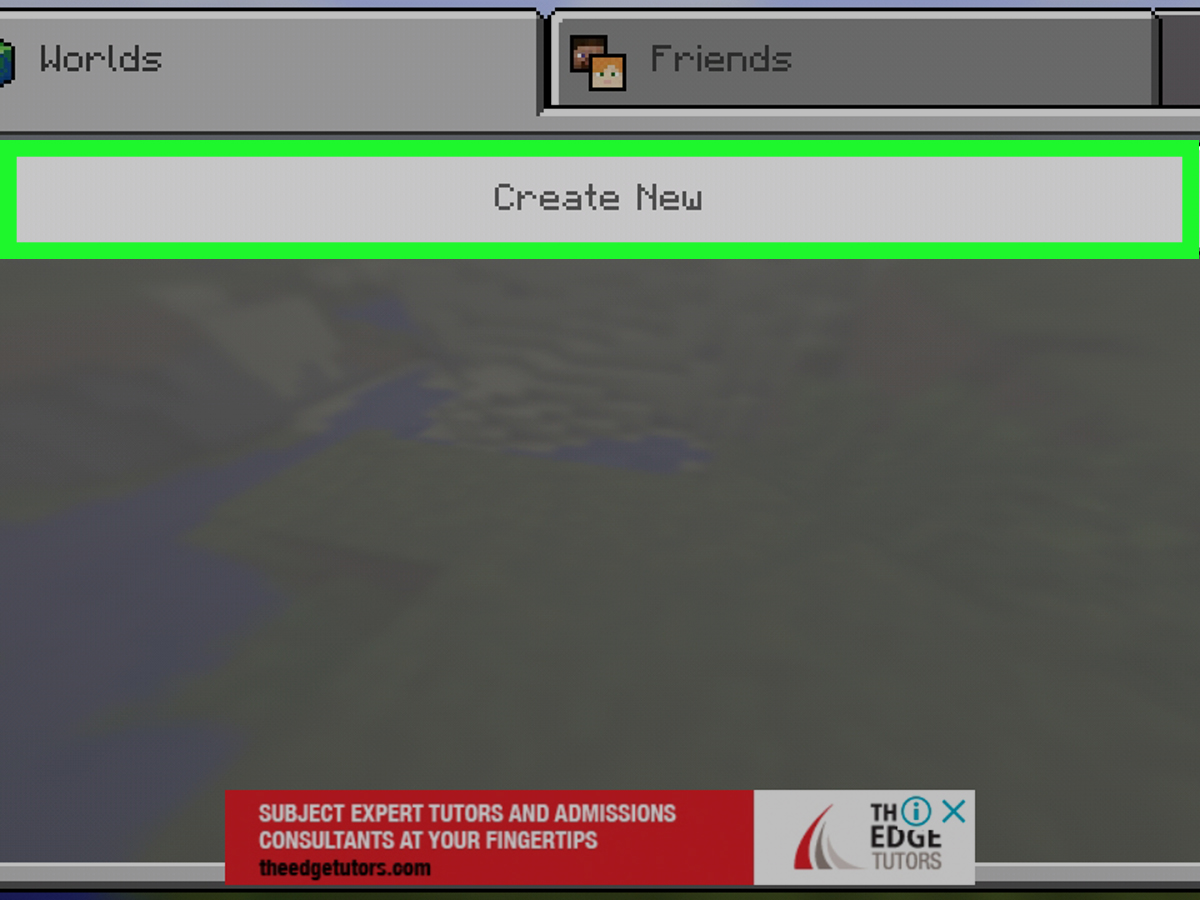
- Open Minecraft Bedrock Edition.
- Select Play.
- Create a new world or edit an existing world using the pencil icon.
- Find the Resource Packs or Behavior Packs section.
- Select the Add-On you want.
- Choose Activate.
- Start the world and test the changes.
Resource packs usually change how things look or sound. Behavior packs change how things act. Many Add-Ons use both together. For example, a dinosaur Add-On might include a resource pack for models and textures, plus a behavior pack that tells the dinosaurs how to move, attack, spawn, or stare at you with prehistoric judgment.
How to Install Minecraft Mods Safely
Modding is fun, but safe downloading matters. Minecraft mods are often packaged as executable Java archive files, which means you should treat downloads carefully. Stick to reputable platforms, read comments and update history, avoid random repost sites, and be suspicious of files that ask you to disable security tools.
Safety Rules That Actually Help
- Download from trusted mod platforms or the creator’s official page.
- Avoid “free premium,” “cracked client,” or cheat-style downloads.
- Check that the file name, Minecraft version, and loader match the mod page.
- Keep your operating system and antivirus tools updated.
- Back up worlds before installing new mods.
- Do not run random installers unless they come from a trusted official source.
- Be careful with mods shared through unknown Discord servers, file mirrors, or social media posts.
A good modding habit is to add mods slowly. Install two or three, launch the game, and test. If everything works, add more. If you install fifty at once and the game crashes, finding the problem becomes a detective story with too many suspects and not enough snacks.
Common Minecraft Mod Installation Problems
The Game Crashes at Startup
This usually means a version mismatch, missing dependency, wrong loader, outdated Java requirement, or incompatible mod combination. Check the crash report if you can. Look for the first mod mentioned near the error. It is not always the guilty mod, but it is a good place to start.
The Mod Does Not Appear in Game
Make sure you launched the correct profile. A mod placed in the Java mods folder will not work if you launch vanilla Minecraft. Also check whether the mod is client-side, server-side, or both. Some mods only work when installed on the server, while others only affect the player’s client.
The Server Rejects Your Connection
For modded multiplayer, your client usually needs the same loader, same Minecraft version, and same required mods as the server. If the server uses a specific modpack version, install that exact version. “I updated one mod because the button looked friendly” is a surprisingly common way to break multiplayer compatibility.
The World Loads but Something Is Missing
Some mods require configuration files, world generation settings, or a newly created world to show all features. If a mod adds new ores, biomes, or structures, they may not appear in chunks you already explored. You may need to travel to new areas or create a fresh world.
Which Minecraft Mod Installation Method Should You Choose?
If you are a beginner, start with CurseForge or Modrinth. They make installing Minecraft mods much easier and reduce the number of folder-related mysteries you must solve. If you want deep control, use manual Forge, Fabric, or NeoForge installation. If you want a complete adventure, install a modpack. If you use Bedrock Edition, focus on Add-Ons and Marketplace content.
For most players, the best route is simple: choose the mod or modpack first, then use the installation method recommended by that project. Do not pick a loader randomly. Do not mix versions. Do not install a mod from 1.19 into 1.21 and expect it to behave. Minecraft mods are many things, but forgiving is not always one of them.
Extra Experience: What Installing Minecraft Mods Feels Like in Real Life
The first time you install Minecraft mods, it can feel like being handed a treasure map written partly in English, partly in computer language, and partly in creeper noises. You search for a mod, download a file, place it in a folder, launch the game, and hope the loading screen does not betray you. When it works, it feels amazing. When it crashes, it feels like your computer has personally rejected your creativity.
One useful habit is to create a “testing world.” This is a disposable world where you check new mods before adding them to your main survival world. Load the game, spawn a few items, test the new blocks, check world generation, and make sure nothing looks broken. If the mod adds mobs, structures, machines, magic systems, or new dimensions, test those features before trusting the mod with your 300-hour survival base. Your castle deserves better than becoming a compatibility experiment.
Another real-world lesson: keep notes. You do not need a giant spreadsheet, although some modpack players absolutely do that and probably organize their chests alphabetically. A simple text file with your Minecraft version, loader version, installed mods, and changes can save you later. If something breaks after adding three mods, you will know where to look.
It also helps to understand that “more mods” does not always mean “more fun.” A small, carefully chosen mod list often feels better than a giant pile of features that fight each other. For a cozy survival experience, you might combine a map mod, a backpack mod, a furniture mod, a farming mod, and performance improvements. For exploration, you might add biome mods, structure mods, better villages, and new mobs. For tech gameplay, you might add automation, pipes, power systems, and storage mods. The best modded Minecraft setups have a purpose.
Performance mods deserve special mention. Many players install content mods first, then wonder why the game runs like a sleepy turtle. Optimization mods, proper memory allocation, reasonable render distance, and avoiding overly heavy shader settings can make a huge difference. Shaders are beautiful, but they can turn a modest laptop into a space heater with keyboard lighting.
Multiplayer adds another layer. Before inviting friends, decide whether everyone will use a launcher profile or a shared modpack. The easiest experience is usually a modpack because everyone installs the same version. If you manually build a shared mod list, upload a clear list of exact files and versions. Otherwise, someone will show up with the wrong Fabric API, someone else will use the Forge version of a mod, and the server will become a support group.
Finally, do not be afraid of mistakes. Modding is partly experimentation. You will eventually install the wrong file, forget a dependency, load the wrong profile, or wonder why a dragon mod requires a library you have never heard of. That is normal. Back up your worlds, install slowly, use trusted sources, and treat each crash as information rather than disaster. Minecraft modding rewards patience, curiosity, and the ability to laugh when your game refuses to open because one tiny library mod is missing.
Conclusion
Installing Minecraft mods is easier than it looks once you understand the five main paths: CurseForge, Modrinth, manual Java loader installation, launcher-based modpacks, and Bedrock Add-Ons. The right method depends on your edition, your modding goals, and how much control you want. Beginners should start with app-based launchers. Advanced players can build custom setups with Forge, Fabric, or NeoForge. Bedrock players should use Add-Ons and Marketplace content.
The golden rule is simple: match the Minecraft version, match the loader, check dependencies, and back up your worlds. Do that, and modding becomes less confusing and much more fun. Before long, you will go from “Where is the mods folder?” to “Maybe my base does need automated storage, magical crops, realistic terrain, flying backpacks, and a tiny dragon roommate.” That is the beauty of modded Minecraft: the only real limit is how many blocks, ideas, and surprisingly dramatic crash reports you are willing to explore.
Note
This article is based on current, real Minecraft modding practices, including Java Edition mod loaders, trusted launcher workflows, Bedrock Add-Ons, modpack installation, dependency handling, and safe-download recommendations.