
Chromebooks are the sensible shoes of the laptop world: affordable, lightweight, practical, and occasionally accused of ruining the party because they will not run someone’s favorite 14-year-old Windows program. But dismissing them as “just a browser” is outdated. Modern Chromebooks can run web apps, Android apps, Linux development tools, cloud gaming services, Google Workspace, Microsoft 365 on the web, and, on Chromebook Plus models, a growing set of AI-powered features.
Still, Chromebooks are not magic rectangles. They are excellent for students, writers, travelers, families, teachers, remote workers, and anyone who lives mostly in the browser. They are less ideal for high-end PC gaming, professional-grade video editing, specialized desktop software, or people who believe “offline workflow” should mean “I can edit 4K footage in a cabin during a thunderstorm.”
This guide breaks down the eight biggest reasons Chromebooks are good, plus the honest reasons they can be bad. The goal is simple: help you decide whether a Chromebook is a smart buy or a shiny little disappointment waiting in a Best Buy aisle.
What Is a Chromebook?
A Chromebook is a laptop that runs ChromeOS, Google’s lightweight operating system built around the Chrome browser, cloud storage, web apps, Android apps, and Google services. Instead of behaving like a traditional Windows laptop or MacBook, a Chromebook focuses on speed, simplicity, security, and online-first productivity.
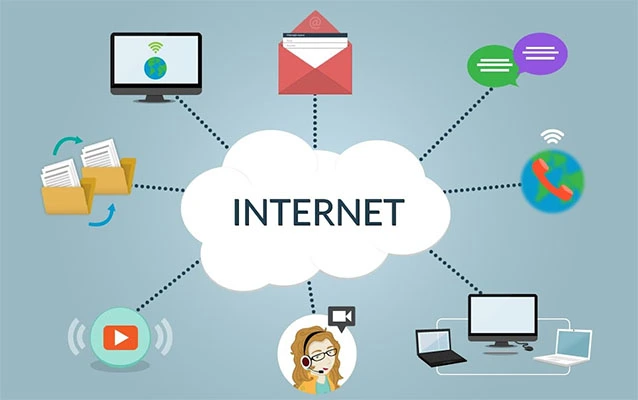
That online-first design is the secret sauce and the catch. If your daily routine includes Gmail, Google Docs, YouTube, Canva, Zoom, Slack, Netflix, Microsoft 365 web apps, school portals, banking websites, and cloud storage, a Chromebook may feel refreshingly fast. If your routine depends on full desktop versions of Adobe Premiere Pro, AutoCAD, high-end Steam games, or niche Windows-only business software, ChromeOS may feel like a polite but firm bouncer saying, “Not on the list.”
1. Chromebooks Are Usually Affordable
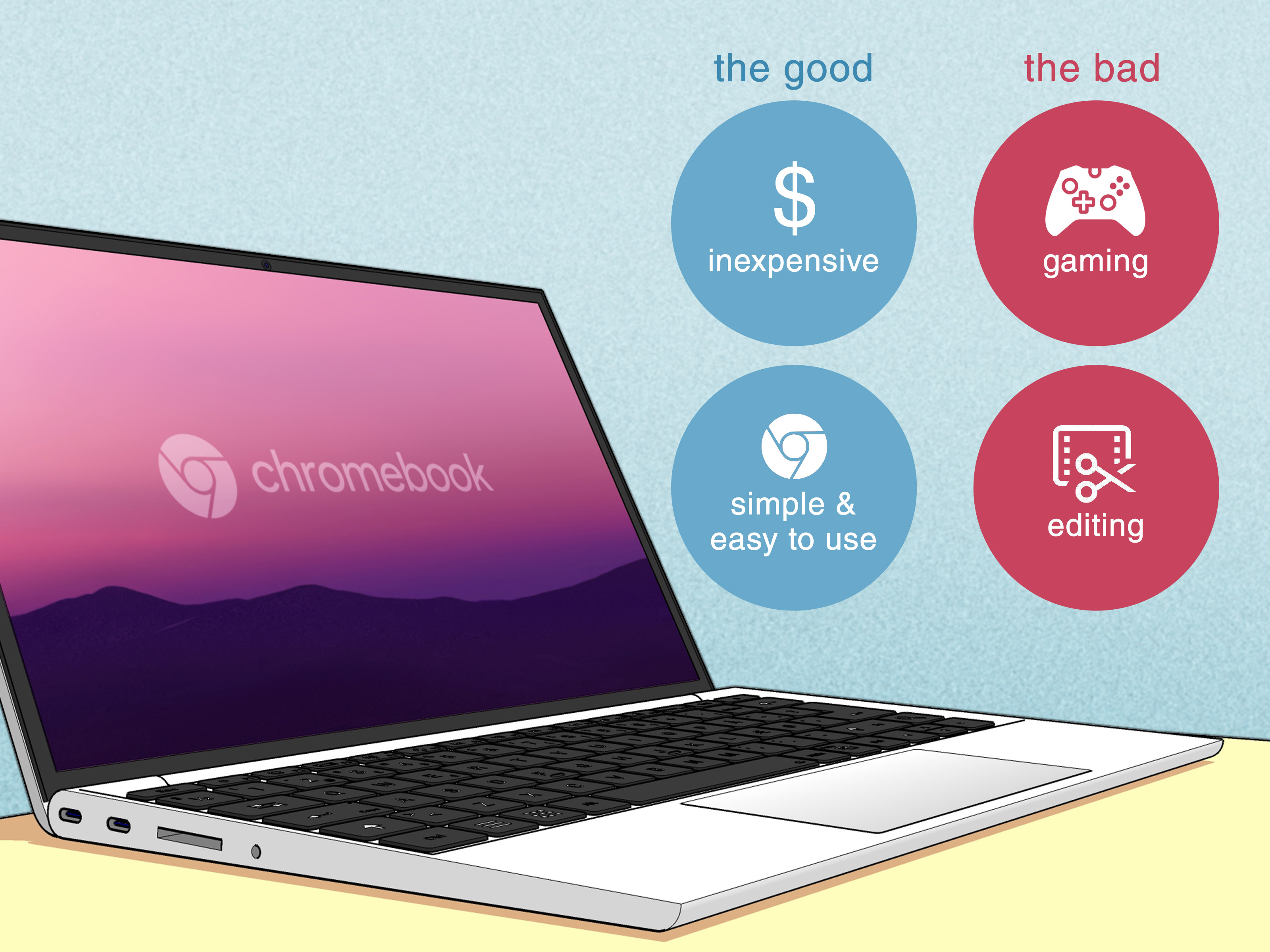
The first reason Chromebooks are good is obvious: price. Many excellent Chromebooks cost less than traditional laptops with similar everyday performance. Budget models are often enough for email, homework, streaming, video calls, and web browsing, while Chromebook Plus laptops raise the baseline with better processors, at least 8GB of RAM, 128GB or more of storage, Full HD displays, and improved webcams.
For students and families, that matters. Buying one laptop is a decision. Buying three laptops for three kids is a financial weather event. Chromebooks are popular in schools partly because they are easier to deploy, easier to manage, and less expensive than many Windows or macOS alternatives.
Why They’re Bad: Cheap Can Still Mean Too Cheap
Not every low-cost Chromebook is a gem. Some bargain-bin models come with dim screens, cramped keyboards, weak processors, limited storage, and only 4GB of RAM. That may work for basic browsing, but it can feel sluggish once you open a dozen tabs, join a video call, and keep Spotify running because silence is apparently illegal.
If you want a Chromebook that feels good for several years, avoid the absolute cheapest model unless your needs are very light. Look for at least 8GB of RAM, a Full HD screen, and a current automatic update expiration date.
2. ChromeOS Is Fast and Simple
Chromebooks are known for quick startup, clean menus, and a low-maintenance interface. ChromeOS does not ask you to babysit driver installers, hunt for mysterious control panels, or wait through the kind of update screen that makes you question your life choices.
The simplicity is especially helpful for beginners, younger students, older adults, and anyone who wants a computer that mostly stays out of the way. Open the lid, sign in, launch Chrome, and get to work. The learning curve is gentle, which is rare in technology. Usually, a “simple setup” still somehow involves three passwords, a QR code, and a printer that has chosen violence.
Why They’re Bad: Simple Can Feel Limited
ChromeOS is simple because it removes complexity. That is great until you need that complexity. Power users may miss deeper customization, advanced file management, professional desktop apps, and the broad hardware support found on Windows or macOS.
A Chromebook is not trying to be a workstation. It is trying to be a fast, secure, cloud-first laptop. That distinction matters. For many users, it is perfect. For some, it is a ceiling they will bump into repeatedly.
3. Chromebooks Have Strong Built-In Security
One of the best Chromebook advantages is security. ChromeOS uses automatic updates, sandboxing, verified boot, data encryption, and recovery features to reduce malware risk. In plain English: apps and web pages are separated from each other, the system checks itself when it starts, and updates arrive without requiring users to become part-time IT technicians.
This does not mean Chromebooks are invincible. No device is. Phishing emails, malicious extensions, fake login pages, weak passwords, and sketchy downloads can still cause trouble. But ChromeOS is designed to reduce many common risks that plague traditional computers.
Why They’re Bad: Security Is Not the Same as Immunity
The phrase “Chromebooks do not get viruses” is too simplistic. A Chromebook is safer by design, but users can still install bad extensions, hand over passwords to fake websites, or sync risky browser settings. Security also depends on update support. An old Chromebook past its update period is not the same as a current model receiving regular patches.
For the best protection, buy a Chromebook with years of automatic updates remaining, use two-factor authentication, avoid suspicious extensions, and treat miracle pop-ups with the same suspicion you would give a raccoon offering tax advice.
4. Automatic Updates Make Maintenance Easier
Modern Chromebooks receive long-term automatic updates, with many devices eligible for up to 10 years of ChromeOS updates from the platform release date. These updates improve security, stability, and features without requiring complicated maintenance.
This is a major reason Chromebooks work well in schools and businesses. IT teams can manage fleets of devices more easily, and regular users do not need to manually install operating system patches. The computer quietly handles updates in the background, like a responsible roommate who actually replaces the toilet paper roll.
Why They’re Bad: Update Dates Still Matter
Every Chromebook has an automatic update expiration date. After that date, the device may no longer receive regular ChromeOS updates. Buying a used or deeply discounted Chromebook without checking its update timeline can be a mistake.
Before purchasing, search the exact model and verify its update support. A $99 Chromebook may look like a bargain until you realize it is closer to retirement than your uncle’s AOL email address.
5. Chromebooks Work Well With Google Apps and Cloud Storage
If you already use Gmail, Google Drive, Google Docs, Google Sheets, Google Slides, Google Photos, Google Meet, and Google Calendar, a Chromebook feels natural. Your files, tabs, bookmarks, extensions, and settings can sync across devices. Lose or replace the machine, and much of your digital life can follow you after signing in.
That cloud-first setup is useful for students, writers, teachers, remote workers, and families. You can start a document on a Chromebook, edit it on a phone, and finish it on another computer. Collaboration is also smooth because Google Workspace was built around sharing and real-time editing.
Why They’re Bad: Local Storage Is Often Limited
Many Chromebooks ship with less local storage than Windows laptops. That is fine if you mostly use Google Drive or web apps, but it can be annoying if you download large videos, offline movies, design files, Linux packages, or Android games.
Offline access exists, but it requires planning. You can make Google Drive files available offline, use offline-capable apps, and save files locally, but the experience is not as seamless as using a traditional laptop with a large SSD. If your workflow depends on massive local storage, choose a model with more capacity or consider a different laptop.
6. Android Apps and Linux Support Add Flexibility
Modern Chromebooks are more capable than early models because many support Android apps from the Google Play Store and Linux development environments. Android apps add tools for media, note-taking, messaging, streaming, drawing, and games. Linux support lets developers install command-line tools, code editors, IDEs, and packages in a Debian environment.
This makes Chromebooks surprisingly useful for coding, web development, writing, research, and lightweight creative work. A student can write essays in Google Docs, edit images in a web tool, run Android apps, and experiment with Linux commands without buying an expensive developer laptop.
Why They’re Bad: App Compatibility Is Uneven
Android apps are not always perfectly optimized for laptop screens, keyboards, and trackpads. Some feel like enlarged phone apps wearing a trench coat. Linux support is powerful, but it may not be available on every managed school or work device, and it is not as beginner-friendly as installing regular apps.
Also, ChromeOS still does not run full Windows or Mac desktop applications natively. Microsoft 365 is available through web apps on Chromebooks, which works well for many users, but people who need advanced desktop-only Office features may feel constrained.
7. Battery Life and Portability Are Often Excellent
Chromebooks are frequently lightweight and energy-efficient. Many models are designed for students and mobile users who need a laptop that can survive a school day, a coffee-shop work session, or a long flight where the seat-back outlet is either broken or occupied by someone charging three devices and possibly a toaster.
Because ChromeOS is lightweight, Chromebook battery life can be impressive, especially on models with efficient processors. Fanless designs are common, which means quieter operation and fewer moving parts. For everyday portability, this is a major win.
Why They’re Bad: Battery Life Varies by Model
Do not assume every Chromebook has marathon battery life. Screen size, brightness, processor type, battery capacity, video calls, Android apps, and Linux workloads can all drain power faster. Some newer Chromebook Plus models offer stronger performance but may not last as long as simpler models.
Read real-world battery tests before buying. Manufacturer estimates are useful, but real life includes too many tabs, bright screens, and the occasional “I forgot to close 47 browser windows” situation.
8. Chromebooks Are Great for Students, Families, and Everyday Users
For schoolwork, web research, writing, email, streaming, video meetings, online banking, shopping, and social media, Chromebooks are genuinely good. They are easy to share, easy to reset, and easy to manage. Parents can use Family Link controls, schools can manage devices through admin tools, and users can restore much of their setup by signing into a Google account.
They are also strong secondary computers. Many people keep a powerful desktop or work laptop for heavy tasks and use a Chromebook for travel, couch browsing, note-taking, or writing. In that role, a Chromebook shines: light, cheap, fast, and not emotionally dramatic.
Why They’re Bad: They Are Not Ideal for Every Job
The biggest Chromebook disadvantage is software limitation. If you need full desktop Photoshop, Premiere Pro, Final Cut Pro, advanced Excel macros, engineering tools, local database software, or specialized Windows programs, a Chromebook may not be enough.
Gaming is another mixed area. Browser games, Android games, and cloud gaming can work well, but high-end local PC gaming is not ChromeOS’s natural habitat. Steam for Chromebook has existed in beta with limitations, bugs, performance issues, and title restrictions, so serious gamers should be cautious.
Chromebook vs Laptop: Which Should You Buy?
Choose a Chromebook if your life is mostly online, you want a low-maintenance machine, and you value price, speed, security, and battery life. A Chromebook is ideal for students, writers, teachers, casual users, families, and anyone who mainly uses browser-based tools.
Choose a Windows laptop or MacBook if you need professional desktop software, advanced creative tools, specialized business applications, high-performance gaming, or maximum hardware flexibility. A traditional laptop gives you broader compatibility, more local power, and more software freedom.
The best way to decide is to list your must-have apps. If every essential tool works in Chrome, Android, Linux, or the web, a Chromebook is probably a smart buy. If one mission-critical app requires Windows or macOS, do not convince yourself you will “figure it out later.” That is how people end up angry at a perfectly good Chromebook for not being a completely different computer.
Buying Tips: How to Choose a Good Chromebook
Start with RAM. For most people, 8GB is the sweet spot. A 4GB Chromebook can still handle light browsing and basic schoolwork, but 8GB gives you more breathing room for multitasking. If you open many tabs or plan to use Android and Linux apps, more memory helps.
Next, look at the screen. A Full HD display should be your baseline unless you are buying a tiny ultra-budget model for very basic tasks. Better brightness and viewing angles make a big difference when reading, watching videos, or working near a window.
Storage matters too. If you live entirely in the cloud, 64GB may be acceptable. If you use Android apps, download media, or enable Linux, 128GB or more is safer. Chromebook Plus models are attractive because they set a stronger minimum standard for performance, display quality, webcam quality, memory, and storage.
Finally, check the automatic update expiration date. A Chromebook with years of updates remaining is a better long-term investment than a discounted model near the end of support.
Personal Experience: Living With a Chromebook Day to Day
The best way to understand Chromebooks is to imagine a normal day. You open the lid in the morning, and the machine wakes almost instantly. No dramatic fan noise. No “please wait while we configure updates” screen. No mysterious startup program named something like DriverHelperMegaService.exe demanding attention. You open Gmail, check your calendar, write in Google Docs, jump into a video meeting, and stream music in the background. For this kind of routine, a Chromebook feels calm and efficient.
For writing, research, and publishing work, the experience can be excellent. Google Docs runs smoothly, browser-based SEO tools work well, WordPress works in Chrome, Canva works in the browser, and screenshots are easy. A Chromebook is also nice for distraction control because it nudges you toward web-based work instead of a chaotic buffet of installed programs. Of course, Chrome tabs can still multiply like rabbits wearing tiny productivity badges, but that is a human problem, not a Chromebook problem.
Travel is where Chromebooks become especially lovable. A lightweight model is easy to throw into a bag, battery life is usually dependable, and USB-C charging means you may be able to use the same charger for your laptop, phone, earbuds, and existential dread. If the device is lost or damaged, the cloud-first setup softens the blow. Sign into another Chromebook, and your bookmarks, Drive files, extensions, and settings can return quickly.
The bad moments usually appear when you expect the Chromebook to behave like a Windows laptop. Need to install a desktop-only program? Problem. Want to play a demanding PC game locally? Bigger problem. Need to edit huge video files from an external drive? You may start speaking to the laptop in the tone usually reserved for slow elevators. Android apps help, Linux helps, and web apps are better than ever, but compatibility is still the line in the sand.
Offline work is another lesson learned quickly. Chromebooks can work offline, but you need to prepare. Make important Drive files available offline before you board the plane, not after the plane door closes and the Wi-Fi costs more than lunch. Download streaming content in supported apps before traveling. Keep key PDFs and documents in local storage if you know the internet will be unreliable.
After using a Chromebook for everyday tasks, the verdict is surprisingly simple: it is not a worse laptop; it is a different kind of laptop. When used for the right jobs, it feels fast, friendly, and efficient. When forced into the wrong jobs, it feels limited. That is not a flaw as much as a personality. A bicycle is wonderful until you need to move a refrigerator.
Conclusion: Are Chromebooks Good or Bad?
Chromebooks are good for the right users. They are affordable, fast, secure, easy to maintain, and excellent for browser-based work. They fit students, families, writers, teachers, travelers, and casual users beautifully. Modern Chromebook Plus models are even strong enough to challenge budget Windows laptops for everyday productivity.
But Chromebooks are bad for the wrong expectations. They are not ideal for specialized desktop software, heavy local gaming, professional media production, or users who need total offline independence. Before buying, think less about the brand and more about your workflow. A Chromebook is a great answer when your question is “How do I get online, get work done, and avoid computer drama?” It is a poor answer when your question is “Can this replace my high-end workstation?”
In short: Chromebooks are good when simplicity is the goal. They are bad when compromise is not an option. Choose accordingly, and your laptop will feel less like a mistake and more like a very affordable little genius.
Note: This article is written for publication using current real-world Chromebook, ChromeOS, Chromebook Plus, Microsoft 365 web app, offline-use, Android app, Linux, security, and gaming information. It is fully rewritten in original language for SEO and readability.