
Some people have a spotless WhatsApp inbox. They answer messages on time, never lose the family group, and somehow always find the right chat in under two seconds. The rest of us? We open WhatsApp, stare into the digital abyss, and wonder why our best friend is hiding somewhere between a dentist reminder and a cousin’s meme dump.
That is exactly why WhatsApp Favorites is useful. The feature lets you pull your most important chats and calls into one easier-to-reach place, so the people you actually talk to do not get buried under group chaos. Whether it is your partner, your parents, your manager, your soccer group, or the one friend who replies in eight seconds flat, adding Favorites can save time and lower daily app clutter.
In this guide, you will learn exactly how to add Favorites on WhatsApp in 7 steps, what the feature does, where to find it, how it differs from pinned chats, and how to make it work for real life instead of just looking pretty for five minutes. We will also cover common problems, helpful organization tips, and real examples so this is more than a tap-here, tap-there tutorial.
What Is the Favorites Feature on WhatsApp?
WhatsApp Favorites is a built-in way to organize the people and groups you contact most. Once you add someone to Favorites, they can be easier to find from your chats and your calls. Think of it as a fast lane for your VIPs, but without the velvet rope and overpriced sparkling water.
This feature is especially helpful if you use WhatsApp for a mix of personal and practical conversations. Many people have one app doing too much at once: family updates, work chats, school groups, neighborhood notices, client messages, and random one-off conversations. Favorites helps separate the people who matter most from the people who mostly send “OK.”
Another important detail: Favorites is not exactly the same thing as pinning a chat. Pinned chats stay at the top of your inbox, while Favorites works more like a filter and calling shortcut for selected people and groups. On newer versions of WhatsApp, it also sits inside the app’s broader organization system, which includes Lists. That means Favorites is still useful, but it is now part of a bigger sorting toolbox.
How to Add Favorites on WhatsApp: 7 Steps
If you want the cleanest path, start from the Chats tab. Here is the easiest step-by-step method for most users.
Step 1: Open WhatsApp and Go to the Chats Tab
Launch WhatsApp on your iPhone or Android phone and head to the Chats tab. This is your main message list, where all your active conversations live. If your inbox looks like a digital attic, do not worry. That is why you are here.
Step 2: Look for the Favorites Filter
At the top of the chat list, look for the Favorites filter. On some devices, you may need to swipe down slightly in the Chats tab to reveal filters or lists. If you see options like All, Unread, Groups, or custom lists, you are in the right neighborhood.
Step 3: Tap Favorites
Tap Favorites. If you have not added anyone yet, WhatsApp will usually prompt you to manage or create your Favorites selection. This is the setup point where the app basically says, “Who are your people?”
Step 4: Tap Manage Favorites or Add People and Groups
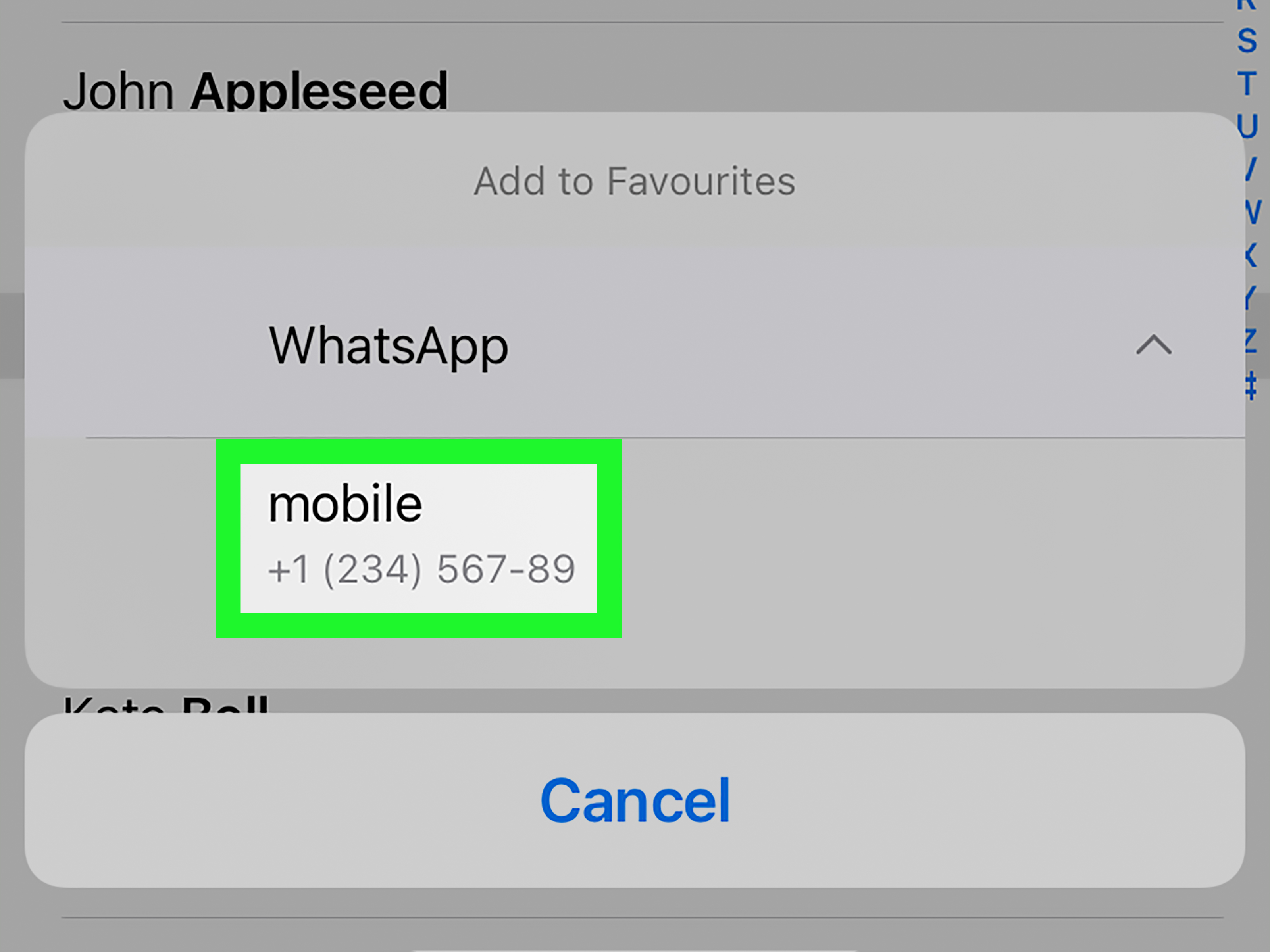
Choose the option to Manage Favorites, Add people, or Add people or groups. The wording can vary slightly depending on your phone and app version, but the job is the same: tell WhatsApp which chats deserve front-row seats.
Step 5: Select the Contacts or Groups You Want
Pick the people or group chats you want to add. This can include one-on-one contacts and group conversations. Good candidates include close family, your partner, your child’s school group, a work team chat, or the friend who always knows where dinner should happen.
Step 6: Confirm Your Selection
After choosing your Favorites, tap the confirmation button, usually a checkmark or similar save icon. Once you do that, your selected chats should appear in the Favorites view.
Step 7: Use and Reorder Favorites as Needed
Now that your Favorites are set, use them regularly from the Chats or Calls area. If WhatsApp gives you the option to reorder them, move your most-used contacts to the top. Because let’s be honest, your mom and your boss probably should not be side by side unless one of them also sends grocery lists.
Other Ways to Add Favorites on WhatsApp
The Chats tab is not the only route. WhatsApp also lets many users manage Favorites from other places in the app, which is handy if you naturally think in terms of calls or settings rather than messages.
From the Calls Tab
Open the Calls tab and look for an option like Add favorite. This is useful if you mainly use WhatsApp for voice or video calls and want faster access to people you call often. It can feel a lot like making your own mini speed-dial list.
From Settings
You may also be able to go to Settings > Favorites > Add to Favorites. This route is great if you want to manage everything in one place without digging through your inbox.
By Long-Pressing a Chat
On some versions, long-pressing a chat can reveal an option to add it to Favorites. This is a nice shortcut if you are already looking right at the conversation you want to prioritize.
Favorites vs. Pinned Chats: What Is the Difference?
This is where many users get tripped up. Both tools help you find people faster, but they are not the same.
Pinned chats stay locked at the top of your inbox. They are visible every time you open Chats, which is great for three conversations you never want to lose.
Favorites creates a filtered view and calling shortcut system for selected contacts and groups. It is better for people who want a cleaner way to focus without permanently stacking the top of the inbox.
In short, pinning is like taping a note to your fridge. Favorites is like creating a separate shelf for the things you actually use every day.
Why WhatsApp Favorites Is Actually Useful
At first glance, Favorites may sound like a tiny feature. But in practice, it solves a very common problem: chat overload. Messaging apps are supposed to save time, yet they often become giant piles of unread, half-read, and “I’ll reply later” conversations.
Here are a few ways Favorites can improve your everyday WhatsApp experience:
It Reduces Search Time
Instead of scrolling through dozens of conversations, you can jump straight into the chats that matter most.
It Helps Separate Priority Messages
If your inbox mixes family, work, friends, school, and community groups, Favorites helps surface the conversations you need first.
It Makes Calling Faster
Because Favorites can also appear in the Calls area, the feature is handy for people you voice or video call often.
It Supports Better Digital Organization
Not every useful feature has to be dramatic. Sometimes the best app upgrade is simply being able to find your sister without passing 14 muted group chats first.
What to Do If You Cannot See Favorites on WhatsApp
If the Favorites option is missing, do not panic and do not immediately assume your phone has betrayed you. A few simple reasons are usually behind it.
Update WhatsApp
Go to the App Store or Google Play Store and make sure you are using the latest version. Features can arrive in waves, and older app versions may not show the newest layout.
Wait for Regional or Account Rollout
WhatsApp often rolls out features gradually. That means your friend might get a feature before you do, which is very rude of the universe but fairly normal for app updates.
Check for Lists Instead
On newer versions, WhatsApp has expanded organization tools with Lists. Favorites may still exist, but the interface can feel a little different because it now sits alongside other filtering options.
Restart the App or Phone
Yes, the classic trick still works. Close the app completely, reopen it, and restart your phone if needed.
Best Ways to Choose Your Favorites
Do not add everyone you have ever spoken to, or the feature defeats its own purpose. A smart Favorites list should be small, useful, and realistic.
Choose People You Contact Weekly
If you message or call someone often, they belong in Favorites. If you last spoke in February and it is now somehow Thanksgiving, maybe not.
Include Time-Sensitive Groups
Some group chats are noisy but important, such as a family logistics group, work team, childcare group, or class project thread.
Review It Once a Month
Your priorities change. Maybe a temporary work project ends, or a school group becomes irrelevant. Refresh your Favorites list so it keeps helping instead of becoming another clutter pile.
Common Mistakes to Avoid
Adding Too Many Favorites
If everyone is a favorite, no one is a favorite. Keep the list tight.
Confusing Favorites With Starred Messages
Starred messages save individual messages. Favorites organizes people and groups. Same app, very different jobs.
Ignoring Reordering Options
If you can reorder Favorites, do it. The feature becomes much more practical when the most important contacts appear first.
Forgetting Group Chats
Many people only add individual contacts, but some of your most useful conversations may actually be groups.
Real-World Example of How Favorites Helps
Imagine a parent who uses WhatsApp for everything: immediate family, the school pickup group, the soccer coach, grandparents, work, and the neighborhood chat where someone is always asking if anybody saw a cat. In that situation, Favorites can include a spouse, the school group, the coach, and one close family thread. Suddenly, the most urgent chats are easier to reach without turning the inbox into a scroll marathon.
Or picture a remote worker who uses WhatsApp for both personal and professional communication. Adding a manager, a project group, a sibling, and a partner to Favorites keeps daily communication smoother and reduces the mental tax of scanning a crowded chat list.
Final Thoughts
Learning how to add Favorites on WhatsApp is one of those tiny digital habits that can make your phone feel less chaotic. It is not flashy. It will not fold your laundry. It will not stop your uncle from sending blurry vacation photos. But it will make your most important chats and calls easier to reach.
If your WhatsApp inbox feels crowded, Favorites is worth setting up today. It takes just a minute or two, works for both contacts and groups, and pairs nicely with other organization tools like pinned chats and Lists. The key is to keep the list focused, use it consistently, and update it when your communication habits change.
In other words, give your best chats the VIP treatment. Your thumbs will thank you.
Extra Experience-Based Insights: Living With WhatsApp Favorites Day to Day
Once you start using WhatsApp Favorites regularly, the biggest surprise is not how fancy it feels, but how normal it becomes. That is usually the sign of a good feature. It quietly fixes an annoying problem until you forget the problem used to exist. Before Favorites, many people relied on memory, endless scrolling, pinned chats, or the search bar every single time they wanted to message the same handful of people. After Favorites, that extra friction starts to disappear.
One practical experience many users notice is that Favorites changes how they think about communication priority. Instead of treating the whole inbox the same, they begin separating “people I should get back to soon” from “people I talk to all the time.” That mental shortcut matters. It is especially helpful during busy weeks, travel days, work deadlines, or family events when you need fast access to a few important chats without wading through everything else.
Another interesting effect is that Favorites works best when it stays small. Users who first discover the feature sometimes go wild and add half their contact list. That usually lasts about one day. Then reality hits. If Favorites becomes too crowded, it stops feeling like a shortcut and starts becoming a second inbox with slightly better branding. The best experience usually comes from choosing only the people and groups you truly use most often.
There is also a nice emotional side to the feature. Messaging apps can feel noisy, distracting, and messy. A well-curated Favorites view feels calmer. It puts the conversations that matter most front and center, which can make daily communication feel a little more intentional. For some people, that means quicker check-ins with family. For others, it means not missing time-sensitive messages from a client, a school contact, or a close friend.
Favorites is also useful in combination with other organization habits. Pinned chats can still handle your absolute top conversations. Archived chats can hide low-priority threads. Muted groups can keep the peace. Favorites sits in the middle and gives you a flexible way to focus without completely reshaping your inbox. That balance is what makes the feature practical rather than gimmicky.
The most honest experience-based advice is simple: set it up, use it for a week, then edit it. Your first Favorites list is rarely your best one. After a few days, you will know which contacts deserve a spot and which ones looked important in theory but not in real life. That small adjustment is usually what turns Favorites from “nice idea” into “why didn’t I do this sooner?”
Note: Menu names and screen layout can vary slightly by device, operating system, and WhatsApp version. If you do not see Favorites yet, update the app and check again.