
Waking up is already rude enough. Waking up to the same default alarm sound as half the planet? That is a tiny daily betrayal. Whether your phone currently screams like a microwave, chirps like a robot bird, or plays a tone that makes your soul leave your body at 6:30 a.m., there is good news: you can make a custom alarm sound on both iPhone and Android.
A custom alarm sound lets you wake up to a favorite song, a gentle instrumental clip, your child saying “wake up,” a motivational voice memo, a nature sound, or even a ridiculous recording of yourself yelling, “Future me, we talked about this.” The process is different depending on whether you use an iPhone, Google Pixel, Samsung Galaxy, or another Android phone, but the idea is the same: create or choose an audio file, make sure your phone can access it, then assign it inside the alarm settings.
This guide walks through how to make a custom alarm sound on iPhone and Android, including how to use songs, recordings, downloaded audio files, GarageBand, Google Clock, Samsung Clock, Spotify, YouTube Music, and more. Let’s rescue your morning from the default-tone dungeon.
What Counts as a Custom Alarm Sound?
A custom alarm sound is any alarm tone that is not one of your phone’s built-in default options. It can be a song, ringtone, sound effect, voice recording, podcast clip, meditation bell, funny audio snippet, or downloaded MP3 file. On iPhone, custom alarm sounds usually come from your Music library or a custom ringtone made through GarageBand. On Android, you can often choose a local audio file directly from your phone, and some devices also support music services inside the Clock app.
The best custom alarm sounds are short, clear, and not too aggressive. A 30-second clip is usually plenty. You want something noticeable enough to wake you up, but not so terrifying that your first thought every morning is, “Ah yes, danger.”
Before You Start: Choose the Right Audio File
Before changing alarm settings, decide what kind of sound you want. A good morning alarm should be easy to recognize, loud enough to hear, and pleasant enough that you do not develop a personal feud with it by Thursday.
Recommended Audio Types
For Android, MP3 and M4A files are commonly used for custom alarm sounds, depending on the phone and app. For iPhone, custom ringtones created in GarageBand are exported into the ringtone system and can then appear as sound choices. If you are using a song, make sure it is downloaded to your device when required. Streaming-only songs may not always appear as alarm options unless the Clock app specifically supports that music service.
Best Length for a Custom Alarm
Keep your custom alarm sound between 15 and 30 seconds if you are making a tone from scratch. iPhone custom ringtones made with GarageBand are limited to short clips, and shorter alarms are easier to loop cleanly. Choose the most recognizable part of the song or recording. If your favorite track has a 40-second whispery intro, that may be beautiful art, but it is also how you sleep through breakfast.
Volume and Clarity Matter
Pick audio that starts clearly. A slow fade-in can be relaxing, but if it is too quiet, it may become a lullaby instead of an alarm. Voice recordings should be made close to the microphone, with background noise reduced. If you are recording your own message, keep it simple: “Good morning. Time to get up.” Save the dramatic Oscar speech for your coffee machine.
How to Make a Custom Alarm Sound on iPhone
On iPhone, you can change an alarm sound in the Clock app. You can choose from built-in tones, select eligible songs from your Music library, or create a custom ringtone using GarageBand and then assign it as an alarm sound.
Method 1: Use a Song from Your iPhone Music Library
If the song is available in your Apple Music library or synced Music app library and downloaded to your iPhone, you may be able to use it as an alarm sound.
- Open the Clock app on your iPhone.
- Tap the Alarms tab.
- Tap an existing alarm or tap the plus button to create a new one.
- Tap Sound.
- Look for the option to choose a song from your music library.
- Select the song you want.
- Tap Back, then tap Save.
This is the simplest option if your chosen song is already available on your iPhone. However, not every audio file or protected song will work. If a track is unavailable, dimmed, not downloaded, or protected by digital rights restrictions, your iPhone may not let you use it as an alarm sound.
Method 2: Make a Custom iPhone Alarm Sound with GarageBand
GarageBand is the most reliable way to turn your own audio into a ringtone-style sound on iPhone. Once exported as a ringtone, the custom sound can be used in places where iPhone allows ringtone selections, including alarm sound settings.
- Download GarageBand from the App Store if it is not already installed.
- Save your audio file to the Files app or make sure the song is downloaded to your iPhone.
- Open GarageBand and create a new audio project.
- Import your audio file into the track view.
- Trim the clip to the section you want, ideally under 30 seconds.
- Move the clip all the way to the start of the timeline so there is no silent gap.
- Save the project to My Songs.
- Press and hold the project, tap Share, then choose Ringtone.
- Name the ringtone and export it.
- Open the Clock app, edit your alarm, tap Sound, and select your new custom tone.
This method is perfect for voice recordings, downloaded sound effects, short instrumentals, or a carefully clipped chorus. It takes a few minutes the first time, but after that, you will feel like the audio wizard of breakfast.
Method 3: Record Your Own Voice Memo for an iPhone Alarm
If you want your alarm to be a personal voice message, record it first using the Voice Memos app. Then share or save the recording to Files and bring it into GarageBand. Trim it, export it as a ringtone, and choose it in the Clock app.
Voice alarms can be surprisingly effective. Try a calm message like, “Good morning. Drink water and start the day.” Or go full accountability coach: “You said last night you wanted to wake up early. Receipts exist.”
How to Change Your iPhone Alarm Sound
After you have created or selected your sound, assigning it is easy.
- Open the Clock app.
- Tap Alarms.
- Tap Edit, then choose the alarm you want to change.
- Tap Sound.
- Select your custom tone, song, or built-in sound.
- Tap Back.
- Tap Save.
Do not skip the Save button. Many alarm disasters begin with the sentence, “I’m pretty sure I saved it.” Be absolutely sure.
How to Make a Custom Alarm Sound on Android
Android gives users more direct control over local audio files, although the exact steps vary by phone brand. Google Pixel phones use Google Clock, Samsung Galaxy devices use Samsung Clock by default, and other Android phones may use Google Clock or a manufacturer-specific Clock app.
Method 1: Add a Downloaded Sound File in Google Clock
If your Android phone uses Google Clock, you can usually add your own sound file directly from the alarm sound menu.
- Download or transfer the audio file to your phone.
- Open the Clock app.
- Tap Alarm.
- Select an existing alarm or create a new one.
- Tap the current alarm sound.
- Tap Add new or choose the option to add your own sound.
- Select your audio file from your phone storage.
- Save the alarm.
This is one of the easiest ways to make a custom alarm sound on Android. If the file is not showing, check your Downloads, Music, Audio, or Ringtones folders. You can use a file manager app to move the sound to a more obvious location.
Method 2: Record a New Alarm Sound on Google Pixel
Google Pixel phones may allow you to record a new alarm sound from inside the alarm sound settings. This is handy if you want a custom voice message or a quick real-world sound without editing software.
- Open the Clock app on your Pixel.
- Tap Alarm.
- Select the alarm you want to edit.
- Tap the alarm sound.
- Choose the option to Record new.
- Record your sound, stop the recording, and save it.
- Select the new recording as your alarm sound.
This is excellent for custom reminders. For example: “Wake up, stretch, and do not check email yet.” It is specific, useful, and slightly less annoying than a foghorn.
Method 3: Use Spotify, YouTube Music, Pandora, or Calm in Google Clock
Google Clock can support music and audio services such as Spotify, YouTube Music, Pandora, and Calm, depending on your region, installed apps, account type, and device setup. To use one of these services, install the app, sign in, then open Google Clock and choose the service from the alarm sound screen.
- Install and sign in to the supported music or audio app.
- Open Google Clock.
- Tap Alarm.
- Edit an alarm and tap the current sound.
- Select the music service tab or option.
- Choose a playlist, station, track, or sound.
- Save the alarm.
Streaming alarms are convenient, but they depend on app permissions, login status, subscriptions, and sometimes internet access. If your morning is mission-critical, keep a local backup alarm tone. Your phone should not need a dramatic negotiation with Wi-Fi before waking you up.
How to Make a Custom Alarm Sound on Samsung Galaxy
Samsung Galaxy phones include a powerful Clock app with options for alarm sound, vibration, snooze, and sometimes Bixby features. You can change the alarm tone from the Clock app and may also use music files stored on the device.
Change the Alarm Sound on Samsung
- Open the Clock app.
- Make sure you are on the Alarm tab.
- Tap an existing alarm or create a new one.
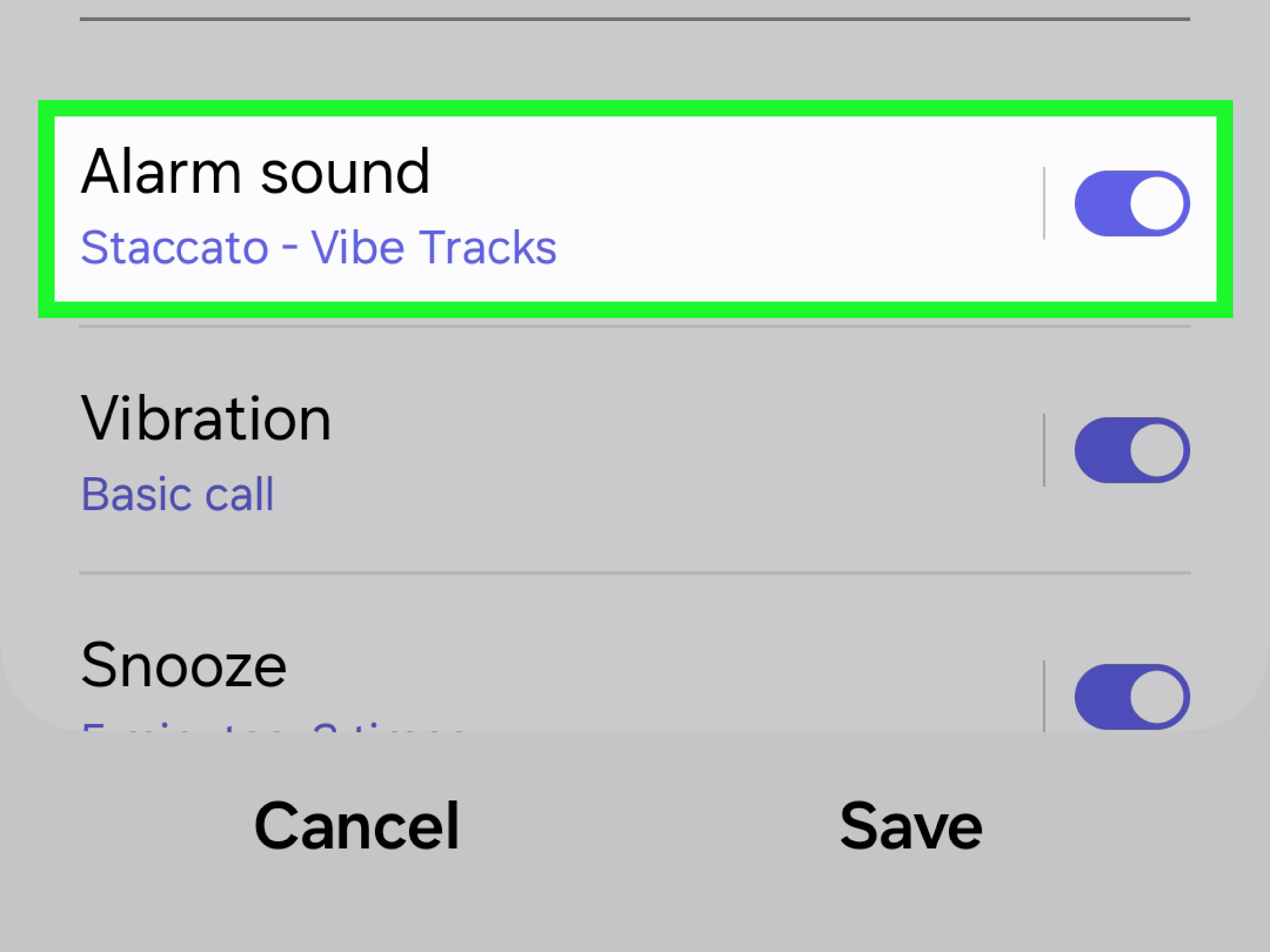
- Tap Alarm sound.
- Choose Ringtone, a built-in sound, a music file, or another available option.
- Adjust the alarm volume if your model shows a volume slider.
- Tap Back and save your alarm.
Samsung also offers vibration controls, snooze settings, and in some models Bixby alarm features that can read information such as time, weather, or news. Feature availability can vary by model, carrier, region, and software version.
Use a Music File as a Samsung Alarm
To use your own music file, first make sure the track is downloaded or transferred to your Galaxy phone. Then open Clock, edit the alarm, choose Alarm sound, and look for the option to select a ringtone or file. If you cannot find the song, open your file manager and confirm that the audio is stored locally, not only in a streaming app.
Best Apps and Tools for Creating Alarm Sounds
You do not need professional audio software to make a good alarm tone. Most people can create a solid custom alarm using built-in phone tools. Still, a few apps can make the process easier.
GarageBand for iPhone
GarageBand is the go-to tool for iPhone users who want to create a custom ringtone or alarm tone from an audio file. It lets you trim clips, import files, record sounds, and export ringtone-style audio directly on the device.
Voice Memos or Recorder Apps
Voice Memos on iPhone and Recorder on Pixel are great for making personal alarm messages. You can record a simple wake-up phrase, export or save it, then use it in the alarm workflow supported by your phone.
File Manager Apps on Android
Android users should keep a file manager handy. If your audio file is hiding in Downloads, a file manager helps move it to Music, Ringtones, Notifications, or Alarms. Some Clock apps scan these folders more reliably.
Audio Editing Apps
If you want a cleaner clip, use a basic audio editor to trim silence, raise volume, fade in gently, or cut a song to the best 20-second section. Keep the final file simple and easy for your phone to recognize.
Custom Alarm Ideas That Actually Work
Not sure what to use? Try these custom alarm sound ideas:
- A favorite upbeat song chorus
- A calm piano or acoustic guitar loop
- Birdsong, rain, ocean waves, or forest sounds
- A voice memo from someone you love
- A motivational quote recorded in your own voice
- A gradual bell or chime sound
- A funny sound effect that makes you smile
The trick is to match the alarm to the moment. For a gentle weekend wake-up, use soft music. For a weekday gym alarm, choose something with energy. For an emergency “I must not miss this flight” alarm, choose a sound that could wake a retired dragon.
Troubleshooting: Why Your Custom Alarm Sound Is Not Working
If your custom alarm sound does not play, do not panic. Usually, the issue is a missing file, low volume, unsupported format, app permission problem, or alarm setting that did not save correctly.
Check Alarm Volume
On iPhone, alarm loudness is tied to the Ringtone and Alerts volume setting. On Android, alarm volume may have its own slider. Open your sound settings and make sure alarm volume is not low or muted.
Make Sure the Alarm Sound Is Not Set to None
If your alarm vibrates but does not play audio, open the alarm and check the selected sound. Choose a real tone or file, then save the alarm again.
Confirm the File Is Stored Locally
A song that lives only in the cloud may not work as expected. Download the track or audio file to your phone. For Android, place it in a folder your Clock app can access. For iPhone, make sure the audio can be imported into GarageBand or selected from your Music library.
Check Streaming App Login
If you use Spotify, YouTube Music, Pandora, or Calm with Google Clock, confirm that the app is installed, updated, and signed in. Some features may require premium subscriptions or may behave differently with free accounts.
Restart the Phone
It sounds basic because it is basic, but restarting can refresh app permissions and media indexing. If you just added a new sound file and it does not appear, restart and check again.
Set a Backup Alarm
When testing a custom alarm for the first time, set a second alarm with a built-in sound five minutes later. It is not dramatic; it is responsible adulting with a safety net.
Tips for Making a Better Custom Alarm Sound
A great custom alarm is not just about personality. It is about reliability, clarity, and your morning mood.
Use a Clean Start
Avoid clips with silence at the beginning. If your alarm starts with five seconds of nothing, your sleepy brain may treat it as a legal loophole.
Avoid Songs You Truly Love
Be careful using your all-time favorite song. After enough 6 a.m. wake-ups, even a masterpiece can become the soundtrack to betrayal. Choose something you like, but not something you want preserved in emotional amber.
Match the Sound to the Task
Use different alarms for different purposes. A gentle chime can wake you up. A voice memo can remind you to take medication. A bright song can start a workout. A loud tone can protect you from missing an early meeting.
Test Before You Trust
Create a test alarm for two minutes from now. Lock the phone, wait, and confirm that your custom sound plays at the right volume. This tiny test can prevent a very large “oops.”
iPhone vs. Android: Which Is Easier for Custom Alarm Sounds?
Android is usually more flexible for custom alarm files because many Android phones let you add a downloaded audio file directly inside the Clock app. Google Clock also supports certain music services and, on Pixel phones, may allow direct alarm sound recording.
iPhone is more polished but a little stricter. If you want a fully custom sound that is not already available as an eligible song, GarageBand is often the best route. The setup takes longer, but once your custom tone is exported, using it is simple.
In short: Android is the “drag in a file and go” option. iPhone is the “make it a proper ringtone first” option. Both work. One just asks you to wear a tiny audio engineer hat for five minutes.
Personal Experience: What I Learned Making Custom Alarm Sounds
After experimenting with custom alarm sounds on both iPhone and Android, one lesson becomes obvious very quickly: the “best” alarm sound is not always the loudest one. In fact, the loudest one can be the worst. A harsh alarm may wake you up, but it can also make you start the day feeling like you were launched from a cannon into a spreadsheet.
The most practical custom alarm I tested was a short voice recording. It was not fancy. It simply said, “Good morning. Sit up, drink water, and open the curtains.” That worked better than expected because it gave instructions instead of just making noise. A normal alarm says, “Be awake now!” A voice alarm says, “Here is what to do next.” When your brain is still buffering, that difference matters.
On iPhone, GarageBand felt a little awkward at first, especially if you only want to make a 20-second clip. But once the audio was imported, trimmed, and exported as a ringtone, the process made sense. The most important detail was removing empty space at the beginning of the track. The first test alarm failed emotionally, not technically, because the clip started too quietly. After trimming the silence and choosing a stronger opening, it worked much better.
On Android, adding a downloaded MP3 felt more direct. The file just needed to be easy to find. Moving it from Downloads to a Music or Alarms folder helped. On a Pixel-style setup, the option to record a new alarm sound was especially useful. It made the custom alarm feel less like a ringtone project and more like a quick personal productivity trick.
Samsung’s Clock app offered a lot of customization, especially around vibration, snooze, and alarm volume. That is helpful because sound is only one part of waking up. A good vibration pattern can make a gentle alarm more noticeable without turning your bedroom into a fire drill. The ability to fine-tune each alarm is also useful if you have different wake-up routines during the week.
Streaming music alarms were fun, but I would not rely on them as the only alarm for an important morning. They can depend on login status, account type, app updates, and network behavior. For casual mornings, waking up to a playlist is great. For a job interview, early flight, exam, or medical appointment, a local alarm sound is safer. Better yet, use one custom sound and one built-in backup alarm.
The funniest discovery was that using a favorite song can backfire. A song that feels inspiring at noon may become deeply irritating when it interrupts a dream at sunrise. The better choice is a pleasant, energetic sound that you like but do not worship. Think “friendly nudge,” not “beloved anthem I am about to ruin forever.”
Custom alarms are also great for routines beyond waking up. You can create different sounds for taking medicine, starting a workout, leaving for school, feeding a pet, or beginning a focus session. A voice memo works especially well for these because it can include the actual task: “Time to leave in ten minutes,” or “Take your vitamins now.” That turns the alarm from a random noise into a tiny personal assistant who does not require a subscription.
The biggest recommendation is simple: test everything. After creating a custom alarm sound, set a test alarm for two or three minutes later. Lock the phone, place it where it normally sits overnight, and wait. Check the volume, vibration, and whether the correct sound plays. Do this before you trust it with a real morning. A custom alarm is only charming if it actually wakes you up.
In the end, making a custom alarm sound is worth the small effort. It gives your phone a little personality and makes your morning feel less generic. Whether you wake up to a calm chime, a favorite instrumental, a recorded reminder, or your own voice saying, “Get up, legend,” the right alarm can make the first minute of the day slightly less painful. And honestly, slightly less painful is a major victory before coffee.
Conclusion
Learning how to make a custom alarm sound on iPhone and Android is one of those small tech upgrades that can improve your daily routine more than expected. iPhone users can choose eligible songs, record voice memos, or create custom ringtone-style alarms with GarageBand. Android users can usually add local audio files directly, use Google Clock music integrations, record new sounds on Pixel phones, or customize alarm tones through Samsung Clock and other manufacturer apps.
The key is to choose a sound that is clear, reliable, and realistic for your mornings. Keep it short, test it before relying on it, and set a backup alarm when the schedule really matters. Your alarm does not have to sound like a tiny electronic emergency. With the right custom sound, waking up can feel a little more personal, a little more useful, and maybe even a little less rude.