
Snapchat has always been a little different from other social apps. You do not simply “post and wait.” You Snap, chat, send streak-saving selfies, react with Bitmoji, and occasionally wonder why your best friend’s cousin’s roommate is suddenly appearing in your friend suggestions. That, dear reader, is the magic and mild mystery of Snapchat Quick Add.
Officially, Snapchat has shifted the name from Quick Add to Find Friends in many areas of the app. But because millions of users still search for “Quick Add on Snapchat,” this guide uses both terms. Whether you are on Android or iPhone, the idea is the same: Quick Add helps you discover people you may know and add them faster without typing every username like it is 2012 and you are decoding a secret Wi-Fi password.
This in-depth guide explains how to use Quick Add on Snapchat for Android and iOS, how friend suggestions work, how to add or hide people, how to manage privacy settings, and how to avoid awkward or unsafe adds. Let’s make your Snapchat friend list smarter, cleaner, and less chaotic.
What Is Quick Add on Snapchat?
Quick Add on Snapchat, now often labeled Find Friends, is Snapchat’s friend recommendation feature. It suggests accounts you might know based on signals such as mutual friends, contacts, existing followers, location, age, and account behavior. In plain English: Snapchat looks for social breadcrumbs and says, “Hey, this person might belong in your Snap universe.”
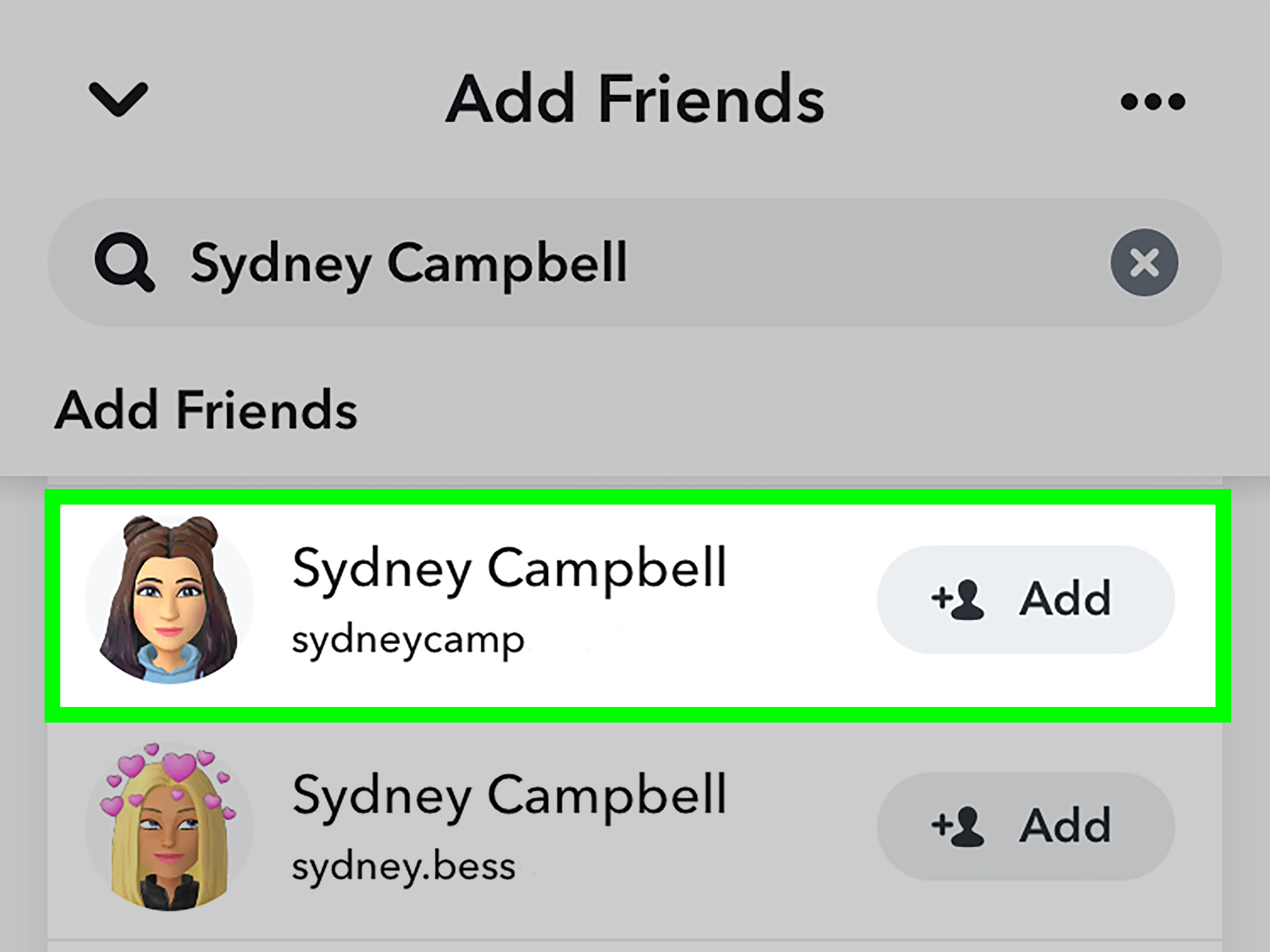
You may see Quick Add suggestions in several places, including the Add Friends screen, the Chat screen, or when using Search. A suggested account usually has an Add button next to it. Tap it, and Snapchat sends a friend request. If the person accepts, congratulations: you have a new Snap friend and possibly a new streak responsibility.
Why Quick Add Matters
Quick Add is useful because Snapchat usernames are not always easy to guess. Your friend might be “Jessica,” but her username could be something like “jess_sparkle_8427.” Quick Add helps bridge that gap by surfacing familiar accounts based on your network.
It is also helpful when you join Snapchat for the first time, switch phones, reconnect with classmates, or meet people at school, work, events, sports teams, clubs, or family gatherings. Instead of asking everyone to spell their username three times, you can open Quick Add and let Snapchat do some of the detective work.
How to Use Quick Add on Snapchat for Android
The Android version of Snapchat may look slightly different depending on your app version and phone model, but the basic steps are simple.
Step 1: Open Snapchat
Launch the Snapchat app on your Android phone. Snapchat usually opens directly to the Camera screen, because apparently every moment is one tap away from becoming content.
Step 2: Go to Your Profile
Tap your profile icon or Bitmoji in the top-left corner of the screen. This opens your profile area, where you can access friends, Snapcode, settings, and other account options.
Step 3: Tap Add Friends or Find Friends
Look for Add Friends, Find Friends, or a similar option. Snapchat updates its labels from time to time, so do not panic if the wording is not identical. If it clearly leads to friend suggestions, you are in the right neighborhood.
Step 4: Review Quick Add Suggestions
Scroll through the suggested accounts. You may see people from your phone contacts, people with mutual friends, or accounts Snapchat believes are connected to your network. Before tapping anything, check the display name, username, Bitmoji, and any mutual friend clues.
Step 5: Tap Add
When you recognize someone, tap Add. Snapchat sends a request. If they add you back, you can Snap, Chat, share Stories depending on privacy settings, and start building your Snap friendship.
How to Use Quick Add on Snapchat for iPhone
Using Quick Add on iOS is nearly the same as Android. The interface may feel slightly smoother on some iPhones, but the steps are familiar.
Step 1: Open Snapchat on iOS
Open Snapchat from your iPhone home screen or App Library. Make sure the app is updated if you want the newest labels and privacy controls.
Step 2: Tap Your Profile Icon
Tap your Bitmoji or profile icon at the top-left corner. This takes you to your Snapchat profile page.
Step 3: Select Add Friends or Find Friends
Tap Add Friends or Find Friends. If Snapchat asks for contact access, iOS may let you choose full or limited contact access. Pick the option you are comfortable with. You can still use Snapchat without handing over your entire address book like it is a group project.
Step 4: Browse Suggested Friends
Look through the Quick Add suggestions. If you see someone you know, tap Add. If you do not recognize someone, do not add them just because the button is sitting there looking friendly.
Step 5: Hide Suggestions You Do Not Want
If a person keeps appearing and you are not interested, tap the X next to the suggestion. This hides that Snapchatter from your suggestions, helping your list become more relevant over time.
How Snapchat Chooses Quick Add Suggestions
Snapchat does not publish every detail of its recommendation system, but it does explain the broad categories. Quick Add or Find Friends can use factors such as mutual friends, phone contacts, location, existing friends, followers, age, reputation, and behavior on Snapchat.
For example, if three of your classmates are friends with the same person, Snapchat may assume you might know that person too. If someone is in your phone contacts and has a Snapchat account, they may appear as a suggestion. If you recently joined a new school, moved to a new area, or connected with several people from the same group, your suggestions may shift.
That does not mean every suggestion is correct. Algorithms are useful, but they are not mind readers. Sometimes Snapchat will recommend someone you know well. Other times, it will recommend someone who makes you whisper, “Absolutely not,” and tap the X with Olympic-level speed.
How to Add Friends from Contacts
One of the easiest ways to improve Quick Add suggestions is by using your phone contacts. When you allow Snapchat to access contacts, it can help match people from your address book with Snapchat accounts.
On Android
Open Snapchat, tap your profile icon, choose Add Friends or Find Friends, and follow the prompt to allow contact access if you want to. Android may show a permission screen asking whether Snapchat can access your contacts. Approve it only if you are comfortable sharing that information.
On iOS
On iPhone, Snapchat may direct you to iOS contact permission settings. Depending on your iOS version, you may be able to grant full access or limited access. Limited access can be a good choice if you want Snapchat to see only selected contacts instead of your entire digital address book, including that pizza place you saved in 2018.
How to Hide Someone from Quick Add
Not every suggestion deserves your attention. If you see someone you do not want to add, tap the X next to their name. This removes that person from your visible Quick Add suggestions.
Hiding someone is not the same as blocking them. It simply tells Snapchat you do not want that suggestion sitting in front of you. If you are dealing with harassment, repeated unwanted contact, impersonation, or suspicious behavior, use Snapchat’s block and report tools instead.
How to Stop Appearing in Quick Add or Find Friends
If you do not want other users to see you in their Quick Add suggestions, adjust your privacy settings. This is especially useful if you are getting random requests, trying to keep your Snapchat circle small, or simply tired of strangers appearing like pop-up ads with Bitmojis.
Steps to Turn Off Showing Up in Find Friends
- Open Snapchat.
- Tap your profile icon.
- Tap the gear icon to open Settings.
- Scroll to the App & Privacy section.
- Tap My Privacy & Data.
- Look for the setting related to Find Friends or See Me in Find Friends.
- Turn off the option that allows others to see you in friend suggestions.
Snapchat notes that changes to who can see you in Find Friends may take time to fully apply. So if you still appear briefly after changing the setting, do not immediately assume your phone is haunted.
Quick Add Privacy Tips You Should Actually Use
Quick Add is convenient, but privacy matters. The goal is not to become invisible; it is to control who gets easy access to your account.
Only Add People You Recognize
Mutual friends are helpful, but they are not a guarantee. A person can share mutual connections and still be someone you do not know. Before adding, check whether you recognize their name, username, Bitmoji, school, workplace, or social circle.
Set Contact Me to Friends
In Snapchat settings, review Contact Me. Keeping direct contact limited to friends helps reduce unwanted Snaps, Chats, and calls from strangers.
Review Your Story Settings
Check who can view your Story. If you post personal updates, school details, workplace moments, family clips, or location clues, choose a privacy level that fits your comfort zone.
Be Careful with Location Sharing
Snap Map can be fun with close friends, but you should review who can see your location. Use Ghost Mode when you want privacy. Location sharing is not a friendship test; real friends can survive without watching your avatar hover over a coffee shop.
Why Quick Add Is Not Showing on Snapchat
If Quick Add is missing or looks different, there are several possible reasons. Snapchat may be using the newer Find Friends label. Your app version may be outdated. Your account may have limited suggestions available. You may have denied contact access. Or Snapchat may simply not have strong recommendations for you at the moment.
Try These Fixes
- Update Snapchat from Google Play or the Apple App Store.
- Check your internet connection on Wi-Fi and mobile data.
- Restart the app.
- Log out and log back in if suggestions seem stuck.
- Review contact permissions on Android or iOS.
- Look for Find Friends instead of Quick Add.
If you cannot add a specific person, they may have blocked you, deleted their account, changed privacy settings, or reached a limit. Snapchat may also temporarily restrict certain actions if account activity looks unusual.
Quick Add vs Search vs Snapcode
Quick Add is not the only way to add people on Snapchat. It is just the fastest when Snapchat already has a good suggestion.
Quick Add or Find Friends
Best for finding people you may know through mutual friends, contacts, and network signals.
Search
Best when you know someone’s name or username. Tap the magnifying glass, type the name or username, and tap Add.
Snapcode
Best in person. Have your friend open their Snapcode, point your Snapchat camera at it, press and hold, then add them. It feels slightly futuristic and avoids username spelling disasters.
Common Mistakes When Using Quick Add
The biggest mistake is adding too many people too quickly. Snapchat is designed around real friendships, not collecting usernames like trading cards. Adding random accounts can clutter your feed, expose your Stories to people you barely know, and increase the risk of spam or unwanted messages.
Another mistake is assuming every suggestion is safe. A familiar Bitmoji or mutual friend count does not automatically mean you should add someone. Use common sense. If you would not wave to them in real life, think twice before giving them access to your Snapchat world.
A third mistake is forgetting about contact syncing. If you once allowed Snapchat to upload contacts, later disabling phone permission may not remove already synced contact data. Review Snapchat’s in-app contact settings if you want to clear shared contact information.
Best Practices for Parents and Teen Users
For teens, Quick Add should be used carefully. Snapchat has added protections designed to limit how easily strangers can find younger users, but no safety tool replaces good judgment. Teens should add only people they know, avoid sharing personal details with new contacts, and report suspicious behavior quickly.
Parents should talk with teens about how friend suggestions work. The conversation does not need to sound like a courtroom interrogation. Try something simple: “Who do you usually add on Snapchat?” or “Do you know how to turn off friend suggestions?” A calm conversation usually works better than grabbing a phone and becoming the household cybersecurity department.
Snapchat also offers family safety tools that can help parents understand who their teen is communicating with without reading private message content. That balance matters: teens need privacy, but they also need support when digital social circles get messy.
Real-Life Experience: Using Quick Add on Snapchat Without Making It Weird
Here is the most realistic way to use Quick Add: treat it like a suggestion board, not a command center. When you open Snapchat and see a list of recommended people, pause before tapping Add. Think of it like walking into a party. You might recognize a few faces, see a few friends-of-friends, and spot one person who looks familiar but could also be someone you saw once in a grocery store. You do not need to introduce yourself to everyone.
For Android users, the experience is usually quick and practical. You open Snapchat, tap your profile, go to Add Friends or Find Friends, and browse suggestions. If your contacts are synced, the list may feel surprisingly accurate. You might find classmates, cousins, coworkers, neighbors, or that one friend who changes usernames more often than normal people change socks. The key is to verify before adding. A display name alone is not enough. Check the username, mutual friends, and Bitmoji. If something feels off, skip it.
On iPhone, the biggest experience difference often comes from contact permission control. iOS may let you limit which contacts Snapchat can access. That is useful if you want better suggestions without giving Snapchat your entire contact list. For example, you might allow access only to friends and family, not every business, delivery driver, dentist, and old group-project partner saved in your phone. This makes Quick Add feel more intentional and less like your phone dumped its entire social history into one list.
Quick Add is especially helpful after events. Imagine you attended a birthday party, joined a club, started a new class, or met coworkers at orientation. After adding one or two people manually, Snapchat may begin suggesting others from the same circle. Used well, this saves time. Used carelessly, it creates a friend list full of people you barely remember. The sweet spot is adding people while the context is fresh. If you wait three months, you may stare at a suggestion and wonder whether “Tyler_998” was from biology class, soccer practice, or a fever dream.
Another useful habit is cleaning up your suggestions. If Snapchat keeps showing people you do not want to add, tap the X. This tells the app you are not interested and keeps your Add Friends page less cluttered. It also gives you a small sense of control, which is nice in an app where dog ears can appear on your face at any second.
For privacy-focused users, turning off “See Me in Find Friends” is worth considering. You can still add people by username or Snapcode, but your account is less likely to appear casually in other users’ suggestion lists. This is helpful if you use Snapchat mainly for close friends, family, or a small private circle.
The best experience with Quick Add comes from balance. Use it to reconnect, not to collect. Add people you genuinely know. Hide suggestions that do not fit. Review privacy settings every once in a while. Snapchat is more fun when your friend list feels like a real social circle, not a mystery drawer full of usernames.
Conclusion
Using Quick Add on Snapchat for Android and iOS is simple: open Snapchat, go to your profile, tap Add Friends or Find Friends, review suggestions, and tap Add when you recognize someone. The feature is designed to help you find real-life friends, mutual connections, and people from your network without manually searching every username.
The smart way to use Quick Add is to combine convenience with caution. Add people you know, hide suggestions you do not want, check your privacy settings, and remember that Snapchat now often calls Quick Add Find Friends. The name may have changed, but the purpose is the same: helping you build a better Snapchat friend list without turning your social life into a username scavenger hunt.
Note: Snapchat features, labels, and settings can vary by app version, device, region, and account type. If you do not see “Quick Add,” look for “Find Friends,” update your app, and check your privacy settings under Profile > Settings > App & Privacy.