
The Bose SoundLink Mini is one of those tiny speakers that seems to have ignored physics, laughed politely, and kept playing bass anyway. Whether you own the original Bose SoundLink Mini or the Bose SoundLink Mini II, connecting it to a smartphone or tablet is usually simple: turn on Bluetooth, put the speaker in pairing mode, choose the correct Bose name, and start playing music. Easy, right? Mostly. Until your phone refuses to see the speaker, your tablet connects but makes no sound, or the speaker keeps trying to reunite with an old device like it is starring in a Bluetooth soap opera.
This guide walks you through how to connect the Bose SoundLink Mini to your iPhone, iPad, Android phone, or Android tablet. It also explains what the blinking blue and white lights mean, how to reconnect a previously paired device, how to clear the speaker’s Bluetooth memory, and what to do when pairing goes sideways. No tech wizard robe required.
Before You Start: Know Which Bose SoundLink Mini You Have
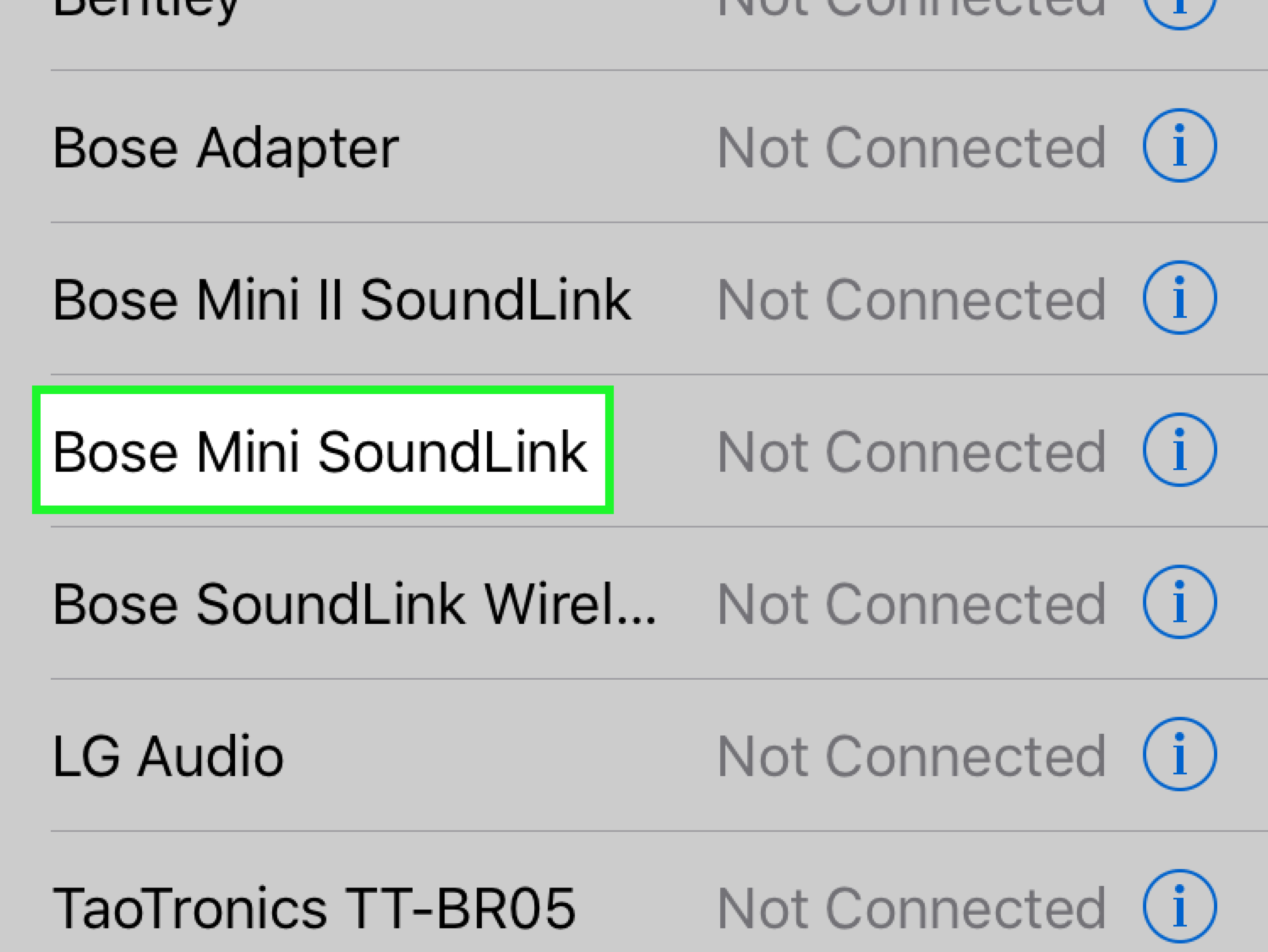
There are a few versions of this speaker family, and the name that appears in your phone’s Bluetooth list may differ slightly depending on the model. The original Bose SoundLink Mini typically appears as Bose Mini SoundLink. The Bose SoundLink Mini II usually appears as Bose Mini II SoundLink. The Special Edition is part of the Mini II family, so expect similar behavior.
Why does this matter? Because Bluetooth menus can look like a crowded coffee shop. If you have headphones, a car stereo, a smartwatch, a keyboard, and three mystery devices named “Living Room Thing,” choosing the right Bose name saves time and prevents you from accidentally trying to pair with your neighbor’s printer.
Quick Setup Checklist
Before pairing, do these small but important things:
- Charge the Bose SoundLink Mini or place it on its charging cradle.
- Keep your phone or tablet close to the speaker, ideally within a few feet during setup.
- Turn off Bluetooth on devices that may already be connected to the speaker.
- Make sure your phone or tablet is not in airplane mode.
- Use the Bluetooth settings menu on your device, not just a music app.
The SoundLink Mini uses Bluetooth for wireless audio, so your phone or tablet must discover the speaker first. Once paired, future connections are usually automatic unless another device grabs the connection first. Bluetooth, like a tiny invisible waiter, will often serve the last customer it remembers.
How to Put the Bose SoundLink Mini in Pairing Mode
For the Original Bose SoundLink Mini
Turn on the speaker, then press the Bluetooth button on the top control panel. The Bluetooth indicator should blink blue. A blinking blue light means the speaker is discoverable and ready to pair. On your phone or tablet, you will then select Bose Mini SoundLink from the Bluetooth device list.
If prompted for a passcode, enter 0000. Most modern phones will not ask for one, but if yours does, four zeros are the magic numbers. Not dramatic, but effective.
For the Bose SoundLink Mini II
Turn on the speaker. If it is new or has just had its device list cleared, it may automatically announce that it is ready to pair. Otherwise, press and hold the Bluetooth button until the Bluetooth indicator blinks blue and the speaker says something like “Ready to pair another device.” On your smartphone or tablet, choose Bose Mini II SoundLink from the Bluetooth list.
When the connection succeeds, the Bluetooth indicator turns solid white. On the Mini II, you may also hear a voice prompt confirming the connected device name.
How to Connect Bose SoundLink Mini to an iPhone or iPad
Connecting the Bose SoundLink Mini to an iPhone or iPad is straightforward, especially if the speaker is already blinking blue.
- Turn on the Bose SoundLink Mini.
- Press or press and hold the Bluetooth button until the Bluetooth light blinks blue.
- On your iPhone or iPad, open Settings.
- Tap Bluetooth.
- Make sure Bluetooth is turned on.
- Under available devices, tap Bose Mini SoundLink or Bose Mini II SoundLink.
- Wait for the status to show connected.
- Open Apple Music, Spotify, YouTube, Netflix, or another audio app and press play.
If the speaker connects but you hear sound from the iPhone instead, open Control Center, tap the audio output icon, and select the Bose speaker. Sometimes iOS connects the device but politely keeps the audio somewhere else, because apparently one confirmation was not enough.
How to Connect Bose SoundLink Mini to an Android Phone or Tablet
Android menus vary slightly by brand, but the basic process is similar on Google Pixel, Samsung Galaxy, Motorola, OnePlus, Lenovo tablets, and most other Android devices.
- Turn on the Bose SoundLink Mini.
- Put the speaker in pairing mode so the Bluetooth indicator blinks blue.
- On your Android phone or tablet, open Settings.
- Tap Connected devices, Connections, or Bluetooth.
- Turn Bluetooth on.
- Tap Pair new device if your device does not scan automatically.
- Select Bose Mini SoundLink or Bose Mini II SoundLink.
- Confirm pairing if Android asks.
- Start playing audio from your preferred app.
On Samsung Galaxy phones and tablets, the path is often Settings > Connections > Bluetooth. You can also swipe down from the top of the screen, press and hold the Bluetooth icon, then choose the Bose speaker from the device list.
Understanding the Bose SoundLink Mini Bluetooth Lights
The Bluetooth indicator is your speaker’s tiny status billboard. Once you know what it means, troubleshooting becomes much less mysterious.
- Blinking blue: The speaker is discoverable and ready to pair.
- Blinking white: The speaker is trying to connect to a previously paired device.
- Solid white: The speaker is connected.
If the light is blinking white but your phone cannot find the speaker, it may be trying to connect to another device in its memory. Turn Bluetooth off on nearby devices, then put the speaker back into pairing mode. This is especially common in homes where the speaker has been paired with multiple phones, tablets, laptops, and one retired iPad that somehow still has emotional influence.
How to Reconnect a Device You Already Paired
Once the Bose SoundLink Mini has been paired with your smartphone or tablet, you should not need to pair it again every time. Turn on the speaker, turn on Bluetooth on your device, and wait a few seconds. If the speaker does not connect automatically, open your Bluetooth menu and tap the Bose speaker name.
For the original SoundLink Mini, pressing the Bluetooth button makes the speaker try to connect to a paired device. For the SoundLink Mini II, the speaker can remember more devices and may connect to recently used mobile devices when powered on. If it connects to the wrong one, pause audio on the first device, disconnect it, or select the speaker manually from the device you actually want to use.
How Many Devices Can the Bose SoundLink Mini Remember?
The original Bose SoundLink Mini can store up to six paired devices in memory. The Bose SoundLink Mini II stores up to eight mobile devices in its pairing list and can connect to two mobile devices at a time for easier switching. However, only one device can play audio at a time. Bluetooth may be wireless, but it is not a democracy where everyone gets the aux cord simultaneously.
If your speaker has been passed around at parties, used by family members, or connected to old phones you no longer own, clearing the memory can make pairing feel fresh again.
How to Clear the Bose SoundLink Mini Bluetooth Memory
Original Bose SoundLink Mini
To clear the original SoundLink Mini’s Bluetooth memory, press and hold the Bluetooth button for about 10 seconds until you hear a tone. This removes all paired devices from the speaker and puts it back into discoverable mode.
Bose SoundLink Mini II
To clear the Mini II pairing list, press and hold the Bluetooth button for about 10 seconds until you hear that the Bluetooth device list has been cleared. Then go to your phone or tablet’s Bluetooth menu, remove or forget the Bose speaker, and pair it again.
This two-sided cleanup matters. If you clear only the speaker but leave the old entry on your phone, your phone may try to use outdated pairing information. That is like trying to open your front door with a key from your last apartment: close, but no music.
What to Do If Your Phone Cannot Find the Bose SoundLink Mini
If the Bose SoundLink Mini does not appear in the Bluetooth list, try these fixes in order:
- Make sure the Bluetooth indicator is blinking blue, not white.
- Move your phone or tablet closer to the speaker.
- Turn Bluetooth off and back on again on your phone.
- Restart your phone or tablet.
- Turn the speaker off, wait a few seconds, then turn it on again.
- Turn off Bluetooth on nearby devices that may be connecting automatically.
- Clear the Bose speaker’s Bluetooth memory and pair again.
- Check whether your phone or tablet has a software update available.
Wireless interference can also cause trouble. Keep the speaker away from crowded Wi-Fi routers, microwave ovens, metal cabinets, and other Bluetooth devices during pairing. Your router may be innocent, but during Bluetooth troubleshooting, everyone is a suspect.
What to Do If the Bose SoundLink Mini Connects but Has No Sound
A successful Bluetooth connection does not always mean audio will play immediately. If your SoundLink Mini says connected but stays silent, check the simple things first.
- Increase the volume on both the speaker and the phone or tablet.
- Make sure the music or video app is actually playing.
- Check that audio output is set to the Bose speaker.
- Pause audio on other connected devices.
- Disconnect and reconnect the speaker in Bluetooth settings.
- Try a different app to rule out app-specific problems.
On iPhone or iPad, check the audio output selector in Control Center. On Android, check the media output panel, especially on Samsung devices, where audio may be routed to phone speakers, earbuds, or another connected device. If the speaker is connected to two devices, pause the first device before playing from the second.
Using AUX as a Backup Option
The Bose SoundLink Mini also includes a 3.5 mm AUX input. If Bluetooth is being stubborn, you can connect your smartphone, tablet, or other audio device with a stereo audio cable. Modern phones may require a USB-C or Lightning headphone adapter. Once connected, select AUX on the speaker and play audio from your device.
AUX is not as sleek as Bluetooth, but it is reliable. It is the audio equivalent of carrying cash: not flashy, but very useful when the modern system decides to have a moment.
Tips for Better Sound and a More Stable Connection
After pairing, placement can make a noticeable difference. Keep the phone or tablet within normal Bluetooth range, avoid putting your body directly between the device and the speaker, and reduce obstacles such as walls or metal furniture. If audio skips, move closer and close unnecessary apps that may be using system resources.
For the best listening experience, place the SoundLink Mini on a stable surface with the front grille facing the room. Because this speaker is small but surprisingly bassy, placing it near a wall can make the low end sound fuller. Just do not wedge it into a corner like it owes you rent; too much boundary reinforcement can make bass sound boomy.
Common Bose SoundLink Mini Pairing Problems and Fast Fixes
The Speaker Keeps Connecting to the Wrong Phone
Turn Bluetooth off on the wrong phone, then connect from the device you want. If this keeps happening, clear the speaker’s Bluetooth memory and pair only the devices you actually use.
The Speaker Does Not Show Up on Android
Make sure the speaker is blinking blue. On Android, tap Pair new device to force a scan. If needed, restart the phone and clear the speaker memory.
The Speaker Shows Up but Pairing Fails
Forget the speaker on your phone, clear the speaker’s pairing list, restart both devices, and try again. If prompted for a code, use 0000.
The Audio Cuts Out
Move closer, reduce interference, disconnect unused Bluetooth devices, and make sure the phone is not buried in a backpack, couch cushion, or the mysterious kitchen drawer where cables go to retire.
Real-World Experience: What It Is Like to Use the Bose SoundLink Mini with Phones and Tablets
In daily use, the Bose SoundLink Mini feels best when treated like a personal room speaker rather than a rugged outdoor party machine. It shines on a desk, kitchen counter, nightstand, small patio table, or hotel room dresser. Pairing it with a smartphone is usually fast after the first setup, and the speaker’s compact body makes it easy to move from room to room without turning music into a whole logistics project.
One of the most pleasant experiences is using it with a tablet for video. The sound is richer than most built-in tablet speakers, especially for dialogue, background music, and casual streaming. For cooking videos, online classes, podcasts, and late-night shows, the SoundLink Mini gives the audio more body. You do not need to hover over the tablet like it is whispering state secrets. Just connect the speaker, place it nearby, and enjoy audio that feels larger than the screen.
With smartphones, the biggest advantage is convenience. Once paired, you can walk into a room, turn on the speaker, and start a playlist within seconds. The Mini II’s ability to remember several devices is useful in a household where more than one person uses the speaker. One person can play music from an iPhone, another can switch to an Android tablet, and everyone can pretend there is a fair DJ system even though the person closest to the speaker clearly has too much power.
The most common annoyance is automatic reconnection. If the speaker was last connected to another phone, your current device may not find it right away. This is not really a Bose-only problem; it is a classic Bluetooth habit. The fix is simple: disconnect the old device or turn its Bluetooth off. For shared households, clearing the speaker memory every once in a while can prevent confusion. Think of it as spring cleaning, but for invisible radio handshakes.
Battery habits also affect the experience. If the speaker has been sitting unused for weeks, plug it in before troubleshooting Bluetooth. A low or protected battery can make the speaker behave strangely, and no amount of menu tapping will solve a speaker that simply wants electricity. Charging first is boring advice, but boring advice is often the advice that works.
Sound-wise, the Bose SoundLink Mini remains enjoyable because it produces a warm, full presentation from a very small cabinet. It is great for background music while studying, working, cleaning, or pretending to clean while actually reorganizing one drawer for 45 minutes. For best results, keep the volume reasonable. At moderate levels, the speaker sounds balanced and controlled. At maximum volume, any small speaker can start to feel pushed, especially with bass-heavy tracks.
The best practical tip is to pair the SoundLink Mini directly through your phone or tablet’s Bluetooth settings before worrying about apps. Bluetooth settings are the foundation. Once the speaker is connected there, your music apps, video apps, podcast apps, and browser audio should follow. If they do not, check the audio output selector and volume controls. Usually, the solution is not dramatic. It is one tap hiding in a menu, wearing a tiny invisibility cloak.
Overall, connecting the Bose SoundLink Mini to a smartphone or tablet is easy once you understand the speaker’s Bluetooth behavior. Blinking blue means ready to pair. Solid white means connected. If things get weird, forget the device, clear the speaker memory, and pair again. That simple reset routine solves many problems and gets you back to the important business: playing music, watching videos, and wondering how such a small speaker still sounds bigger than it looks.
Conclusion
Connecting the Bose SoundLink Mini to your smartphone or tablet takes only a few steps: put the speaker in pairing mode, open Bluetooth settings, select the correct Bose device name, and confirm the connection. The original SoundLink Mini usually appears as Bose Mini SoundLink, while the SoundLink Mini II usually appears as Bose Mini II SoundLink. If pairing fails, check the Bluetooth light, move devices closer, forget old connections, clear the speaker’s memory, and try again.
The good news is that most SoundLink Mini connection problems are not permanent. They are usually caused by old pairing records, another phone connecting first, low battery, distance, or audio being routed to the wrong output. Once you know those tricks, the speaker becomes what it was meant to be: a small, good-sounding Bluetooth companion that does not require a tech support séance every time you want music.
Note: Menu names may vary slightly depending on your iPhone, iPad, Android version, or device brand. When in doubt, use your device’s main Bluetooth settings, make sure the Bose speaker is blinking blue, and pair again from a clean device list.