
If your iPhone contacts list looks like a digital junk drawer stuffed with old coworkers, two pizza places you no longer trust, and a mysterious “Mike Plumber New New,” welcome. You are among friends. The good news is that there are easy ways to select all contacts on iPhone and manage them in bulk. The slightly less cheerful news is that Apple does not hand you a giant shiny button inside the iPhone Contacts app that says, “Yes, please organize my entire life.”
Still, you are not stuck. Whether you want to back up your address book, export everything, remove contacts from one account, or clean house before moving to a new device, there are reliable workarounds that actually work. This guide breaks down the easiest methods, starting with the most practical one: using iCloud on the web. Then we will cover a few smart alternatives for Gmail, Outlook, Mac users, and people who simply want their contact chaos to calm down for five minutes.
The Honest Answer First: Can You Select All Contacts Directly on iPhone?
Not in the simple, built-in, one-tap way most people expect. The iPhone Contacts app lets you manage individual contacts and, on newer versions of iOS, even select multiple nearby contacts with a gesture. But for a true select all contacts on iPhone workflow, the easiest and most dependable option is usually iCloud.com on a computer or tablet.
That may sound slightly annoying, but it is actually pretty efficient. Once your contacts are synced to iCloud, you can select everything at once, export all contacts, delete them in bulk, or organize them with much less finger gymnastics than on the phone itself.
Easy Ways to Select All Contacts on iPhone: 13 Steps
- Figure out where your contacts actually live.
Before you do anything dramatic, check whether your contacts are stored in iCloud, Gmail, Outlook, Exchange, or another account. On iPhone, go to Settings > Apps > Contacts > Contacts Accounts. This matters because the fastest method depends on the source. If your contacts are mostly in iCloud, great, you are about to have an easier day. If they live in Google or Outlook, there are still good options, but the best tool may be the web interface for that service rather than the iPhone itself.
- Turn on iCloud Contacts if you want the easiest Apple-friendly method.
If iCloud is your main account, go to Settings > your name > iCloud, then make sure Contacts is turned on. If the switch is off, your iPhone may not be pushing its contacts to iCloud, which means iCloud.com will not have the full list. This step is the boring part, but it is the boring part that saves you from yelling, “Where did everybody go?” at your screen later.
- Give syncing a moment to catch up.
Yes, this sounds obvious, but it matters. If you just turned on iCloud Contacts, wait a bit while your address book syncs. Large contact libraries, older devices, or weak connections can make syncing a little sluggish. Do not rush straight into deleting or exporting until you are confident the full contact list has arrived where it needs to be. Contact management is one of those tasks where patience is cheaper than regret.
- Open a browser on a computer or tablet.
For true bulk selection, using a larger screen is much easier. Open Safari, Chrome, Edge, or any normal grown-up browser on a Mac, Windows PC, or tablet. Could you attempt to do everything from a phone browser? Sometimes. Should you? Only if you enjoy turning a two-minute task into a strange thumb-based puzzle. A desktop or tablet view makes this process much smoother.
- Sign in to iCloud.com with your Apple Account.
Once you are signed in, open the Contacts section. This is the secret doorway to sane contact management. Apple’s web version gives you tools that the iPhone app keeps tucked away like a family recipe nobody is allowed to see. If your contacts are synced properly, you should now see the full list that also appears on your iPhone.
- Select the “All Contacts” list in the sidebar.
This part is easy to skip, but it matters. If you are viewing only one contact list, family group, or filtered section, you are not actually selecting everything. Click All Contacts in the sidebar so the system knows you mean all of them, not just your dentist, three cousins, and that one gym you joined for eleven minutes in 2023.
- Open the Actions menu.
In iCloud Contacts, look for the actions button at the top of the contact list. This is where the useful stuff lives. Apple does not always scream its controls from the rooftops, so take a second and look carefully. Once you find the menu, you are basically at the good part of the movie.
- Choose “Select All Contacts.”
This is the real bulk-selection move. Clicking Select All Contacts highlights the entire iCloud contact list. Congratulations: you have finally done the thing the iPhone itself pretends should not be too convenient. From here, you can export, print, or prepare to remove the contacts, depending on your goal.
- Double-check what is selected before doing anything irreversible.
Take five seconds and confirm that the entire list is highlighted. This is especially important if you use multiple accounts. Sometimes people think they selected every contact on iPhone, but they really selected only the iCloud contacts and left Gmail or Exchange contacts untouched. That is not a disaster, but it is a classic “Why are half my people still here?” moment.
- Export all contacts if your goal is backup or transfer.
If you want a backup, choose the export option and save the contacts as a vCard file. This is one of the best ways to export contacts from iPhone indirectly and safely. A vCard gives you a portable version of your address book that you can store, import to another device, or keep as insurance before making changes. Think of it as your emergency parachute before contact cleanup skydiving.
- Delete only if you really mean it.
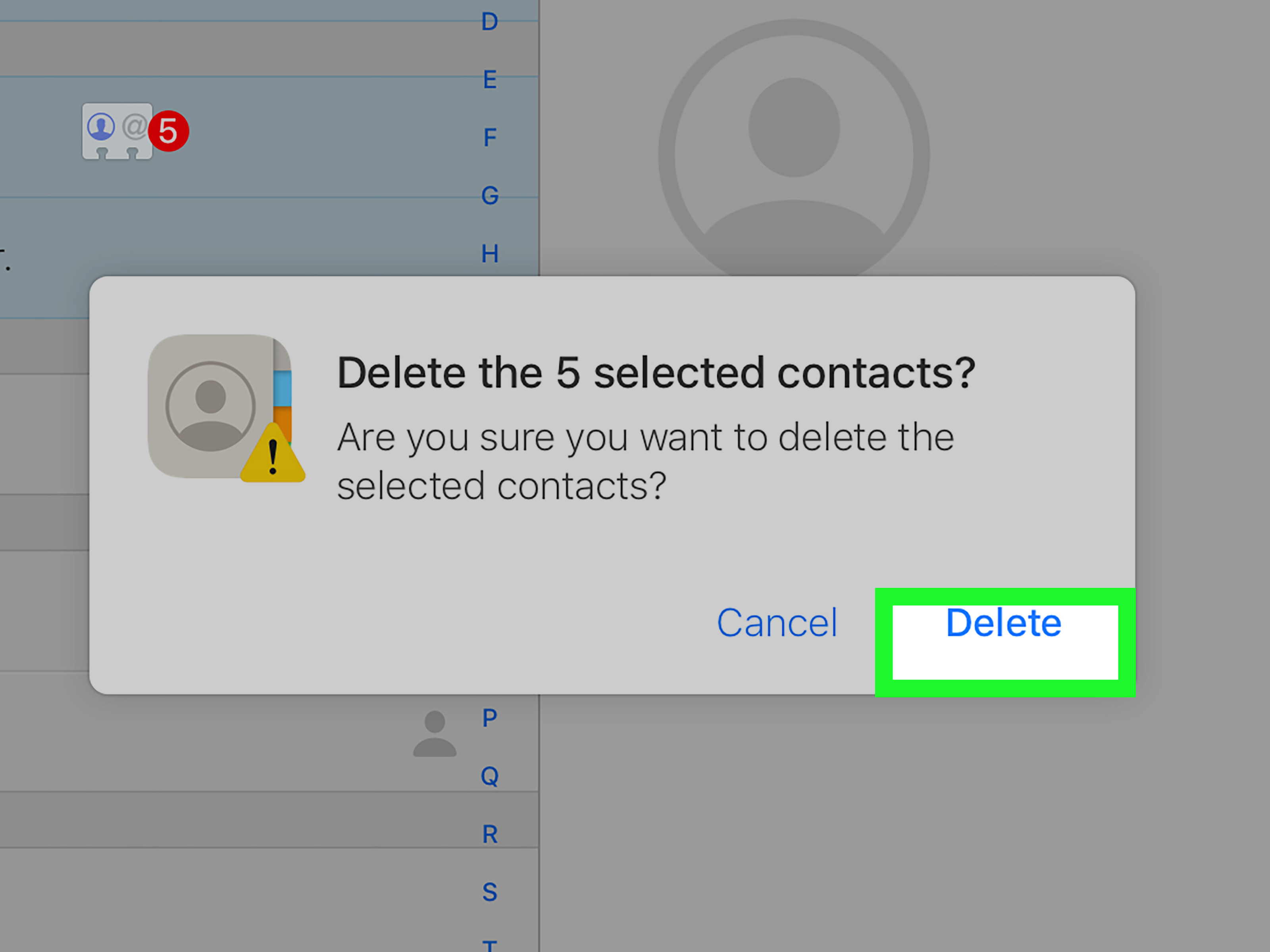
If your goal is to wipe out old contacts, this is where bulk deletion happens. But do not casually go full scorched-earth mode unless you already exported a backup or you are absolutely sure the list is disposable. Deleting iCloud contacts removes them from synced Apple devices too. One wrong click can turn your contacts app into a very quiet place.
- Return to your iPhone and let changes sync back.
Once you finish on iCloud.com, open the Contacts app on your iPhone and give it a little time to refresh. If you exported but did not delete, you should still see your list intact. If you removed contacts, the iPhone should update to match. This sync-back step is what makes the web method so useful: you manage the list once, and the phone follows along.
- Verify the result and tidy up any leftover accounts.
Open the Contacts app and make sure the result matches your goal. If some contacts remain, they may belong to another account like Gmail or Outlook. In that case, you are not dealing with one giant contact list; you are dealing with multiple lists wearing one trench coat. Check your accounts and repeat the correct method for the source that still holds those contacts.
Other Easy Ways to Manage All Contacts on iPhone
1. Export All Contacts Directly From iPhone
If your goal is not deletion but backup or sharing, Apple now makes this easier from the iPhone itself. Open the Contacts app, tap Lists, then touch and hold a list and use the Export option. This is a handy shortcut when you want to move your contacts to another device or save them before editing. It is not exactly the same as “select all contacts,” but functionally it solves the same problem for many people: getting the whole list out in one move.
2. Remove All Contacts From One Account
Sometimes you do not want to delete every contact individually. You just want one account gone. Maybe your old job’s Exchange account is still haunting your phone like a corporate ghost. Go to Settings > Apps > Contacts > Contacts Accounts, tap the account, and turn off Contacts. That removes that account’s contacts from your iPhone. This is often the fastest fix when your issue is not “too many contacts” but “too many contacts from the wrong place.”
3. Use Google Contacts if Gmail Is the Real Source
If most of your iPhone contacts are synced from Google, managing them at Google Contacts in a browser is often smarter than wrestling with iOS. Google’s web interface lets you select all contacts, export them, delete them, and apply labels. After that, your iPhone reflects the changes through sync. This is a great route for users who live in Gmail, use Google Workspace, or migrated from Android and still have Google doing the heavy lifting behind the scenes.
4. Use a Mac if You Are Already in the Apple Ecosystem
Mac users get another handy option: the Contacts app on macOS. If your iPhone contacts are synced with iCloud, you can use the Mac app to export selected contacts as a vCard or export the entire contact archive. For many people, this is the cleanest way to make a backup because it feels more native and less like doing paperwork on a website. If your desk already has a Mac on it, this method is wonderfully low-drama.
5. Outlook Users Should Manage Outlook Contacts at the Source
If Outlook or Microsoft 365 is where your contacts come from, try managing them there instead of pretending the iPhone app is in charge. Outlook on the web and Outlook apps support contact management and syncing, and Microsoft also provides options for syncing Outlook contacts with iOS. In plain English: if Outlook owns the contact book, let Outlook do the heavy lifting. Your iPhone is often just the display window.
6. Use the Two-Finger Multi-Select Gesture for Nearby Contacts
This is not a true select all contacts on iPhone feature, but it is useful. On newer iPhone software, you can select multiple adjacent contacts by pressing with two fingers and dragging through the list. It is great for deleting or sharing a cluster of nearby entries. It is not perfect for huge address books, but for cleaning up 20 duplicate contractors, old classmates, or repeated entries, it is surprisingly handy.
Common Mistakes to Avoid
Mistake one: deleting contacts from iCloud without making a backup first. This is the contact-management version of cutting your own bangs at midnight. It can be done. It is rarely the first choice.
Mistake two: assuming all your contacts are stored in one place. Lots of people have iCloud, Gmail, and Outlook contacts mixed together. That makes the phone look unified, but the storage is not.
Mistake three: confusing removal from iPhone with permanent deletion from the source account. Turning off sync for an account removes its contacts from the phone, but it does not necessarily delete them from the service itself.
Mistake four: forgetting to check duplicates. If your list looks bigger than expected, duplicates may be inflating the count and making cleanup harder than it needs to be.
Quick FAQ
Is there a real “Select All” button in the iPhone Contacts app?
No, not in the simple native way most users want. For a true all-at-once selection, iCloud.com is usually the easiest solution.
Will deleting contacts in iCloud delete them from my iPhone?
Yes, if iCloud Contacts is turned on for that iPhone. The devices sync, so changes made in iCloud can carry back to the phone.
What is the safest way to manage all contacts?
Export a backup first. A vCard export is the closest thing to a safety net before large contact edits.
What if my contacts are from Gmail or Outlook?
Manage them in Google Contacts or Outlook first, then let the iPhone sync the changes. That is usually more reliable than trying to do everything from the iPhone app.
Final Thoughts
If you came here hoping for one giant button inside iOS that says Select All Contacts and Fix My Life, Apple still has not given us that little luxury. But the practical answer is still pretty good. Using iCloud.com, Google Contacts, a Mac, or account-based sync controls, you can absolutely manage your entire iPhone contact list without losing your mind or your aunt’s phone number.
The biggest trick is knowing where the contacts are stored. Once you know that, the job gets much easier. Back up first, bulk-manage second, and avoid panic-tapping anything labeled delete until you are certain. Your future self will be grateful, and your contacts app may finally stop looking like a digital attic.
Real-World Experience: What Contact Cleanup Actually Feels Like
I have learned that organizing iPhone contacts is one of those jobs people put off for the same reason they avoid untangling old charging cables: it feels small, but it somehow radiates chaos. The first time I helped clean up a family member’s iPhone contacts, I expected a simple five-minute project. Instead, I found duplicate relatives, old work numbers, two separate entries for the same dentist, and a contact literally saved as “Do Not Answer Maybe Scam Maybe Roofing.” That is when I understood that a contact list is not just data. It is a tiny museum of every rushed decision a person has made with their phone.
The biggest surprise was how many people assume every contact is stored directly on the iPhone. In reality, contact lists are often patched together from iCloud, Gmail, Outlook, and old accounts nobody remembers adding. That is why cleanup can feel so weird. You delete something on the phone, and it comes back. Or you remove a contact online, and suddenly it disappears from two devices at once. It feels like your address book has free will. Once you understand the source of each contact account, the mystery goes away and the cleanup gets much easier.
I have also seen how useful a backup is when nerves kick in. People get brave when they hear the phrase “select all,” then immediately become historians of every phone number they have ever saved. Suddenly they are asking whether they still need the auto repair place from 2019, or the old apartment manager, or the number for someone labeled “Jen dog park.” A vCard backup solves that emotional spiral fast. Once the whole address book is saved, people relax. They stop treating every contact like a sacred artifact and start making smarter decisions.
Another real-world lesson is that the best method depends on the goal. If someone wants to move to a new phone, exporting all contacts is perfect. If they are switching jobs, removing one Exchange account is often the cleanest fix. If they came from Android and still use Gmail for everything, Google Contacts is usually the better place to do bulk edits. The mistake is trying to force one method onto every situation. That is how a simple cleanup turns into a weekend project with snacks and regret.
And yes, there is something deeply satisfying about finally opening the Contacts app and seeing a clean, sensible list. No duplicates. No dead numbers. No “Mom New New” next to “Mom Real Cell” and “Mom Maybe.” Just actual useful contacts. It is a small win, but it feels good because your phone suddenly starts acting like a tool again instead of a drawer full of mystery keys. That is why this topic matters more than it looks. A tidy contacts list saves time, reduces mistakes, and makes everyday calls, messages, and transfers much smoother. Also, it lowers the odds of accidentally texting the wrong Chris, which is a public service all by itself.
SEO Tags