
Calculator on a Mac looks harmless. It sits there with its tidy buttons, pretending to be a humble little number machine. But behind that simple face is a surprisingly useful tool for budgeting, studying, coding, converting units, checking receipts, and answering the eternal question: “How much did I just spend on coffee this week?”
Whether you are using a MacBook Air at school, an iMac at work, or a Mac mini that quietly runs your whole desk setup, the built-in Calculator app can do far more than basic addition. It includes Basic, Scientific, and Programmer modes, supports unit and currency conversion, shows previous calculations, works with keyboard shortcuts, and even connects with Math Notes in the Notes app on newer macOS versions.
This guide explains seven practical ways to use Calculator on a Mac, with real examples and simple tips you can use immediately. No math degree required. A mild tolerance for numbers is helpful, but not mandatory.
Why the Mac Calculator App Is More Useful Than It Looks
The Mac Calculator app is built into macOS, so you do not need to install anything, create an account, or trust a random website with your calculations. You can launch it from Spotlight, Finder, Launchpad, Siri, or the Dock. Once open, it can handle quick arithmetic, advanced formulas, programmer calculations, conversions, and saved calculation history.
The real advantage is convenience. A web calculator is fine until your browser has 47 tabs open and one of them starts playing music for no reason. Calculator on a Mac is fast, lightweight, and ready whenever you need it.
1. Use Basic Mode for Everyday Math
Basic mode is the default calculator view, and it is perfect for ordinary arithmetic: addition, subtraction, multiplication, division, percentages, and quick totals. This is the mode you want for splitting dinner bills, checking discounts, estimating monthly subscriptions, or making sure your “small” online shopping cart has not quietly become a financial event.
How to switch to Basic mode
Open Calculator, then choose View > Basic from the menu bar, or press Command-1. If you are already in Scientific or Programmer mode, this shortcut brings you back to the clean, simple version.
Example: Calculate a tip
Suppose your restaurant bill is $42.80 and you want to leave an 18% tip. Enter:
42.80 × 18%
The result is $7.70. Add that to the original bill, and the total is $50.50. Basic mode makes these daily calculations quick and painless.
Helpful Basic mode tricks
You can use your keyboard instead of clicking buttons. Type numbers directly, use +, -, *, and / for operations, and press Return or = to calculate. This is much faster than moving your pointer around like you are playing a tiny math-themed video game.
You can also adjust how many decimal places appear by choosing View > Decimal Places. This is useful when working with money, measurements, or percentages. If you prefer large numbers to be easier to read, choose View > Show Thousands Separator.
2. Use Scientific Mode for Advanced Calculations
Scientific mode turns the Mac Calculator app into a more powerful tool for students, engineers, researchers, data analysts, and anyone who sees exponents and does not immediately close the laptop.
How to open Scientific mode
Choose View > Scientific, or press Command-2. The calculator expands to show functions such as powers, roots, logarithms, trigonometry, factorials, memory buttons, constants, and scientific notation.
What you can do in Scientific mode
Scientific mode can help with algebra, geometry, physics, statistics, and finance-related calculations. You can square a number, calculate square roots, raise values to powers, use sine and cosine, switch between degrees and radians, and work with logarithmic functions.
For example, if you want to calculate the area of a circle with a radius of 6 inches, you can use the formula:
π × 6²
Scientific mode gives you a faster way to enter pi and exponents without typing out a full formula elsewhere.
Use memory buttons for repeated values
The memory buttons are especially handy. Use m+ to add a displayed value to memory, m- to subtract from memory, mr to recall it, and mc to clear it. Think of memory as a tiny shelf where Calculator keeps a number while you deal with other math chaos.
3. Use Programmer Mode for Binary, Hex, and Coding Work
Programmer mode is designed for developers, IT workers, computer science students, and curious people who enjoy seeing numbers dressed up in binary. It supports binary, octal, decimal, and hexadecimal calculations, plus bitwise operations.
How to open Programmer mode
Choose View > Programmer, or press Command-3. The interface changes to include number base controls and programming-related functions.
When Programmer mode is useful
Use Programmer mode when you need to convert between number systems, inspect hexadecimal values, work with permissions, understand low-level data, or perform bitwise logic. For example, developers often need hexadecimal color values, memory addresses, file permissions, or binary flags.
If you enter a decimal number such as 255, Programmer mode can show its equivalent in hexadecimal as FF and in binary as 11111111. That may not impress everyone at dinner, but it can save real time when debugging code.
Tip for beginners
If a button looks mysterious, hover your pointer over it. macOS often shows a help tag explaining what that button does. This is a quiet little feature, but it prevents the classic “I clicked something and now everything is in base 8” situation.
4. Convert Units and Currency Without Opening a Browser
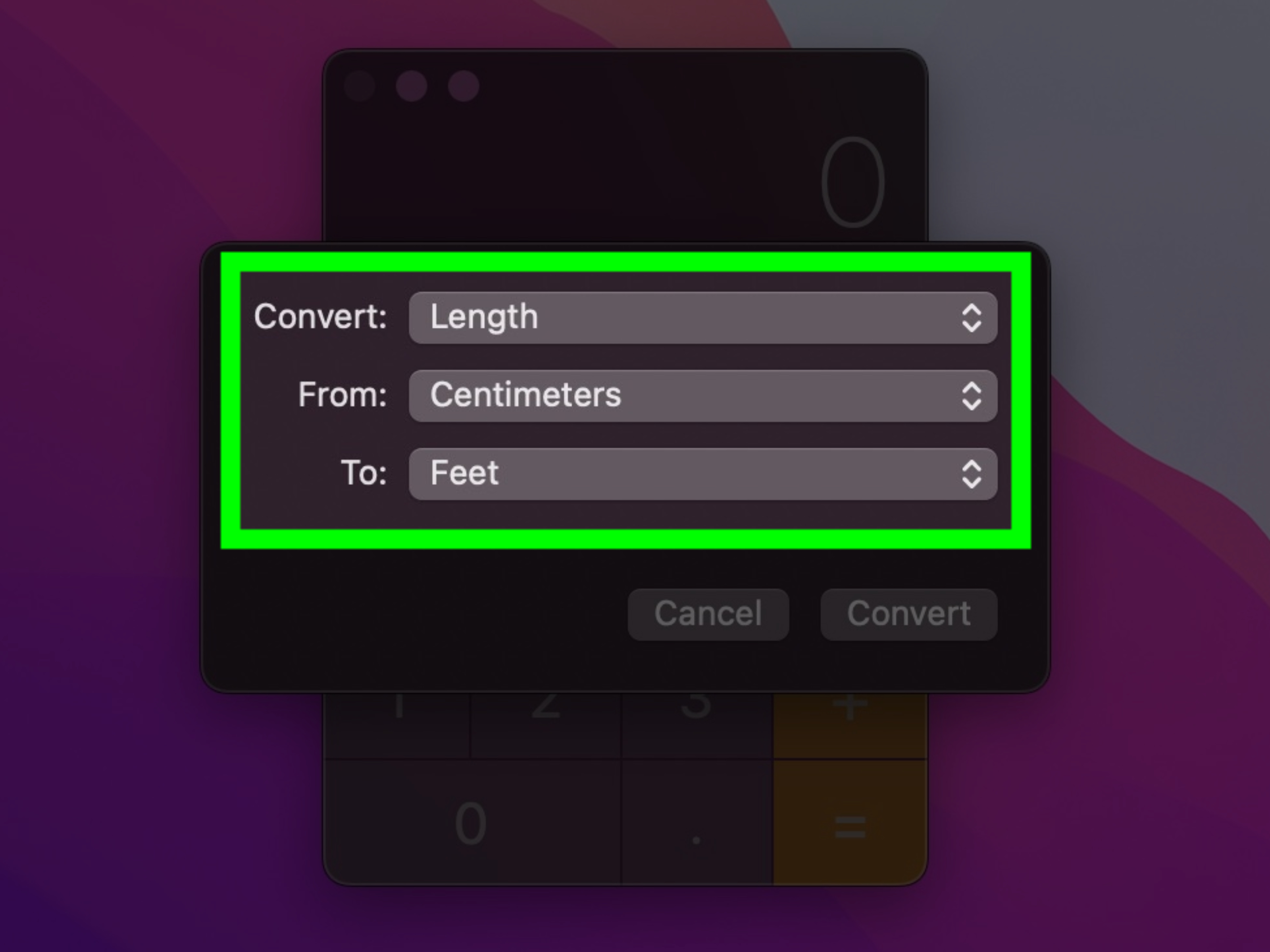
One of the best Mac Calculator features is built-in conversion. You can convert length, weight, temperature, speed, area, volume, pressure, power, energy, and currency. This is useful for travel, cooking, online shopping, science homework, and reading product specifications written in units you do not normally use.
How to use Convert mode
Open Calculator in Basic or Scientific mode, then choose View > Convert, or press Command-Option-C. Select a category, choose the units, and enter a value. Calculator updates the converted result as you type.
Example: Convert miles to kilometers
If you are planning a 5-mile run and want to know the distance in kilometers, choose the length category, set miles on one side and kilometers on the other, then enter 5. The result is approximately 8.05 kilometers.
Example: Convert Fahrenheit to Celsius
If a recipe says to bake at 350°F and you need Celsius, use the temperature category. The conversion is about 177°C. Your cake may still fail for emotional reasons, but at least the math will be right.
A note about currency conversion
Currency conversion requires an internet connection to use recent exchange rates. It is great for estimates, travel planning, and quick comparisons, but for serious financial transactions, always confirm rates with your bank, payment provider, or accounting system.
5. Show History So You Can Check Previous Calculations
Calculation history is the feature you appreciate most after making one tiny typo in a 12-step calculation and wondering where your dignity went. On a Mac, Calculator can show previous calculations in Basic and Scientific modes, allowing you to review, copy, and reuse earlier results.
How to show calculation history
Choose View > Show History, or press Control-Command-S. A history panel appears, showing previous calculations and results.
Why history matters
History helps when you are doing multi-step work, such as comparing loan payments, adding invoice totals, planning a vacation budget, or checking homework. Instead of writing every result on a sticky note that will vanish into another dimension, you can keep your calculations visible.
Example: Budget planning
Imagine you are estimating monthly expenses:
Rent + Utilities + Internet + Phone + Groceries + Transportation
With history turned on, you can check each part of the calculation and copy results into Notes, Numbers, Mail, or a document. It is not a full spreadsheet, but for quick budget math, it works beautifully.
6. Use Keyboard Shortcuts to Work Faster
If you use Calculator often, keyboard shortcuts make it feel much faster. You do not need to click every button. Your keyboard can handle numbers, operators, mode switching, clearing, percentages, and common scientific functions.
Essential Calculator shortcuts on Mac
- Command-1: Basic calculator
- Command-2: Scientific calculator
- Command-3: Programmer calculator
- Command-Option-C: Convert mode
- Control-Command-S: Show History
- Esc: Clear
- Delete: Remove the most recent digit
- Return: Calculate the result
- %: Percent
- /, *, -, +: Divide, multiply, subtract, and add
Why shortcuts are worth learning
Keyboard shortcuts reduce friction. Instead of opening menus and hunting for commands, you can switch modes instantly. For students or professionals who use Calculator repeatedly throughout the day, these seconds add up. Also, using shortcuts makes you look slightly more powerful, which is a harmless bonus.
7. Use Spotlight, Siri, and Math Notes for Calculations Outside the App
You do not always need to open Calculator to calculate something on a Mac. macOS lets you do quick calculations and conversions through Spotlight. On newer versions of macOS, Math Notes in the Notes app can also solve expressions and work with variables.
Use Spotlight as a quick calculator
Press Command-Space to open Spotlight, then type a calculation such as:
956*23.94
Spotlight shows the answer immediately. It can also handle conversions like 25 lbs to kg, 98.6F in C, or $100 in euros. This is often the fastest way to calculate something when you do not need a full calculator window.
Use Siri for hands-free math
If Siri is enabled on your Mac, you can ask questions such as, “What is 18 percent of 64?” or “Convert 10 kilometers to miles.” Siri is useful when your hands are busy, your keyboard is across the room, or you simply want your Mac to feel like a polite math assistant.
Use Math Notes for ongoing calculations
Math Notes is excellent for calculations you want to keep, edit, or revisit. In Notes, you can type expressions and use variables. For example:
Rent=1400
Utilities=185
Internet=70
Rent+Utilities+Internet=
Notes can solve the expression inline. If you change one of the earlier values, the answer updates automatically. This is perfect for budgets, project estimates, classroom notes, remodeling plans, and travel costs.
Best Practical Uses for Calculator on a Mac
For students
Students can use Basic mode for arithmetic, Scientific mode for algebra and trigonometry, and Math Notes for assignments that involve variables. The history panel is useful for checking work before submitting homework.
For professionals
Freelancers, accountants, marketers, and managers can use Calculator for estimates, invoice checks, tax calculations, percentage changes, and currency conversions. It is not a replacement for accounting software, but it is ideal for quick verification.
For developers
Programmer mode helps developers convert between decimal, binary, octal, and hexadecimal values. It can also support bitwise thinking when working with flags, permissions, encoding, and lower-level logic.
For travelers
Use Convert mode or Spotlight to check currency, distance, temperature, and weight. This is especially useful when booking hotels, reading luggage limits, comparing prices, or deciding whether 32°C is “pleasantly warm” or “why is the sidewalk melting?”
Common Mistakes to Avoid
Ignoring the mode you are in
If Calculator looks strange, check the mode. You may be in Programmer mode when you only wanted to add grocery prices. Press Command-1 to return to Basic mode.
Forgetting order of operations
When typing longer expressions, remember that multiplication and division happen before addition and subtraction unless you use parentheses. If you want a specific part calculated first, use parentheses.
Trusting currency conversion for final payment decisions
Calculator is useful for estimates, but exchange rates can change and payment providers may add fees. Use it for planning, then confirm before making a purchase or transfer.
Not using history
History is there to save you from repeating work. Turn it on when doing multi-step calculations. Your future self will be grateful and possibly less dramatic.
Extra Experience: Real-World Ways I Would Use Calculator on a Mac
The best way to understand Calculator on a Mac is to stop thinking of it as a single-purpose app. It is more like a small utility drawer. You open the drawer for one thing, then realize there are scissors, tape, batteries, and that one mystery key you are afraid to throw away. Calculator has the same energy: simple at first glance, surprisingly helpful when you know where to look.
For daily life, I would keep Basic mode as the default and use it for fast checks. For example, before buying a discounted item, I would calculate the real price after tax. A $79 item with 20% off may sound good, but once sales tax appears, the final price may not feel as heroic. Calculator helps you make the decision before your wallet gives you a disappointed look.
For work, I would use history whenever numbers matter. If I were preparing a client estimate, I would turn on history before adding line items. That way, if the final number looks too high or too low, I could review the steps instead of starting over. This is especially useful for freelancers who calculate hourly work, revisions, software costs, and taxes. A visible history panel makes the process more transparent.
For writing, editing, or content planning, Calculator is surprisingly handy. Suppose you are planning a 1,500-word article with five sections. You can quickly divide the target word count by section, estimate reading time, or calculate how many articles you need per week to hit a monthly publishing goal. The math is simple, but having it one shortcut away keeps your workflow moving.
For travel, I would use Spotlight and Convert mode constantly. If a hotel room is listed in euros, a hiking trail is listed in kilometers, and the weather is shown in Celsius, the Mac can translate those numbers into familiar terms quickly. This is where Spotlight feels almost magical. Press Command-Space, type the conversion, and move on with your life. No sketchy converter website required.
For students, Math Notes may be the most comfortable option. Instead of performing isolated calculations and losing the context, students can keep formulas, variables, and results together in one note. A study note can include definitions, examples, equations, and answers in the same place. That makes review easier because the math is connected to the explanation, not floating around like a lost decimal point.
For developers, Programmer mode is the feature I would keep in mind even if I did not use it every day. When you need it, you really need it. Converting 255 to FF, checking binary values, or understanding bitwise operations can be annoying in a normal calculator. Programmer mode makes those tasks feel built-in rather than improvised.
The biggest lesson is this: the fastest calculator is the one that fits the situation. For a two-second answer, use Spotlight. For everyday arithmetic, use Basic mode. For formulas, use Scientific mode. For code-related number systems, use Programmer mode. For ongoing notes and budgets, use Math Notes. Once you match the tool to the task, Calculator on a Mac becomes less of a boring utility and more of a quiet productivity sidekick.
Conclusion
Calculator on a Mac is much more than a place to type 2+2 and feel reassured by the answer. It can handle everyday arithmetic, scientific formulas, programming calculations, unit conversions, currency estimates, calculation history, keyboard shortcuts, Spotlight math, Siri questions, and Math Notes.
The best part is that it is already on your Mac. You do not need a subscription, a login, or a new app. You only need to know which feature to use. Start with Basic mode, learn the shortcuts, turn on history for longer calculations, and use Spotlight when speed matters. Before long, the little Calculator app may become one of the most underrated tools on your Mac.