
Some websites help you finish a task in seconds. Others make you question your eyesight, your internet connection, and every decisihen your cursor approaches it. The checkout page rejects your perfectly normal address, deletes your cart, and then asks whether you would like to subscribe to promotional emails. Somewhere, a designer is calling trms: broken links, impossible navigation, misleading buttons, unreadable fonts, mobile layouts assembled by gravity, and forms that respond to mistakes with the helpful message, “Something went wrong.” Thanks, website. That narrows it down.
So, Pandas, it is time to open the digital museum of bad decisions. Post the worst website fails you have ever encountered, from harmless visual disasters to checkout experiences that made you abandon civilization altogether.
What Makes a Website Fail Truly Memorable?
A small bug is annoying. A legendary website failure is different. It combines confusion, inconvenience, and just enough absurdity to make people take a screenshot before fleeing.
The worst website fails usually occur when a site prevents visitors from completing the exact task it was supposedly built to support. A store will not let customers pay. A restaurant hides its menu behind six animations. A government portal times out after someone completes a 12-page form. A news site covers the article with so many pop-ups that the actual news becomes an archaeological discovery.
Good usability means people can understand a page, navigate it efficiently, recover from mistakes, and accomplish their goals. Bad usability replaces each of those steps with a small digital obstacle course.
The Fail Is Worse When the Solution Looks Obvious
People are especially irritated when a problem seems easily preventable. A button should look clickable. Text should be readable. A mobile page should fit on a mobile screen. A form should explain which field contains an error.
These expectations are not luxurious demands from spoiled internet users. They are basic design principles. When a website ignores them, visitors can practically hear the page whispering, “Nobody tested this.”
1. Navigation Designed Like an Escape Room
Navigation should answer a simple question: Where do I go next? Some websites instead respond with a riddle.
Perhaps the menu is represented by an abstract symbol that looks like a bent paper clip. Maybe important pages are hidden under labels such as “Discover,” “Experience,” or “Journey.” These words sound inspiring during a branding meeting but are less useful when someone is desperately looking for the return policy.
Another classic website fail is the enormous dropdown menu. Move your cursor over “Products,” and the screen fills with 74 options organized into categories nobody outside the company understands. Accidentally move one pixel to the left, and the entire menu vanishes. Congratulations: you must begin again.
Clear navigation relies on familiar labels, sensible hierarchy, visible links, and predictable behavior. Visitors should not need a treasure map to find the contact page.
2. The Pop-Up That Refuses to Leave
You arrive on a website. Before reading the headline, you are asked to accept cookies. Then a newsletter form appears. Next comes a location request, a discount wheel, a notification prompt, and a chatbot introducing itself with the confidence of someone who owns the place.
The page has not yet shown you the information you came for, but it already wants your email address, location, notification permission, purchasing history, and perhaps the name of your first pet.
Pop-ups become especially memorable when the close icon is hidden, pale, tiny, or positioned outside the visible screen. On mobile devices, some overlays trap users completely. Scrolling stops, the back button behaves unpredictably, and rotating the phone only creates a wider version of the same prison.
A prompt can be useful when it appears at the right moment. Five prompts appearing simultaneously are not a marketing strategy. They are a hostage situation.
3. Mobile Websites That Clearly Prefer Desktops
Responsive web design is supposed to make pages usable across different screen sizes. Yet plenty of mobile websites behave as though smartphones were invented yesterday without warning.
Common failures include text extending beyond the screen, images covering buttons, navigation menus that cannot be closed, and forms requiring horizontal scrolling. Some sites simply squeeze the entire desktop page into a six-inch display, leaving visitors to zoom in and drag the page around like they are examining a map of a small country.
Then there are tap targets placed so closely together that selecting “Next” also activates “Delete account.” Tiny links may work with a precise mouse pointer, but fingers are not laser-guided instruments.
A good mobile layout prioritizes essential content, readable text, appropriately sized controls, and stable elements. A bad one presents a full-screen advertisement and leaves the actual content somewhere underneath it, possibly in another dimension.
4. Forms That Punish Honesty
Online forms are where ordinary websites reveal their true personalities.
A reasonable form clearly labels each field, explains formatting requirements, preserves entered information, and identifies errors in plain language. A terrible form waits until submission to announce that your phone number contains forbidden punctuation.
You remove the hyphens. Now the password is invalid. You update the password. The security question disappears. You answer it again. The page refreshes and deletes everything because the ZIP code field wanted five digits rather than nine.
The most infamous error message is simply, “Invalid input.” Which input? Invalid in what way? Does the website object to the email address, the apartment number, or your existence?
Error messages should identify the problem and help users fix it. Red borders alone may not be visible to everyone, particularly people with limited vision or color perception. A form that silently reloads is even worse because visitors may not realize anything failed.
And no, a person’s last name does not need to contain at least one number and one special character.
5. The Checkout Process That Stops People From Buying
An online store has one particularly important job: allow customers to purchase products. Surprisingly, many checkout pages treat this goal as optional.
Customers may be forced to create an account, confirm an email address, reject unrelated add-ons, and complete a long collection of fields before seeing the final price. Shipping costs emerge at the last possible moment like a villain in the third act. A $24 item becomes a $61 commitment after handling charges, service fees, processing costs, and a mysterious “convenience fee” for the convenience of paying.
Other checkout fails include rejecting valid cards without explanation, clearing carts after login, hiding guest checkout, and changing the selected product during payment. Nothing builds confidence like ordering a blue medium shirt and seeing a red extra-large one appear on the confirmation page.
Complex checkout experiences create unnecessary friction. Every extra field, surprise charge, and vague error gives customers another reason to reconsider the purchase.
6. Dark Patterns Wearing Friendly Colors
Not every bad website is accidentally bad. Some interfaces are deliberately designed to steer users toward choices they might not otherwise make.
These manipulative techniques are commonly called dark patterns. They may include disguising advertisements as ordinary content, making subscriptions easy to start but difficult to cancel, hiding fees, using confusing double negatives, or presenting privacy choices in dramatically unequal ways.
For example, a cookie banner might feature a bright, cheerful “Accept Everything” button while placing “Manage Preferences” in tiny gray text. An unsubscribe page may require six steps and finish by asking, “Are you sure you want to miss exclusive opportunities?” Yes. That is why the user clicked unsubscribe.
Fake countdown timers are another favorite. The website claims a sale ends in seven minutes, yet the timer restarts every time the page reloads. Apparently, time itself has joined the marketing department.
Dark patterns may increase short-term clicks, but they weaken trust. Visitors remember when an interface attempts to outsmart them.
7. Accessibility Treated as an Optional Upgrade
Accessibility failures can prevent people with disabilities from perceiving, understanding, navigating, or interacting with a website. They can also make the experience harder for mobile users, older visitors, people with temporary injuries, and anyone using a slow connection.
Common issues include missing alternative text for images, poor color contrast, unlabeled form controls, videos without captions, and interfaces that cannot be operated with a keyboard. Some pages remove visible focus indicators, leaving keyboard users unable to tell which element is currently selected.
Automatic animations, flashing content, and unexpected audio can create additional barriers. A site should not begin playing a promotional video at full volume simply because someone dared to open a product page during a quiet meeting.
Semantic HTML, meaningful headings, descriptive links, keyboard support, readable contrast, and clear labels are not decorative extras. They help make websites usable by more people.
8. Slow Pages and the Button That Moves at the Worst Moment
A slow website tests patience. An unstable website tests reflexes.
You wait for the page to load. The button you need finally appears. Just as you tap it, an advertisement loads above the content, shifting everything downward. Instead of selecting “Continue,” you click an ad for customized garden statues.
Unexpected layout movement is more than irritating. It causes mistakes and makes pages feel unreliable. Large unoptimized images, excessive scripts, autoplaying videos, and third-party widgets can all contribute to sluggish performance.
Visitors should not need to watch a loading spinner complete its personal growth journey. Pages should present meaningful content quickly, respond promptly to interaction, and remain visually stable while loading.
9. Search Tools That Seem Personally Offended
Website search should help people find content even when they make small spelling errors or use different terminology. Bad search tools demand absolute precision.
Search for “wireless headphones,” and the site returns zero results because the product category is called “cord-free audio equipment.” Search for the exact product name, and it recommends a toaster.
Some search pages ignore filters, reset sorting options, or display sponsored results above relevant matches. Others produce the same result for every query, which raises the question of whether the search box is connected to anything.
A particularly cruel variation allows users to set ten filters and then removes all of them when they view a product and press the back button.
10. Broken Links, Missing Pages, and Placeholder Text
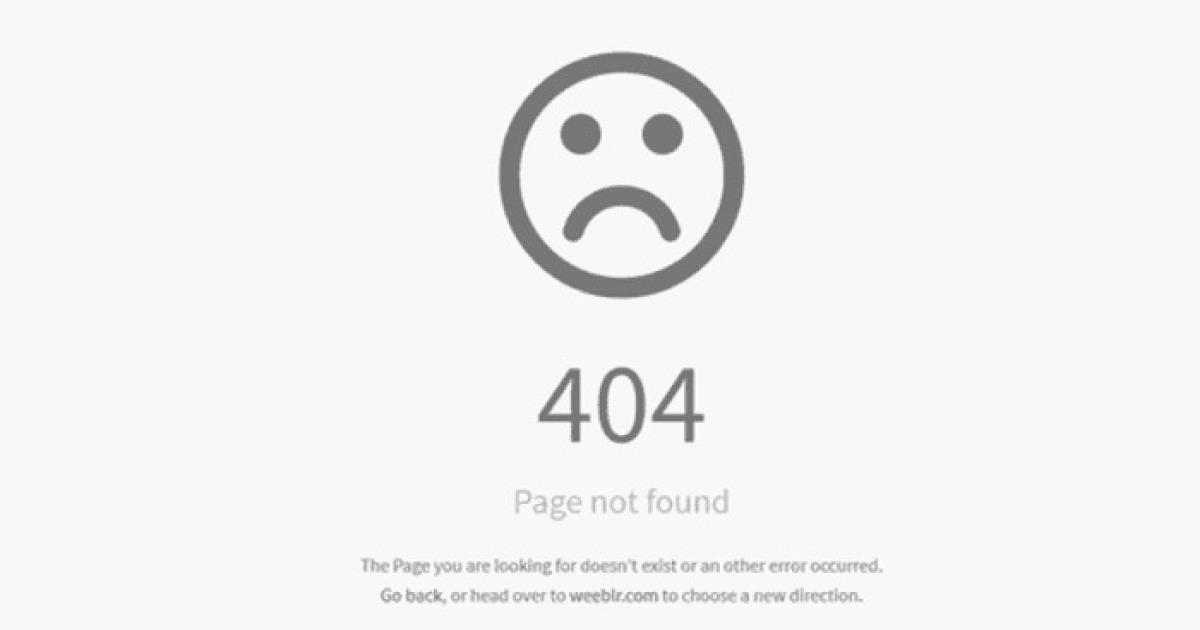
Few things communicate confidence like a homepage button leading to a 404 error.
Broken links often appear after redesigns, migrations, or content updates. Product pages disappear without redirects. Help articles point to deleted instructions. Navigation menus lead to empty categories.
Placeholder content creates an even more entertaining category of failure. Visitors may encounter headings such as “Insert compelling message here,” buttons labeled “Button text,” or a staff biography that still reads, “John is a passionate professional with XX years of experience.”
Then there is the immortal filler text, Lorem ipsum, quietly living on a production page months after launch. Nothing says “trusted financial institution” like a paragraph of unfinished Latin beneath the loan application.
11. Security Mistakes That Turn Funny Into Frightening
Some website fails stop being amusing when they expose private information or allow unauthorized access.
Poor access controls, insecure configurations, weak authentication, and careless handling of sensitive data can have serious consequences. A visitor should never be able to view another customer’s account simply by changing a number in the page address. Administrative tools should not remain accessible with default credentials. Error pages should not reveal internal server details.
Even smaller warning signs damage trust. A browser security warning, a broken certificate, or a payment form loaded over an insecure connection can send visitors directly to the exit.
Security must be considered throughout development, testing, deployment, and maintenance. It cannot be added at the end like a decorative lock icon.
12. Visual Design That Attacks the Senses
Visual design should create hierarchy and guide attention. Failed design gives every element equal importance and maximum volume.
Imagine eight fonts, six button styles, a patterned background, animated text, glowing borders, and a logo large enough to influence local weather. Nothing is clearly grouped, headings resemble advertisements, and the most important action is hidden below a rotating gallery of stock photos.
At the opposite extreme, some minimalist websites remove so much context that visitors cannot identify links, buttons, menus, or even the company’s purpose. If every element is pale gray and floating in white space, the page may look elegant in a screenshot while remaining nearly impossible to use.
Effective visual hierarchy uses contrast, scale, spacing, alignment, and grouping to show what matters. Decoration should support the task, not challenge it to a duel.
Why Website Fails Spread So Quickly
Website disasters are unusually shareable because nearly everyone recognizes the frustration. A screenshot of an impossible CAPTCHA or contradictory error message requires little explanation.
There is also something satisfying about seeing a digital system lose an argument with itself. A page might display “Password accepted” and “Password invalid” at the same time. A delivery service may announce, “We cannot deliver to this address,” directly above a message saying, “Good news! Delivery is available.”
These failures turn private irritation into communal comedy. People share them as warnings, jokes, and evidence that even large organizations occasionally publish something held together by code, hope, and a forgotten browser tab.
How Website Owners Can Avoid Becoming the Next Viral Fail
Test With Real Users
Internal teams know how their website is supposed to work. New visitors do not. Observing representative users attempt common tasks can reveal unclear labels, hidden actions, confusing forms, and assumptions the design team never noticed.
Test Across Devices and Input Methods
A site should be checked on different screen sizes, browsers, connection speeds, and operating systems. It should also be usable with a keyboard, screen reader, zoomed text, and touch controls.
Write Helpful Error Messages
Explain what happened, identify the affected field, preserve the user’s work, and provide a clear next step. “Something went wrong” is acceptable only when followed by useful information.
Respect the Visitor
Do not hide costs, manipulate consent, obstruct cancellation, or force unnecessary account creation. Honest interfaces build stronger long-term relationships than tricks.
Maintain the Site After Launch
Websites are not permanent sculptures. Links break, content ages, dependencies change, and new security issues emerge. Routine monitoring and maintenance prevent small flaws from growing into screenshot-worthy disasters.
From the Panda Den: Experiences With Website Fails
Most people can remember at least one website failure that felt specifically designed to ruin their afternoon. Mine usually begin with a task that sounds harmless: download a document, change a delivery address, cancel a subscription, or buy something ordinary.
One memorable experience involved a registration form that required a password between eight and 20 characters. I created one with 12 characters, uppercase and lowercase letters, numbers, and a symbol. The website rejected it.
I tried another. Rejected. A third password was also unacceptable. Only after several attempts did a hidden tooltip appear, revealing that the form permitted exactly one special character from a secret list of three. The website had transformed account creation into an audition for a code-breaking agency.
After I finally produced an acceptable password, the page timed out and erased the entire form.
Another site offered a checkout process with a large green button reading “Continue.” Clicking it produced no visible response. Naturally, I clicked again. Still nothing. After several attempts, five identical orders appeared in the account dashboard. The button had been working the whole time; the page simply provided no loading indicator or confirmation.
Then came the exciting task of canceling four duplicate orders before they shipped. The cancellation link led to a help article. The help article instructed me to use the cancellation link.
Restaurant websites deserve their own category. You search for opening hours and encounter a full-screen video of vegetables being chopped in slow motion. After the cinematic onion concludes its performance, the menu appears as a 40-megabyte PDF photographed at an angle. On mobile, the prices are too small to read, but the reservation widget blocks half the screen with confidence.
Travel websites can create similar adventures. A room is advertised at an attractive nightly rate, but taxes and mandatory fees remain hidden until the final screen. The site includes a countdown warning that “only one room remains,” while simultaneously listing the same room in several other packages. A pop-up then asks whether you are enjoying your experience. Timing has never been more important.
The most exhausting failures are those that offer no escape. I once encountered a cookie banner with two visible options: “Accept” and “Learn More.” The second option opened a long policy page, but there was no rejection button. Returning to the original page caused the banner to reappear. It was less a consent request and more a digital bouncer refusing entry until I agreed with management.
Website failures also reveal how differently people use technology. A page may seem functional with a mouse but become impossible with a keyboard. Text that looks stylish on a designer’s monitor may be unreadable on a phone outdoors. An animation that appears impressive during a presentation may cause nausea or prevent someone from concentrating.
That is why the funniest website fails can still teach serious lessons. They show what happens when teams prioritize decoration over clarity, conversion over trust, or deadlines over testing. They remind us that a website is not successful merely because it loads without displaying flames.
The best digital experiences tend to feel almost invisible. Visitors understand where to go, what to do, and how to recover when something goes wrong. Nobody celebrates a checkout button for behaving like a checkout button, but they certainly remember when it orders five washing machines.
So, Pandas, share your screenshots and stories. Did a form refuse your legal name? Did a menu flee from your cursor? Did a pop-up cover another pop-up until the page resembled a stack of digital pancakes? Post the worst website fails of all time and let the internet perform the usability testing that should have happened before launch.
Conclusion
The worst website fails are funny because they transform simple tasks into unexpected adventures. Yet behind every broken button, confusing form, inaccessible menu, manipulative prompt, and unstable layout is a practical lesson about user experience.
Successful websites respect people’s time. They communicate clearly, work across devices, protect personal information, support different abilities, and make important actions easy to understand. When they fail to do those things, visitors do not merely leave. They take screenshots.
Note: The scenarios in this article are generalized and illustrative, reflecting widely documented usability, accessibility, performance, consumer-protection, and web-security problems rather than allegations about any specific website.