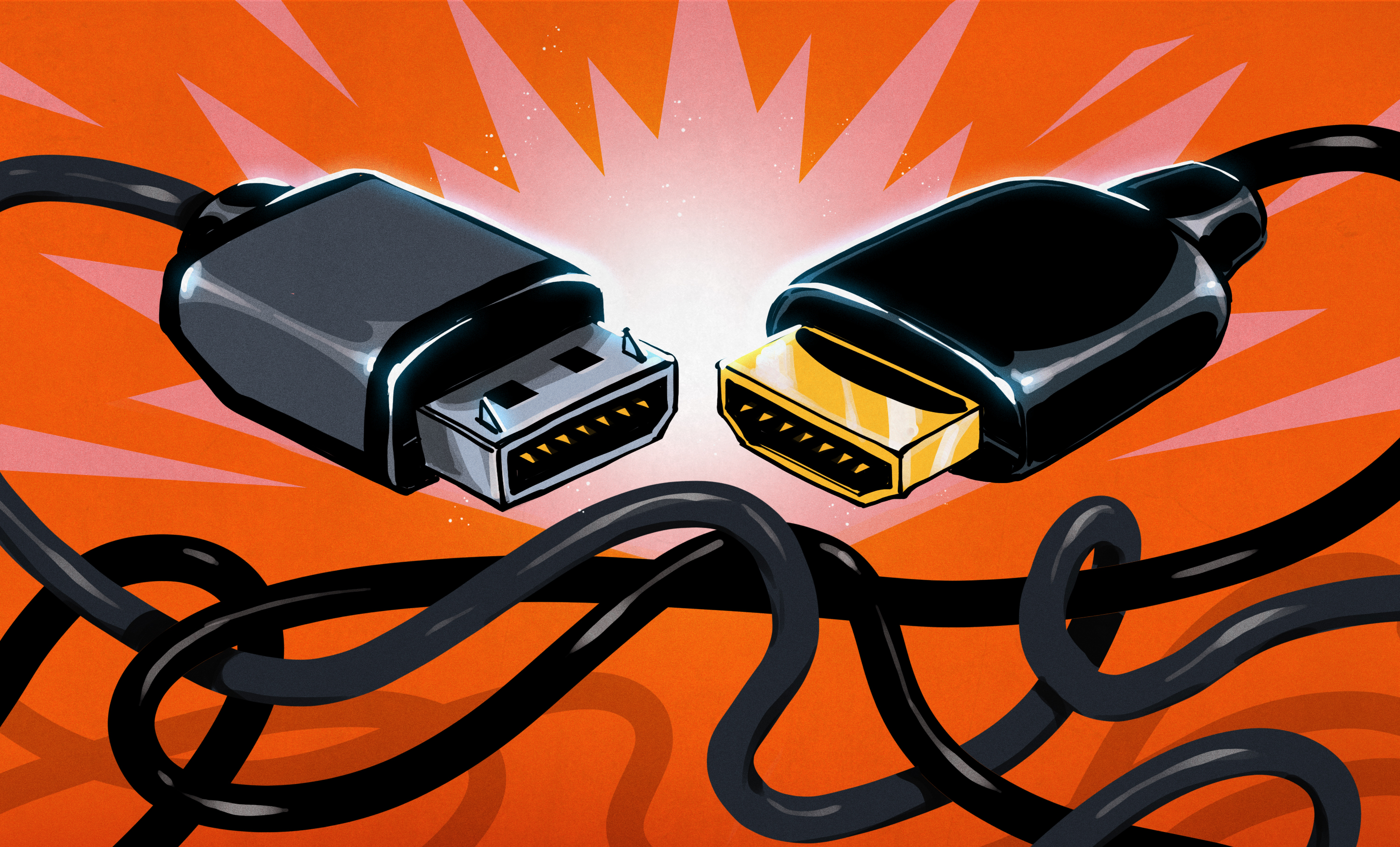

DisplayPort is the quiet overachiever of video interfaces. HDMI gets invited to every living room party, USB-C gets the glossy laptop commercial, and DisplayPort is over there doing the heavy lifting for gaming monitors, workstations, docking stations, ultra-wide displays, and multi-monitor desks without demanding applause. If your computer setup involves high refresh rates, sharp text, multiple screens, or a monitor that cost more than your chair, DisplayPort deserves your attention.
At its simplest, DisplayPort is a digital audio and video interface used to connect a computer, graphics card, laptop, dock, or workstation to a monitor. But that definition is like calling a sports car “a wheeled object.” DisplayPort was designed with PC displays in mind, and that focus matters. It offers strong bandwidth, support for high resolutions, adaptive refresh technologies, daisy chaining, USB-C integration, and a cable ecosystem built for performance-first desktop setups.
So, is DisplayPort better than HDMI? For TVs, game consoles, soundbars, and home theater gear, HDMI is usually the natural choice. For PC monitors, especially high-refresh gaming monitors and productivity workstations, DisplayPort often has the edge. The real answer depends on your hardware, but if you are building a serious desk setup, DisplayPort is usually the port you check first.
What Is DisplayPort?
DisplayPort is a display connection standard developed by VESA, the Video Electronics Standards Association. It carries digital video and audio from a source device to a display. You will usually see it as a full-size DisplayPort connector on desktop graphics cards and monitors, a Mini DisplayPort connector on older laptops and devices, or as DisplayPort Alt Mode through USB-C.
That USB-C part is important. Many modern laptops do not have a full-size DisplayPort jack, but their USB-C or Thunderbolt ports may still output DisplayPort video. This is why a compact laptop can connect to a 4K monitor, docking station, or multi-display setup through one cable. The connector may look like USB-C, but the video language running through it can be DisplayPort.
DisplayPort is also used inside devices. Embedded DisplayPort, often called eDP, is common in laptops and all-in-one computers where the internal screen needs a high-performance connection to the graphics hardware. In other words, DisplayPort is not only the cable on your desk; it is also part of the display plumbing inside many modern computers.
Why DisplayPort Became a Favorite for PC Monitors
DisplayPort became popular because it solved problems PC users actually had. Gamers wanted higher refresh rates. Designers wanted sharper resolution and richer color. Developers and office users wanted multiple monitors without turning their desks into a cable jungle. IT teams wanted docking stations that could support several screens reliably. DisplayPort leaned into those needs.
Unlike HDMI, which grew up around televisions and consumer electronics, DisplayPort was built around computer displays. That does not make HDMI bad. HDMI is excellent for living rooms, consoles, AV receivers, and TVs. But DisplayPort’s PC-first design gives it practical advantages on a desk: more monitor-focused features, better support for daisy chaining, and strong adoption on dedicated graphics cards.
DisplayPort Versions: Why the Number Matters
Not all DisplayPort connections are equal. A monitor may have DisplayPort, but the version and supported link rate determine what it can actually do. DisplayPort 1.2 made Multi-Stream Transport, or MST, more common for daisy chaining. DisplayPort 1.4 became a major standard for 1440p high-refresh and many 4K gaming monitors. DisplayPort 2.1 raises the ceiling dramatically with support for UHBR link rates and up to 80 Gbps of raw bandwidth in its highest configuration.
That bandwidth matters because modern displays are greedy. A 1080p 60 Hz monitor is easy. A 4K 240 Hz monitor with HDR is a much hungrier beast. Add ultrawide resolutions, 10-bit color, high dynamic range, and multiple screens, and the video connection becomes a serious performance componentnot just “the cable thingy.”
DisplayPort 1.4: Still Very Relevant
DisplayPort 1.4 remains extremely common and still very capable. It supports high refresh rates, HDR workflows, and Display Stream Compression, or DSC. DSC is visually lossless compression that helps push demanding resolutions and refresh rates through available bandwidth. Many excellent gaming and productivity monitors still rely on DisplayPort 1.4 because it hits a practical sweet spot for today’s hardware.
DisplayPort 2.1: Built for the New Display Era
DisplayPort 2.1 is the standard to watch for high-end setups. It can support much more bandwidth than DisplayPort 1.4, especially with certified DP80 cables and UHBR20 operation. In plain English: it gives future monitors more room to run at very high resolutions, high refresh rates, and rich color settings without immediately leaning on compression or compromise.
However, the version label alone is not enough. Some products marked DisplayPort 2.1 may support lower UHBR rates, while others support the full DP80-class performance. When shopping, look beyond “DP 2.1” and check the specific bandwidth, UHBR rating, and cable certification.
DisplayPort vs. HDMI: Which Is Better?
The DisplayPort vs. HDMI debate can get oddly emotional, as if cables have fan clubs. The calm answer is this: both are excellent when matched to the right job. HDMI dominates TVs, game consoles, streaming boxes, Blu-ray players, soundbars, and AV receivers. DisplayPort dominates PC monitor connections, especially for desktops, gaming GPUs, multi-monitor setups, and professional displays.
HDMI 2.1 is powerful and widely used in modern TVs and consoles. It supports high-bandwidth features for 4K gaming, VRR, HDR, and advanced audio return features that matter in living rooms. DisplayPort, meanwhile, tends to be more flexible for PC monitor workflows, especially when you want multiple displays, high refresh rates, or docking station support.
If you are connecting a PlayStation or Xbox to a TV, use HDMI. If you are connecting a gaming PC to a high-refresh monitor, DisplayPort is often the first cable to try. If you are connecting a laptop to a USB-C dock and two monitors, DisplayPort is probably involved even if you never see the traditional connector.
Bandwidth: The Hidden Reason DisplayPort Feels “Better”
Bandwidth is the highway size for your display signal. More bandwidth means more room for resolution, refresh rate, color depth, HDR, and multiple displays. When there is not enough bandwidth, something must give: refresh rate drops, color depth decreases, chroma subsampling appears, DSC turns on, or the monitor simply refuses to run at the setting you expected.
This is why two cables that “fit” can behave completely differently. A monitor may support 4K at 144 Hz, but only through DisplayPort. Another may support 165 Hz through DisplayPort but be limited to 100 Hz or 120 Hz through HDMI, depending on the HDMI version and internal monitor design. The connector shape is just the handshake. The bandwidth behind it is the actual conversation.
DisplayPort and Gaming: High Refresh Rates Without Drama
Gamers love DisplayPort because it has historically been a reliable path to high refresh rates. If you buy a 144 Hz, 165 Hz, 240 Hz, or 360 Hz monitor, DisplayPort is often the connection that unlocks the monitor’s full PC performance. It is also commonly used for adaptive sync technologies that help reduce tearing and stutter.
AMD FreeSync works over DisplayPort and HDMI on supported displays, while NVIDIA G-SYNC and G-SYNC Compatible monitors often rely heavily on DisplayPort for PC gaming compatibility. The exact behavior depends on the monitor, GPU, driver, and cable, but DisplayPort remains a safe and popular choice for serious PC gaming.
Example: imagine you bought a 1440p 240 Hz monitor and plugged it into your graphics card using an old HDMI cable from a forgotten drawer. You may get an image, but not the refresh rate you paid for. Swap to a certified DisplayPort cable connected to the GPU’s DisplayPort output, and suddenly the monitor behaves like the performance machine it promised to be. The cable did not make your PC faster; it simply stopped being the bottleneck.
DisplayPort for Productivity and Multi-Monitor Setups
DisplayPort is not just for gamers chasing frame rates like caffeinated squirrels. It is also excellent for productivity. Developers, traders, designers, video editors, analysts, and office users often depend on multiple monitors. DisplayPort supports Multi-Stream Transport, which allows one DisplayPort output to carry multiple display streams when the hardware supports it.
This is the technology behind many daisy-chain monitor setups. Instead of running two separate cables from your PC to two monitors, you can connect the computer to the first monitor, then connect the first monitor to the second. The result is cleaner, easier to manage, and less likely to turn your desk into a spaghetti documentary.
There are limits, of course. Every screen in the chain consumes bandwidth. Two 1080p monitors are easy. Two 4K monitors at high refresh rates are much more demanding. Your computer, dock, monitor, and cables all need to support the right standards. Still, when it works, DisplayPort MST is one of the most useful features for modern workstations.
USB-C, Thunderbolt, and DisplayPort Alt Mode
One of DisplayPort’s smartest moves was becoming part of the USB-C ecosystem through DisplayPort Alt Mode. This allows compatible USB-C ports and cables to carry DisplayPort video. It is why many thin laptops can output video without a dedicated HDMI or DisplayPort port.
Thunderbolt and USB4 also commonly carry DisplayPort video signals. When you connect a laptop to a Thunderbolt dock and then connect two monitors to that dock, DisplayPort may be doing the video work behind the scenes. This is one reason modern docking stations can feel magical: one cable can carry video, data, power, and networking. It is not magic, though. It is standards doing their job, which is less sparkly but more useful.
Before buying a USB-C to DisplayPort adapter, check that the USB-C port supports video output. Not every USB-C port carries DisplayPort Alt Mode. Some are only for charging or data. The connector may look identical, which is both elegant and mildly annoying.
DisplayPort Cables: Certification Matters
A DisplayPort cable is not automatically good just because it has DisplayPort connectors. Cable quality matters more as resolution and refresh rate increase. For DisplayPort 2.1, VESA-certified DP40 and DP80 cables are especially important. DP40 indicates support for up to 40 Gbps-class operation, while DP80 is designed for up to 80 Gbps-class operation.
If you are running a basic 1080p monitor, nearly any decent DisplayPort cable may work. If you are running 4K at 240 Hz, 8K, HDR, or a high-end OLED gaming monitor, use a certified cable from a reputable brand. A cheap mystery cable can cause flickering, black screens, random disconnects, or refresh-rate limitations. These problems often masquerade as GPU issues, driver bugs, or monitor defects, when the actual villain is a five-dollar cable with heroic confidence and poor shielding.
Common DisplayPort Problems and Easy Fixes
DisplayPort is powerful, but no interface is perfect. The most common issues are usually simple: wrong port, weak cable, outdated driver, monitor setting disabled, or bandwidth mismatch.
No Signal
First, make sure the cable is connected to the graphics card, not the motherboard, if you use a dedicated GPU. Then check the monitor’s input selection. Next, try another DisplayPort cable. If the monitor has deep sleep or power-saving settings, disable them temporarily. DisplayPort handshakes can occasionally be fussy after sleep mode.
Refresh Rate Is Lower Than Expected
Open your display settings and manually choose the highest refresh rate. In Windows, this is usually under advanced display settings. In your GPU control panel, check resolution and color settings. If the option is missing, your cable, dock, adapter, or monitor port may not support the bandwidth you need.
Daisy Chain Not Working
Confirm that the first monitor supports MST output and that MST is enabled in its on-screen menu. Also confirm that the laptop, desktop, or dock supports MST. HDMI does not support DisplayPort-style daisy chaining, and a USB-C port without DisplayPort Alt Mode will not help no matter how politely you plug it in.
Who Should Choose DisplayPort?
Choose DisplayPort if you use a desktop PC with a modern graphics card, a high-refresh gaming monitor, a professional monitor, an ultrawide display, or a multi-monitor workstation. It is also a strong choice if your laptop connects through USB-C or Thunderbolt to a dock that drives external monitors.
DisplayPort is especially useful for people who care about smooth motion, clean text, wide desktop space, and fewer cable headaches. It is not always the most universal connector, but for PC monitors, it is often the most capable one.
Who Should Stick With HDMI?
Use HDMI when connecting TVs, soundbars, game consoles, streaming devices, Blu-ray players, AV receivers, and most home theater equipment. HDMI is everywhere in the living room, and its audio features are central to many entertainment setups.
HDMI is also perfectly fine for many monitors. A modern HDMI 2.1 connection can be excellent. The point is not that HDMI is weak. The point is that DisplayPort usually fits PC monitor use better, especially when multiple screens or high refresh rates enter the picture.
Buying Tips: How to Pick the Right DisplayPort Setup
When buying a monitor, do not stop at the resolution and refresh rate printed on the box. Check which input supports that maximum performance. Some monitors reach their full refresh rate only through DisplayPort. Others support high refresh over both DisplayPort and HDMI 2.1. The details matter.
When buying a cable, look for VESA certification if you need high performance. For DisplayPort 2.1, look for DP40 or DP80 depending on your setup. Keep cable length reasonable, especially for high-bandwidth signals. Longer cables are more likely to need active electronics or higher-quality construction.
When using a dock, read the specifications carefully. A dock may advertise “dual 4K,” but that could mean 4K at 30 Hz, 4K at 60 Hz, or only certain combinations depending on the laptop. Docks, adapters, and KVM switches are frequent bottlenecks. The weakest link in the chain decides what you actually get.
Real-World Examples
The Gamer
A PC gamer with an RTX or Radeon graphics card and a 1440p 240 Hz monitor should usually start with DisplayPort. It is likely to expose the monitor’s full refresh-rate options and adaptive sync support. HDMI may also work if the monitor and GPU support the right HDMI version, but DisplayPort is often the smoother first choice.
The Remote Worker
A remote worker using a laptop, USB-C dock, and two monitors may be using DisplayPort without realizing it. The USB-C cable connects to the dock, the dock outputs to monitors, and DisplayPort Alt Mode or Thunderbolt carries the video signal. The result is a cleaner desk and faster morning setup.
The Creator
A designer or video editor using a color-accurate 4K or 5K monitor should check the monitor’s DisplayPort, USB-C, and Thunderbolt specifications carefully. DisplayPort can support high resolution and high color depth, but the actual result depends on the entire chain: GPU, cable, adapter, dock, and display.
DisplayPort’s Biggest Strength: Flexibility
The best thing about DisplayPort is not just raw speed. It is flexibility. It can show up as a full-size port, Mini DisplayPort, USB-C DisplayPort Alt Mode, Thunderbolt video, docking station output, or embedded laptop display connection. It supports gaming, productivity, professional displays, and multi-monitor systems. It is both visible and invisible, which is exactly what a good interface should be.
DisplayPort is not perfect. Labels can be confusing. Cable quality matters. USB-C ports can be mysterious. DisplayPort 2.1 products do not all support the same maximum bandwidth. But when configured correctly, DisplayPort delivers an excellent mix of performance, reliability, and expandability.
Experience Notes: Living With DisplayPort in Real Desk Setups
In day-to-day use, DisplayPort feels less like a flashy upgrade and more like a quiet quality-of-life improvement. You notice it when the monitor finally runs at its advertised refresh rate. You notice it when text looks sharp on a 4K display. You notice it when a second monitor joins the setup without another cable stretching across the desk like a tiny suspension bridge.
One of the most common experiences with DisplayPort is the “why was I not using this already?” moment. A user buys a high-refresh monitor, connects it with whatever cable was nearby, and then wonders why 144 Hz or 240 Hz is missing. After switching to DisplayPort and adjusting the refresh rate in the operating system, the display suddenly feels smoother. The mouse movement looks cleaner. Games feel more responsive. Even scrolling through long documents becomes more pleasant. It is not dramatic like upgrading a graphics card, but it is immediately noticeable.
Another practical experience is troubleshooting. DisplayPort can be wonderfully stable, but when it misbehaves, the fix is often boring: replace the cable, bypass the dock, update the graphics driver, or change the monitor input setting. Many people waste hours blaming Windows, macOS, the GPU, or the monitor when the actual issue is a low-quality cable or an adapter that cannot handle the required bandwidth. The lesson is simple: for high-end displays, treat the cable like part of the system, not an afterthought.
DisplayPort also changes how people organize workspaces. A daisy-chain setup can make a desk feel cleaner and more professional. Instead of running every monitor cable back to the computer, one monitor connects to the next. This is especially helpful in offices, home workstations, and setups where the computer is under the desk or mounted away from the display area. Fewer cables do not automatically make you more productive, but they do make the desk feel less like it is growing vines.
For laptop users, the best DisplayPort experience often happens through USB-C or Thunderbolt. One cable connects the laptop to a dock or monitor, and suddenly the laptop has external displays, charging, keyboard, mouse, Ethernet, and storage. That kind of setup makes switching between mobile and desk work almost effortless. The key is buying the right dock and confirming display support before expecting miracles.
For gamers, DisplayPort is often the “set it and forget it” connection. Once the cable is right, the monitor is configured, and adaptive sync is enabled, the setup tends to disappear into the background. That is exactly what you want. A video interface should not be the star of the show. It should quietly deliver the frames your GPU worked hard to create.
For creators, DisplayPort’s value is in consistency. High-resolution displays, accurate color workflows, and multiple monitor layouts all benefit from stable bandwidth and proper configuration. A creator working with video timelines, photo editing panels, preview windows, and reference material can quickly run out of screen space. DisplayPort helps make larger and more complex display setups practical.
The biggest lesson from real-world DisplayPort use is this: match every part of the chain. The GPU output, cable, dock, adapter, monitor input, display settings, and driver must all support the target resolution and refresh rate. If one part is weaker, the whole setup drops to that level. DisplayPort is powerful, but it cannot magically turn an old dock or bargain cable into a high-bandwidth champion.
Once everything matches, though, DisplayPort is excellent. It makes modern monitors feel modern. It supports cleaner multi-screen desks. It gives gamers the refresh rates they paid for. It helps professionals build serious workstations. And it does all of that without much drama, which may be the highest compliment you can give a cable standard.
Conclusion
DisplayPort is a better video interface for many PC users because it was built for the world of computer displays: high resolution, high refresh rates, adaptive sync, multi-monitor workflows, docking stations, and future bandwidth demands. HDMI remains the king of the living room, but DisplayPort is often the smarter choice at the desk.
If you are building or upgrading a PC setup, do not treat DisplayPort as just another port on the back of the monitor. Check the version, bandwidth, cable certification, and device support. The right DisplayPort connection can unlock the full performance of your display and save you from a surprising number of tiny tech headaches. And really, life already has enough tiny tech headaches.