
Few gaming problems feel more ridiculous than holding a perfectly good Xbox controller while the console acts as though the two have never met. The controller flashes. The console flashes. You press every button except the one that matters. Suddenly, starting a game feels like negotiating a peace treaty between two small electronic nations.
Fortunately, connecting an Xbox One controller to an Xbox One, Xbox One S, Xbox One X, Xbox Series X, or Xbox Series S is normally quick and painless. You can pair the controller wirelessly, connect it with a USB cable, or use a cable temporarily to establish a wireless connection. Older Xbox One controllers are also compatible with Xbox Series X|S consoles, so upgrading your console does not automatically turn your favorite gamepad into an expensive desk ornament.
This guide explains the easiest connection methods, where to find the pairing buttons, which cable you need, and what to do when your Xbox controller keeps blinking instead of connecting.
Can an Xbox One Controller Connect to Newer Xbox Consoles?
Yes. Official Xbox One wireless controllers work with Xbox One consoles and Xbox Series X|S consoles. Microsoft designed the two controller generations around the same Xbox Wireless technology, allowing cross-generation compatibility in both directions.
That means you can connect an Xbox One controller to an Xbox Series X or Series S and use it for compatible Xbox One games as well as Xbox Series X|S games. Similarly, a newer Xbox Wireless Controller supplied with a Series X or Series S can be paired with an Xbox One, Xbox One S, or Xbox One X.
The most noticeable differences are physical. Traditional Xbox One controllers usually have a micro-USB port, while newer Xbox Wireless Controllers use USB-C and include a Share button. Those differences affect which cable you need, but not the basic wireless pairing process.
Xbox Wireless Is Not the Same as Bluetooth
Xbox consoles connect to controllers through Xbox Wireless, not ordinary Bluetooth. Some Xbox One controllers support Bluetooth for connections to phones, tablets, and computers, but Bluetooth capability is not required when pairing the controller directly with an Xbox console.
This distinction matters because you will not find a Bluetooth menu for controller pairing on the console. Instead, you use the physical Pair buttons or connect the controller through USB.
Method 1: Connect an Xbox One Controller Wirelessly
Wireless pairing is the standard method and usually takes less than a minute. Before beginning, install fresh AA batteries or charge the controller’s rechargeable battery pack. A controller with barely enough power to blink can create an impressive amount of unnecessary confusion.
Step 1: Turn On the Xbox Console
Press the power button on the front of your Xbox console. Wait until the system begins starting up. You do not need to sign in or open the Settings menu before pairing the controller.
Step 2: Turn On the Controller
Press and hold the Xbox button in the center of the controller. The button should begin flashing slowly. A flashing light means the controller is powered on but has not established a connection with the console.
If nothing lights up, replace the batteries, recharge the battery pack, or test the controller with a USB cable before proceeding.
Step 3: Press the Pair Button on the Console
The Pair button is a small circular button located in a different place on each Xbox model:
- Original Xbox One: Look on the left side of the console, near the disc tray and around the corner from the front panel.
- Xbox One S: Find the Pair button on the lower-right area of the front panel, below the power button.
- Xbox One X: The Pair button is on the lower-right portion of the front panel, close to the USB port.
- Xbox Series X: Look on the front of the console near the USB port.
- Xbox Series S: The Pair button is on the front, next to the USB port.
Press and release the console’s Pair button. The Xbox power light should begin flashing, indicating that the console is searching for a controller.
Step 4: Hold the Pair Button on the Controller
Within about 20 seconds, press and hold the small Pair button on the top edge of the controller. It is located near the USB port, between the left and right bumper areas.
Continue holding the button until the central Xbox light begins flashing rapidly. The controller and console are now searching for one another. When the Xbox light becomes solid, the connection is complete.
You should not need to repeat this procedure every time you play. After pairing, pressing the Xbox button on the controller should normally turn on both the controller and the associated console.
Method 2: Connect the Controller With a USB Cable
Using a USB cable is the easiest fallback when wireless pairing refuses to cooperate. It is also useful when the batteries are dead, the Pair button is difficult to reach, or you simply want to start playing without performing the traditional blinking-light ceremony.
Choose the Correct USB Cable
The connector depends on your controller model:
- Most Xbox One controllers: USB-A to micro-USB cable
- Newer Xbox Wireless Controllers: USB-A to USB-C cable
- Xbox Elite Wireless Controller Series 2: USB-C cable
Use a data-capable USB cable. Some inexpensive cables can provide power but cannot transmit data. Such a cable may make the controller vibrate or illuminate without actually connecting it to the console, which is the technological equivalent of someone waving through a window but refusing to open the door.
Connect and Pair Through USB
- Turn on the Xbox console.
- Plug the appropriate end of the cable into the controller.
- Connect the other end to a USB port on the console.
- Press the Xbox button on the controller if it does not turn on automatically.
- Wait for the Xbox button to remain steadily illuminated.
The controller can be used as a wired controller while the cable remains connected. An Xbox One controller can generally operate this way without batteries installed because it receives power through the USB connection.
Connecting through USB also pairs the controller with the console. After the connection has been established, you can disconnect the cable and continue wirelessly, provided the controller has working batteries or a charged battery pack.
Method 3: Reconnect a Controller Used With Another Device
An Xbox controller may stop connecting automatically after being paired with another console, Windows computer, phone, or tablet. The controller is not broken; it may simply be attempting to return to its most recently used device.
The most reliable solution is to perform the standard wireless pairing process again. Press the Pair button on the Xbox console, then hold the controller’s Pair button until its Xbox light flashes rapidly and becomes solid.
A USB cable can also restore the relationship. Connect the controller directly to the desired Xbox, allow it to register, and then unplug the cable.
Switching Between Xbox Wireless and Bluetooth
Some updated Xbox controllers can remember one Xbox Wireless device and one Bluetooth device. With supported controller hardware and current firmware, double-pressing the Pair button may switch the controller back to its remembered Xbox connection.
This feature is convenient for players who use the same controller with a console and a phone or PC. However, it depends on the controller model and firmware version. When the shortcut does not work, ordinary re-pairing remains the dependable option.
What the Xbox Controller Lights Mean
The illuminated Xbox button provides a simple status report:
- Slow flashing: The controller is on but not connected.
- Rapid flashing: The controller is actively attempting to pair.
- Solid light: The controller is connected successfully.
- Light turns off repeatedly: The batteries may be weak, incorrectly installed, or depleted.
If the light keeps flashing after several pairing attempts, move on to troubleshooting rather than pressing the same buttons with increasing emotional intensity.
How to Fix an Xbox One Controller That Will Not Connect
1. Replace or Recharge the Batteries
Low battery power is one of the most common causes of controller connection problems. A weak controller may illuminate briefly, disconnect unexpectedly, lose vibration, or fail during the pairing process.
Install a fresh pair of AA batteries, recharge the battery pack, or connect the controller through USB. When using disposable batteries, confirm that their positive and negative ends match the markings inside the battery compartment.
2. Move Closer to the Console
Pair the controller while sitting reasonably close to the Xbox. Distance, walls, metal furniture, entertainment cabinets, and nearby wireless equipment can weaken the signal.
For the initial connection, place the controller within a few feet of the console and remove large objects between them. After pairing succeeds, you can return to your preferred gaming throne.
3. Reduce Wireless Interference
Wireless routers, cordless phones, external drives, USB hubs, and other electronic devices can occasionally interfere with controller communication. Temporarily move nearby wireless hardware or disconnect nonessential USB accessories.
External storage devices are especially worth testing when a controller suddenly stops pairing during console startup. Shut down the Xbox, disconnect the external drive, restart the system, and attempt the connection again.
4. Try Another USB Cable or Port
If the controller powers on through USB but the console does not recognize it, test another cable. The original cable may be damaged or capable of charging only.
Try another USB port on the console as well. Testing both the front and rear ports can help determine whether the problem involves the cable, controller, or a specific console port.
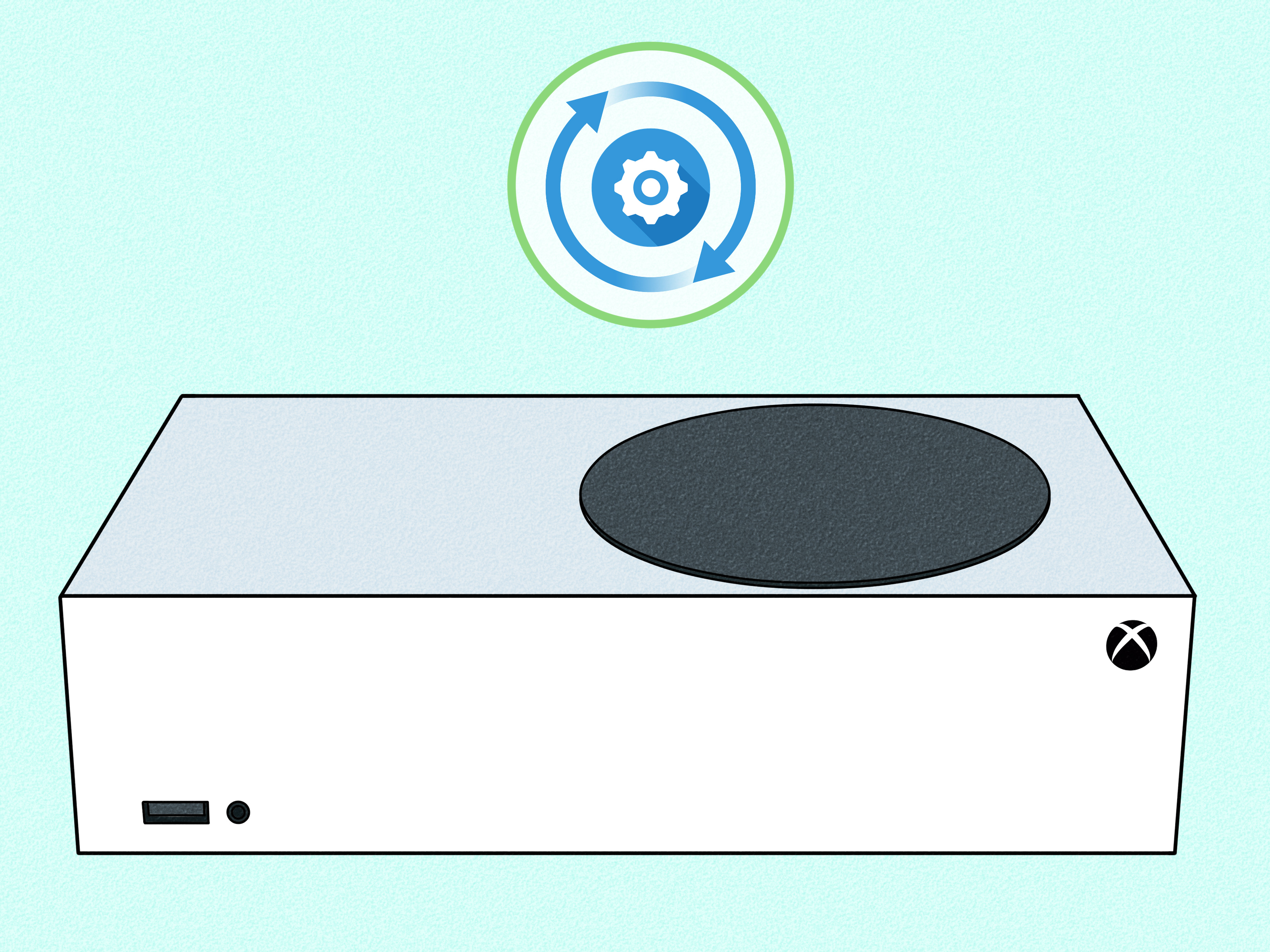
5. Restart the Xbox Completely
A full power cycle can clear temporary console glitches:
- Press and hold the console’s power button for about 10 seconds.
- Wait until the console shuts down completely.
- Disconnect the power cable for approximately 30 seconds.
- Reconnect the power and restart the Xbox.
- Attempt to pair the controller again.
This process does not delete installed games or saved data. It simply gives the console a proper restart instead of leaving it in a suspended state.
6. Update the Controller Firmware
Controller firmware updates can improve compatibility, wireless performance, and device switching. Connect the controller with a USB cable if the wireless connection is unstable.
On the console, open My games & apps, select Apps, and launch Xbox Accessories. Choose the connected controller, open its additional options, and install an available update.
Keep the cable connected and avoid turning off the console during the update. Interrupting controller firmware installation can leave the controller temporarily unusable until the update is recovered.
7. Test a Different Controller
Testing another controller can quickly identify which device is causing the problem. If a second controller connects normally, the original controller may have a damaged Pair button, USB port, wireless component, or battery contact.
If no controllers connect, the console may be experiencing a system software or wireless hardware issue. At that stage, update the console, complete another power cycle, and consult Xbox Support before attempting internal repairs.
Can Multiple Xbox Controllers Be Connected?
Yes. You can pair additional controllers by repeating the same process for each player. Turn on the next controller, press the console’s Pair button, and then hold the controller’s Pair button until the light becomes solid.
The Xbox One family supports up to eight connected controllers, although an individual game may support fewer local players. Each controller can also be associated with a player profile, making couch multiplayer easier once everyone has finished arguing about who receives the controller with the least suspicious-looking thumbstick.
Practical Experiences That Make Controller Pairing Easier
Written instructions make Xbox controller pairing sound almost impossible to get wrong: press one button, press another button, and begin playing. Real living rooms add several complications. There are mystery cables, half-charged battery packs, crowded entertainment centers, controllers previously paired with computers, and family members who swear they “did not change anything.”
The first useful lesson is to begin with power, not pairing. A controller can flash even when its batteries are too weak to maintain a stable connection. Replacing the batteries before troubleshooting anything else prevents a five-minute fix from becoming an evening-long investigation. Keeping one charged battery pack or an unopened pair of AA batteries nearby is less glamorous than buying a special-edition controller, but far more useful at 11:30 p.m.
The second lesson is to keep a known data-capable cable with the console. Many households own a drawer containing enough USB cables to weave a small hammock, yet only a few of those cables transfer data reliably. Labeling one micro-USB cable for older Xbox One controllers and one USB-C cable for newer controllers removes uncertainty. When wireless pairing fails, connecting with the correct cable can confirm whether the controller itself still works.
Another common experience involves switching between devices. A controller used with a laptop or phone may continue searching for that device instead of reconnecting to the Xbox. The flashing logo can look like a hardware failure, but re-pairing it with the console usually solves the problem. Players who switch frequently should keep their controller firmware updated and learn the supported Pair-button shortcut for moving between Xbox Wireless and Bluetooth connections.
Console placement matters more than many people expect. An Xbox hidden behind a television, surrounded by metal shelves, external drives, routers, and tangled cables may experience more connection trouble than the same console placed in an open area. Pairing close to the system helps, and temporarily unplugging unnecessary accessories can expose interference that would otherwise remain invisible.
It is also wise to troubleshoot one variable at a time. Start with fresh batteries. Then move closer. Next, try wireless pairing. After that, test a verified USB cable and another console port. Restart the console, update the controller, and finally test another gamepad. Changing six things simultaneously may produce a working controller, but you will never know which action fixed itand the same mystery will return later wearing a tiny electronic mustache.
For homes with several controllers, add a small label or colored marker to each one. This makes it easier to remember which controller belongs to which player, which one has the rechargeable pack, and which one occasionally disconnects. It also prevents the classic multiplayer ritual in which everyone silently examines four identical black controllers as though selecting evidence from a police lineup.
Most importantly, do not assume that an older Xbox One controller needs to be replaced merely because you purchased an Xbox Series X or Series S. Cross-generation compatibility makes those controllers useful for extra players, backup use, or games that do not require newer controller features. A two-minute pairing attempt could save the cost of another gamepad.
Conclusion
The easiest way to connect an Xbox One controller to an Xbox console is to use the Pair buttons on the console and controller. Press the console’s Pair button, hold the controller’s Pair button within about 20 seconds, and wait for the Xbox light to become solid. When wireless pairing fails, connect the controller with a micro-USB or USB-C data cable and let the console register it automatically.
Xbox One controllers work across the Xbox One and Xbox Series X|S console families, making them excellent spare controllers for local multiplayer. Fresh batteries, updated firmware, a reliable USB cable, and a quick console restart solve most connection problems. In other words, the controller probably is not plotting against you. It may simply need power, a proper cable, or a polite digital reintroduction.