
Connecting Bose headphones to a Mac should feel like a tiny tech victory: turn on Bluetooth, click your headphones, hear music, pretend you are the main character in a productivity montage. Most of the time, that is exactly what happens. But occasionally, your Mac and Bose headphones stare at each other like two strangers at a networking event, both waiting for the other one to say hello.
This guide explains how to connect Bose headphones to Mac, how to set them as your audio output and microphone, and how to fix the most common problems when your Bose headphones will not pair, will not appear, keep disconnecting, sound muffled, or connect to the wrong device. Whether you are using Bose QuietComfort, QuietComfort Ultra, Bose 700, QC35 II, QC45, SoundLink, or Bose earbuds, the basic Mac Bluetooth process is similar.
The good news: you do not need to be an audio engineer, Apple Genius, or the person in the family who “knows routers.” You just need the right steps in the right order.
Before You Start: What You Need
Before pairing your Bose headphones with a MacBook, iMac, Mac mini, or Mac Studio, check three simple things:
- Your Bose headphones or earbuds are charged.
- Bluetooth is turned on on your Mac.
- Your headphones are in pairing mode, not merely powered on.
That last point matters. “On” and “ready to pair” are not the same thing. Your headphones can be awake, powered, and still completely uninterested in meeting your Mac. Pairing mode makes them discoverable so your Mac can see them in the Bluetooth device list.
How to Connect Bose Headphones to Mac
Follow these steps first. They work for most modern versions of macOS, including recent versions that use System Settings instead of the older System Preferences layout.
Step 1: Put Your Bose Headphones in Pairing Mode
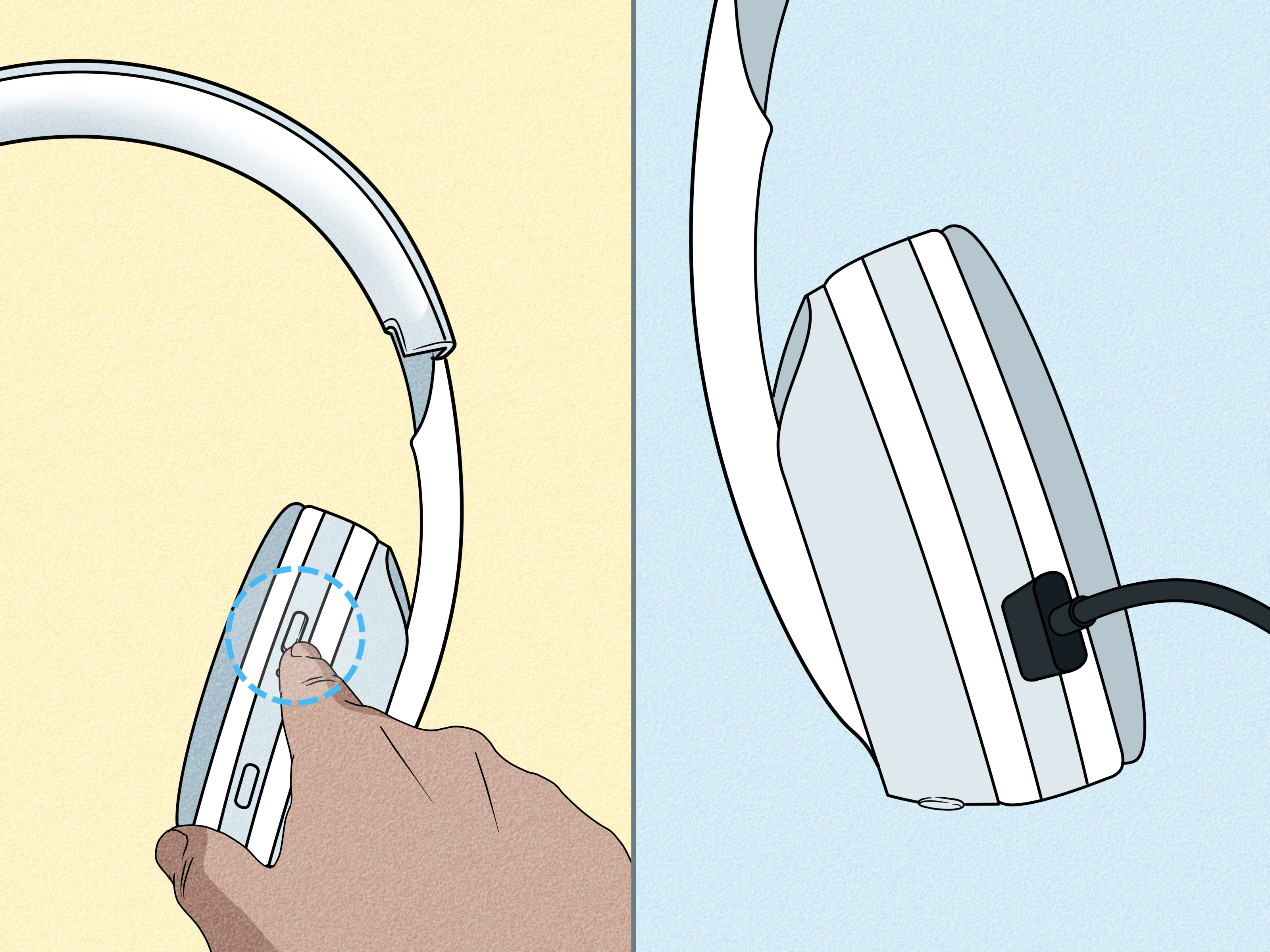
For many Bose over-ear headphones, slide or press the Power/Bluetooth button toward the Bluetooth symbol and hold it for a few seconds. You should hear a voice prompt such as “Ready to connect” or “Ready to pair,” and the Bluetooth light may blink blue.
For Bose earbuds, the process can vary by model. Some earbuds require you to hold a button on the charging case; others ask you to touch and hold an earbud. The goal is the same: get the earbuds into Bluetooth pairing mode so the Mac can discover them.
If you are not sure which control your model uses, look for the Bluetooth icon on the headphones or case. Bose tends to make the pairing control fairly obvious, though sometimes it still feels like a secret handshake designed by a committee.
Step 2: Open Bluetooth Settings on Your Mac
On your Mac, click the Apple menu in the top-left corner of the screen and choose System Settings. In the sidebar, click Bluetooth. Make sure Bluetooth is turned on.
Your Mac will begin scanning for nearby Bluetooth devices. Keep the headphones close to the Mac during this step. Across the room may technically be “nearby” in human terms, but Bluetooth prefers a more committed relationship.
Step 3: Select Your Bose Headphones
When your Bose headphones appear under nearby devices, click Connect. The name may appear as “Bose QC,” “Bose QuietComfort,” “Bose NC 700,” “Bose QC Earbuds,” or another product-specific name.
After a few seconds, the status should change to connected. You may also hear a voice prompt from the headphones confirming the connection.
Step 4: Set Bose as the Sound Output
Sometimes the Mac pairs successfully but keeps playing audio through its internal speakers. This is the classic “everything worked except the important part” situation.
To fix it, go to System Settings > Sound. Under Output, select your Bose headphones. If you want to use the built-in microphone on your Bose headset for calls, go to Input and select the Bose device there too.
You can also click the Control Center icon in the menu bar, choose Sound, and select your Bose headphones from the output list.
How to Reconnect Bose Headphones to Mac
Once your Bose headphones have been paired, reconnecting is usually easy. Turn the headphones on, make sure Bluetooth is enabled on your Mac, and wait a few seconds. If they do not connect automatically, open System Settings > Bluetooth and click Connect beside the Bose device.
If your headphones connect to your phone instead of your Mac, disconnect them from the phone or temporarily turn off Bluetooth on that phone. Many Bose headphones support multipoint Bluetooth, which allows connection to more than one device, but audio can still get pulled toward whichever device is most recently active. Your headphones are not being rude; they are just popular.
How to Disconnect or Forget Bose Headphones on Mac
If you only want to stop using the headphones temporarily, open Control Center, click Sound, and switch back to Mac speakers. You can also disconnect them from Bluetooth settings.
If you are troubleshooting, choose Forget This Device in Bluetooth settings. Forgetting removes the pairing record from your Mac, which is useful when the connection record becomes stale or glitchy. After that, put the headphones back into pairing mode and pair them again from scratch.
Bose Headphones Not Showing Up on Mac
If your Bose headphones do not appear in the Mac Bluetooth list, start with the basics:
- Make sure the headphones are actually in pairing mode.
- Move the headphones close to the Mac.
- Turn Bluetooth off and on again on your Mac.
- Restart your headphones.
- Restart your Mac.
- Disconnect the headphones from nearby phones, tablets, TVs, or other computers.
The most common reason Bose headphones do not show up is that they are already connected to another device. Many people forget that their headphones last connected to an iPhone, iPad, office laptop, smart TV, or that mysterious old tablet in the drawer. Bluetooth headphones usually prefer a device they already know over a new device asking for attention.
If your headphones still do not appear, clear the Bluetooth pairing list on the headphones. For many Bose models, this involves holding the Bluetooth or Power/Bluetooth button for about 10 seconds until you hear a message saying the device list has been cleared. Then remove the Bose headphones from your Mac’s Bluetooth list, if they appear there, and try pairing again.
Bose Headphones Connected but No Sound on Mac
If the Mac says your Bose headphones are connected but audio still plays through the Mac speakers, check the output setting. Go to System Settings > Sound > Output and select your Bose headphones.
Also check the app you are using. Video conferencing apps, music apps, browsers, and recording software can have their own audio device settings. For example, Zoom, Google Meet, Microsoft Teams, Discord, and GarageBand may not automatically follow the Mac’s system output. Open the app’s audio settings and choose your Bose headphones as the speaker or output device.
If you still hear nothing, raise the volume on both your Mac and the headphones. Yes, it sounds obvious. Yes, everyone has forgotten it at least once. The volume button is the banana peel of troubleshooting.
Bose Headphones Sound Muffled on Mac
If your Bose headphones sound clear during music playback but suddenly sound flat, compressed, or “walkie-talkie-ish” during calls, the issue may be Bluetooth audio mode. When a Mac uses Bluetooth headphones as both headphones and microphone, audio quality can drop because the connection prioritizes two-way voice communication.
To improve sound quality, go to System Settings > Sound > Input and choose your Mac’s built-in microphone instead of the Bose microphone. Then keep Bose selected under Output. This setup often gives you better listening quality while still allowing you to speak through the Mac’s microphone.
You can also quit apps that are using the headphone microphone, such as video chat or voice recording apps. After closing those apps, reselect your Bose headphones as the output device. This is especially useful after a meeting ends but your Mac continues acting like you are still on a call with the entire internet.
Bose Headphones Keep Disconnecting from Mac
Random disconnections can happen because of low battery, wireless interference, multiple active Bluetooth connections, outdated firmware, or a messy pairing history. Try these fixes in order:
Charge the Headphones
Low battery can cause unstable Bluetooth behavior. Charge your Bose headphones for at least 15 to 30 minutes and try again. If the battery is very low, the headphones may power on but still behave unpredictably.
Reduce Wireless Interference
Bluetooth uses the crowded 2.4 GHz wireless space. Wi-Fi routers, USB hubs, external monitors, microwave ovens, wireless mice, and other Bluetooth devices can all contribute to interference. Move your headphones closer to the Mac, move USB 3 devices or hubs away from the Mac, and reduce the number of active Bluetooth accessories where possible.
Disconnect Extra Devices
If your Bose headphones support multipoint connection, they may be connected to your phone and Mac at the same time. That is convenient until your phone grabs the connection every time a notification arrives. Disconnect the headphones from unnecessary devices or turn off multipoint in the Bose app if your model supports that option.
Forget and Re-Pair
On the Mac, forget the Bose headphones. On the headphones, clear the paired-device memory if your model allows it. Then pair again from the beginning. This creates a clean connection record on both sides.
Bose Headphones Connected to Mac but Microphone Not Working
Go to System Settings > Sound > Input and select your Bose headphones. Speak normally and watch the input level meter. If the meter moves, the Mac is receiving microphone input.
If the meter does not move, check the app’s microphone setting. Apps like Zoom, Teams, Slack, FaceTime, and browsers may require microphone permission. Go to System Settings > Privacy & Security > Microphone and make sure the app is allowed to use the microphone.
For better audio quality, many users prefer using Bose for output and the Mac’s built-in microphone for input. This avoids the reduced Bluetooth quality that can happen when the headset microphone is active.
How to Reset Bose Headphones for Mac Pairing Problems
Resetting can help when your headphones refuse to pair, freeze, or behave like they have developed a tiny Bluetooth personality disorder. The exact reset method depends on the Bose model, so check your product instructions if possible.
Common reset steps may include powering the headphones off, connecting them to a charger, holding the Power/Bluetooth button, or clearing the product’s Bluetooth memory. For many Bose headphones, clearing the paired-device list is more important than a full reset because it removes old connections that may interfere with the Mac.
After clearing the list, also remove the headphones from your Mac’s Bluetooth settings. Then place the headphones in pairing mode and connect again.
Should You Use the Bose App with a Mac?
The Bose mobile apps are primarily designed for iPhone, iPad, and Android devices, not as full Mac desktop pairing tools for regular Bluetooth headphone use. You can pair Bose headphones directly through macOS Bluetooth settings without installing a Bose app on your Mac.
However, the Bose app on a phone can still be useful. Depending on your model, it may let you manage Bluetooth connections, adjust noise cancellation, rename your headphones, change shortcuts, or update settings. Some Bose products can also be updated through Bose’s computer-based software updater, depending on model support.
In plain English: pair with the Mac through Mac Bluetooth settings, but use the Bose app on your phone when you want extra product controls.
Best Settings for Bose Headphones on Mac
For everyday music, YouTube, podcasts, and streaming, use this setup:
- Output: Bose headphones
- Input: MacBook microphone or external USB microphone
- Bluetooth: On
- Multipoint: Off if the headphones keep jumping between devices
For calls, choose Bose as both input and output only if you need the headset microphone. If you care more about listening quality, use Bose as output and the Mac microphone as input.
Quick Troubleshooting Checklist
If you are in a hurry, use this fast checklist:
- Charge your Bose headphones.
- Turn Bluetooth off and on on your Mac.
- Put Bose headphones into pairing mode.
- Disconnect them from other devices.
- Forget the Bose device on your Mac.
- Clear the Bose headphone pairing list.
- Restart both the Mac and headphones.
- Pair again from System Settings > Bluetooth.
- Select Bose under System Settings > Sound > Output.
- Use the Mac microphone if audio sounds muffled.
Real-World Experience: What Usually Works Best
In real use, the fastest fix for Bose headphones not connecting to a Mac is usually not a dramatic reset. It is simpler: disconnect the headphones from your phone, forget them on the Mac, put them back into pairing mode, and reconnect. This solves a surprising number of problems because the issue is often not broken hardware. It is Bluetooth loyalty confusion.
For example, imagine you used your Bose QuietComfort headphones with your iPhone during a morning walk. Later, you open your MacBook for a meeting. The headphones may still be connected to the phone, even if no music is playing. Your Mac can see Bluetooth is available, your headphones are powered on, and you are clicking Connect with the confidence of a person who has read one troubleshooting guide already. Still, nothing happens. The fix is to open the iPhone Bluetooth menu and disconnect the Bose headphones, or temporarily turn off Bluetooth on the phone. Then try the Mac again.
Another common experience is “connected but no sound.” This one feels especially annoying because the Mac proudly says the headphones are connected, as if that should be enough. But macOS can pair a Bluetooth device without routing audio to it. The fix is to open Sound settings and manually choose Bose as the output. After that, most apps will follow the system setting, though conferencing apps may need their own audio device selection.
The muffled-audio problem is also very common. Many people think their expensive Bose headphones suddenly sound bad on Mac, when the real cause is microphone mode. The moment a meeting app uses the headset microphone, Bluetooth may switch into a lower-quality two-way communication profile. Music then sounds thin, flat, or strangely distant. The practical solution is to use the Bose headphones for output and the Mac’s built-in microphone for input. It feels like cheating, but it works beautifully for many setups.
For people who move between a work Mac, personal Mac, iPhone, and iPad, multipoint can be both magical and mildly chaotic. When it works, you can take a call on one device and return to music on another. When it misbehaves, your headphones seem to teleport between devices like they are dodging responsibility. If you need stable Mac audio for writing, editing, meetings, or gaming, disconnect extra devices or turn off multipoint temporarily in the Bose app if your model supports it.
Firmware updates are worth considering too. If your headphones have repeated connection problems, check the Bose app or Bose updater options for your model. Updates can improve stability, fix bugs, and add features. It is not the first thing to try when you are five minutes late for a Zoom call, but it is a smart maintenance step when you have time.
Finally, do not underestimate distance and interference. A Mac connected to an external monitor, USB hub, hard drive, wireless mouse, keyboard, and Wi-Fi network is basically hosting a tiny electronic house party. Bluetooth audio may suffer if the headphones are too far away or if interference is heavy. Move closer, unplug unnecessary accessories for a test, and restart the Mac if everything feels stuck. Restarting is not glamorous, but neither is arguing with headphones at 8:57 a.m.
Conclusion
Connecting Bose headphones to a Mac is usually straightforward: put the headphones in pairing mode, open Mac Bluetooth settings, click Connect, and select Bose as your sound output. When problems happen, they usually come from old pairings, competing devices, low battery, audio output settings, microphone mode, or Bluetooth interference.
The best troubleshooting approach is to work from simple to advanced. Start by charging the headphones, turning Bluetooth off and on, checking Sound settings, and disconnecting other devices. If that fails, forget the device on your Mac, clear the Bose pairing list, restart everything, and pair again. For muffled sound, switch your input microphone to the Mac while keeping Bose as your output.
Once your setup is clean, Bose headphones and Mac computers can work together very well for music, meetings, editing, studying, and everyday productivity. And when the connection finally works, yes, you are allowed to celebrate by playing one test song at a volume that says, “I have defeated Bluetooth today.”