
Firefox is already a strong browser out of the box, but extensions are where it starts wearing a utility belt. Want to block annoying ads, save passwords, fix messy tabs, translate pages, capture screenshots, change the look of websites, or stop yourself from “accidentally” watching forty-seven videos instead of finishing homework or work? There is probably a Firefox extension for that.
This guide explains how to find and install Firefox extensions safely, how to choose the right add-ons, what permission warnings really mean, and how to manage extensions after installation. The goal is simple: make Firefox more useful without turning your browser into a suspicious digital junk drawer.
What Are Firefox Extensions?
Firefox extensions are small software add-ons that add features to Mozilla Firefox. Think of them as browser apps. Some extensions improve privacy, some change how websites look, some help with writing, some organize tabs, and others connect Firefox with tools you already use.
In Firefox, the broader word is “add-ons.” Add-ons can include extensions and themes. Extensions add functions. Themes change the appearance of the browser. A dark theme makes Firefox look sleek. A password manager extension helps fill logins. A tab manager keeps your browser from becoming a chaotic forest of tiny page titles.
Common Types of Firefox Extensions
Popular Firefox extension categories include privacy and security tools, ad blockers, password managers, productivity helpers, shopping assistants, translation tools, screenshot utilities, reading-mode improvements, grammar checkers, developer tools, and accessibility features. The best extension is not always the most famous one. It is the one that solves a real problem without asking for unnecessary access to your data.
Where to Find Firefox Extensions
The safest place to search for Firefox extensions is the official Mozilla Add-ons website, often called AMO. This is Firefox’s main extension marketplace. You can browse by category, search by keyword, view recommended extensions, check ratings, read reviews, and see important details before installing anything.
To get there from Firefox, open the menu button, choose “Add-ons and themes,” and look for recommendations or search options. You can also type about:addons in the address bar to open the Add-ons Manager. From there, Firefox can guide you toward the official add-ons store.
Use Search Like a Human, Not a Desperate Raccoon
When searching for extensions, start with what you want to do, not just a broad category. Instead of searching “productivity,” try “block distracting websites,” “save tabs,” “read later,” or “grammar checker.” Specific searches give better results and reduce the chance of installing three extensions that all do roughly the same thing while silently judging each other from the toolbar.
Browse Official Categories
If you are not sure what you need, browse categories such as Privacy & Security, Productivity, Search Tools, Tabs, Appearance, Photos, Music & Videos, or Web Development. Category browsing is useful because it helps you discover tools you did not know existed. It is also less chaotic than typing random words into the search box and hoping the internet behaves.
How to Choose a Safe Firefox Extension
Installing a browser extension is not the same as changing your desktop wallpaper. Extensions may be able to read or change website content, interact with browser tabs, store data, or connect to external services. That does not mean extensions are bad. It means you should choose them with the same energy you would use when lending someone your house keys.
Check the Extension Badge
Firefox add-on listings may show badges that help users identify reviewed, recommended, or Mozilla-built extensions. A recommended extension has gone through additional review and is generally a stronger choice for everyday users. Badges are not magic shields, but they are helpful signals when comparing similar tools.
Read the Permissions Before Clicking “Add”
When you install a Firefox extension, Firefox may show a permission prompt. This tells you what the extension is asking to access. Some permissions are normal. A screenshot extension may need access to page content. A password manager may need to detect login fields. A translation extension may need to read page text.
The red flag is mismatch. If a simple calculator extension asks to access all website data, manage downloads, read browsing history, and control tabs, pause. That is like hiring someone to water your plants and watching them request access to your bank account, attic, and emotional support snacks.
Review the Developer and Update History
Before installing, look at the developer name, user count, rating, review quality, update date, privacy policy, and support information. A newer extension is not automatically unsafe, and an older extension is not automatically trustworthy. But a well-maintained extension with clear documentation and active support is usually a better bet than one abandoned in the digital basement.
Avoid Duplicate Extensions
Installing multiple extensions that do the same job can slow browsing, create conflicts, or produce strange behavior. Two ad blockers, three coupon extensions, and five tab managers may turn Firefox into a committee meeting. Choose one strong tool per job whenever possible.
How to Install Firefox Extensions on Desktop
Installing a Firefox extension on Windows, macOS, or Linux is usually quick. The process is designed to be simple, but the important part is reading before clicking.
Step 1: Open Firefox
Launch Firefox and make sure it is up to date. Updated browsers include security improvements, compatibility fixes, and smoother extension support. If Firefox has been begging you to update for weeks, this is the moment to stop pretending you did not see it.
Step 2: Go to Add-ons and Themes
Click the menu button in the upper-right corner of Firefox and choose Add-ons and themes. You can also type about:addons into the address bar and press Enter. This opens the Add-ons Manager, where you can view installed extensions, themes, recommendations, and settings.
Step 3: Search for an Extension
Use the search field to find a specific extension or browse categories on the official Firefox Add-ons site. Search for the task you want to solve, such as “password manager,” “ad blocker,” “dark mode,” “tab organizer,” “reader,” or “translate.”
Step 4: Open the Extension Listing
Click the extension name to open its listing page. Read the description, screenshots, ratings, recent reviews, permissions, developer details, and update information. If the page is vague, poorly written, or full of suspicious claims like “1000% faster internet instantly,” walk away gracefully.
Step 5: Click “Add to Firefox”
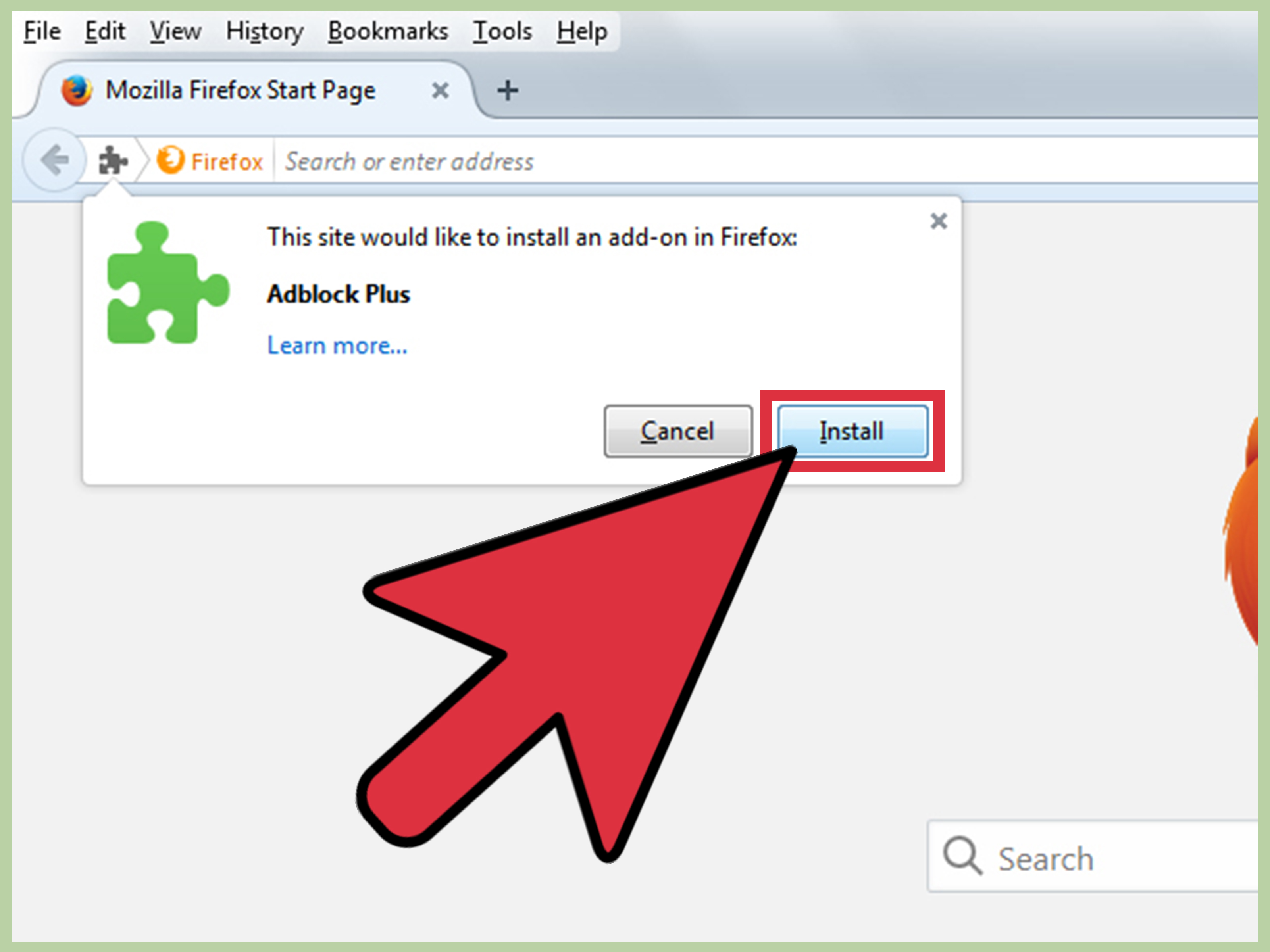
When you are ready, click Add to Firefox. Firefox will show a permission prompt if the extension needs special access. Read it carefully. If the permissions make sense for the extension’s purpose, click Add.
Step 6: Choose Private Browsing Access
After installation, Firefox may ask whether the extension should run in Private Browsing windows. If the extension does not need to work in private windows, leave it off. This reduces unnecessary access. For example, a password manager might be useful in private windows, but a shopping coupon extension probably does not need to follow you there wearing a tiny trench coat.
Step 7: Pin or Manage the Extension
Some extensions add an icon to the toolbar. Others run quietly in the background. You can manage extension visibility through the toolbar or Add-ons Manager. Pin frequently used extensions and hide the rest so your browser does not look like a crowded airport dashboard.
How to Install Firefox Extensions on Android
Firefox for Android supports extensions, but the experience is different from desktop Firefox. Not every desktop extension works on Android. To find mobile-compatible add-ons, use Firefox for Android’s add-ons menu or the official Android section of Mozilla Add-ons.
Open Firefox on Android, tap the menu button, choose Add-ons, and browse the available options. Select an extension, review the details, tap the add button, and approve permissions if they make sense. Mobile extensions can be powerful, especially for ad blocking, privacy, dark mode, and password management, but the same safety rule applies: install only what you need.
How to Manage, Disable, or Remove Firefox Extensions
Installing extensions is only half the job. Managing them is how you keep Firefox fast, clean, and secure.
Open the Add-ons Manager
Click the Firefox menu, choose Add-ons and themes, then select Extensions. You can also type about:addons in the address bar. This page shows installed extensions and lets you adjust settings, permissions, private browsing access, and update behavior.
Disable an Extension
If Firefox starts acting strange after installing something new, disable that extension first. Turning it off is a quick way to test whether it is causing slow performance, broken pages, login problems, or toolbar chaos. Disabled extensions remain installed but inactive.
Remove an Extension
If you no longer need an extension, remove it. Browser clutter is real. Unused extensions may still receive updates, request permissions, or create conflicts. A monthly extension cleanup is a good habit, especially if you test lots of tools.
Review Optional Permissions
Some Firefox extensions request optional permissions only when a feature needs them. You can review and manage these permissions in the extension’s details page. This is useful when you want an extension to do one job but not have access to every possible feature.
Best Practices for Installing Firefox Extensions Safely
The safest Firefox setup is not the one with the most extensions. It is the one with the fewest extensions that still does everything you need.
Install from Official Sources
Use the official Firefox Add-ons store whenever possible. Avoid downloading extension files from random websites, file-sharing pages, or pop-ups that claim you “must install this extension to continue.” That message is rarely the beginning of a beautiful friendship.
Keep Firefox Updated
Browser updates matter. They improve compatibility, fix bugs, and patch security issues. Extensions also work better when the browser underneath them is current.
Choose Quality Over Quantity
A lean extension list is easier to manage and usually safer. Start with essentials: a trusted password manager, a reliable content blocker if you want one, and one or two productivity tools. Add more only when you have a clear need.
Watch for Weird Browser Behavior
If Firefox suddenly redirects searches, opens new tabs, slows down, changes your homepage, injects ads, or behaves like it drank six energy drinks, review your extensions. Disable recently installed add-ons first, then remove anything suspicious.
Read Privacy Policies
Privacy policies may not be thrilling bedtime literature, but they matter. Pay attention to whether an extension collects browsing data, shares data with third parties, or requires an account. A privacy extension that collects too much data is like an umbrella with holes and a monthly subscription.
Recommended Firefox Extension Categories for Beginners
If you are new to Firefox extensions, start with practical categories instead of installing whatever looks shiny.
Password Managers
A password manager extension helps generate, save, and fill strong passwords. This is one of the most useful extension types because it improves convenience and security at the same time.
Ad and Tracker Blockers
Content-blocking extensions can reduce ads, tracking scripts, and page clutter. They may also make some websites load faster. If a site breaks, you can usually pause the blocker for that site.
Tab Management Tools
If you regularly have more than ten tabs open, a tab manager can help organize sessions, save groups, reduce memory use, and prevent “where did that article go?” panic.
Reading and Focus Tools
Reader helpers, distraction blockers, and read-later extensions are useful for students, writers, researchers, and anyone who opens one article and somehow ends up reading about ancient shipwrecks at 2 a.m.
Developer and Design Tools
Web developers often use extensions for inspecting pages, checking accessibility, testing layouts, capturing colors, validating code, and debugging front-end issues. These tools can save hours when building or managing websites.
Troubleshooting Firefox Extension Problems
Even good extensions can occasionally misbehave. If something goes wrong, use a calm process instead of uninstalling Firefox, blaming the moon, and switching browsers in a dramatic flourish.
Problem: The Extension Does Not Work
Check whether the extension is enabled, whether it needs site permission, and whether it supports the page you are using. Some extensions do not work on internal Firefox pages or restricted websites.
Problem: A Website Breaks
Disable extensions one by one to find the conflict. Ad blockers, script blockers, privacy tools, and dark mode extensions are common causes of broken buttons, missing forms, or pages that load like they are thinking about their life choices.
Problem: Firefox Feels Slow
Remove extensions you do not use. Too many extensions can increase memory use, slow page loading, or clutter the browser. Keep your setup simple and focused.
Problem: You Installed the Wrong Extension
Open Add-ons Manager, go to Extensions, click the extension menu, and remove it. Then review your browser settings, homepage, and search engine if the extension changed anything.
Real-World Experience: What Installing Firefox Extensions Teaches You
After using Firefox extensions for a while, one lesson becomes obvious: the best setup is personal. There is no universal “perfect” extension list. A student, developer, writer, gamer, researcher, office worker, and casual browser all need different tools. Installing extensions is less about collecting features and more about designing a browser that matches your habits.
For example, a writer may benefit from a grammar checker, a distraction blocker, a note-saving tool, and a clean reading extension. A developer may care more about JSON viewers, accessibility checkers, color pickers, and page inspectors. A privacy-focused user might choose a tracker blocker, cookie manager, and password manager. Someone who shops online may prefer price trackers or coupon tools, although those deserve extra privacy review because shopping extensions often need access to retail pages.
The biggest mistake beginners make is installing too many extensions too quickly. It feels exciting at first, like giving Firefox superpowers. Then one day a page will not load, a button disappears, your toolbar looks like a row of tiny billboards, and you have no idea which extension caused the trouble. A smarter approach is to install one extension, use it for a few days, then decide whether it earns a permanent spot.
Another experience worth mentioning is that reviews are useful, but they are not everything. A five-star rating can tell you that people like an extension, but recent reviews tell you whether it still works well. Always check whether users are reporting bugs after a Firefox update. Also look for developer responses. A developer who replies clearly and updates regularly is usually a better sign than a listing that has not moved since the era of ancient memes.
Permissions become easier to understand with practice. At first, a permission warning can look scary. Over time, you learn to match access with function. A translation extension needs to read page text. A password manager needs to interact with login fields. A tab manager needs tab access. But a wallpaper extension asking for broad website access deserves serious side-eye.
Private Browsing access is another setting many people overlook. Not every extension belongs in private windows. If you are using Private Browsing to reduce local traces or keep sessions separate, allowing every extension to run there defeats part of the point. Give private access only to extensions you truly need in that mode.
Finally, extension cleanup feels boring until it saves you from a problem. Every month or two, open Add-ons Manager and ask: Do I still use this? Do I trust it? Does it need this permission? Has it been updated? This tiny habit keeps Firefox fast and reduces risk. It is the browser version of cleaning your desk, except there are fewer crumbs and more permission toggles.
Firefox extensions are excellent when used thoughtfully. They can make the web cleaner, faster, safer, and more comfortable. Just remember the golden rule: install with purpose, review permissions, remove clutter, and never let your browser become a haunted toolbox.
Conclusion
Learning how to find and install Firefox extensions is easy, but choosing the right ones takes a little judgment. Start with the official Firefox Add-ons store, search by the problem you want to solve, read the listing carefully, review permissions, and install only the tools you truly need. After installation, manage extensions through Firefox’s Add-ons Manager, limit private browsing access, and remove anything unused or suspicious.
Firefox extensions can turn a basic browser into a customized productivity machine, privacy helper, research assistant, or web development workspace. The trick is not to install everything. The trick is to install the right things. Treat extensions like guests in your browser: invite the helpful ones, keep an eye on what they can access, and politely remove the ones that start acting weird.