
A disc stuck inside a PlayStation 4 can turn a relaxing gaming night ctronics repair show. You press the eject button, the console beeps, the drive makes a tiny mechanical complaintand your game remains trapped like it has signed a long-term lease.
Fortunately, every disc-based PS4 model includes a manual eject mechanism. Before reaching for the screwdriver, however, it is worth trying two less invasive methods. A temporary software error or interrupted power cycle can make a healthy disc drive behave as though it has forgotten its only job.
This guide explains four safe ways to eject a stuck PS4 disc, including model-specific instructions for the original PS4, matte-top CUH-1200, PS4 Slim, and PS4 Pro. The model details matter because one version turns clockwise while the others turn counterclockwise. That is not the sort of surprise anyone wants to discover while holding a screwdriver.
Quick Answer: How Do You Get a Stuck Disc Out of a PS4?
Try these methods in order:
- Eject the disc from the PS4 home screen.
- Completely power-cycle the console and retry the physical eject button.
- Use the manual eject screw on an original PS4 or CUH-1200 console.
- Use the underside manual eject screw on a PS4 Slim or PS4 Pro.
The first two options may solve a temporary software or power problem without opening any panel. The final two use the mechanical eject system built into the console. PlayStation’s official instructions confirm that the exact location and turning direction depend on the PS4 model series. /section>
Before You Start: Tools and Safety Precautions
You do not need a workbench full of mysterious gadgets. Gather the following:
- A long Phillips-head screwdriver, preferably a small size such as PH0 or PH00
- A flashlight or phone light
- A clean, stable, flat work surface
- A soft cloth to protect the console
- Clean, dry hands for handling the disc
Turn the PS4 off completely
Do not perform a manual ejection while the console is running or in Rest Mode. Select Power > Turn Off PS4, wait until the indicator light stops flashing, and disconnect the power cable, HDMI cable, USB accessories, network cable, and external storage devices.
Do not pull the disc out by force
Avoid knives, pliers, tweezers, credit cards, adhesive tape, and improvised hooks. These tools can scratch the disc, damage the slot, dislodge the loading rollers, or turn a simple jam into a drive replacement. The manual screw is designed to move the internal loading mechanism gradually, so let it do the work.
Find the PS4 model number
Look for a model number beginning with CUH on the rear or underside of the console. The most relevant families are:
- CUH-1000 and CUH-1110: original PS4 with a glossy top section
- CUH-1200: original-size PS4 with a matte top
- CUH-2015 and related CUH-20xx models: PS4 Slim
- CUH-7000 and related CUH-70xx models: PS4 Pro
Do not rely only on the console’s general appearance. Several PS4 revisions look similar from across the room but have different eject-screw access points.
Way 1: Eject the Disc from the PS4 Home Screen
If the console still starts normally, try a software eject before touching the hardware. The physical eject button may be unresponsive even when the operating system can still communicate with the disc drive.
- Turn on the PS4 and allow the home screen to load.
- Highlight the game or disc application currently inserted.
- Press the Options button on the controller.
- Select Remove Disc or Eject Disc, depending on the displayed menu wording.
- Support the edge of the disc as it exits.
This method is especially useful when the console’s front eject control is dirty, physically worn, or not registering input. On the original PS4, the power and eject controls can also be easy to confuse because they sit close together on the front strip. Android Central’s PS4 control guide similarly notes that button placement varies among the original, Slim, and Pro designs.
What if the menu says there is no disc?
If the game is still playable but the menu does not offer an eject command, restart the PS4 once. If the drive makes repeated clicking, scraping, or grinding noises, shut the console down instead of repeatedly sending eject commands. Mechanical noises are not the console cheering you on.
Way 2: Power-Cycle the PS4 and Retry the Eject Button
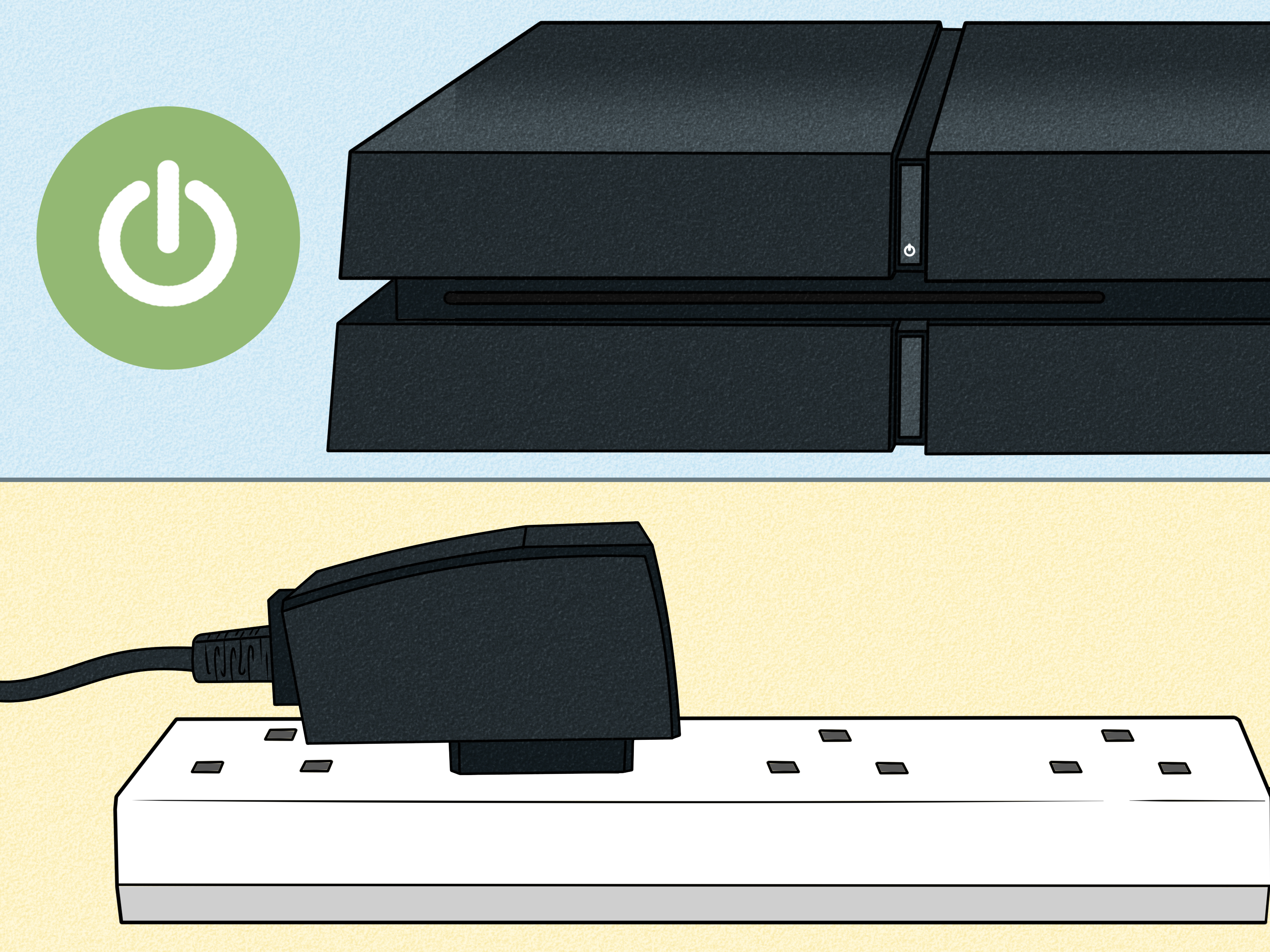
A full power cycle clears residual electrical charge and can reset a disc-drive controller that has stopped responding. This is more thorough than selecting Restart PS4.
- Turn off the PS4 completely.
- Unplug the power cable from the console.
- While it remains unplugged, press and hold the console’s power button for approximately 30 seconds.
- Leave the PS4 disconnected for about five minutes.
- Reconnect the power and HDMI cables.
- Turn the console on and press the physical eject button once.
PlayStation recommends this shutdown-and-discharge procedure when troubleshooting unwanted disc ejection, and the same reset can help when a temporary power or control error prevents normal ejection.
Listen carefully. A normal drive should engage and begin moving the disc. If you hear the motor operate but the disc does not appear, stop repeating the attempt. The loading rollers or internal gears may be obstructed, and the manual eject screw is now the safer option.
Way 3: Use the Manual Eject Screw on an Original PS4
The original PS4 family has two different manual-ejection layouts. Identify whether you have a glossy-top CUH-1000/CUH-1110 or a matte-top CUH-1200 before turning anything.
For CUH-1000 and CUH-1110 models
- Turn off the console and disconnect every cable.
- Place it on a clean surface with the front facing left and the top PlayStation logo oriented correctly.
- Place your palms on the glossy top panel.
- Apply moderate, even pressure near the seam and slide the glossy panel away from you.
- Lift the loosened panel from the left side.
- Examine the outer-left edge. You will see groups of ventilation slots.
- Locate the first single vent that is separated from the grouped vents.
- Shine a flashlight through that opening to find the manual eject screw.
- Insert the Phillips screwdriver and turn the screw counterclockwise.
- Continue turning gently until the edge of the disc appears.
- Hold the disc by its outer edges and pull it straight out without bending it.
- Replace the glossy panel and slide it toward the seam until it clicks.
The screw should turn with little effort. If the screwdriver repeatedly slips, confirm that it is actually seated in the eject mechanism rather than pressed against nearby plastic. Both PlayStation and repair references emphasize using a flashlight because the screw can be difficult to see through the vent.
For the matte-top CUH-1200 model
- Disconnect the console and place it so the front faces left.
- Press evenly near the top-panel seam and slide the smaller top panel away from you.
- Lift the panel from the left side.
- Find the screw decorated with PlayStation button symbols.
- Turn that HDD-retaining screw counterclockwise and remove it.
- Slide the hard-drive assembly only partway out. It does not need to be fully removed.
- Locate the exposed manual eject hole.
- Insert the screwdriver and turn the eject screw clockwise.
- Continue until the disc begins emerging from the front slot.
- Gently remove the disc, reseat the hard drive, reinstall its retaining screw, and replace the top panel.
Important: The CUH-1200 is the major direction exception. Its manual eject mechanism turns clockwise, while the CUH-1000, CUH-1110, PS4 Slim, and PS4 Pro procedures described here turn counterclockwise. Official PlayStation and Asurion instructions agree on this distinction. /section>
Way 4: Use the Manual Eject Screw on a PS4 Slim or PS4 Pro
The Slim and Pro place the access hole on the underside, making the procedure shorter than the CUH-1200 method. You normally do not need to remove the hard drive.
For PS4 Slim CUH-2015 and related CUH-20xx models
- Shut down the PS4 Slim and unplug all cables.
- Place a soft cloth on a stable table.
- Turn the console upside down.
- Locate the small circular manual eject opening directly above the upside-down PlayStation logo.
- Insert a long Phillips screwdriver into the opening.
- You may feel light resistance from a thin plastic layer. Apply controlled downward pressure rather than stabbing at it.
- Turn the screw counterclockwise several times.
- When the disc appears, hold its edges and gently pull it straight out.
For PS4 Pro CUH-7000 and related CUH-70xx models
- Turn off and unplug the PS4 Pro.
- Place the console upside down and rotate it so the PlayStation logo faces away from you.
- Find the screw hole positioned directly above the PS logo.
- Remove the small plastic cap if your model has one. Some later units may not include the cap.
- Insert the Phillips screwdriver fully into the manual eject opening.
- Turn it counterclockwise until the disc starts to emerge.
- Remove the disc gently and reinstall the cap.
Several turns may be required before anything visible happens. That is normal. The eject screw moves the mechanism gradually rather than launching the disc across the room like a tiny silver Frisbee. PlayStation, Asurion, and TronicsFix all describe this underside access method for the Slim and Pro families. /section>
What to Do After the Disc Comes Out
Inspect the disc
Check both sides under good lighting. Look for cracks around the center ring, warping, deep scratches, sticky residue, or a peeling label. Do not reinsert a cracked or warped disc; high-speed rotation can worsen the damage.
For fingerprints and light dirt, use a clean, lint-free microfiber cloth. Wipe in straight lines from the center toward the outer edge rather than polishing in circles. PlayStation recommends this center-to-edge cleaning direction for Blu-ray Discs and DVDs.
Test the drive with a different disc
After reassembling the console, start it without a disc and listen for abnormal noises. Then test a clean game, Blu-ray, or DVD that you know works. If the second disc loads and ejects normally, the original disc may have caused the problem. TronicsFix likewise recommends testing another disc after a manual ejection to separate media damage from a drive fault.
Rebuild the PS4 database if reading problems continue
If discs eject normally but games fail to load, Safe Mode’s Rebuild Database option may help with corrupted indexing or system-data problems:
- Turn the PS4 off completely.
- Hold the power button until the second beep, approximately seven seconds after the first.
- Connect the DualShock 4 controller with a USB cable.
- Press the PS button.
- Select Option 5: Rebuild Database.
Rebuilding the database is different from initializing the console. Avoid Safe Mode option 7 unless you have backed up your data and understand that reinstalling the system software deletes console information. /section>
Why Does a Disc Get Stuck in a PS4?
A trapped disc does not automatically mean the entire Blu-ray drive is dead. Common causes include:
- A temporary operating-system or drive-controller error
- A sudden power interruption while the drive was active
- Dirty, worn, or misaligned loading rollers
- A damaged, warped, or unusually dirty disc
- A failing eject motor, gear, sensor, or internal switch
- Foreign material inside the slot
- A loose or incorrectly positioned manual eject mechanism
- Repeatedly moving the console while a disc is spinning
Repair communities also report consoles that accept discs slowly, make wobbling noises, or repeatedly attempt to eject. Those symptoms often point to a mechanical loading problem rather than a one-time software glitch. iFixit and TronicsFix troubleshooting discussions identify rollers, switches, gears, and drive alignment among the possible hardware causes. /section>
When Should You Stop and Seek Professional Repair?
Manual ejection is intended to retrieve a disc, not rebuild the optical drive. Stop the do-it-yourself process when:
- The screw will not rotate with gentle pressure.
- The screwdriver cannot engage the mechanism.
- The disc is cracked, broken, or only partially visible at an angle.
- You hear grinding, snapping, or repeated hard clicking.
- More than one disc or another object may be inside.
- The console continues swallowing, scratching, or trapping discs.
- The disc emerges with circular scratches.
If the manual mechanism turns but the disc never moves, an internal gear may be disconnected or the media may be physically wedged. Further disassembly involves delicate cables, sensors, springs, and model-specific drive components. Asurion advises professional inspection when the disc remains stuck after the official manual-ejection procedure. /section>
Practical Experiences and Lessons from Common PS4 Disc Problems
The most useful lesson from real-world PS4 disc cases is that patience usually beats force. Owners often expect the manual eject screw to produce an immediate result after half a turn. In reality, it may require numerous controlled rotations before the edge of the disc becomes visible. Nothing appears to happen at first, which makes it tempting to twist harder. The better approach is to keep the screwdriver straight, maintain light downward contact, and turn steadily.
Another common experience is choosing the wrong opening. Original PS4 consoles contain vents, screw heads, seams, and dark plastic areas that look remarkably similar when viewed under average room lighting. A flashlight changes the job from guesswork into a straightforward procedure. On the CUH-1000 and CUH-1110, the correct screw is viewed through a single vent. On a Slim or Pro, the access point is underneath near the PlayStation logo. Spending one extra minute identifying the model often saves twenty minutes of poking at innocent plastic.
The CUH-1200 creates the most confusion because its eject screw turns clockwise. Someone who has watched a video for a different PS4 may confidently turn counterclockwise and wonder why the disc remains inside. Model-specific directions should always outrank general advice. “All PS4 consoles are basically the same” is a fine opinion until a screwdriver becomes involved.
Power cycling also deserves more credit than it receives. Some stuck-disc incidents occur after a system freeze, an interrupted update, a power outage, or a rushed transition into Rest Mode. In those cases, unplugging the console, discharging it, waiting, and restarting may restore the eject controls. This does not repair a damaged gear, but it prevents unnecessary panel removal when the actual problem is a temporary electronic state.
After retrieving a disc, many owners immediately reinsert the same one to “see whether it happens again.” A more informative test uses a different clean disc first. If another disc loads and ejects smoothly, inspect the original for warping, residue, edge damage, or a cracked center ring. If every disc moves slowly or produces scraping sounds, the drivenot the gameis asking for attention.
Console placement can contribute to recurring trouble. A PS4 squeezed into a dusty cabinet may accumulate debris around the slot and vents. A system that is moved while a disc is spinning can also place unnecessary stress on the media and drive. Keep the console stable, leave space for ventilation, and remove discs before transporting it. Your PS4 is a game console, not a maraca.
Finally, successful manual ejection does not prove the drive is healthy. It only proves that the emergency mechanism released the disc. If the problem returns, the console repeatedly beeps, or discs enter and exit unevenly, document the symptoms and seek repair before testing with a valuable game. Sacrificing another disc rarely provides useful diagnostic information, although it does create a very specific kind of sadness.
How to Prevent Another PS4 Disc Jam
- Keep game discs in their cases when not in use.
- Handle discs by the outer edge and center opening.
- Clean fingerprints from the center outward with a lint-free cloth.
- Never insert cracked, warped, or heavily scratched media.
- Keep the console on a stable, level surface.
- Do not move or rotate the PS4 while a disc is spinning.
- Leave ventilation space around the console and control dust buildup.
- Allow the disc to finish ejecting before pulling it.
- Install PS4 system-software updates when they are available.
- Arrange professional service if loading becomes consistently slow or noisy.
Conclusion
A stuck PS4 disc looks alarming, but the solution is often surprisingly manageable. Begin with the home-screen eject command, perform a complete power cycle, and proceed to the manual eject screw only when normal controls fail.
The most important step is identifying the correct PS4 model. The glossy-top CUH-1000 and CUH-1110 use a hidden vent-access screw turned counterclockwise. The matte CUH-1200 requires partial HDD access and a clockwise turn. The PS4 Slim and PS4 Pro use underside openings and counterclockwise turns.
Work slowly, keep the console unplugged, and never drag the disc out with improvised tools. If the mechanism will not move or the problem returns, professional repair is safer than forcing a delicate optical drive to participate in an unwanted wrestling match.
SEO Tags
Note: PS4 hardware layouts vary by CUH model. Confirm the model number before using the manual eject screw, and arrange professional service if the disc is broken, angled, or still trapped after the correct procedure.