How to Navigate Your Microsoft Sync’s Media Menu Settings in a 2012 Ford Fusion with a Two Lined Display

Note: This guide is written for the 2012 Ford Fusion equipped with the basic two-line SYNC display and physical buttons, not a touchscreen setup. In other words, this is the version of in-car tech that still believes in commitment, patience, and pressing AUX more than once.
If you own a 2012 Ford Fusion with the two-line display, you already know the car’s Microsoft-powered Ford SYNC system can feel a little like a polite robot from another era. It is not flashy. It is not touchscreen-slick. It will not wow your friends the way a giant tablet on the dash might. But once you learn how the Media Menu works, this older SYNC setup becomes surprisingly useful. You can switch between USB, Bluetooth Audio, and Line In, control playback options, tweak settings like Shuffle and Repeat, and even clean up device connections when your phone decides to act like it has never met your car before.
The trick is learning the menu logic. On a two-line display, SYNC is less about tapping icons and more about rhythm: press AUX, press MENU, scroll, press OK, scroll again, press OK again, and try not to mutter anything the steering wheel microphone might accidentally record for history. Once that rhythm clicks, the whole system starts making sense.
What the 2012 Ford Fusion SYNC Media Menu Actually Controls
Before jumping into button presses, it helps to understand what the SYNC Media Menu is supposed to do. In the 2012 Ford Fusion, the Media Menu is the control hub for your audio sources and playback behavior. It lets you choose what you want to listen to, how you want to play it, and which connected device gets the honor of blasting your road-trip soundtrack.
In plain English, the menu is built around five big jobs:
- Selecting the source you want to hear, such as SYNC USB, Bluetooth Audio, or SYNC Line In.
- Browsing playable media on a USB-connected device.
- Changing playback behavior with Shuffle, Repeat, and Autoplay.
- Managing Bluetooth-connected devices.
- Accessing deeper system settings when SYNC starts behaving like it woke up on the wrong side of the dashboard.
That is why learning the Ford Fusion SYNC media menu matters. It is not just an audio list. It is the control center for how your older Ford talks to your phone, your music player, and your patience.
How to Open the Media Menu on a Two-Line Display
Here is the basic move that unlocks the whole thing:
- Turn the vehicle on.
- Press AUX repeatedly until SYNC appears in the display.
- Press MENU to enter the Media Menu.
- Use the arrow controls to scroll through the available options.
- Press OK to select an item.
That is the secret handshake. If you remember nothing else, remember this: AUX until SYNC, then MENU. Miss that step and the rest of the guide becomes as useful as a cup holder on a motorcycle.
Main Media Menu Options and What They Mean
1) Play Menu
The Play Menu is where you tell the system how to browse music on a supported USB-connected device. Inside this menu, SYNC can work through categories like:
- Play All
- Artists
- Albums
- Genres
- Playlists
- Tracks
- Explore USB
- Similar Music
- Return
If your device is properly connected and indexed, this is where the two-line display starts feeling more capable than it first appears. Instead of manually poking your phone or MP3 player, you can let SYNC sort through the library. That said, a huge music collection can take time to index. So if you plug in a device with a small universe of songs on it, do not panic if the system needs a minute. It is thinking. Slowly. Respectfully. Very 2012.
Explore USB is especially handy when your music tags are messy or your playlists look like they were organized by a raccoon. Rather than relying only on artist or album metadata, Explore USB lets you browse supported digital media files more directly.
2) Select Source
The Select Source menu is the part most drivers will use the most. This is where you choose between:
- SYNC USB
- Bluetooth Audio
- SYNC Line In
- Return
Each source behaves a little differently, and this is where many people get tripped up.
SYNC USB is usually the best option if you want the most control. It gives SYNC access to supported media files, lets the system index your content, and can charge compatible devices at the same time. For many drivers, USB is the most stable and least dramatic choice. Bluetooth may be wireless, but USB is the dependable old friend who actually shows up on time.
Bluetooth Audio lets you stream music from a paired phone. This is a phone-dependent feature, which means performance can vary depending on the device. On supported phones, you may even be able to use the SEEK buttons for next and previous track control. If your phone pairs successfully for calls but will not play music, you often need to switch the source to Bluetooth Audio manually. SYNC is helpful, but not psychic.
SYNC Line In is your analog backup plan. This uses the auxiliary input jack and a standard 3.5 mm cable to play audio through the car speakers. It is simple and reliable, but the car does not control playback for you. Your device handles play, pause, and track changes. Also, there is one important catch: if you already have a device connected to the USB port, the line-in feature may not be accessible from the SYNC media source list. Some older media players even require both USB and Line In connections to handle data and audio separately.
3) Media Settings
The Media Settings menu is where you control how music behaves once it is playing. This section includes:
- Shuffle
- Repeat
- Autoplay
- Return
Shuffle mixes up available media files in the current playlist. There is one easy-to-miss detail here: if you want to shuffle your entire library, you should first choose Play All in the Play Menu and then turn Shuffle on. Otherwise, SYNC may only shuffle the current subset.
Repeat repeats the current song. Useful if you are in a dramatic mood, stuck on one favorite track, or letting your teenager hear the same song 47 times because apparently that is “the vibe.”
Autoplay is more useful than it sounds. When Autoplay is on, SYNC can begin playing music that has already been randomly indexed while the rest of your USB library is still being processed. When Autoplay is off, playback may wait until indexing finishes. If your drive is loaded with thousands of songs, Autoplay can save you from awkward silence at a red light.
One more thing: once options like Shuffle, Repeat, or Autoplay are turned on, they stay on until you turn them off. SYNC does not forget. It is loyal, stubborn, and occasionally a little too committed.
4) Mobile Apps
If your Fusion is equipped for it, Mobile Apps lets SYNC interact with supported smartphone apps. In the 2012 era, this usually meant AppLink-style support for compatible apps such as Pandora. This feature requires a paired and connected smartphone, and availability can vary by phone and app support.
This menu is not the heart of the system for most drivers today, but it is worth knowing about because it explains why your Media Menu may list an app area even if you never use it. Think of it as the early smartphone-integration dream: ambitious, clever, and just a little nostalgic now.
5) System Settings
The System Settings area is where the SYNC media menu stops being just a music tool and starts behaving like mission control. Inside, you will find access to Bluetooth device management and advanced system options.
Bluetooth device options include:
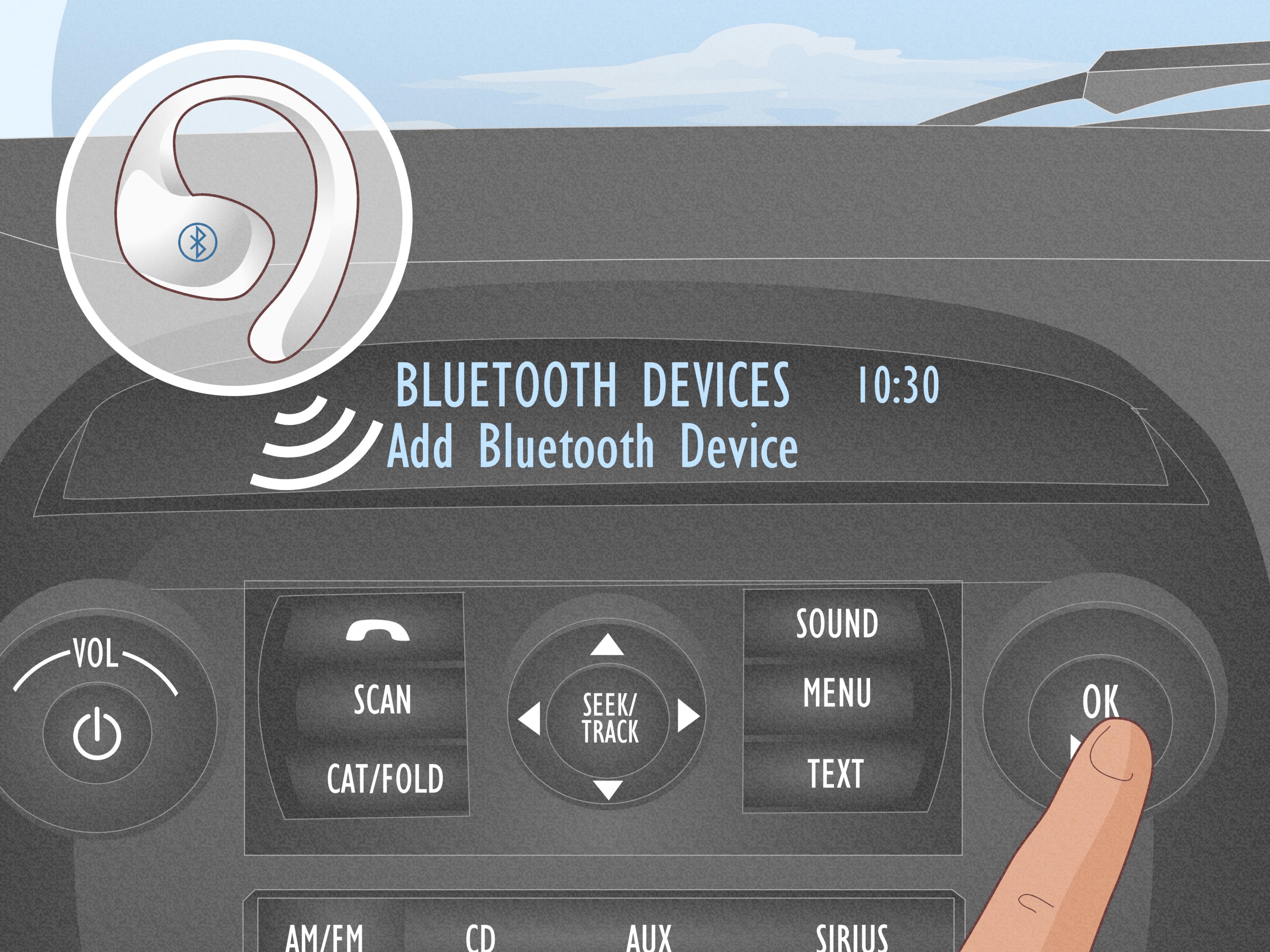
- Add Bluetooth Device
- Connect Bluetooth Device
- Set Bluetooth On/Off
- Delete Device
- Delete All Devices
These are gold when your phone refuses to reconnect, your spouse’s phone hijacks the audio, or SYNC suddenly acts like your perfectly normal device belongs to a stranger. You can pair new devices, reconnect previously paired ones, toggle Bluetooth, or wipe the slate clean.
The Advanced submenu includes options such as:
- Prompts
- Languages
- Factory Defaults
- Master Reset
- Install Application
Here is the important difference most owners should know:
- Factory Defaults returns settings to default without erasing indexed information, paired devices, or saved phone-related data.
- Master Reset completely erases stored SYNC information, including paired devices, phonebook data, call history, and text message records.
So if your SYNC system is just being moody, try the gentler option first. Master Reset is the “we are not mad, we are just starting over” button.
Best Way to Use Each Source in Real Life
USB: Best for Control
If you want the richest control over music on a 2012 Ford Fusion SYNC system, USB is usually the winner. It is the source most likely to let you browse by artist, album, genre, playlist, or track. It also supports indexing and can charge many devices. The downside is setup time if your music library is big, plus occasional compatibility quirks with older phones and players.
Bluetooth Audio: Best for Convenience
Bluetooth Audio is perfect when you want wireless playback from your phone and do not feel like plugging in a cable every time you get in the car. It is convenient, clean, and modern enough to still feel useful today. The tradeoff is that support depends on the phone, and older Bluetooth behavior can be hit or miss. If the audio does not start automatically, check that your phone is paired and then go into Select Source and choose Bluetooth Audio directly.
Line In: Best for Simplicity
Line In is the old-school fallback that still earns respect. Plug one end of a 3.5 mm cable into your device and the other into the Fusion’s auxiliary input jack, press AUX until LINE IN or SYNC LINE IN appears, and adjust volume on both the player and the stereo. It is not fancy, but it works. Just remember: the device itself controls playback, and the best results usually come from using the headphone output rather than a line-level output.
Useful Voice Commands That Make the System Easier
If you want to reduce button tapping, SYNC also supports voice commands. Press the voice button and, after the tone, you can say commands such as:
- USB
- Bluetooth Audio
- Line In
- Voice Settings
- Help
- Play All
- Pause
- What’s Playing?
- Autoplay On
- Autoplay Off
- Shuffle On
- Shuffle Off
- Repeat On
- Repeat Off
You can also change the level of interaction with commands like Interaction Mode Standard or Interaction Mode Advanced. Standard gives more guidance. Advanced gives fewer spoken instructions and more tone-based interaction. If you are new to the system, Standard is friendlier. If you are already fluent in SYNC and just want it to get to the point, Advanced can make the experience less chatty.
Confirmation prompts and candidate lists can also be adjusted. That matters when SYNC is not sure whether you said “Play John Mayer” or “Call John the plumber.” Both are possible. Only one improves your commute.
Common Problems and Easy Fixes
Your phone connects for calls but not music
Go back into Select Source and make sure Bluetooth Audio is chosen. Pairing for phone functions does not always mean the media source switched automatically.
Line In is missing
If a device is already using the USB port, the line-in option may not be available in the SYNC source list. Disconnect the USB device and try again.
USB takes forever
That is usually indexing. Large libraries take longer. Turning Autoplay on can help you hear music sooner while indexing continues in the background.
Bluetooth gets flaky
Try turning Bluetooth off and back on, restarting the phone, deleting the pairing, and pairing again. If the issue keeps coming back, consider using Delete Device, Delete All Devices, or a cautious Master Reset.
A Quick Step-by-Step Setup Example
Let’s say you want to stream music from your phone in your 2012 Ford Fusion with the two-line display. Here is the smoothest path:
- Pair your phone with SYNC if it is not already paired.
- Press AUX until SYNC appears.
- Press MENU.
- Scroll to Select Source.
- Press OK.
- Scroll to Bluetooth Audio.
- Press OK.
- Start playback on your phone.
- If needed, use SEEK to move tracks if your device supports it.
For USB, the process is nearly identical, except you plug the device into the USB port first and choose SYNC USB instead. For an auxiliary cable, connect the 3.5 mm cable and choose Line In or press AUX until the display lands there.
Real-World Experience: Living With This SYNC System Every Day
Here is the funny thing about the 2012 Ford Fusion SYNC media menu: it often feels confusing right up until the moment it suddenly does not. The first few times you use it, the system can feel like an old vending machine. You press one button, then another, then scroll, then confirm, then wonder whether you selected music or accidentally launched a tiny NASA program under the dashboard. But after a week or two, the menu logic starts to feel familiar, and the whole setup becomes more charming than annoying.
That is especially true with the two-line display. There is no giant glass panel begging for fingerprints. No overloaded home screen. No app icons trying to cosplay as a smartphone. You just get simple text, physical buttons, and a layout that rewards memory. Once owners learn that AUX gets them to SYNC and MENU opens the Media Menu, the system becomes much less intimidating. In fact, a lot of drivers end up appreciating the fact that it is tactile. You can do a lot of it by feel, which is not nothing when you are trying to keep your attention on actual driving instead of poking a dashboard tablet like you are playing whack-a-mole.
The source behavior also tells a story about the era. USB feels like the system’s favorite child because it gets the deepest menu support. Bluetooth Audio feels like the cool cousin who sometimes shows up late but still gets invited to the party. And Line In is the dependable old pickup truck of audio connections: not glamorous, not wireless, but almost always ready to do the job.
Many drivers also discover that the system gets better when they stop fighting it. If you load a massive USB drive and expect instant access to every song ever recorded, you may be disappointed at first because indexing takes time. But if you let SYNC finish its process or turn on Autoplay, the experience becomes smoother. If Bluetooth acts weird, the answer is usually not rage. It is usually reconnecting, re-pairing, or cleaning up old devices from the Bluetooth list. Old systems like old manners: be clear, be patient, and do not shout.
There is also something refreshing about how honest the system is. It does not pretend to be smarter than it is. It gives you a menu, a scroll wheel, an OK button, and some voice commands. That is the deal. Once you understand the structure, the 2012 Ford Fusion SYNC settings stop feeling outdated and start feeling efficient. You are not wrestling with endless nested graphics. You are just choosing a source and getting on with your day.
So yes, the system can feel old. It is old. It is old enough to remember when people proudly carried standalone MP3 players and said things like “I’ll just plug in my iPod” without irony. But for many owners, that is also part of the appeal. The SYNC media menu in a two-line 2012 Fusion is not trying to be everything. It is trying to help you play music, connect a device, and keep your hands on the wheel. Once you learn its habits, it does that job better than a lot of people expect.
Final Thoughts
If you want to navigate your Microsoft SYNC media menu settings in a 2012 Ford Fusion with a two-line display, the biggest breakthrough is learning the menu path and the purpose of each section. Play Menu helps you browse music. Select Source chooses between USB, Bluetooth Audio, and Line In. Media Settings controls Shuffle, Repeat, and Autoplay. System Settings handles Bluetooth devices and deeper resets. Once you know that structure, the system stops feeling buried and starts feeling useful.
In other words, your Fusion is not bad at media controls. It is just old enough to expect a proper introduction.