
Note: This guide is written for iPhone and iPad users who want to scan QR codes using Google Chrome for iOS, Google Lens inside Chrome, and related iOS scanning options. It reflects current Chrome for iOS behavior, where Google Lens is the main built-in scanning tool.
Introduction: The Tiny Square That Runs Half the Internet
QR codes used to feel like mysterious little checkerboards printed on posters, cereal boxes, restaurant menus, event tickets, Wi-Fi cards, and occasionally things that made you wonder, “Should I scan this or call a detective?” Today, they are everywhere. You scan them to open websites, view menus, sign in, redeem coupons, check product information, join events, and sometimes discover that the “special offer” is just a newsletter signup wearing a tiny digital hat.
If you use an iPhone or iPad and prefer Chrome over Safari, the good news is simple: you can scan a QR code with Chrome for iOS using Google Lens. You do not need to download a random third-party QR scanner app with a suspicious icon, 47 ads, and a name like “Super QR Scan Pro Max Ultra.” Chrome already gives you a clean way to scan QR codes and barcodes through the search bar on a new tab.
This guide explains exactly how to scan a QR code with Chrome for iOS, what to do when the scanner does not appear, how to scan a QR code from a photo, how Chrome compares with the iPhone Camera app, and how to stay safe before tapping any QR link. By the end, you will know how to treat QR codes like a modern convenience instead of a tiny square-shaped jump scare.
What You Need Before Scanning A QR Code With Chrome For iOS
Before jumping into the steps, make sure you have three things ready: an iPhone or iPad, the Google Chrome app, and permission for Chrome to access your camera. Chrome for iOS uses Google Lens to recognize visual information, including QR codes and barcodes. That means the scanner needs camera access when you scan something in front of you, or photo access when you scan an image already saved on your device.
It is also smart to update Chrome from the App Store before troubleshooting. App features move around over time, and Google has increasingly placed visual search tools under Google Lens. If you are following an older tutorial that mentions only “3D Touch” or a “Scan QR Code” shortcut, remember that modern iPhones no longer rely on 3D Touch the same way older models did. The most reliable current method is to open a new Chrome tab and use the Google Lens icon in the search bar.
Quick Checklist
- Install or update Google Chrome from the App Store.
- Open Chrome at least once so iOS can register the app properly.
- Allow camera access when Chrome asks for permission.
- Use a bright area so the QR code is easy to read.
- Check the destination link before opening it.
How To Scan A QR Code With Chrome For iOS
Here is the easiest and most dependable way to scan a QR code using Chrome on an iPhone or iPad.
Step 1: Open The Chrome App
Unlock your iPhone or iPad and open Google Chrome. If Chrome opens to a website you were previously reading, tap the tab button and create a new tab. You want the standard Chrome new tab page because that is where the search bar and Google Lens shortcut are easiest to find.
Step 2: Open A New Tab
Tap the plus button to open a new tab. On the new tab page, look for the search bar. This is the same place where you normally type a web address or search phrase, except today it is about to become your QR code command center. Very glamorous. Very futuristic. Still somehow mostly used for restaurant menus.
Step 3: Tap The Google Lens Icon
Inside or near the search bar, tap the Google Lens icon. It usually looks like a small camera-style symbol. Chrome may ask for permission to access your camera. Tap to allow it, because without camera permission, Lens will be like a pair of glasses in a drawer: technically useful, but not doing anything.
Step 4: Position The QR Code In The Highlighted Box
Point your iPhone camera at the QR code and place the code inside the highlighted scanning area. Hold your phone steady for a second. If the QR code is printed on a curved bottle, glossy poster, dim menu, or someone’s laptop screen at an awkward angle, move slightly until the square is clear and flat in the viewfinder.
Step 5: Tap The Link That Appears
When Chrome recognizes the QR code, the code information or web link should appear. If it is a website, tap the link to open it in Chrome. If it is a barcode, Chrome may use Google search to show related product information. Before tapping, take a quick look at the destination. A real business link should look reasonable. A link that appears to have been assembled by a raccoon walking across a keyboard deserves caution.
How To Scan A QR Code From A Photo In Chrome For iOS
Sometimes the QR code is not sitting on a table in front of you. It might be in a screenshot, email, saved flyer, social media post, or a photo someone sent you. Fortunately, Chrome’s Google Lens feature can also work with images from your gallery.
Step 1: Save The QR Code Image
If the QR code is inside a message, webpage, or email, save the image or take a screenshot. Make sure the QR code is not too blurry or cropped. A QR code needs its full square shape, including the little corner markers, to scan correctly.
Step 2: Open Chrome And Tap Google Lens
Open Chrome, go to a new tab, and tap the Google Lens icon in the search bar. Instead of pointing the camera at a physical code, look for the option to open your photo gallery or photo picker.
Step 3: Choose The Image With The QR Code
Select the screenshot or image that contains the QR code. Google Lens will analyze the image and detect the code. If the image contains several objects, crop or select the QR code area when possible so Lens knows what you want. Otherwise, it may decide you are deeply interested in the coffee mug next to the code. Helpful? Maybe. Not the mission.
Step 4: Open The Result In Chrome
Once Lens finds the QR code, tap the result to open the destination. Again, check the link before opening it. QR codes are convenient because they hide long URLs, but that convenience also means you should pause before trusting every square you meet in the wild.
Can You Use The Chrome App Icon Shortcut?
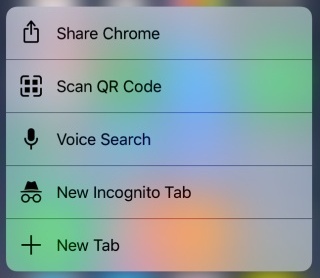
Older Chrome for iOS guides often mention pressing the Chrome app icon and choosing “Scan QR Code” from the quick action menu. That feature became popular when Chrome added QR code scanning to iOS years ago, especially for iPhones that supported 3D Touch. Some users may still see a Chrome quick action or Spotlight result related to QR scanning, depending on app version, iOS version, region, and device behavior.
However, the clearest current path is Google Lens inside Chrome. If your Chrome app icon shows a scan option, you can use it. If it does not, do not panic, do not blame your iPhone, and definitely do not threaten the wallpaper. Open Chrome, create a new tab, tap Google Lens, and scan from there.
Chrome QR Scanner Vs. iPhone Camera: Which One Should You Use?
The iPhone Camera app can scan QR codes directly. You simply open Camera, point it at a QR code, and tap the banner that appears. Apple also offers a Code Scanner option in Control Center. That makes the native iPhone method very fast, especially when you are not already using Chrome.
Chrome for iOS is especially useful when you want the scanned link to open in Chrome, when you already browse with Chrome, or when you want Google Lens features for scanning from photos and recognizing visual content. Think of the iPhone Camera app as the fastest doorbell and Chrome as the doorbell that also brings a toolbox.
Use Chrome For iOS When:
- You prefer links to open in Chrome.
- You are already using Chrome and do not want to switch apps.
- You want to scan a QR code or barcode with Google Lens.
- You need to analyze an image from your photo library.
- You want Google search results connected to a barcode or visual search.
Use The iPhone Camera App When:
- You need the fastest possible scan from the lock screen.
- You do not care which browser opens the link.
- You are scanning a simple website link, ticket, or menu.
- You want a built-in Apple option without opening Chrome first.
How To Add iPhone Code Scanner To Control Center
If you scan QR codes often, adding Code Scanner to Control Center is a smart backup. Open Settings, go to Control Center, and add Code Scanner if it is available. After that, swipe down from the top-right corner of your iPhone screen and tap the scanner whenever you need it.
This does not replace Chrome’s QR scanning feature, but it gives you another quick option. In real life, backups matter. Batteries die, Wi-Fi fails, and sometimes the QR code is taped to a food truck window while twelve people behind you are silently judging your scanning technique.
Troubleshooting: Why Chrome For iOS Is Not Scanning The QR Code
If Chrome is not scanning the QR code, the problem is usually simple. QR scanning depends on camera permission, image clarity, lighting, and the quality of the code itself. Here are the most common fixes.
1. Check Camera Permission
Open the iPhone Settings app, scroll to Chrome, and make sure camera access is enabled. If Chrome cannot access the camera, Google Lens cannot scan a physical QR code.
2. Clean The Camera Lens
A smudged camera lens can turn a perfectly good QR code into modern art. Wipe the lens gently with a soft cloth and try again. Your phone has probably touched pockets, tables, hands, and at least one surface nobody wants to discuss.
3. Improve The Lighting
QR codes scan best in bright, even light. Avoid glare, shadows, and reflections. If you are scanning a glossy menu under restaurant lighting, tilt the phone slightly until the glare disappears.
4. Move Closer Or Farther Away
If the code fills the entire camera view, move back. If it looks tiny, move closer. The whole square needs to be visible. Keep the corner markers inside the frame so Chrome can recognize the pattern.
5. Update Chrome
Open the App Store and check whether Chrome has an update. A fresh version can fix bugs, improve Google Lens behavior, and restore missing interface elements.
6. Try The iPhone Camera App
If Chrome refuses to cooperate, open the iPhone Camera app and scan the same code. If Camera also fails, the QR code may be damaged, too small, badly printed, expired, or simply not a valid code. It happens. Even tiny squares have bad days.
How To Stay Safe When Scanning QR Codes
QR codes are convenient, but they can hide the final destination until after you scan. That does not mean you should be scared of them; it means you should treat them like links in an email. Most are fine. A few are not. The trick is to build a small safety habit before tapping.
Preview The Link
Before opening a QR result, look at the domain. If you expect a restaurant menu, the link should look related to the restaurant, a known menu platform, or a recognizable website. If the URL is strange, misspelled, or full of random characters, slow down.
Avoid Entering Sensitive Information Too Quickly
Be careful if a QR code asks for passwords, payment details, verification codes, or personal information. A QR code on a public poster should not immediately need your bank login. That is not “convenient.” That is suspicious with a square haircut.
Watch For Sticker Tampering
In public places, scammers may place a fake QR sticker over a real one. Before scanning a payment code, parking meter code, or official notice, check whether the code looks like it was added later. If something seems off, use the official app or website manually.
Use Chrome’s Security Features
Chrome includes browsing protections that can warn you about unsafe pages. Keep Chrome updated so you receive the latest security improvements. Still, browser warnings are a safety net, not a replacement for common sense.
Best Practices For Scanning QR Codes With Chrome For iOS
For the smoothest experience, open Chrome first, use a new tab, tap Google Lens, and make sure the QR code is fully visible. If you are scanning from a photo, use a clear screenshot rather than a blurry image. If you scan a lot of codes for work, events, inventory, or school projects, consider organizing screenshots in an album so you can find them quickly.
Also remember that QR codes can contain more than website links. They may include contact cards, Wi-Fi details, app links, calendar events, email addresses, plain text, or product barcodes. Chrome and Google Lens are especially helpful when the code leads to search-related information, product lookup, or visual context.
Common Questions About Scanning QR Codes With Chrome For iOS
Does Chrome For iOS Have A Built-In QR Code Scanner?
Yes. Chrome for iOS supports QR code and barcode scanning through Google Lens. Open Chrome, create a new tab, tap the Google Lens icon in the search bar, and position the code inside the highlighted area.
Can Chrome Scan Barcodes Too?
Yes. Google Lens in Chrome can recognize barcodes as well as QR codes. Barcode results often lead to product information or Google search results rather than a direct website.
Can I Scan A QR Code From A Screenshot?
Yes. Open Chrome, tap Google Lens, choose the image from your photo gallery, and let Lens analyze it. This is useful when someone sends you a QR code by text, email, or social media.
Why Does My QR Code Open In Safari Instead Of Chrome?
If you scan using the iPhone Camera app, iOS may open the link based on system behavior and default browser settings. If you want the result in Chrome, scan directly inside Chrome with Google Lens or copy the link into Chrome.
Do I Need A Separate QR Scanner App?
For most people, no. Chrome, Google Lens, the iPhone Camera app, and Control Center Code Scanner cover everyday QR scanning needs. A separate scanner app is usually unnecessary unless you need specialized features such as scan history, bulk scanning, or business inventory tools.
Experience-Based Tips: What It Is Actually Like To Scan QR Codes With Chrome For iOS
After using Chrome for iOS to scan QR codes in everyday situations, the biggest lesson is this: the scanner works best when you treat it like a camera, not a magic wand. People often wave their phone at a QR code for half a second, get annoyed, and assume the app is broken. In reality, a tiny adjustment in distance or lighting usually fixes everything. Hold the phone steady, keep the full code inside the frame, and give Google Lens a moment to recognize it.
Restaurant menus are probably the most common real-world example. You sit down, the server points at a QR code, and suddenly everyone at the table becomes a technology consultant. Chrome works well here if you already use it as your main browser. Open a new tab, tap Google Lens, scan the menu, and the link opens right where you want it. The main thing to watch is glare. Laminated table cards love reflecting ceiling lights directly into your camera like they are auditioning for a sci-fi movie. Tilt the phone slightly and the scan usually happens instantly.
Event tickets are another place where Chrome can help, especially when instructions or maps are hidden behind QR codes. If the code is on a printed ticket, scanning is simple. If the code is on your own screen, use the screenshot method. Save the image, open Chrome, tap Google Lens, and select it from your gallery. This is much less awkward than trying to scan your iPhone with your iPhone, which is the digital equivalent of asking a mirror to take a selfie.
For shopping, barcode scanning can be surprisingly useful. If you see a product in a store and want more information, Google Lens in Chrome may help identify it or search for related results. This is handy for comparing details, checking manuals, or finding product pages. Just remember that barcode search results can vary, so use them as a starting point rather than absolute truth.
One practical habit is to scan first but tap second. Do not immediately open every QR result. Look at the URL preview and ask whether it makes sense. A cafe menu should not lead to a strange unrelated domain. A parking payment code should look official. A school event QR code should connect to a recognizable form, website, or document. This quick pause takes one second and can save a lot of trouble.
Another useful experience tip is to keep both Chrome and the iPhone Camera app in your mental toolbox. Chrome is excellent when you want Google Lens, Chrome browsing, or photo-based scanning. The iPhone Camera app is faster when your phone is locked and you simply need to open a basic link. The best QR scanning method is not about loyalty to one app. It is about choosing the fastest tool for the moment.
If Chrome’s Lens icon seems missing, do not immediately uninstall everything and question your life choices. First, update Chrome. Then open a new tab, tap the search bar, and check for the Lens icon again. Interface changes happen, especially in mobile apps. If you still cannot find it, use the iPhone Camera app as a backup while you check Chrome permissions and updates.
In short, scanning QR codes with Chrome for iOS is easy once you know where Google placed the feature. The trick is not technical skill; it is knowing that the Lens icon is your scanner. After that, the process becomes second nature: open Chrome, new tab, Lens, scan, preview, tap. Five steps, one tiny square, zero need for a suspicious third-party app that wants to send you notifications until the end of time.
Conclusion
Learning how to scan a QR code with Chrome for iOS is simple, practical, and genuinely useful. Open Chrome, start a new tab, tap Google Lens, place the QR code in the highlighted box, and tap the result when it appears. You can also scan QR codes from photos, use Chrome for barcode searches, and fall back on the iPhone Camera app or Code Scanner when speed matters most.
The best part is that you do not need a separate QR scanner for everyday use. Chrome and iOS already provide the tools most people need. Just keep your app updated, allow camera access, use good lighting, and preview links before opening them. QR codes may look like tiny digital puzzles, but with Chrome for iOS, solving them is usually only a few taps away.