
Steam has a funny talent for giving one person several names and then pretending that is perfectly normal. You have a Steam account name, a profile name, a SteamID, a custom URL, maybe a real name, and possibly a nickname your friends gave you after one tragic Counter-Strike round. So when you ask, “How do I see my account name in Steam?” the answer depends on which “name” you mean.
The good news: finding your Steam account name is usually simple. The less glamorous news: Steam’s naming system can feel like opening a drawer labeled “cables” and discovering HDMI cords, USB-C chargers, and one mysterious cable from 2007. This guide explains exactly how to see your Steam account name, how it differs from your profile name, where to look on desktop, browser, and mobile, and what to do if you forgot it completely.
What Is a Steam Account Name?
Your Steam account name is the login name connected to your Steam account. It is the name you use, or used to use, when signing in to Steam with a password. In many places, Steam may also let you sign in with an email address, phone number, QR code, or Steam Guard confirmation, but your account name still exists behind the scenes.
The most important thing to understand is that your Steam account name is not the same as your Steam profile name. Your profile name is the public-facing name other players see on your profile, in comments, in friend lists, and in some community areas. Your Steam account name is private and is mainly used for account access, support, and identification.
Think of it like this: your Steam account name is the key to your apartment; your Steam profile name is the funny welcome mat outside. You can change the mat whenever you want. You should not hand the key to strangers.
Steam Account Name vs. Profile Name vs. SteamID
Before you go hunting through menus, it helps to know the difference between Steam’s main identifiers.
Steam Account Name
This is your private login identifier. Steam does not let users freely change this account name. It is not meant to be displayed publicly to other users. You may see it in account settings, support pages, login screens, or Steam emails.
Steam Profile Name
This is your public display name. You can change it by going to your Steam profile, selecting Edit Profile, updating the Profile Name field, and saving the change. This is the name your friends usually recognize.
SteamID
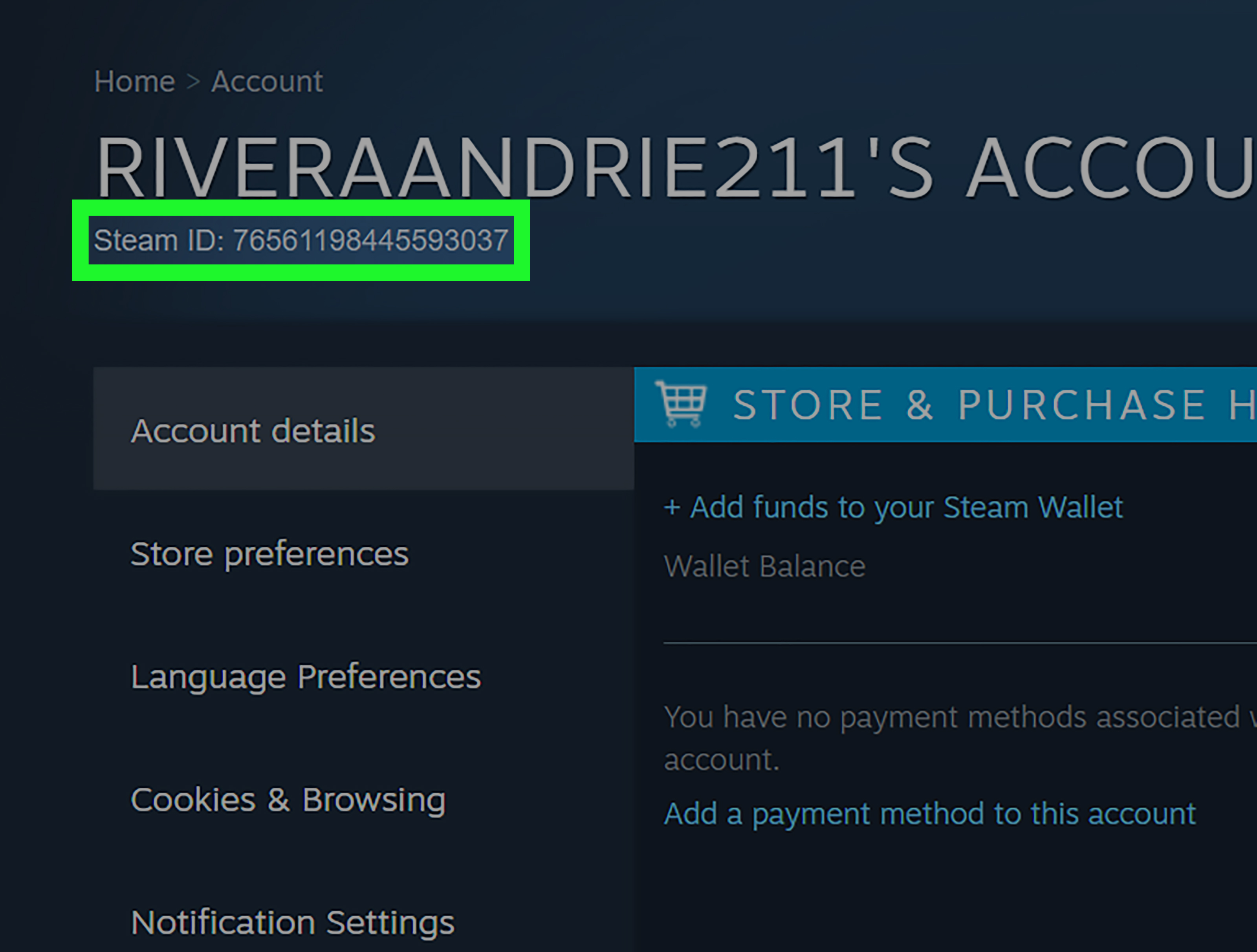
Your SteamID is a unique numeric identifier tied to your account. It may appear in your profile URL, especially if you have not set a custom profile URL. A SteamID is useful for certain games, server tools, friend lookup issues, support situations, and third-party profile tools.
Custom URL
A custom URL is a personalized profile link you can set in your Steam profile settings. For example, instead of a long numeric profile link, your profile might use a custom word or nickname. This is not your Steam account name, even though many users confuse the two.
How to See Your Account Name in Steam on Desktop
The easiest way to see your Steam account name is through the Steam desktop client. This works on Windows, macOS, and Linux, though the layout can vary slightly depending on updates.
Method 1: Check the Top-Right Corner of the Steam Client
Open the Steam app and look at the upper-right area of the window. You will usually see your account area near your wallet balance, notifications, or profile icon. Depending on your client layout, Steam may show your account name, profile name, or both in nearby menus.
Click the small arrow or profile/account area. If you see options such as Account details, View my profile, Change account, or Sign out, you are in the right neighborhood. Your account name may appear at the top of this dropdown or in the account details page.
Method 2: Open Account Details
From the Steam client, click your name or account area in the top-right corner. Select Account details. This page shows account-related information such as wallet balance, contact information, store preferences, purchase history links, security settings, and other account tools.
In many cases, your account name appears near the top of account-related pages or in the signed-in identity area. If you are trying to confirm which account you are using before buying a game, redeeming a code, changing security settings, or contacting support, the Account Details page is one of the best places to check.
Method 3: Use the Steam Login Screen
If you are signed out, Steam may show recently used accounts on the login screen. This can reveal the account name or saved sign-in identity. This is especially helpful if you use multiple Steam accounts on the same computer and cannot remember which one owns your library of “I bought this during a sale and never installed it” classics.
Be careful on shared computers. If your account name appears on a public or family device, make sure you do not save your password unless you trust the machine. Steam Guard helps protect your account, but good habits still matter.
How to See Your Account Name in Steam on a Web Browser
You can also check account information through the Steam website. This is useful when the desktop app is updating, crashing, or doing that charming thing where it decides now is the perfect time to restart.
Step-by-Step Browser Method
- Open your browser and go to the official Steam website.
- Sign in to your Steam account.
- Click your account name or profile area in the top-right corner.
- Select Account details.
- Review the account information shown on the page.
If you only see your public profile name, do not panic. Steam separates public identity from private login identity. Check account-related pages, emails from Steam, or the recovery process if you specifically need the original account login name.
How to See Your Steam Profile Name
Many people search for “Steam account name” when they actually mean “Steam profile name.” If your goal is to find the name other players see, follow these steps:
- Open Steam.
- Click your avatar or name in the top-right area.
- Select View my profile.
- Look at the name displayed near the top of your profile page.
- To change it, click Edit Profile.
- Update the Profile Name field and save your changes.
This public Steam profile name can be changed whenever you want. You can be “ShadowDragon,” “ShadowDragon_Real,” “DefinitelyNotShadowDragon,” or “Mom Said Dinner Is Ready.” Steam will survive. Your friends may not, but Steam will.
How to Find Your SteamID
If a game server, support form, tournament admin, or third-party tool asks for your SteamID, that is usually different from your account name. Here is how to find it:
- Open Steam and go to your profile.
- Right-click on your profile page or use the share/copy option if available.
- Copy your profile URL.
- Look for a long number in the URL after /profiles/.
If your profile uses a custom URL, you may see something like /id/YourCustomName instead of a long number. In that case, your custom URL is not the same thing as your Steam account name. It is just a friendly profile address.
Can Other People See Your Steam Account Name?
In normal Steam use, other players should not see your private Steam account name. They usually see your profile name, avatar, profile URL, friend code, and public profile details depending on your privacy settings.
However, you should still treat your account name as sensitive information. It is not as secret as your password, but it is part of your login identity. Do not post it publicly, do not send it to random people, and do not type it into unofficial websites promising free skins, free wallet money, or “one weird trick” to get every game for free. That trick is usually called losing your account.
Can You Change Your Steam Account Name?
No, Steam does not generally allow users to change their Steam account name. Steam Support also states that the Steam account name and SteamID cannot be changed. Your profile name, however, can be changed from your profile settings.
This is where many users get confused. They search for “how to change Steam account name,” follow a guide, and end up changing only the profile name. That is not useless; it changes what other people see. But it does not change the private login account name.
What If You Forgot Your Steam Account Name?
If you forgot your Steam account name, Steam provides account recovery options. You can use your email address, phone number, or other account information to search for and recover the account. Steam Support can also help if you no longer have access to the original email or phone number, but you may need to prove ownership.
Try These Recovery Steps
- Go to Steam Support.
- Select the option for help signing in.
- Choose the option related to forgetting your Steam account name or password.
- Enter your email address or phone number if you remember it.
- Follow the prompts to identify your account.
- If automatic recovery does not work, contact Steam Support.
When contacting support, provide information that proves the account belongs to you. Helpful proof may include payment details previously used on the account, retail product codes activated on the account, old email addresses, phone numbers, PayPal transaction information, or other purchase records. Do not send your password. Steam Support does not need it.
How to Check Which Steam Account Owns a Game
If you have more than one Steam account, you may only care about the account name because you are trying to find where a specific game lives. This happens more often than people admit. One account has your old Half-Life memories. Another has your newer games. A third account exists because you were young, impatient, and thought making a second account was easier than resetting a password.
To check which account owns a game, sign in to each Steam account and open the Library. Search for the game title. You can also check purchase history under Account Details. If the game was bought as a gift, redeemed with a key, or acquired during a free promotion, the purchase or license history may help you confirm ownership.
How to Keep Your Steam Account Name Safe
Once you find your Steam account name, protect it. Use a strong, unique password that you do not reuse on email, social media, game forums, or that one ancient account you made to download a Minecraft texture pack in 2014.
Enable Steam Guard
Steam Guard adds an extra layer of account security. The Steam Guard Mobile Authenticator is especially useful because it lets you approve sign-ins and protect trades, Market activity, and account access. If you use Steam regularly, enabling Steam Guard is one of the smartest security moves you can make.
Protect Your Email Account
Your Steam account is only as safe as the email connected to it. Use a strong password for your email, enable two-factor authentication, and watch for suspicious login alerts. If someone controls your email, they may be able to interfere with account recovery or security messages.
Avoid Fake Steam Login Pages
Phishing pages often look like Steam but are not Steam. They may appear through trade offers, fake tournament invites, free item scams, or messages from compromised friends. Always check that you are using an official Steam website before entering account information.
Common Mistakes When Looking for a Steam Account Name
Mistake 1: Thinking the Profile Name Is the Account Name
Your profile name is public and changeable. Your account name is private and permanent. If you changed your profile name but your login did not change, nothing is broken. That is how Steam works.
Mistake 2: Sharing the Account Name Publicly
Your account name alone usually cannot give someone access to your account, but it still should not be treated like a public nickname. Keep it private whenever possible.
Mistake 3: Trusting Third-Party “Account Tools”
Some third-party tools can look up public SteamID information from a profile URL. That is different from revealing your private account name. Never enter your Steam password into unofficial tools.
Mistake 4: Forgetting About Old Emails
If you cannot remember your account name, search your email inbox for old Steam messages, purchase receipts, password reset emails, or Steam Guard notifications. Steam emails may help you identify which account is connected to which address.
Troubleshooting: Why Can’t I See My Steam Account Name?
If you cannot see your Steam account name immediately, there are several possible reasons. Steam may be showing your profile name instead. You may be signed in with QR code authentication. You may be using Big Picture Mode, mobile layout, or a simplified browser view. You may also be looking at a public profile page, which is not designed to reveal private login information.
The best fix is to go to Account Details while signed in. If you are locked out, use Steam’s account recovery process. If the account was stolen, secure your computer and email first, then work through Steam Support recovery.
Experience Notes: Real-World Lessons From Finding a Steam Account Name
Finding a Steam account name sounds like a ten-second task until you are doing it under pressure. Maybe you are trying to log in on a new gaming laptop. Maybe your old PC died with all the grace of a potato in a thunderstorm. Maybe you are helping a younger sibling recover an account that contains three games, two rare items, and one profile name that should have been retired years ago.
The first experience lesson is simple: Steam users often remember their profile name, not their account name. That makes sense because the profile name is what everyone sees. It is the name attached to screenshots, friend chats, reviews, and game invites. The account name hides quietly in the background like a stagehand wearing black. When login day arrives, suddenly the stagehand is the most important person in the room.
A practical trick is to search your email before panicking. Look for terms like “Steam purchase,” “Steam Guard,” “Steam account,” “receipt,” or “password reset.” Many users rediscover old account clues through receipts or security messages. This is especially useful if you created your Steam account years ago and used a username that belongs in a museum of teenage decision-making.
Another lesson: write down which email is connected to which Steam account, but store that information safely. A password manager is ideal because it can save your Steam login, email login, and recovery notes without turning your desk into a sticky-note crime scene. Do not save passwords in plain text files named “steam password final final real.txt.” That is not organization; that is a gift basket for malware.
If you use multiple Steam accounts, label them mentally by purpose. For example: main account, family account, old account, testing account, or region-specific account if applicable. This avoids the classic mistake of buying a game on the wrong account and then staring at the Library like Steam personally betrayed you.
Also, treat your Steam account name with more respect than your profile name. Your profile name can be silly, seasonal, or dramatic. Your account name should stay private. If a stranger in chat says they need your account name to send you a prize, invite you to a tournament, verify a trade, or fix your inventory, assume the prize is regret.
The best long-term habit is to secure your account before something goes wrong. Enable Steam Guard, protect your email, and keep proof of purchases. Account recovery is much easier when you have old payment records, activated product codes, or access to the original email. Future you will be grateful. Future you may even stop buying games during every sale. Probably not, but we can dream.
Conclusion
Seeing your Steam account name is mostly about knowing where to look and understanding what Steam means by “account name.” Your Steam account name is your private login identity. Your Steam profile name is the public name other players see. Your SteamID is a unique identifier, often shown as a long number in your profile URL. Once those pieces are clear, Steam’s naming system becomes much less mysterious.
To find your account name, check the Steam desktop client, open Account Details, review the login screen, or use Steam’s account recovery tools if you are locked out. To find your public profile name, visit your profile and open Edit Profile. To find your SteamID, check your profile URL. And to keep everything safe, use Steam Guard, protect your email, and avoid unofficial login pages.
In short, your Steam account name is not something you need every day, but when you do need it, you really need it. Find it, secure it, and then get back to the important business of deciding which discounted game you will buy and absolutely, definitely, maybe play someday.
Note: This article is based on current Steam account, profile, support, and security information. Steam interface labels may change over time, but the core difference between Steam account name, profile name, and SteamID remains important for login, privacy, and account recovery.