
Satellite View in Google Maps can be incredibly useful when you want to see real buildings, parking lots, trees, rivers, and rooftops. It is the closest your iPhone or iPad gets to saying, “Congratulations, you are now a tiny drone.” But when you are simply trying to find a coffee shop, follow a route, or figure out whether to turn left before the next traffic light, Satellite View can feel a bit too busy.
The good news is that turning off Satellite View on Google Maps is easy. On an iPhone or iPad, you usually only need to open the Layers menu and switch the map type back to Default. The Default view is the clean, standard Google Maps layout with roads, labels, businesses, neighborhoods, transit information, and navigation details displayed in a simpler format.
This guide explains exactly how to turn off Satellite View on Google Maps on iPhone or iPad, what to do if it keeps coming back, why the Default map view is often better for everyday navigation, and how to fix common display problems. We will keep things practical, friendly, and free of tech drama. Your map should guide you, not make you feel like you accidentally joined a NASA mission.
Quick Answer: How to Turn Off Satellite View on Google Maps
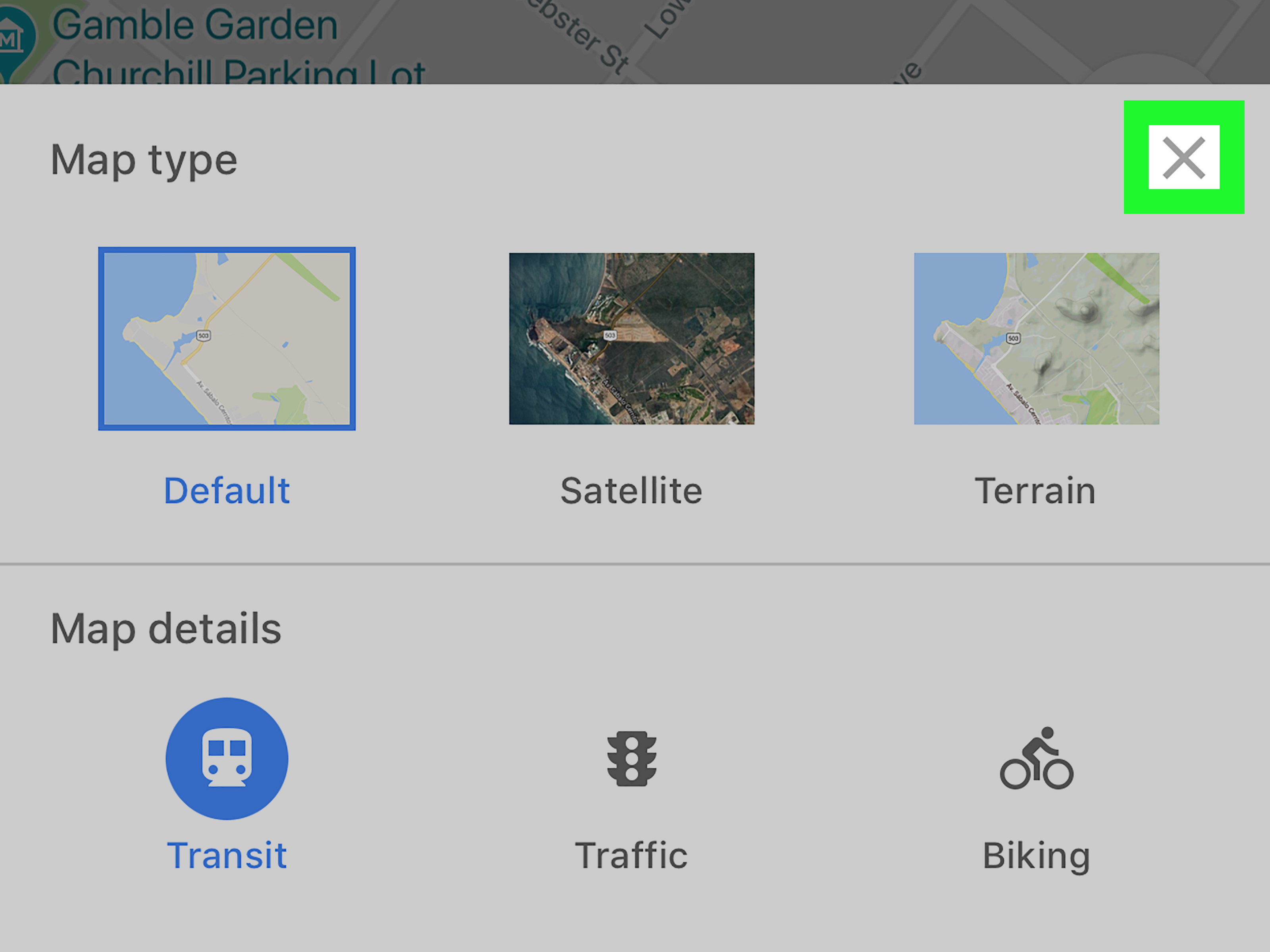
To turn off Satellite View on Google Maps on an iPhone or iPad, open the Google Maps app, tap the Layers icon in the upper-right corner, then choose Default under Map type. The map will switch back from satellite imagery to the normal Google Maps view.
- Open the Google Maps app on your iPhone or iPad.
- Tap the Layers icon, which looks like stacked squares.
- Under Map type, tap Default.
- Tap the X, close button, or anywhere on the map to exit the menu.
That is the whole basic process. If Google Maps behaves normally, you should now see the standard street map instead of aerial imagery.
What Is Satellite View in Google Maps?
Satellite View is a map type that shows overhead imagery of real locations. Instead of displaying a simplified road map, it shows aerial or satellite-style images of buildings, land, water, parks, parking areas, neighborhoods, and other physical features.
In Google Maps, the main map types are usually Default, Satellite, and Terrain. Default is the standard map view most people use for driving, walking, searching, and browsing. Satellite shows visual imagery from above. Terrain highlights landscape features such as mountains, lakes, and elevation changes.
When Satellite View Is Useful
Satellite View is helpful when you need visual context. For example, you might use it to check where a parking lot entrance is, preview the layout of a hotel, inspect a hiking area, look at a property, or understand whether a destination is surrounded by roads, fields, water, or suspiciously confusing one-way streets.
It is also handy when a place is easier to recognize by appearance than by address. A large shopping center, a school campus, a marina, or a public park may be clearer in Satellite View than in the regular map layout.
When Satellite View Gets Annoying
Satellite View can be harder to read when you are actively navigating. Road names may feel less prominent, labels can blend into busy imagery, and the screen may look cluttered. On a smaller iPhone display, all those roofs, trees, shadows, and parking stripes can turn into visual soup.
It can also use more mobile data than the standard map because it loads detailed imagery. If you are on a limited data plan, traveling with weak signal, or trying to preserve battery life, Default view is usually the smarter everyday choice.
Step-by-Step: Turn Off Satellite View on Google Maps on iPhone
Follow these steps if you are using Google Maps on an iPhone.
Step 1: Open Google Maps
Find the Google Maps app on your Home Screen or in the App Library. Tap it to open. If you are already inside navigation, you can still change the map type, though the Layers button may appear slightly differently depending on your screen size and current route view.
Step 2: Tap the Layers Icon
Look near the upper-right corner of the map. You should see an icon that looks like two or three stacked squares. This is the Layers button. Tap it once.
The Layers menu is where Google Maps keeps its map type options and map details. Think of it as the control room for how your map looks. Thankfully, it does not require a password, a secret handshake, or a degree in cartography.
Step 3: Choose Default
In the Layers menu, look for the Map type section. Tap Default. This changes the map from Satellite View back to the standard Google Maps view.
Step 4: Close the Layers Menu
After selecting Default, close the menu by tapping the X, the close button, or an empty area of the map. Your map should now display clean roads, labels, neighborhoods, and places without the satellite imagery.
Step-by-Step: Turn Off Satellite View on Google Maps on iPad
The process on iPad is nearly the same, but the larger screen can make the Layers button easier to spot.
- Open Google Maps on your iPad.
- Tap the Layers icon in the upper-right area of the screen.
- Choose Default under Map type.
- Close the Layers panel.
On iPad, Google Maps often has more room to display menus and labels, so switching views can feel more comfortable than on an iPhone. Still, if Satellite View is active, the solution remains the same: Layers first, Default second, peace restored third.
What If Google Maps Keeps Opening in Satellite View?
If Google Maps keeps returning to Satellite View, there are a few likely reasons. The app may be remembering your last selected map type, a setting may be enabled in your version of the app, or stored app data may be causing the view to reload in a way you do not expect.
Check for a Satellite Startup Setting
Some versions of Google Maps may include a setting related to starting maps in Satellite View. To check, open Google Maps, tap your profile picture or initial, go to Settings, and look for an option such as Start maps in satellite view. If you see it, turn it off.
Menu names can vary by app version, account, region, and platform. If you do not see this option on iPhone or iPad, do not panic. It may not be available in your current iOS version of Google Maps. In that case, switch manually through Layers and try the troubleshooting steps below.
Update Google Maps
An outdated app can behave strangely. To update Google Maps on iPhone or iPad, open the App Store, tap your profile picture, and check for available updates. Install any update for Google Maps. Updates often include bug fixes and interface improvements, even when the release notes politely say the same thing every week.
Close and Reopen the App
If the map refuses to stay in Default view, fully close Google Maps and reopen it. On Face ID devices, swipe up from the bottom and pause to open the app switcher, then swipe Google Maps away. On older devices with a Home button, double-click the Home button and swipe the app away. Reopen Google Maps and select Default again.
Clear Google Maps App Data
If Google Maps still acts like Satellite View is its one true love, clearing app data may help. Open Google Maps, tap your profile picture or initial, go to Settings, then look for About, terms & privacy or a similar section. Choose Clear application data if available, then confirm.
Clearing app data may remove cached map tiles, recent search suggestions, direction searches, and other locally stored information. It does not delete information stored in your Google account, but it can reset some app behavior on your device.
Why Use Default View Instead of Satellite View?
The Default view is better for most everyday Google Maps tasks. It is cleaner, easier to read, and usually faster to load. Roads stand out clearly, business names are easier to scan, and navigation instructions feel less visually crowded.
Default View Is Better for Driving
When driving, you want fast, readable information. The Default map view emphasizes roads, turns, traffic lines, route options, and destination labels. Satellite imagery may show more real-world detail, but more detail is not always better when you need to make a turn in 400 feet and your passenger is confidently saying, “I think it was back there.”
Default View Can Save Data
Satellite View loads image-based map tiles, which can use more data than the regular map view. If you are traveling, using cellular data, or dealing with a slow connection, switching back to Default can make Google Maps feel smoother.
Default View Is Easier on Smaller Screens
On an iPhone, screen space is precious. Satellite imagery can make labels, roads, and icons compete with real-world textures. The Default view removes much of that visual noise and helps you focus on what matters: where you are, where you are going, and how not to miss the exit.
How to Turn Off Extra Map Details
Sometimes the problem is not Satellite View itself. You may have extra map details turned on, such as Traffic, Transit, Bicycling, Street View, or Air Quality. These can make the map look crowded even after you switch back to Default.
To turn off extra map details, tap the Layers icon again. In the Map details section, tap any active layer to disable it. For example, if Traffic is turned on and you do not need it, tap Traffic to remove the colored traffic overlay.
Useful Map Details to Keep
Traffic is useful for driving. Transit is helpful in cities. Bicycling is useful if you are planning a bike route. Street View can help you preview a location. Air Quality may be helpful in supported areas. The trick is to turn on only what you need. Google Maps is powerful, but your screen does not need to look like a weather radar married a city planning document.
Troubleshooting: Satellite View Will Not Turn Off
If tapping Default does not work, try these fixes in order.
1. Check Your Internet Connection
Google Maps needs a working internet connection to load map data properly. If the map looks blank, stuck, blurry, or slow, switch between Wi-Fi and cellular data if possible. Also make sure Airplane Mode is turned off.
2. Restart Your iPhone or iPad
Restarting your device can clear temporary glitches. Turn your iPhone or iPad off, wait a few seconds, then turn it back on. Open Google Maps again and switch to Default view.
3. Check Location Services
If Google Maps is also having trouble finding your location, open Settings on your iPhone or iPad. Go to Privacy & Security, then Location Services. Make sure Location Services is turned on. Scroll to Google Maps and choose While Using the App or Always, depending on your preference and features you use.
4. Turn On Wi-Fi for Better Accuracy
Even if you are not connected to a Wi-Fi network, having Wi-Fi turned on can help improve location accuracy. Google Maps and iOS can use multiple signals to estimate your position more accurately.
5. Reinstall Google Maps
If nothing else works, delete Google Maps and reinstall it from the App Store. This can fix stubborn app issues. After reinstalling, open Google Maps, grant the permissions you want, and select Default view from the Layers menu.
Is Satellite View the Same as Street View?
No. Satellite View and Street View are different features. Satellite View shows an overhead view from above. Street View shows ground-level imagery, usually from streets, paths, or locations where Street View coverage is available.
You can use Satellite View to understand the shape of an area, then use Street View to inspect the entrance, storefront, intersection, or building from a human perspective. In other words, Satellite View is the bird’s-eye view. Street View is the “standing awkwardly on the sidewalk looking for the door” view.
Can You Permanently Disable Satellite View?
Google Maps does not usually need a permanent “disable Satellite View forever” button because Satellite View is just one map type. Once you choose Default, the app should return to the standard map. If your version of Google Maps includes a setting to start in Satellite View, turning that setting off should stop the app from launching in Satellite by default.
If the app keeps returning to Satellite View despite your choice, update the app, clear application data, and reinstall if needed. These steps usually solve view-related glitches.
Practical Examples
Example 1: You Are Driving in a Busy City
You open Google Maps and everything looks like a patchwork of rooftops, shadows, and intersections. Tap Layers, choose Default, and keep Traffic turned on if you want congestion updates. Now the route is easier to read, and your brain can stop trying to identify every building from orbit.
Example 2: You Are Looking for a Parking Lot
Satellite View can be helpful before you start driving because it may show parking lots, entrances, and nearby roads. But once you begin navigation, switch back to Default for clearer turn-by-turn guidance.
Example 3: You Are Using an iPad for Trip Planning
On an iPad, Satellite View can be excellent for exploring hotels, beaches, hiking trails, or neighborhoods. After previewing the area, tap Layers and return to Default so you can compare routes, transit options, and nearby businesses more easily.
Best Practices for Using Google Maps Views
Use Default for normal navigation, errands, commuting, and searching for businesses. Use Satellite when visual context matters, such as checking parking, outdoor spaces, buildings, or large properties. Use Terrain when elevation and natural features matter, especially for outdoor trips.
The best map view depends on the job. A hammer is great for nails, terrible for soup, and confusing for your phone screen. Satellite View is the same: powerful in the right moment, distracting in the wrong one.
Common Questions About Turning Off Satellite View
Where is the Layers button in Google Maps?
The Layers button usually appears near the upper-right corner of the Google Maps screen. It looks like stacked squares. Tap it to open map type and map detail options.
Which option turns Satellite View off?
Choose Default under Map type. That switches Google Maps back to the regular map view.
Will turning off Satellite View delete anything?
No. Switching from Satellite to Default only changes how the map looks. It does not delete saved places, searches, routes, reviews, lists, or account information.
Does Satellite View use more battery?
It can contribute to heavier battery use because it may load more detailed imagery and require more data. Navigation, GPS, screen brightness, and cellular signal strength also affect battery life.
Can I use Default view with Traffic?
Yes. You can use Default view and still turn on Traffic from the Layers menu. This is often the best combination for driving because it keeps the map readable while showing road congestion.
Extra Experience Section: Real-Life Lessons From Turning Off Satellite View
In everyday use, the fastest way to understand Satellite View is this: it is wonderful when you are exploring, but not always wonderful when you are navigating. Many iPhone and iPad users turn it on once because they want to see a real-world view of a neighborhood, a restaurant, a park, or a hotel. Then, days later, they open Google Maps while rushing to an appointment and wonder why the screen looks like a geography documentary.
One common experience happens during city driving. Satellite View may look impressive while parked, but once the route begins, the details can become distracting. Rooftops, shadows, trees, and building outlines compete with road labels. The driver needs simple direction: turn right, stay left, take exit 12. The map, meanwhile, is showing enough visual texture to make your phone feel like it is auditioning for a spy movie. Switching back to Default view makes the route cleaner almost instantly.
Another real-life example is traveling. Suppose you are visiting a new city and checking your hotel location on an iPad. Satellite View is great for seeing whether the hotel is near a beach, a highway, a mall, or a suspiciously empty industrial zone. You can zoom in, inspect the area, and get a sense of what is nearby. But when it is time to actually walk to dinner, Default view is usually better. It gives you clearer street names, business labels, and walking paths. Satellite View helped you understand the place; Default view helps you move through it.
Parents, students, commuters, and delivery drivers also run into this issue. A parent may use Satellite View to check a school pickup entrance. A student may use it to understand a campus layout. A commuter may use it to locate a parking garage. A delivery driver may use it to identify a driveway or apartment complex. In each case, Satellite View is useful for previewing the destination, but Default view is often better once the route is active.
There is also the data issue. If you are on Wi-Fi at home, Satellite View may feel smooth. On cellular data in a weak-signal area, it may load slowly or show blurry tiles. This is when Default view becomes the quiet hero. It is lighter, clearer, and usually more dependable when your signal is having a dramatic personal crisis.
The best habit is to treat map views like tools. Use Satellite View before the trip when you need visual clues. Use Default view during the trip when you need fast, readable guidance. Use Traffic when timing matters. Use Street View when you want to confirm what the front of a building looks like. Once you think of each view as a tool instead of a permanent setting, Google Maps becomes much easier to control.
So if your Google Maps app keeps showing Satellite View on your iPhone or iPad, do not worry. You did not break anything. You probably just changed a map type, or the app remembered a previous view. Tap Layers, choose Default, and enjoy the calm beauty of a map that looks like a map again.
Conclusion
Turning off Satellite View on Google Maps on iPhone or iPad is simple: tap the Layers icon and select Default. That single change brings back the clean, standard Google Maps view that is easier to read for driving, walking, searching, and everyday navigation.
Satellite View is still useful when you want real-world visual detail, such as checking parking lots, building entrances, parks, or property layouts. But for most daily trips, Default view is faster, clearer, and less distracting. If Satellite View keeps returning, check for a startup setting, update Google Maps, clear app data, restart your device, or reinstall the app if necessary.
In short, Satellite View is a great feature, but it does not need to run your whole mapping life. Use it when it helps, turn it off when it gets in the way, and let Google Maps do what it does best: get you where you are going without making your screen look like mission control.