
Windows 10 Settings is the control room for your computer. It is where you change display scaling, connect Bluetooth devices, manage Wi-Fi networks, remove apps, adjust privacy options, troubleshoot problems, and persuade Windows Update to stop interrupting your afternoon.
Most people open the Settings app from the Start menu and never think about it again. That method works perfectly welluntil the Start menu freezes, the Settings icon disappears, or you simply want a faster route. Fortunately, Windows 10 provides an almost comical number of ways to reach the same destination.
This guide explains 15 easy ways to open Windows 10 Settings, from the familiar Windows + I shortcut to command-line options, Task Manager, File Explorer, desktop menus, and custom shortcuts. Whether you prefer a mouse, keyboard, touchscreen, or a command that makes you look suspiciously productive, there is a method here for you.
Why Learn More Than One Way to Open Windows 10 Settings?
Knowing several ways to access Windows Settings is not merely a collection of party tricks for an unusually technical party. Different methods become useful in different situations.
A keyboard shortcut is ideal when you are working quickly. Search helps when you cannot remember where Microsoft placed an option. Task Manager can help when the desktop or Start menu is misbehaving. A direct ms-settings: command is useful for troubleshooting, automation, and custom shortcuts.
You do not need to memorize all 15 methods. Pick two or three that match the way you use your computer, and keep one alternative in mind for emergencies.
15 Easy Ways to Open Settings in Windows 10
1. Press Windows + I
The fastest way to open Windows 10 Settings is to press the Windows key + I at the same time. The Settings app should appear immediately, regardless of whether you are browsing the web, editing a document, or staring at the desktop while trying to remember why you turned on the computer.
This Windows Settings keyboard shortcut requires no searching, clicking, or command typing. For most users, it is the best method to remember.
Best for: Everyday access and keyboard-focused workflows.
2. Use the Settings Icon in the Start Menu
Click the Start button in the lower-left corner of the screen. Select the gear-shaped Settings icon from the left side of the Start menu.
If the menu is collapsed, moving the pointer over its left column may expand the labels and reveal the word “Settings.” You can also scroll through the alphabetical application list and select Settings under the letter S.
Best for: Mouse users and Windows beginners.
3. Search for Settings from the Taskbar
Click the taskbar search box and type Settings. Select the Settings app from the results. You can also press the Windows key, begin typing “settings,” and press Enter when the correct result appears.
Search is particularly helpful when the gear icon is missing from the Start menu. It also lets you search for a specific option, such as “Bluetooth settings,” “display settings,” or “default apps,” rather than opening the Settings home page first.
Best for: Opening Settings or locating a particular setting by name.
4. Right-Click the Start Button
Right-click the Start button and choose Settings from the Power User menu. On a touchscreen, press and hold the Start button to display the same menu.
The keyboard version is nearly as quick: press Windows + X, and then choose Settings. On many Windows 10 installations, pressing the N key after opening the menu selects Settings directly.
Best for: Power users and anyone already using the WinX menu.
5. Open Settings from the Action Center
Select the notification icon at the far-right end of the taskbar to open the Windows 10 Action Center. You can also press Windows + A. At the bottom of the panel, click All settings.
If only a few quick-action buttons are visible, click Expand to display the complete group. This route is convenient when you are already reviewing notifications or changing quick controls such as Bluetooth and airplane mode.
Best for: Touchscreen devices and notification-based workflows.
6. Use the Run Dialog
Press Windows + R to open the Run dialog. Enter the following command and press Enter:
Do not forget the colon. Without it, Windows may search for an application or file instead of recognizing the Settings URI.
The ms-settings: scheme can also open specific pages. For example, ms-settings:display opens Display settings, while ms-settings:windowsupdate goes directly to Windows Update.
Best for: Fast access, troubleshooting, and direct Settings commands.
7. Open Settings from Command Prompt
Open Command Prompt by searching for cmd from the Start menu. At the prompt, type the following command and press Enter:
The start command tells Windows to launch the application associated with the Settings URI. Administrator privileges are not normally required.
This method is useful when you are already running diagnostic commands and need to move into a graphical Settings page without closing Command Prompt.
Best for: Troubleshooting sessions and command-line users.
8. Launch Settings with PowerShell
PowerShell provides another command-line route. Open Windows PowerShell and enter either of these commands:
or:
The second version uses a native PowerShell command and is especially useful in scripts. You can replace the basic URI with a page-specific command, such as ms-settings:appsfeatures, to open Apps & features directly.
Best for: Administrators, scripts, and advanced troubleshooting.
9. Use Task Manager
Press Ctrl + Shift + Esc to open Task Manager. Select File, choose Run new task, enter ms-settings:, and click OK.
If Task Manager opens in its compact view, click More details before looking for the File menu.
This is not the quickest choice during normal use, but it can be extremely valuable when Windows Explorer, the Start menu, or the taskbar is unresponsive. Task Manager may remain accessible even when other parts of the desktop are having a small emotional crisis.
Best for: Opening Settings when the normal Windows interface is frozen.
10. Open Settings from File Explorer
Open File Explorer with Windows + E. Select This PC in the navigation pane, open the Computer tab on the ribbon, and choose Open Settings.
Depending on your Windows 10 version, ribbon layout, or window size, the button may not be immediately obvious. There is also a more universal File Explorer method: click the address bar, type ms-settings:, and press Enter.
Best for: Users who are already managing files or drives.
11. Right-Click the Desktop and Choose Display Settings
Right-click an empty area of the desktop and choose Display settings. Windows opens the Settings app directly at System > Display.
This route is ideal when you need to adjust resolution, scaling, screen orientation, multiple monitors, brightness, or night-light options. To reach the main Settings screen, click the Home button near the upper-left corner.
Best for: Monitor, resolution, scaling, and display adjustments.
12. Right-Click the Desktop and Choose Personalize
The desktop context menu offers a second route. Right-click an empty area and select Personalize. Windows opens the Personalization section of Settings, where you can change the background, colors, lock screen, themes, fonts, Start menu, and taskbar appearance.
As with Display settings, you can select Home to return to the main Settings categories.
Best for: Wallpaper, theme, color, and appearance changes.
13. Open Taskbar Settings from the Taskbar
Right-click an empty part of the taskbar and select Taskbar settings. This opens the Settings app at Personalization > Taskbar.
From there, you can lock or hide the taskbar, change button behavior, select notification-area icons, manage multiple-display options, and adjust other taskbar preferences. Select Home when you need a different Settings category.
Best for: Taskbar customization and notification-area management.
14. Use a Network or Sound Icon on the Taskbar
Several taskbar icons provide direct links to relevant Settings pages. Right-click the network icon and choose Open Network & Internet settings to manage Wi-Fi, Ethernet, VPNs, data usage, and network status.
You can also right-click the speaker icon and select Open Sound settings. That route is useful for choosing input and output devices, adjusting volume, and troubleshooting microphones or speakers.
These routes do not begin at the Settings home page, but they often save time by taking you directly to the category you actually need.
Best for: Fixing Wi-Fi, Ethernet, speaker, headphone, or microphone issues.
15. Create and Pin Your Own Settings Shortcut
For one-click access, create a permanent desktop shortcut. Right-click an empty area of the desktop and select New > Shortcut. In the location field, enter:
Click Next, name the shortcut Settings, and select Finish. Double-clicking the shortcut will now launch the Settings app.
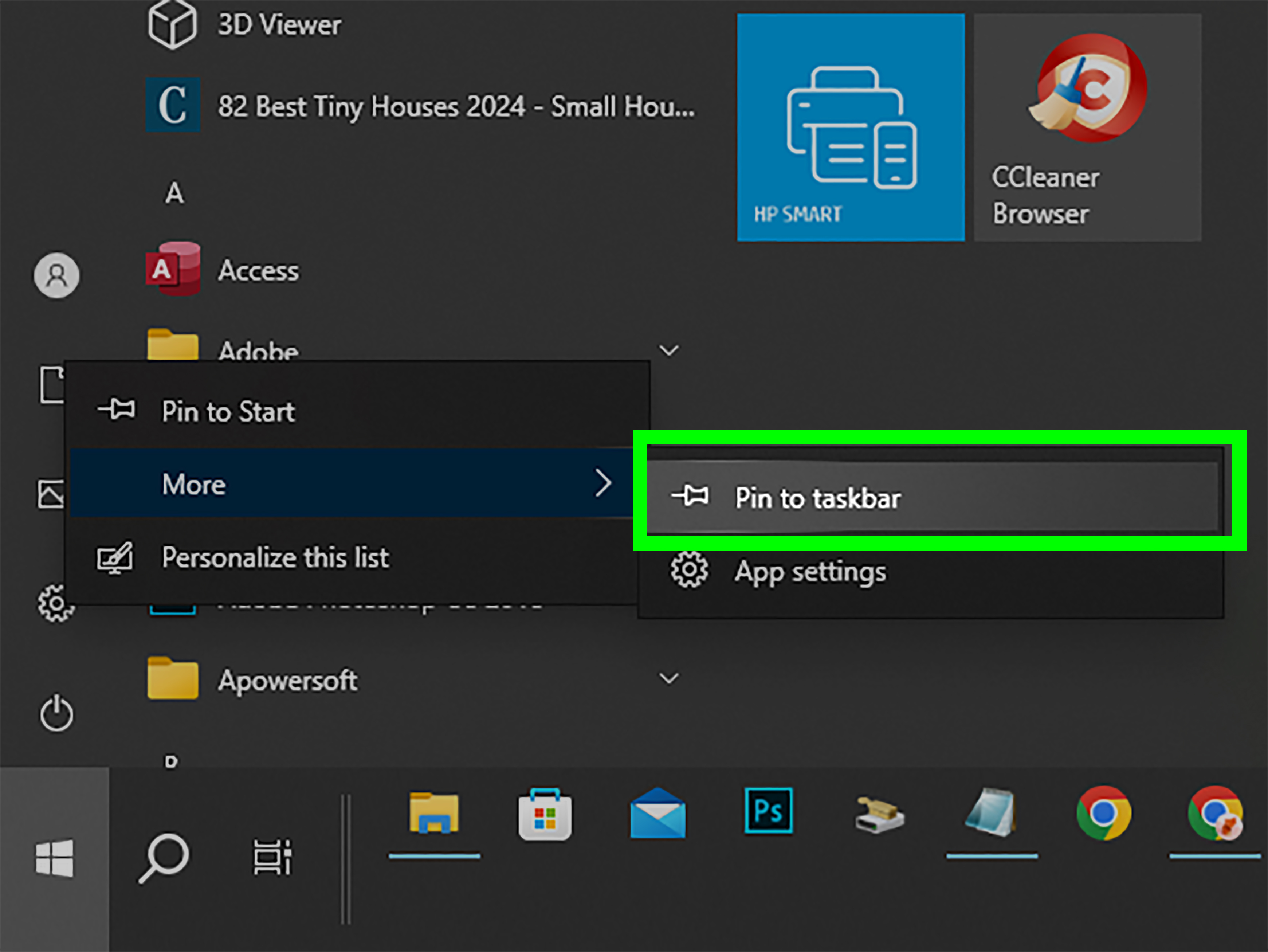
You can also search for Settings, right-click the result, and choose Pin to Start or Pin to taskbar. Pinning is especially convenient on shared workstations or computers used by people who prefer clearly visible icons.
Best for: Frequent access and customized desktops.
Useful Commands for Opening Specific Windows 10 Settings Pages
The basic ms-settings: command opens Settings, but adding a page name can eliminate several extra clicks. The following commands can be entered in Run, File Explorer, Command Prompt, PowerShell, Task Manager, or a custom shortcut:
ms-settings:displayOpens Display settings.ms-settings:soundOpens Sound settings.ms-settings:bluetoothOpens Bluetooth settings on supported Windows 10 versions.ms-settings:network-statusOpens Network Status.ms-settings:appsfeaturesOpens Apps & features.ms-settings:defaultappsOpens Default apps.ms-settings:privacyOpens Privacy settings.ms-settings:windowsupdateOpens Windows Update.
Availability can vary slightly by Windows release, edition, device hardware, and installed features. When a page-specific command is unavailable, the main ms-settings: command is the safest fallback.
What to Do If Windows 10 Settings Will Not Open
First, try more than one opening method. If the Start menu shortcut fails, test Windows + I, Run, or Task Manager. A broken Start menu does not automatically mean that the Settings app itself is damaged.
If every method fails, restart the computer. You can also open Task Manager, locate Windows Explorer, right-click it, and select Restart. This refreshes the desktop, taskbar, and Start menu without requiring a complete reboot.
For persistent problems, open Command Prompt as an administrator and run:
The System File Checker scans protected Windows files and attempts to replace damaged copies. Do not download a random “Settings repair tool” from an unfamiliar website. Windows problems are frustrating enough without inviting mystery software to join the meeting.
Real-World Experience: Which Settings Method Is Actually Best?
After using Windows 10 on office desktops, laptops, virtual machines, family computers, and the occasional aging PC that sounds like it is preparing for takeoff, one lesson becomes clear: the best method depends on what is currently working.
For normal daily use, Windows + I wins comfortably. It is fast, consistent, and available from almost anywhere. Once the shortcut becomes part of your muscle memory, clicking through Start feels surprisingly slow. It is especially useful when adjusting audio during a video call or checking a network connection while another application is maximized.
Search is the better choice when you know what you want to change but do not know where Microsoft placed it. Searching for “microphone privacy,” “night light,” or “startup apps” can be faster than opening Settings and exploring categories. Windows 10 occasionally organizes options as though they were hidden by a committee, so search can save real time.
The taskbar routes are excellent for problem-specific work. When Wi-Fi disconnects, right-clicking the network icon feels more natural than opening Settings, selecting Network & Internet, and then finding the appropriate page. The same principle applies to sound, display, personalization, and taskbar options. Start as close as possible to the item you want to change.
The Run command deserves more attention than it receives. Pressing Windows + R and entering ms-settings: is dependable, easy to explain over the phone, and useful when helping another person troubleshoot a computer. Page-specific commands are even better. A desktop shortcut targeting ms-settings:windowsupdate, for example, gives less technical users a direct button for checking updates without asking them to navigate several menus.
Task Manager is the emergency option worth remembering. On a healthy computer, opening Settings through Task Manager is unnecessarily scenic. When the Start menu and taskbar stop responding, however, Task Manager can provide a working route. Pressing Ctrl + Shift + Esc, selecting File, and running ms-settings: may restore access without an immediate restart.
Custom shortcuts are most valuable on computers with a specific purpose. A media PC might benefit from shortcuts to Sound and Display. A shared family computer could use direct links to Windows Update and Apps & features. A support technician may keep shortcuts for Network Status, Recovery, and Default Apps. The goal is not to cover the desktop with gears like a mechanical wallpaper. It is to reduce repeated navigation for settings that matter.
There is also a practical accessibility benefit to learning alternatives. Some people find keyboard combinations easier than precise mouse movements, while others rely on large pinned icons or touchscreen controls. Windows 10 offers enough routes that users can choose the one that matches their abilities and equipment rather than forcing everyone into the same workflow.
My practical recommendation is simple: memorize Windows + I, learn Windows + R with ms-settings:, and remember the Task Manager method as a backup. Those three options cover everyday use, direct command access, and many interface failures. Everything else is a useful shortcut for a particular situation.
Conclusion
Windows 10 provides far more than one path to its Settings app. The Windows + I shortcut is the fastest overall, while Start, search, WinX, Action Center, File Explorer, taskbar menus, commands, and custom shortcuts offer useful alternatives.
Learning a few of these routes can make everyday computer management faster and help when a familiar part of the interface stops responding. Begin with Windows + I, keep ms-settings: in your troubleshooting toolkit, and use direct page shortcuts for settings you visit repeatedly.
Publication note: Microsoft ended standard support for most Windows 10 editions on October 14, 2025. Windows 10 computers can continue operating, but users should review supported upgrade or Extended Security Updates options to maintain security protection. The navigation methods in this guide remain useful for active Windows 10 installations.
SEO Tags