
Internet Explorer may have officially joined the browser retirement community, where old software goes to complain about “modern websites,” but its browsing history can still matter. Maybe you need to reopen an old website you visited years ago. Maybe you are helping a family member recover a page from an older Windows PC. Or maybe your workplace still has a legacy system that behaves like it was built during the era of chunky monitors and printer jams.
Whatever the reason, knowing how to access Internet Explorer history can save time, reduce frustration, and help you understand where old web activity is stored. The process depends on your version of Windows, whether Internet Explorer still opens on your device, and whether you are using Microsoft Edge with Internet Explorer mode.
This guide walks through three practical ways to view Internet Explorer history: through the browser itself, through Windows file locations and Internet Options, and through Microsoft Edge or history-viewing tools when Internet Explorer is no longer available. The goal is simple: help you find old browsing history without turning your computer into a mystery novel.
Before You Start: What Happened to Internet Explorer?
Internet Explorer 11 is no longer the main browser for modern Windows users. Microsoft ended support for the Internet Explorer 11 desktop application on many versions of Windows 10 on June 15, 2022, and users are encouraged to use Microsoft Edge instead. However, Microsoft Edge includes Internet Explorer mode for organizations and legacy websites that still need older compatibility.
That matters because your history may not always be inside a visible Internet Explorer window. On older computers, it may still appear in Internet Explorer’s built-in History panel. On newer systems, you may need to check Microsoft Edge history, Internet Options, or stored browser data files. In short: Internet Explorer left the party, but some of its footprints are still on the carpet.
Way 1: Access Internet Explorer History from the Browser
The easiest way to access Internet Explorer history is through Internet Explorer itself, assuming the browser still opens on your computer. This method is best for older Windows devices, legacy business machines, or systems where Internet Explorer has not been disabled.
Step 1: Open Internet Explorer
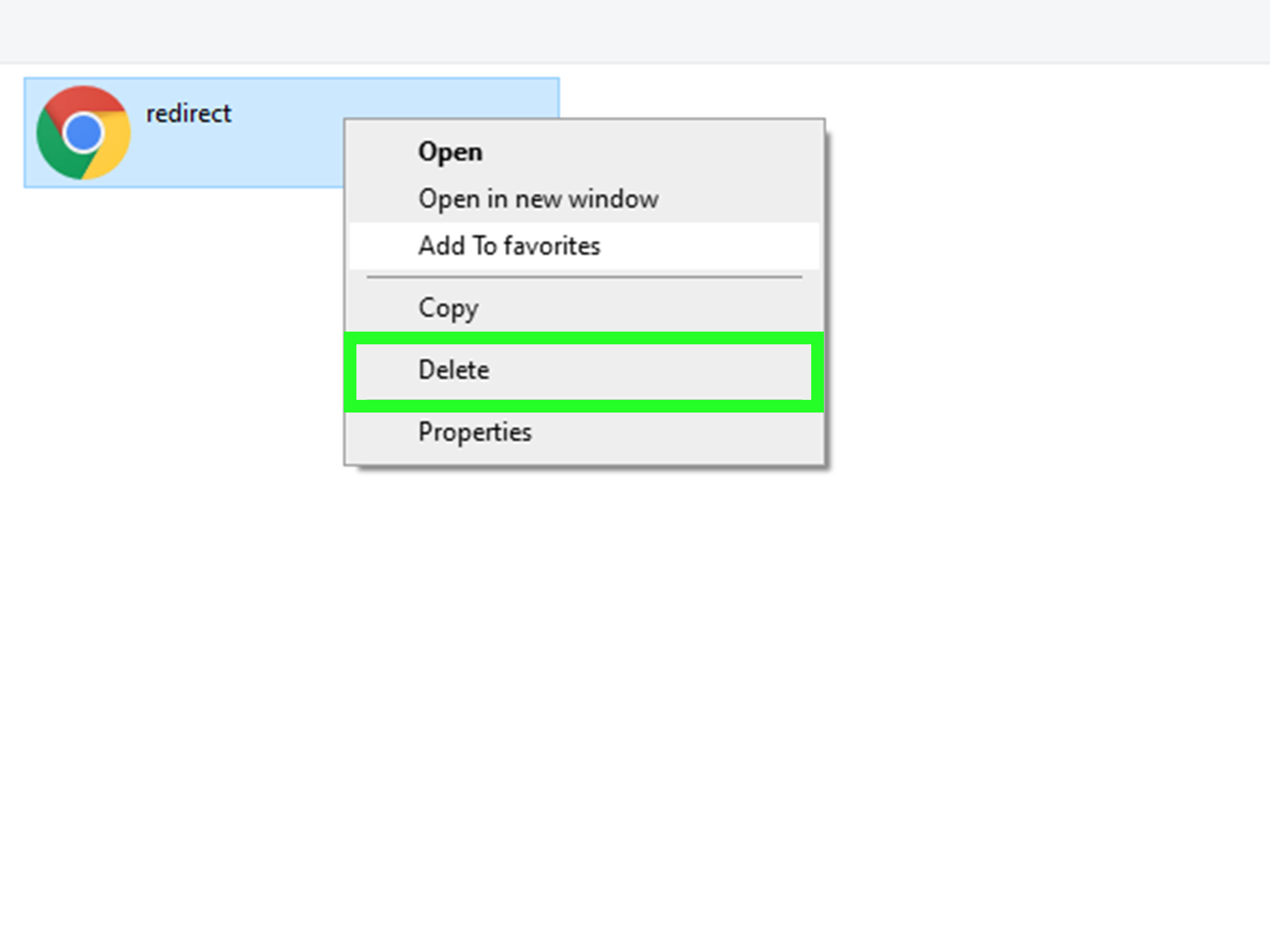
Click the Start menu and search for Internet Explorer. If it appears, open it. On some Windows 10 systems, clicking Internet Explorer may redirect you to Microsoft Edge instead. If that happens, skip to the Microsoft Edge section later in this article.
Step 2: Open the Favorites Center
Once Internet Explorer is open, look for the star icon in the upper-right corner of the window. This opens the Favorites Center. You can also press Ctrl + H on your keyboard to jump directly to the History tab.
The Favorites Center includes three main areas: Favorites, Feeds, and History. Click History to view websites you have visited.
Step 3: Sort Browsing History
Internet Explorer usually lets you organize history by date, site, most visited pages, or order visited today. For example, if you remember visiting a website last Tuesday but not the exact address, sorting by date is the fastest route. If you remember the domain name, sorting by site may be easier.
Click a folder or website entry to expand it. Then click a page title to reopen it. If the page still exists and your internet connection is working, Internet Explorer or Microsoft Edge may load it.
Example: Finding a Page You Visited Last Week
Imagine you visited a product manual page last week but forgot to bookmark it. Open Internet Explorer, press Ctrl + H, choose View by Date, expand last week’s folder, and scan for the manufacturer’s website. This is much faster than trying to remember whether the page was called “support,” “downloads,” “resources,” or “please-click-seven-times-to-find-the-PDF.”
Way 2: Access Internet Explorer History Through Internet Options and Windows Data
If Internet Explorer does not open normally, you may still be able to inspect or manage its history through Windows settings. This approach is useful when you want to delete history, check stored browsing data, or confirm whether Internet Explorer data still exists on the device.
Using Internet Options
Internet Options is a Windows settings panel connected to Internet Explorer’s browsing data. To open it, press the Windows key, type Internet Options, and select it from the results. You can also open Control Panel and search for Internet Options.
In the General tab, look for the Browsing history section. From here, you can delete temporary files, cookies, saved passwords, form data, and history. You can also adjust settings related to stored pages and cache size.
This method is better for managing history than viewing it in a neat list. Think of it as the storage closet, not the display case. You may not get a pretty timeline of every page, but you can still control what Internet Explorer kept.
Checking Temporary Internet Files
Internet Explorer historically stored cached web data and history-related files in Windows user folders. Depending on the Windows version and browser version, data may be associated with folders such as Temporary Internet Files, WebCache, or older index-style storage.
For most everyday users, manually digging through these files is not the best first choice. The filenames can be confusing, the folders may be hidden, and Windows may restrict access while system processes are running. Still, for troubleshooting or digital cleanup, this information can be useful.
How to Show Hidden Files
If you need to inspect browser-related folders, open File Explorer, select View, and enable Hidden items. On Windows 11, you may need to choose View > Show > Hidden items.
Be careful when exploring system folders. Viewing files is usually fine, but deleting unknown files can cause unexpected problems. If your computer starts acting weird after you enthusiastically delete things named “cache,” congratulations: you have discovered why IT departments drink coffee.
When This Method Works Best
Use Internet Options and Windows data locations when:
- You want to clear Internet Explorer browsing history.
- Internet Explorer history is not visible inside the browser.
- You are troubleshooting an old Windows profile.
- You need to check whether browser data may still exist on a shared or legacy computer.
Way 3: Access Internet Explorer History Through Microsoft Edge or History Viewer Tools
Because Internet Explorer is retired on many modern Windows systems, Microsoft Edge is often the browser you will actually interact with. If a site opens in Internet Explorer mode, the activity may be connected to Edge’s browsing experience rather than a traditional Internet Explorer window.
Check Microsoft Edge History
Open Microsoft Edge and press Ctrl + H. This opens the History panel. You can also click the three-dot menu in the upper-right corner and select History.
From there, search for the website name, scan recent browsing activity, or open the full history page. If you used Edge to access a legacy website in Internet Explorer mode, checking Edge history is a smart move.
Clear or Manage Edge Browsing History
To manage browsing data in Edge, go to Settings > Privacy, search, and services. Under Clear browsing data, choose what to clear and select a time range. This matters because deleting history in Edge may not be the same as deleting old Internet Explorer data stored elsewhere on the device.
Use a Browser History Viewer Tool
Some reputable utility tools can read browsing history from multiple browsers, including older Internet Explorer data, Microsoft Edge, Chrome, Firefox, and others. These tools are often used by technicians, administrators, and advanced users who need a clearer table of browser activity.
A history viewer may show details such as visited URL, page title, visit time, visit count, browser name, and user profile. That can be extremely helpful when the built-in browser interface is unavailable or when you need to compare history across several browsers.
However, be selective. Only download utilities from trusted publishers, scan downloads with security software, and avoid tools that ask for unnecessary permissions. A browser history tool should help you read data; it should not behave like a raccoon in your personal files.
Privacy and Permission: A Very Important Reminder
Only access browser history on your own computer or on a device where you have clear permission. Browser history can reveal personal information, including medical searches, financial websites, school portals, work systems, shopping activity, and private interests.
If you are helping someone troubleshoot a computer, ask before opening their history. If you are working on a company device, follow workplace policies. If you are cleaning up a family computer, explain what you are doing before you start clicking around. Good tech help should feel helpful, not like a surprise detective raid.
Common Problems When Accessing Internet Explorer History
Internet Explorer Redirects to Microsoft Edge
On many Windows systems, Internet Explorer no longer opens as a standalone browser. Instead, it redirects users to Microsoft Edge. In that case, check Edge history first. If the website was opened through Edge or Internet Explorer mode, Edge may be the best place to look.
The History Panel Is Empty
If Internet Explorer history is empty, several things may have happened. The history may have been deleted, private browsing may have been used, the browser may be set to delete history on exit, or the computer may use a different Windows profile.
History Does Not Go Back Far Enough
Browsers do not store history forever by default. Old entries may be removed automatically based on settings, storage limits, cleanup tools, or system maintenance. If you need long-term access to important pages, bookmarking or saving documents is more reliable than trusting browser history.
You Cannot Find a Specific Website
Try searching by part of the domain name instead of the full URL. For example, search for “microsoft,” “support,” “irs,” or “manual” rather than the exact page address. Page titles and URLs are not always written the way human memory expects. The internet is very good at hiding useful things behind oddly named pages.
How to Delete Internet Explorer History Safely
Sometimes you are not trying to access Internet Explorer historyyou are trying to remove it. To do that in Internet Explorer, press Ctrl + Shift + Delete. A Delete Browsing History window should appear, allowing you to choose which data types to remove.
You can usually delete browsing history, temporary internet files, cookies, form data, passwords, and tracking-related data. Be cautious with saved passwords. Deleting them may sign you out of websites, which is fine unless you do not remember the password and your password manager has taken the day off.
You can also use Internet Options. Open Internet Options, go to the General tab, and select Delete under Browsing history. Choose the categories you want to remove, then confirm.
Best Practices for Managing Old Browser History
Bookmark Important Pages
Browser history is not a filing cabinet. If a page matters, bookmark it. If a document matters, download it and save it in a clearly named folder. If a login page matters, store it in a password manager or secure notes system.
Use Search Within History
Modern browsers make it easier to search history by keyword. Even if you started with Internet Explorer, Edge may now be the better place to search. Press Ctrl + H and use the search box to narrow results.
Separate Personal and Work Browsing
If you use legacy business websites, keep them organized. Use a dedicated browser profile when possible. This helps separate work history from personal browsing and makes troubleshooting easier later.
Keep Security in Mind
Internet Explorer is no longer recommended for everyday browsing. If a website requires older compatibility, use Microsoft Edge with Internet Explorer mode when appropriate. For normal web use, choose a modern, updated browser.
Real-World Experiences: What Accessing Internet Explorer History Is Actually Like
In real life, accessing Internet Explorer history is rarely as clean as a textbook tutorial. It often starts with someone saying, “I know I saw that page somewhere,” followed by ten minutes of clicking, sighing, and blaming the computer for having a personality. The good news is that most Internet Explorer history searches follow a few familiar patterns.
One common experience happens on older office computers. A business may still rely on a legacy portal that was built years ago for Internet Explorer. The employee remembers opening a specific internal page but cannot find the shortcut. In that case, pressing Ctrl + H inside Internet Exploreror checking Microsoft Edge history if the site now opens in IE modecan quickly reveal the page. The trick is to search by the company domain or a recognizable part of the page title, not the full URL.
Another familiar situation involves family computers. Someone may need to recover a recipe, a government form, a school resource, or a product support page visited months ago. When Internet Explorer still opens, the History tab can feel like a little time machine. Sorting by date helps if the person remembers when they visited the page. Sorting by site helps if they remember the brand or organization. The experience is not glamorous, but it is surprisingly satisfying when the missing page pops back into view.
There is also the cleanup scenario. A user wants to remove old browsing data before donating, recycling, or passing along a computer. In that case, Internet Options is usually more useful than the browser history panel. From the Browsing history section, the user can delete saved website records, temporary internet files, cookies, and other stored data. This is especially important on shared computers because old browser data can reveal more than people expect.
Advanced users sometimes use browser history viewer tools when the built-in interface does not show enough detail. This can be helpful during troubleshooting, especially when comparing activity across Internet Explorer, Edge, Chrome, or Firefox. A table with visit times, URLs, page titles, and browser names is easier to scan than clicking through folders one by one. Still, this approach should be used carefully. Downloading random “history recovery” software from unknown websites is a great way to turn a small problem into a larger one wearing a malware hat.
The biggest lesson from working with Internet Explorer history is that browser history is useful but imperfect. It can be deleted. It can expire. It can live in a different profile. It can be split between Internet Explorer and Microsoft Edge. It may also fail to capture private browsing sessions. That means history is best treated as a helpful clue, not a guaranteed archive.
For everyday users, the most practical habit is simple: when you find an important page, save it properly. Bookmark it, export it, print it to PDF, or copy the link into a document. Browser history is wonderful when it works, but it was never designed to be your long-term memory. It is more like a helpful friend who remembers most things but occasionally forgets why they walked into the kitchen.
In the end, accessing Internet Explorer history is about knowing where to look. Start with the browser’s History panel if Internet Explorer still opens. Move to Internet Options if you need to manage stored data. Check Microsoft Edge history or use a trusted viewer tool if the old browser is no longer available. With those three paths, you have a practical map through one of Windows’ dustier digital hallways.
Conclusion
Accessing Internet Explorer history is still possible, even though Internet Explorer itself has mostly stepped aside for Microsoft Edge. The best method depends on your device. If Internet Explorer still works, use the History tab with Ctrl + H. If you need to manage stored data, open Internet Options. If Internet Explorer redirects to Edge or the old interface is unavailable, check Microsoft Edge history or use a trusted browser history viewer.
The key is to work carefully, respect privacy, and remember that browser history is not permanent storage. For important pages, bookmarks and saved documents are much safer. Internet Explorer may be retired, but with the right steps, its history does not have to be lost in the digital attic.
Note: This article is based on current, real-world browser behavior, Microsoft’s Internet Explorer retirement guidance, Microsoft Edge history settings, Windows Internet Options, and common technician practices for viewing legacy browser data. Always access browsing history only on devices you own or have permission to manage.
SEO Tags