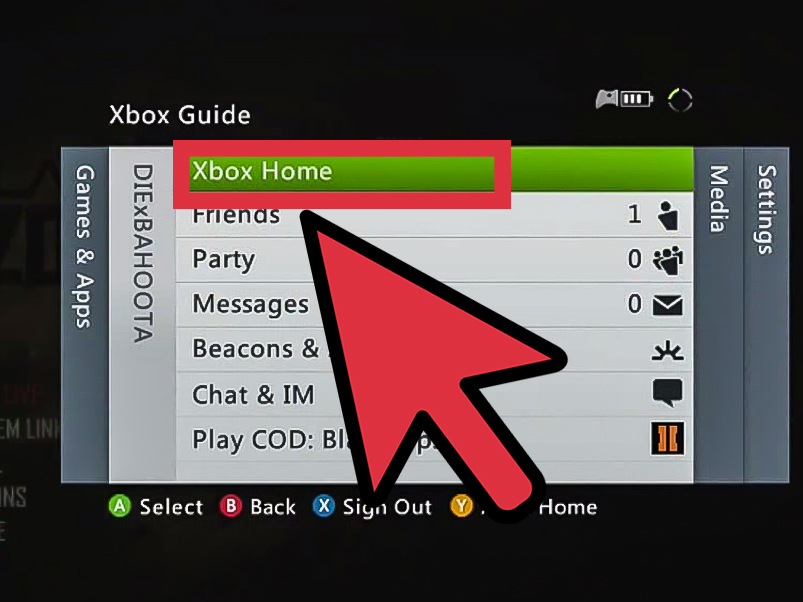

Note: This guide focuses on legal, official, and practical ways to download, reinstall, transfer, and install Xbox 360 games in 2026, especially after the Xbox 360 Store and Xbox 360 Marketplace retirement on July 29, 2024.
The Xbox 360 may be old enough to have a favorite recliner, but it is not useless. In fact, plenty of players still keep one under the TV for classics like Halo 3, Gears of War, Skate 3, Fable II, Left 4 Dead 2, and all those Xbox Live Arcade gems that somehow still feel fresher than half the modern “live service” menu screens asking for your attention, your email, and probably your shoe size.
But downloading and installing a game on the Xbox 360 is not as straightforward as it used to be. The biggest change is simple: the Xbox 360 Store and Xbox 360 Marketplace no longer allow new purchases on the console. That means you cannot browse the old marketplace, impulse-buy a game at 1:00 a.m., and pretend it was a carefully researched investment. However, you can still play physical discs, reinstall many previously purchased digital games, manage your download history, use storage devices, and keep your console updated enough to behave like a civilized machine.
This guide explains 5 ways to download and install a game on the Xbox 360, with clear steps, real-world tips, and a few warnings that can save you from shouting at a 19-year-old console like it owes you money.
Before You Start: What Still Works on Xbox 360?
Before we get into the methods, it helps to understand the current Xbox 360 situation. The old Xbox 360 storefront is retired, so buying new digital Xbox 360 games directly from the Xbox 360 console is no longer supported. Previously purchased Xbox 360 games and downloadable content can still be available for redownload from your account, depending on the title, license, region, and availability. Physical game discs still work as long as the disc, console, and drive are in good condition.
You will also need enough storage. Some Xbox 360 models came with internal hard drives, while others relied on removable hard drives, memory units, or USB flash drives. If your console has only a tiny amount of storage, trying to install a large game will feel like packing a sofa into a backpack. Possible? No. Funny? Only to the sofa.
Basic checklist
- An Xbox 360 console with working storage
- A connected Xbox profile, especially for digital purchases
- A stable internet connection for redownloading games, updates, and account access
- The original disc if you are installing from physical media
- Enough free space on the hard drive or USB storage device
1. Install an Xbox 360 Game from a Physical Disc
The most reliable way to install a game on Xbox 360 in 2026 is still the old-school method: use the physical disc. Yes, discs. Those shiny circles that once ruled entertainment before every device decided it wanted a subscription plan.
Installing a disc-based Xbox 360 game to the hard drive can reduce disc drive noise, improve loading consistency in some games, and help protect the console’s aging optical drive from working overtime. However, installing the disc does not mean you can play without the disc. The Xbox 360 still requires the original disc in the tray as proof that you own the game.
How to install from disc
- Turn on your Xbox 360 and sign in to your profile.
- Insert the Xbox 360 game disc.
- From the Xbox Home screen, highlight the game tile.
- Press the X button or open the game details/options menu.
- Select Install.
- Choose your storage device if prompted.
- Wait for the installation to finish.
- Keep the disc inserted when launching the game.
This method is especially useful for large games that stream a lot of data from the disc. If your disc drive sounds like a tiny lawn mower trapped inside a lunchbox, installing the game may make your gaming session quieter. Not silent, but less like your console is preparing for takeoff.
Best examples for disc installation
Games like Grand Theft Auto V, Forza Motorsport 4, Red Dead Redemption, Mass Effect 2, and The Elder Scrolls V: Skyrim can benefit from having game data installed to the hard drive. Some multi-disc games may have special installation instructions, so always follow the on-screen prompts rather than guessing like a heroic but confused wizard.
2. Redownload a Previously Purchased Xbox 360 Game
If you bought digital Xbox 360 games before the marketplace shutdown, the most important place to check is your Download History. This is where your account keeps track of many previously purchased games, demos, add-ons, avatar items, and other content. It is not as elegant as a modern game library. It is more like a digital attic: useful, nostalgic, and occasionally full of things you forgot you owned.
Redownloading works best when you are signed in with the exact Xbox profile that originally purchased the game. If you bought a game with one gamertag and sign in with another, the Xbox 360 will not magically know your life story. It will simply shrug electronically and hide the content from you.
How to redownload from Download History
- Sign in to the Xbox profile that purchased the game.
- Go to Settings.
- Select Account.
- Open Download History.
- Scroll through the list and find the game.
- Select the game.
- Choose Download Again.
- Pick the storage device if asked.
The biggest annoyance is that Download History can be long, especially if your account has years of demos, DLC, themes, and random gamer pictures from the era when every dashboard looked like a futuristic vending machine. Be patient. The game may be there, but it might be buried under a mountain of old content.
What if the game does not appear?
First, confirm that you are using the right account. Then check your storage space and internet connection. If the game was delisted years ago, it may still redownload if you purchased it, but some content can become unavailable because of licensing, publisher decisions, regional restrictions, or account issues. In other words, digital ownership is powerful, but it is not a magic shield against every licensing goblin hiding in the basement.
3. Download and Install Xbox Live Arcade Games You Already Own
Xbox Live Arcade, usually called XBLA, was one of the Xbox 360’s greatest contributions to gaming. It gave players smaller, creative, downloadable games long before every indie title had a launch trailer, a Discord server, and a “cozy but emotionally devastating” description.
If you previously bought Xbox Live Arcade games, you may still be able to redownload them from your Download History. This includes titles such as Castle Crashers, Geometry Wars, Trials HD, Braid, Limbo, Shadow Complex, and other classics, depending on your purchase history and availability.
How XBLA downloads work
XBLA games are digital-only titles, so there is no disc to insert. Once the game is downloaded and installed to your hard drive or USB storage, it should appear in your game library. If the title launches as a trial version instead of the full game, you may have a license issue. Make sure you are signed in with the purchasing account and connected to Xbox Live.
Steps to find XBLA games
- Sign in with your purchasing profile.
- Go to Settings, then Account.
- Open Download History.
- Look for the XBLA title by name.
- Select Download Again.
- After installation, go to Games or My Games.
- Launch the game while signed in.
One useful tip: if you are rebuilding an old Xbox 360 library, start with your favorite XBLA games first. They are usually smaller than full retail downloads, so you can confirm that your account, storage, and connection are working before committing to a massive download that eats your evening like a hungry digital raccoon.
4. Transfer and Install Games Using Xbox 360 Storage Devices
The Xbox 360 supports storage management through hard drives and USB flash drives. This can help if you are moving content between storage devices on the same console, freeing space, or setting up a replacement console. It is not a loophole for copying games you do not own. Xbox 360 digital games are tied to licenses, profiles, and sometimes console authorization. The files alone are not the whole story.
Think of it like moving a house key. You can carry the key, but it still only opens the house it belongs to. If you copy content without the correct account or license, the console may treat it as unusable or as a trial.
How to use USB storage on Xbox 360
- Plug a compatible USB flash drive into the Xbox 360.
- Go to Settings.
- Select System.
- Choose Storage.
- Select the USB device.
- Configure it for Xbox 360 storage if prompted.
- Move or copy eligible content from one storage device to another.
This method is useful when your main hard drive is full. For example, if you have a 20 GB Xbox 360 hard drive that has been carrying your entire gaming history since the dinosaurs discovered broadband, moving smaller XBLA games or add-ons to USB storage can help make room for larger installs.
Important storage tips
- Use a reliable USB drive from a known brand.
- Avoid removing the USB drive while content is being moved or downloaded.
- Keep your Xbox profile on the console or storage device you actually use.
- Do not expect copied digital games to work for accounts that do not own them.
- Back up saves carefully before deleting anything.
Game saves deserve extra caution. Deleting a game install usually does not delete your save, but careless storage cleanup can still cause heartbreak. Losing a 90-hour save file is not a technical issue. It is a tiny tragedy with a loading screen.
5. Set Up a Replacement Xbox 360 and Reinstall Your Games
If your original Xbox 360 died, was replaced, or finally surrendered after years of loyal service, you can still set up another Xbox 360 and redownload many previously purchased games. This method is especially important for collectors who bought digital games years ago and now want to rebuild their library on a different console.
The key is your Xbox account. Your purchase history follows the account, not your memory of buying the game during a weekend sale in 2011. Sign in with the correct profile, connect to Xbox Live, and check Download History.
Steps for reinstalling on another Xbox 360
- Connect the replacement Xbox 360 to the internet.
- Download or sign in to your Xbox profile.
- Make sure the console has enough storage.
- Go to Settings, then Account.
- Open Download History.
- Select your previously purchased game.
- Choose Download Again.
- Launch the game while signed in to the purchasing account.
If content works only while connected to Xbox Live, you may be dealing with a license issue. Historically, Xbox 360 used console licenses and account licenses. The account license allows the purchasing profile to play the content while signed in. The console license allows other profiles on the same licensed console to access the content. If you changed consoles, some content may behave differently until licensing is sorted out through official Xbox account tools and support options.
What about updates?
Many Xbox 360 games can still download title updates when launched while connected to Xbox Live. These updates can fix bugs, enable compatibility, or support online features where servers still exist. However, multiplayer servers depend on the game publisher. Some games remain playable online; others have had their servers shut down. The Xbox 360 can still be charming, but it cannot resurrect every abandoned server from the great online graveyard.
Common Problems When Downloading or Installing Xbox 360 Games
“There is not enough space”
This one means exactly what it says. Delete unused demos, old videos, duplicate installs, or move content to another storage device. Do not delete save files unless you are absolutely sure you no longer need them.
“The game only launches as a trial”
Sign in with the profile that purchased the game. If you are using a different console, the content license may not be attached to that machine. Check your account and license options through official Xbox support.
“The disc install fails”
Clean the disc gently with a soft cloth, wiping from the center outward. Check for cracks, deep scratches, or disc rot. Also make sure your hard drive is seated properly and has enough space.
“Download History is huge and hard to search”
Unfortunately, this is normal. Download History on Xbox 360 is not exactly a modern masterpiece of user experience. Put on music, scroll patiently, and treat it like digital archaeology.
“Can I download Xbox 360 games from random websites?”
No. Stick to official downloads, owned content, original discs, and legitimate storage transfers. Downloading game files from unofficial websites can expose you to malware, broken files, account risks, and copyright problems. Also, many guides online involve modified consoles, JTAG/RGH setups, or pirated files. That is not what this article is about. This guide is for normal Xbox 360 owners who want their games working without turning their console into a legal and technical science fair project.
Best Practices for Keeping Your Xbox 360 Library Playable
First, keep your account information updated. Your email address, password, and recovery options matter more than ever because your digital library depends on access to the original purchasing account. If you lose that account, your games may become much harder to recover.
Second, keep physical discs clean and stored properly. Disc-based Xbox 360 games are now one of the safest ways to preserve access to many older titles. Store them in cases, away from direct sunlight, heat, dust, and small children who think every shiny object is a pancake.
Third, consider using a larger official or compatible storage solution. Full digital games, DLC packs, and installed disc data can fill a small hard drive quickly. A console with more storage is easier to manage and less likely to force you into the classic “delete three things to install one thing” ritual.
Fourth, download your most important purchased games sooner rather than later. Even when redownloads are supported, availability can change over time because of licensing and publisher decisions. If a game matters to you, do not wait until your future self is standing in front of the console whispering, “Please still be there.”
500-Word Experience Section: Real-World Lessons from Installing Games on Xbox 360
Using an Xbox 360 today feels a little like maintaining a beloved old car. It still runs, it still has personality, and it still makes you smile, but you also have to understand its quirks. Downloading and installing games on the Xbox 360 is not difficult once you know where everything lives, but the console definitely comes from a time when menus were less polished and patience was considered a normal household accessory.
One of the biggest lessons is that physical discs are still wonderfully dependable. If you have the disc, you have a direct path to playing the game. Installing it to the hard drive can make the experience smoother and quieter, but the disc remains the key. For collectors, this is comforting. A shelf of Xbox 360 games is not just decoration; it is a working library. There is something satisfying about picking up a case, reading the back, and installing the game without scrolling through a storefront that no longer exists.
Digital games are more convenient when everything works, but they require more organization. The most common mistake is using the wrong account. Many players had multiple profiles over the years: one serious gamertag, one experimental gamertag, and maybe one deeply embarrassing profile created for a younger sibling or a weekend of chaos. If the game was purchased on a different account, it will not simply appear because you remember owning it. The Xbox 360 respects account history, not human confidence.
Another real-world tip is to plan downloads in batches. Older Xbox 360 downloads can be slow, and the interface is not built for modern multitasking comfort. Start with smaller games first. Download an Xbox Live Arcade title, launch it, confirm it works, and then move on to larger full games. This prevents wasted time and helps identify problems early. If a 200 MB arcade game cannot download properly, a 7 GB game is not going to magically behave better out of politeness.
Storage management is also part of the experience. The Xbox 360 era trained players to think carefully about space. Today, with massive modern drives, it is easy to forget how quickly a small Xbox 360 hard drive fills up. Before downloading anything huge, check your storage. Delete old demos, trailers, and unused installs, but protect your save files like they are family heirlooms. A game can be reinstalled; a lost save from 2010 can haunt a person.
The final lesson is emotional: the Xbox 360 is worth preserving because it represents a special moment in gaming. It was the console of couch co-op, loud disc drives, dashboard updates, achievement hunting, arcade experiments, and late-night multiplayer lobbies. Downloading and installing games on it today is not just a technical task. It is a small act of keeping gaming history alive. And when that old green-ringed machine boots up successfully, it still has the power to make a room feel like 2008 againin the best possible way.
Conclusion
Downloading and installing a game on the Xbox 360 in 2026 requires a slightly different mindset than it did during the console’s golden years. You can no longer treat the Xbox 360 Store like an open shopping mall, because that mall has turned off the lights and locked the doors. But the console is far from useless. You can still install games from physical discs, redownload many previously purchased digital titles, recover Xbox Live Arcade classics, manage games through storage devices, and rebuild your library on a replacement console with the right account.
The smartest approach is simple: use legal methods, protect your Xbox account, keep your discs safe, preserve your saves, and download your most important owned games while you still can. The Xbox 360 may be retro now, but it remains one of the most beloved gaming systems ever made. Treat it well, and it will keep serving up classic adventures, crunchy menu sounds, and just enough nostalgia to make you forgive its ancient download menus.