
Avast Antivirus usually stays in the background doing exactly what security software should do: scanning files, checking websites, watching suspicious behavior, and occasionally announcing itself when you are trying to concentrate. Most of the time, leaving it alone is the smartest option. Sometimes, however, Avast may interfere with a trusted application, block a legitimate website, interrupt a software installation, or complicate troubleshooting.
In those situations, temporarily disabling Avast can help you determine whether its real-time protection is causing the problem. The important word is temporarily. Turning off antivirus protection is a diagnostic step, not a long-term performance trick or a lifestyle choice for your computer.
This guide explains how to disable Avast Antivirus in 12 clear steps, how to turn off only one protection shield, what to do on a Mac, and how to restore protection when testing is complete.
Before You Turn Off Avast Antivirus
Disabling Avast removes one or more layers that normally inspect downloaded files, programs, email traffic, and web activity. While protection is off, avoid downloading unknown software, opening unexpected attachments, visiting unfamiliar websites, entering payment information, or plugging in mystery USB drives discovered in a drawer labeled “probably fine.”
Close unnecessary programs and save your work before beginning. If you are troubleshooting an installer, download it from the developer’s official website before disabling protection. You should also know exactly what you plan to test and how long the test should take.
Temporary disabling, exceptions, and uninstalling are different
Temporarily disabling Avast pauses protection for a limited period. Adding an exception tells Avast not to scan a specific trusted file, folder, application, or website. Uninstalling removes the antivirus program from the computer. For most compatibility tests, temporary disabling is the least disruptive place to start.
How to Disable Avast Antivirus in 12 Steps
Step 1: Decide Why You Need to Disable Avast
Start by identifying the exact problem. Is Avast blocking a program installation? Is a trusted website failing to load? Is a game crashing only when real-time protection is active? A specific question produces a useful test. “My computer feels weird” is understandable, but it is not exactly a laboratory-grade troubleshooting plan.
Choose one action to repeat after Avast is disabled. For example, reopen the blocked website, launch the affected application, or run the installer again. Do not change several unrelated settings at the same time, because you will not know which change solved the problem.
Step 2: Save Your Work and Close Sensitive Applications
Save open documents, pause financial transactions, and close email attachments or downloads that you do not need. If the computer contains important business data, consider disconnecting external backup drives during the test. This reduces the number of files exposed while real-time scanning is paused.
You do not always need to disconnect from the internet. For a test involving a local application, however, temporarily going offline can reduce risk. For a website or online service test, remain connected but limit your browsing to the trusted destination you are investigating.
Step 3: Find the Avast Icon in the Windows Notification Area
Look at the notification area on the right side of the Windows taskbar, near the clock. The Avast icon normally appears as an orange symbol. If it is hidden, click the small upward-pointing arrow to display additional background application icons.
If the icon is missing entirely, open the Start menu, search for Avast, and launch Avast Free Antivirus, Avast Premium Security, or Avast One. Wait a few seconds for the application and its background services to finish loading.
Step 4: Right-Click the Avast Icon
Right-click the Avast icon to open its context menu. On a touchscreen device, a long press may produce the same result. Look for an option labeled Manage Shields. Older versions may use wording such as Avast shields control, but the purpose is the same.
Do not confuse shield controls with silent mode or Do Not Disturb Mode. Those settings suppress notifications but generally leave malware protection running. They are useful when Avast pop-ups interrupt a presentation or game, but they do not test whether a protection component is blocking software.
Step 5: Select “Manage Shields”
Move the pointer over or click Manage Shields. Avast should display one or more choices for how long protection will remain disabled. The exact labels can vary by Avast product and software version.
Choose the shortest period that gives you enough time to perform the test. A brief installation or website check may require only a few minutes. Selecting an option that keeps protection disabled until the next restart can be useful when troubleshooting software that requires a reboot, but remember to confirm the antivirus status afterward.
Step 6: Choose a Temporary Duration
Select the appropriate time window. Avoid an indefinite option unless you have a specific reason and a separate security plan. An automatically expiring pause is safer because Avast can restore its shields even if you become distracted, leave the computer, or completely forget why you opened the menu in the first place.
If this is a shared, school, or workplace computer, security controls may be managed by an administrator. Avast may reject the change, request administrative credentials, or automatically restore protection according to organizational policy. Do not attempt to bypass those controls; contact the person responsible for the device.
Step 7: Confirm the Security Prompt
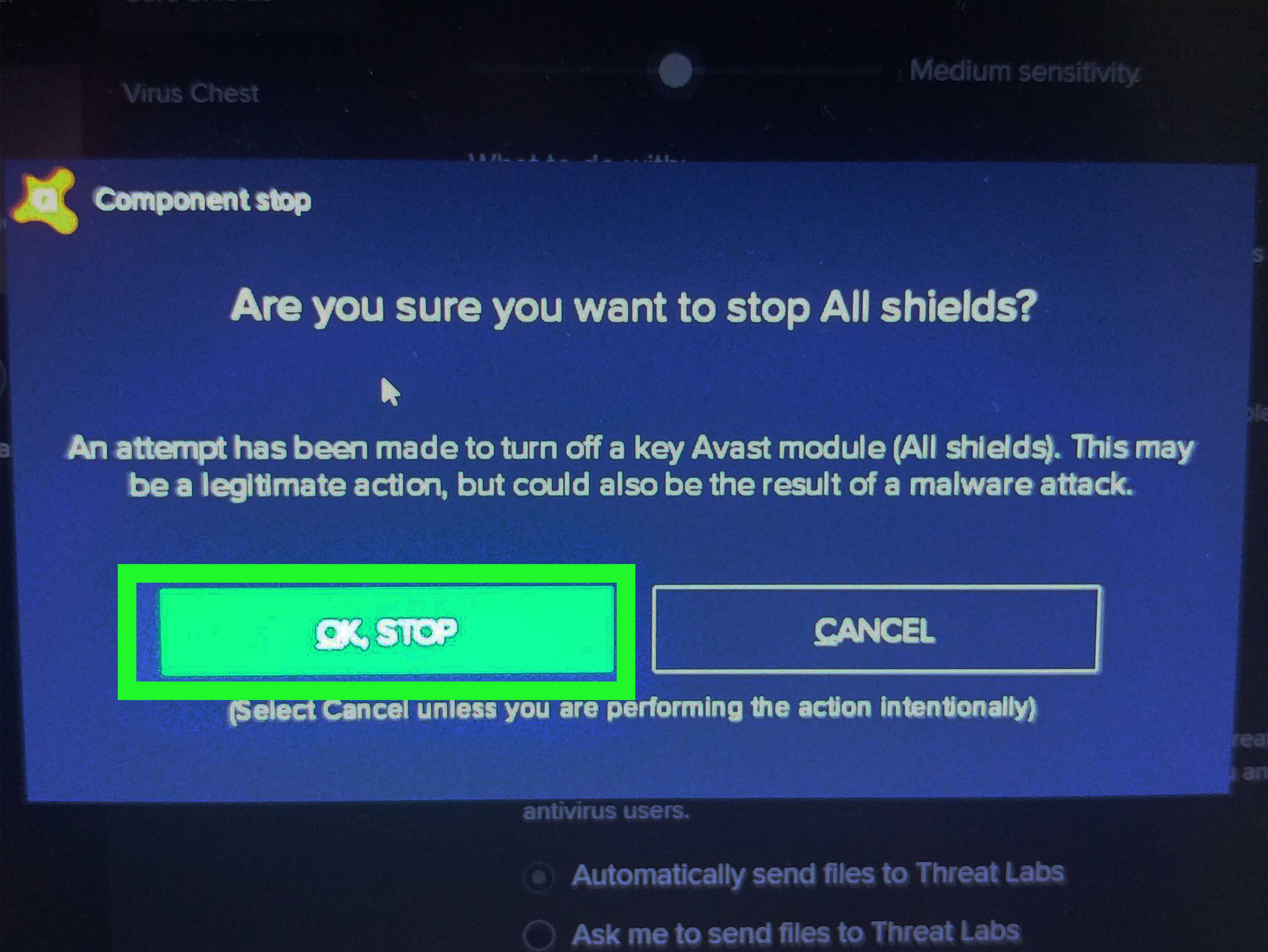
Avast will normally ask you to confirm that you intend to stop protection. Review the warning and select the confirmation button, which may appear as OK, Stop or similar wording. Windows may also display a User Account Control prompt if administrative permission is required.
Only approve the request when you initiated it yourself. An unexpected prompt asking to disable antivirus software can be a warning sign, especially if it appears after opening an unknown attachment or running an unfamiliar program.
Step 8: Verify That Avast Is Temporarily Disabled
Open the main Avast dashboard and check the status message. It should indicate that protection is off, paused, or reduced. The tray icon may also display a warning symbol. Confirming the status matters because closing the application window does not disable Avast; it simply closes the visible dashboard while background protection continues running.
You can also open the Windows Security app and review Virus & threat protection or Security providers. Do not assume Microsoft Defender Antivirus immediately becomes active merely because Avast shields are paused. Windows handles registered security providers automatically, and the displayed status may depend on the Avast product, the type of pause, and system configuration.
Step 9: Perform Only the Intended Test
Repeat the single action you identified in Step 1. Launch the application, run the trusted installer, or load the website that previously failed. If the problem disappears while Avast is disabled, a shield, firewall rule, or detection setting may be involved.
If the problem continues, Avast probably was not the primary cause. Re-enable protection and investigate other possibilities, such as damaged application files, outdated drivers, incorrect permissions, network filtering, browser extensions, or a corrupted installation. Leaving antivirus disabled will not persuade an unrelated bug to become more cooperative.
Step 10: Re-Enable Avast Immediately
When testing is finished, right-click the Avast tray icon again, open Manage Shields, and choose the option that turns all shields back on. You can also open the main Avast dashboard and use its protection status controls.
Wait until Avast reports that the device is protected. If the shields do not restart, reboot Windows and check again. A restart can reload security services and complete pending program updates. Do not begin ordinary browsing or downloading until you have confirmed that protection is active.
Step 11: Disable Only the Problematic Shield When Necessary
If disabling all protection solved the problem, narrow the test by turning off one component at a time. Open Avast and navigate to the protection or Core Shields settings. Depending on the product version, available components may include File Shield, Behavior Shield, Mail Shield, and Web Guard, previously called Web Shield.
For a browser problem, test Web Guard first. For a local executable or installer, File Shield or Behavior Shield may be more relevant. For an issue involving desktop email software, Mail Shield may be involved. Re-enable each component before testing another so that you can identify the actual source of the conflict.
Step 12: Replace the Temporary Fix With a Safer Solution
Once you identify the cause, avoid repeatedly disabling the entire antivirus suite. For a verified false positive, add a narrowly defined exception for the trusted file, folder, application, or website. You can generally find exception controls under Menu > Settings > General > Exceptions.
Use the smallest possible exception. Excluding one signed application is safer than excluding an entire downloads folder. If another antivirus program needs to perform real-time protection while Avast remains installed, Avast’s Passive Mode may help prevent two security products from competing for the same job. Running multiple real-time antivirus engines simultaneously can cause conflicts, slowdowns, and unreliable detection.
How to Turn Off Avast on a Mac
The Windows tray-icon method does not apply to macOS. To disable a shield on a Mac, open Avast Security or Avast Premium Security and select the Core Shields area. Locate the shield you need to test and click its green switch so that it changes to the off position.
macOS may request the password used to sign in to the Mac. Enter it to authorize the change. Current Avast products for Mac may include File Shield and Web Guard, along with other protection components determined by the product edition.
After testing, return to Core Shields and turn the disabled component back on. If Avast cannot reactivate a shield, check macOS System Settings > Privacy & Security and relevant extension or login-item permissions. Security software depends on system permissions to inspect files and network activity.
Do not attempt to uninstall Avast by simply dragging its icon to the Trash. Avast provides an uninstall command within the application menu because background services and security extensions may otherwise remain installed.
When an Avast Exception Is Better Than Disabling Protection
An exception is usually the better long-term answer when Avast repeatedly blocks something you have independently verified as safe. Common examples include an internally developed business application, a trusted local development server, a specialized device utility, or a legitimate website incorrectly classified by a web filter.
Before creating an exception, confirm the file’s source, publisher, digital signature, and expected behavior. Scan it with updated security tools and obtain a fresh copy from the official developer when possible. A file is not trustworthy merely because someone in an online comment wrote, “Bro, it works.”
To manage exceptions in Avast for Windows, open the application and go to Menu > Settings > General > Exceptions. Add only the exact item required. Remove the exception when it is no longer necessary, especially after the application has been updated or the original compatibility problem has been corrected.
What to Do If Avast Will Not Turn Back On
Restart the computer
A restart reloads Avast services and can complete updates that were waiting for Windows to reboot. After signing in, allow a minute or two for background security components to initialize before checking the protection status.
Update Avast
Open Avast and check for program and virus-definition updates. An outdated component may fail after a Windows update or application upgrade. Installing the latest supported version can resolve compatibility problems without changing your protection settings.
Repair the installation
Windows users can open Installed apps or Apps & features, select the Avast product, and enter the Avast setup window. Choose Repair rather than Uninstall when that option is available. Restart the computer if prompted.
Check for another antivirus program
Two real-time antivirus products can compete for system resources and security registration. Open Windows Security and review the listed security providers. Decide which product should provide active protection, then uninstall or place the other product in a supported passive mode.
Reinstall only when necessary
If repair fails, uninstalling and reinstalling Avast may be appropriate. Standard removal can be performed through Windows settings. Avast also provides a dedicated removal utility for installations that cannot be removed normally. After uninstalling a third-party antivirus product, confirm that Microsoft Defender Antivirus or another trusted solution has become active before resuming normal use.
Practical Experiences From Disabling Avast Antivirus
Temporarily turning off antivirus software sounds like a dramatic technical maneuver, but the most useful experiences are usually ordinary troubleshooting stories. The lesson is rarely “antivirus is bad.” More often, the lesson is that security software makes decisions with limited context, while users occasionally install programs with all the organizational discipline of a raccoon investigating an unlocked cooler.
Experience 1: The installer that appeared frozen
A common situation begins with a trusted application installer that stops at the same percentage every time. The user restarts Windows, downloads the installer again, and watches the progress bar freeze in exactly the same place. Temporarily disabling Avast allows the installation to finish, proving that a real-time shield was inspecting or blocking one of the extracted files.
The wrong response is to leave Avast off forever. The better approach is to reactivate protection, confirm that the installer came from the official publisher, check whether Avast recorded a detection, and report a suspected false positive. When necessary, a temporary exception can be created for the verified installer and removed immediately after installation.
Experience 2: A development server that would not open
Web developers often run local servers using addresses such as localhost or private network ports. A security product may inspect that traffic, especially when the development tool uses an unusual certificate or opens a port dynamically. Disabling Web Guard or a related network component for a brief test can reveal whether Avast is involved.
The useful detail is that disabling File Shield would not necessarily affect a browser connection. Testing one shield at a time saves effort and keeps most protection running. Once the relevant component is identified, the developer can configure a narrow application or website exception instead of creating a security-free zone around the entire computer.
Experience 3: The game that stopped crashing
Games install launchers, anti-cheat components, overlays, update services, and files that change frequently. Occasionally, a protection component may inspect one of those processes at an inconvenient moment. A game that crashes during startup might launch successfully while Avast is temporarily paused.
That result is a clue, not a final diagnosis. The next step is to re-enable Avast and test individual shields, check the game publisher’s support page, update both products, and verify game files. Adding the entire game drive as an exception may seem convenient, but it also gives every unrelated file on that drive a free security vacation.
Experience 4: Avast was blamed, but the router was guilty
Not every successful-looking test proves causation. Imagine that a website fails, Avast is disabled, and the site suddenly loads. It is tempting to declare the case solved. However, the website may have recovered during the test, the browser cache may have refreshed, or the router may have completed a temporary reconnection.
A reliable test should be repeatable. Re-enable Avast and try again. Disable only Web Guard and repeat the request in a private browser window. Test another browser or network. If the problem does not consistently follow the Avast setting, investigate DNS, browser extensions, the router, or the website itself.
Experience 5: Protection was never actually disabled
Another surprisingly common experience involves closing the Avast window and assuming the antivirus is off. Security programs are designed to continue working in the background after their visible interfaces are closed. This is a feature, not Avast being clingy.
The protection status must be changed through Manage Shields or the relevant component controls. Users should then confirm the state in Avast itself. This simple verification prevents hours of troubleshooting based on a test that never occurred.
Experience 6: The forgotten indefinite pause
The riskiest experience is also the easiest to prevent: someone disables Avast without a time limit, solves the immediate problem, and forgets to turn it back on. The computer continues operating normally, so there is no obvious reminder that real-time scanning is missing.
Choosing an automatically expiring duration avoids this mistake. Setting a phone reminder or restarting the computer immediately after testing also helps. Most importantly, check the security status before returning to email, downloads, online banking, or routine browsing.
Across these examples, the best troubleshooting pattern remains consistent: define one problem, pause the smallest possible protection component, repeat one controlled test, restore protection, and replace the temporary workaround with a precise configuration change. That approach produces better answers without turning the computer into an all-you-can-enter malware buffet.
Conclusion
Learning how to disable Avast Antivirus is useful when a trusted program, installer, or website is not working correctly. On Windows, the fastest method is to right-click the Avast tray icon, select Manage Shields, choose a brief duration, and confirm the warning. On a Mac, individual shields can be managed through the Core Shields area in the Avast application.
Keep the pause as short as possible, perform only the intended test, and verify that protection is restored afterward. If Avast is confirmed as the cause, use a carefully limited exception, an allowed-app rule, a product update, Passive Mode, or an installation repair instead of repeatedly shutting down the entire security suite.