
The internet is wonderfully useful, but its vocabulary can sound as though a committee of robots named everything during a very long meeting. URLs, DNS, bandwidth, cookies, cachenone of these words is difficult once someone explains them without using six more technical words.
This beginner-friendly internet glossary covers 20 essential terms in plain American English. Each definition includes a practical example, so you can understand what is happening when you open a browser, visit a website, connect to Wi-Fi, download a file, or encounter a suspicious message. You do not need to become a network engineer. You only need enough basic internet vocabulary to use the web confidently, solve simple problems, and avoid clicking the digital equivalent of a van marked “Free Puppies and Passwords.”
Why Basic Internet Vocabulary Matters
Knowing common internet terms makes everyday technology less mysterious. It helps you follow setup instructions, compare internet plans, explain a problem to technical support, recognize online scams, and understand privacy notices. More importantly, the words connect. A browser uses a URL, the URL contains a domain name, DNS translates that domain into an IP address, and your router sends the request through your internet service provider. Once that chain makes sense, the internet stops feeling like magic and starts looking like an organized delivery system with occasional pop-up ads.
Core Internet and Web Concepts
1. Internet
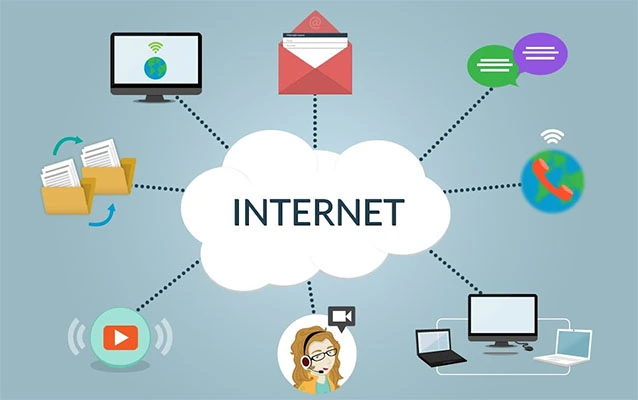
The internet is a worldwide network of connected computer networks. Homes, businesses, universities, government agencies, mobile carriers, and data centers all operate smaller networks that exchange information using shared technical rules. Think of the internet as the global road system. It provides the routes that allow data to travel, but it is not the same thing as any single website, app, or online service.
2. World Wide Web
The World Wide Web, usually called the web, is a system of interconnected webpages that you access through the internet. The web is only one service that uses the internet; email, online gaming, messaging, and file transfers also use it. In the road analogy, the internet is the road network, while the web is one enormous collection of destinations connected by clickable signs.
3. Web Browser
A web browser is software that retrieves and displays web content. Chrome, Safari, Firefox, and Edge are familiar examples. The browser reads website code, loads text and images, plays media, and gives you controls such as tabs, bookmarks, history, and private browsing. A browser is not a search engine, although browsers often place a search box inside the address bar, which is why the two are frequently mistaken for digital twins.
4. Search Engine
A search engine is an online service that discovers, organizes, and ranks information from the web. Google, Bing, and DuckDuckGo are examples. You enter keywords or a question, and the search engine returns relevant results. A browser is the vehicle you use to travel online; a search engine is the directory that helps you decide where to go.
5. Website
A website is a collection of related webpages usually associated with one domain name and maintained by a person or organization. A news site may contain thousands of articles, category pages, author profiles, and account pages. All of those pages belong to the same website, much as rooms belong to the same building.
6. Webpage
A webpage is one individual document on a website. The homepage, contact page, product page, and article you are reading are separate webpages. Beginners often use “website” and “webpage” interchangeably, but the distinction helps when troubleshooting. Saying “one webpage will not load” is different from saying “the entire website is unavailable.”
Foundational definitions synthesized from MDN, the Internet Society, and NIST.
Internet Addresses and Connections
7. URL
A URL, or Uniform Resource Locator, is the full address of a resource on the internet. In https://example.com/guides/wifi, the URL includes the protocol, domain name, and path to a specific page. Images, videos, documents, and webpages can each have URLs. Copying the exact URL is often the fastest way to share precisely what you are viewing.
8. Domain Name
A domain name is the human-readable name used to reach a website, such as example.com. It is easier to remember than a long numerical address. A domain may also have subdomains, such as support.example.com. Buying a domain does not automatically create a website; it reserves the name, rather like purchasing a street address before building the house.
9. IP Address
An IP address is a numerical identifier used to locate a device or service on a network. Internet traffic needs these addresses so data reaches the correct destination. Your home connection may receive a public IP address from your internet provider, while devices inside your home usually receive private local addresses from the router. You rarely need to memorize either kind, thankfully.
10. DNS
DNS stands for Domain Name System. It translates domain names into IP addresses that computers can use. When you type a website name, a DNS resolver helps find the corresponding destination. DNS is often compared with a phone contacts list: you choose a familiar name, and the system finds the underlying number. When DNS has a problem, the internet may be working while websites still appear unreachable.
11. ISP
An ISP, or internet service provider, is the company that connects your home, phone, or business to the internet. It may provide service through fiber, cable, DSL, fixed wireless, satellite, or a cellular network. When comparing ISPs, look beyond the advertised monthly price. Download speed, upload speed, data limits, equipment fees, contract terms, and reliability can matter just as much.
Addressing and access explanations synthesized from ICANN, Cloudflare, the FCC, MDN, and the Internet Society.
Home Network Equipment and Speed
12. Modem
A modem connects your location to the network operated by your ISP. Its exact job depends on the type of service, but it generally converts or manages signals so internet data can enter and leave your home network. Some providers supply one box that combines a modem and router. This is convenient until support asks which device is misbehaving and both devices are wearing the same plastic costume.
13. Router
A router directs data between networks and shares one internet connection among multiple devices. It decides where incoming and outgoing information should go, whether the destination is your laptop, television, phone, printer, or game console. Many home routers also provide Wi-Fi and basic firewall features. Restarting the router can solve temporary problems because it forces connections and network assignments to begin again.
14. Wi-Fi
Wi-Fi is a wireless networking technology that allows nearby devices to connect without Ethernet cables. Wi-Fi is not the internet itself. You can have a strong Wi-Fi signal while the ISP connection is down, just as you can have an excellent driveway leading to a closed highway. Signal strength depends on distance, walls, interference, router placement, and the wireless capabilities of your devices.
15. Bandwidth
Bandwidth describes how much data a network connection can carry during a given period, commonly measured in megabits per second, or Mbps. More bandwidth lets a household handle more simultaneous activity, such as video calls, streaming, gaming, and large downloads. It is similar to the width of a pipe: a wider pipe can move more water, although congestion and other bottlenecks can still reduce actual performance.
Equipment and performance definitions synthesized from Cisco, the FCC, NIST, Xfinity, and IBM.
Data, Browsing, Storage, and Online Safety
16. Download and Upload
A download moves data from an online service to your device, while an upload moves data from your device to an online destination. Watching a video mainly uses download capacity. Sending photos to cloud storage, attaching a large file, or broadcasting a live stream uses upload capacity. Many home plans provide faster downloads than uploads because households traditionally receive more data than they send.
17. HTTP and HTTPS
HTTP is a set of rules browsers and web servers use to exchange requests and responses. HTTPS is HTTP protected with encryption and authentication technology, helping prevent outsiders from reading or altering data while it travels. The “S” is important, especially on login and payment pages. However, HTTPS does not prove that a business is honest; scammers can also secure the connection to a fraudulent site.
18. Cookies and Cache
Cookies are small pieces of information a website stores through your browser, often to remember a login session, language choice, shopping cart, or preference. A cache temporarily stores copies of website files so pages can load faster on later visits. Clearing cookies may sign you out; clearing the cache may fix an outdated or broken page. Neither action requires milk, despite decades of misleading snack-related terminology.
19. Cloud Computing
Cloud computing means using computing resources delivered over the internet instead of relying only on your own device. Cloud storage, webmail, online office software, photo backups, and streaming platforms are familiar examples. Your files still live on physical servers somewhere; “the cloud” is not a mist hovering above Seattle. The practical benefit is that services and data can often be reached from multiple connected devices.
20. Phishing
Phishing is an attempt to trick you into revealing information, sending money, opening a malicious attachment, or visiting a fake website. Phishing messages often imitate banks, delivery companies, government agencies, employers, or people you know. Warning signs include unexpected urgency, unusual sender addresses, requests for passwords, and links that do not match the claimed organization. When uncertain, open the official app or type the known website address yourself.
Web protocol, storage, and safety explanations synthesized from MDN, NIST, AWS, the FTC, CISA, Cloudflare, and IBM.
How These 20 Internet Terms Work Together
Suppose you type a URL into your web browser. The domain name inside that URL is translated by DNS into an IP address. Your device sends the request over Wi-Fi to the router, through the modem, and onward through your ISP. The web server responds using HTTP or HTTPS, and the browser displays the requested webpage. Cookies may remember your session, while cached files help the page load faster next time. If you upload a photo, save it to a cloud service, or click a search result, the same basic systems continue working behind the scenes.
That explanation is the useful secret of internet literacy: the terms are not isolated trivia. They describe different parts of one connected process.
A Beginner’s Real-World Experience: From Confusion to Confidence
The following experience is a composite of situations many beginners encounter. Imagine a new internet user named Maria setting up a laptop at home. The installer says, “Your modem is online, the router is broadcasting Wi-Fi, and the ISP connection looks good.” Maria hears three boxes of jargon and quietly wonders whether “broadcasting” means her router has started a podcast.
At first, she calls everything “the internet.” Chrome is the internet. Google is the internet. The Wi-Fi symbol is the internet. Her email inbox is also, somehow, the internet. Learning the basic distinctions immediately makes troubleshooting easier. Chrome is her browser. Google is a search engine she visits through that browser. Wi-Fi connects the laptop to her router, while the ISP carries traffic beyond her home.
Her first practical lesson arrives when a webpage refuses to load. The Wi-Fi icon shows a strong signal, so she assumes the website must be broken. She tries another site, which also fails. Because she now knows Wi-Fi and internet access are not identical, she checks the modem and discovers its connection light is blinking. She restarts the equipment, waits for it to reconnect, and avoids spending an hour reinstalling the browsera classic beginner solution to the wrong problem.
Next, Maria receives an email claiming that her streaming account will be closed within 30 minutes. The message includes a large red button labeled “VERIFY NOW.” Previously, the dramatic countdown might have worked. This time she recognizes a possible phishing attempt. Instead of clicking, she opens the official app directly. Her account is fine. The message was designed to create panic before common sense could put on its shoes.
She also learns why clearing browser data produces different results. When a news page keeps showing an old version, clearing the cache forces the browser to fetch newer files. When she clears cookies, several websites forget her login sessions. That experience turns two abstract definitions into something memorable: cache is mostly about reusable website files, while cookies often preserve site-specific information and state.
Bandwidth becomes real during a family video call. The picture freezes whenever someone else streams a movie and another person uploads a large folder to cloud storage. Maria had assumed that “fast internet” meant every activity would always be fast. She now understands that devices share available capacity, uploads can affect interactive tasks, and the advertised maximum speed is not a personal promise from the universe.
After a few weeks, Maria does not know every technical detail, nor does she need to. She can describe problems accurately, inspect a URL before opening it, tell a browser from a search engine, and recognize the basic path data takes through her home. That is the real goal of learning internet terms for beginners: not memorizing a dictionary, but gaining enough context to make safer and smarter decisions.
Conclusion
Internet vocabulary becomes much easier when each term is connected to an everyday action. Browsers display webpages, search engines help locate them, URLs identify resources, DNS translates names, routers direct traffic, and HTTPS helps protect data in transit. Cookies, cache, cloud services, bandwidth, downloads, uploads, and phishing all describe experiences you already have online.
Learn these 20 internet terms gradually and use them when a real situation appears. The next time technical support asks whether the problem affects the router, browser, Wi-Fi connection, or one specific webpage, you will be readyand far less tempted to solve everything by aggressively clicking “Refresh.”
Note: The experience section is a realistic composite created to illustrate common beginner situations. Product interfaces, network equipment, and service labels may vary by provider and device.