
If you have ever downloaded a video, edited captions, uploaded a course lesson, or poked around inside a web player and discovered a mysterious file ending in .vtt, congratulations: you have met the quiet little workhorse of online captions. A VTT file is not a video. It is not audio. It is not a secret government document, although the name does sound like something an agent might whisper into a wristwatch. It is a plain-text file used to display timed text with media, especially subtitles, closed captions, chapters, descriptions, and other text tracks for web video.
The formal name is WebVTT, short for Web Video Text Tracks. In normal human language, it means: “Show this line of text at this exact time while the video or audio is playing.” Simple idea, big impact. VTT files help viewers understand dialogue, follow along in noisy places, watch videos without sound, translate content, scan educational material, and make online media more accessible.
This guide explains what a VTT file is, how it works, how to open one, how to use it on a website, how it compares with SRT, and what to do when your captions refuse to appear like a shy raccoon at a backyard party.
What Is a VTT File?
A VTT file is a plain-text file that stores timed text for audio or video. The file usually uses the .vtt extension and follows the WebVTT format. It tells a media player when each caption should appear, when it should disappear, and what text should be displayed.
For example, a VTT file might contain a caption that appears from 3 seconds to 6 seconds:
The first line, WEBVTT, is the required header. After that, the file contains cues. A cue is one block of timed text. Each cue generally includes a start time, an end time, and the caption text. That is the heart of the format.
Because VTT files are plain text, they are lightweight, easy to edit, and friendly to web platforms. You can open them in basic text editors, captioning tools, video platforms, code editors, and many media players.
What Are VTT Files Used For?
VTT files are most commonly used for subtitles and closed captions, but they can do more than display dialogue. WebVTT can also support descriptions, chapters, metadata tracks, speaker labels, positioning, and basic styling depending on the player and platform.
1. Subtitles
Subtitles usually translate or transcribe spoken dialogue. They are often used when viewers can hear the audio but need text in the same or another language. For example, an English video may include Spanish subtitles saved as video-es.vtt.
2. Closed Captions
Closed captions include dialogue plus important non-speech audio, such as [doorbell rings], [music playing], or [audience laughs]. Captions are especially important for viewers who are Deaf or hard of hearing, but they also help anyone watching in a loud café, a quiet library, or during a family meeting where turning up the volume would be a bold career move.
3. Chapters
Some players use VTT files to create clickable chapters. Instead of showing dialogue, the cues become navigation points such as “Introduction,” “Setup,” “Demo,” and “Final Tips.” This is useful for long tutorials, webinars, lectures, and product walkthroughs.
4. Descriptions and Metadata
WebVTT can also store descriptions or metadata used by web applications. Developers may use metadata tracks for timed events, search indexing, interactive transcripts, or custom video experiences.
What Does a VTT File Look Like?
A basic VTT file is clean and readable. Here is a slightly more complete example:
Each caption block needs a timestamp line. The timestamp uses hours, minutes, seconds, and milliseconds. The format generally looks like this:
That means the cue starts at 1 minute, 12.5 seconds and ends at 1 minute, 15 seconds. If the timing is wrong, captions may show too early, too late, or disappear before your viewer finishes reading. Caption timing is the difference between “helpful” and “why is everyone laughing three seconds before the joke?”
How to Open a VTT File
Opening a VTT file is easy because it is plain text. The better question is: do you want to read it, edit it, or play it with a video?
Open a VTT File in a Text Editor
To view or edit the contents, open the file with any text editor:
- Windows: Notepad, Notepad++, Visual Studio Code
- Mac: TextEdit, BBEdit, Visual Studio Code
- Linux: Gedit, Kate, Vim, Nano, Visual Studio Code
- Browser: Drag the file into a browser tab to view the text
If your computer asks which app to use, choose a text editor. A VTT file is not meant to “play” by itself. It works alongside a video or audio file.
Open a VTT File with a Video Player
Many media players can load external subtitle files. In a player such as VLC, you typically open the video first, then use the subtitle menu to add the VTT file. For best results, keep the video and VTT file in the same folder and give them matching names:
This naming trick helps some players detect captions automatically. If it does not work, add the subtitle file manually through the player’s subtitle options.
Open a VTT File in a Caption Editor
If you need to fix timing, clean up text, or convert formats, use a subtitle or caption editor. Dedicated caption tools make it easier to preview the video and adjust each cue. This is much better than guessing timestamps manually and hoping your captions do not arrive fashionably late.
How to Use a VTT File on a Website
One of the most common uses for VTT files is adding captions to HTML5 video. The file is connected to a video using the HTML <track> element.
In this example, the video file is lesson.mp4, and the caption file is lesson-captions.vtt. The kind attribute tells the browser what type of text track it is. Common values include subtitles, captions, chapters, descriptions, and metadata.
The srclang attribute identifies the language, and label gives viewers a readable option in the caption menu. The default attribute tells the browser to enable that track by default when appropriate.
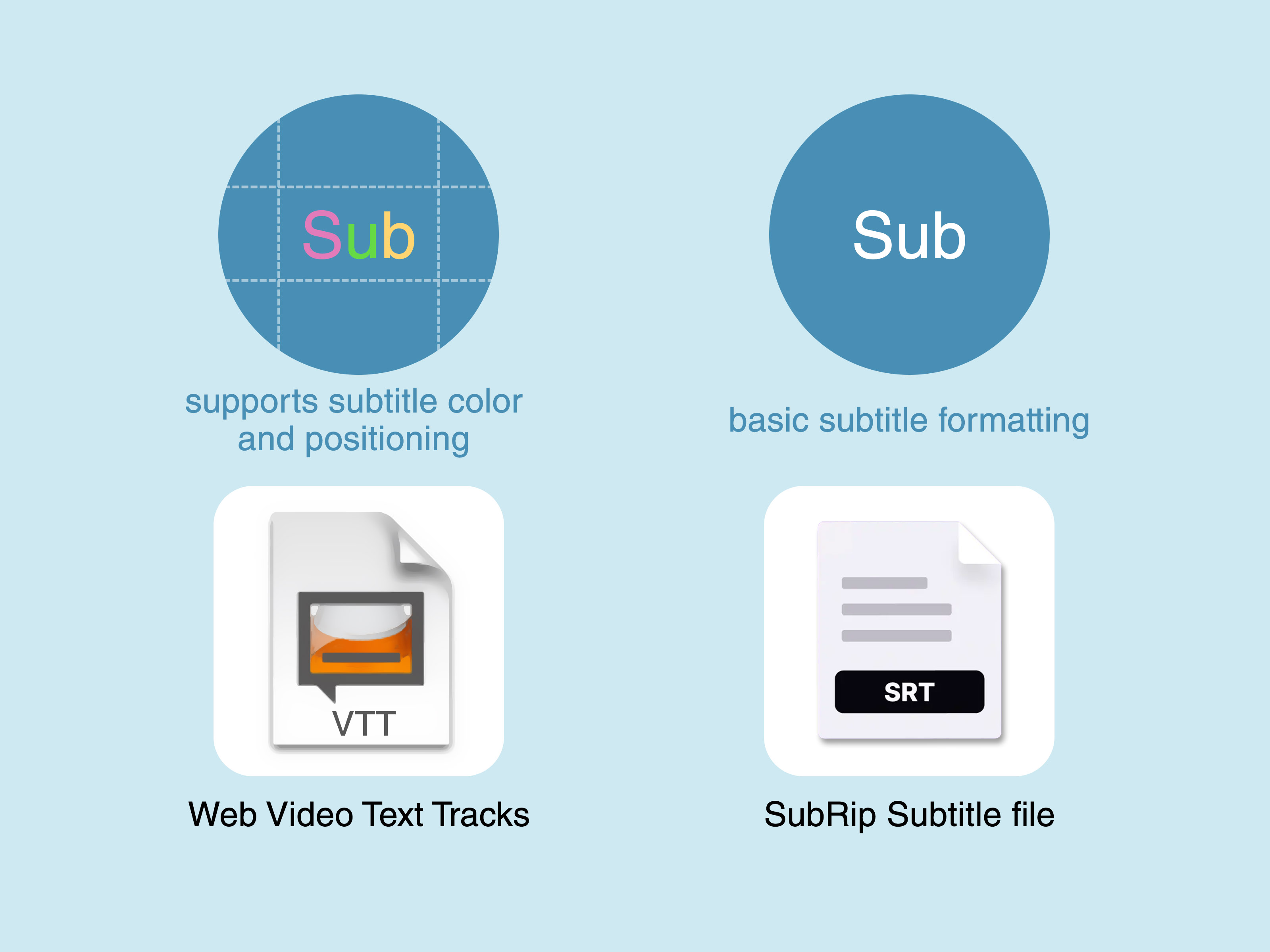
VTT vs SRT: What Is the Difference?
VTT and SRT are two of the most common subtitle file formats. They look similar because both are text-based and use timestamps. However, they are not identical.
SRT Is Simple and Widely Supported
SRT, short for SubRip Subtitle, is older and extremely common. It is supported by many video players, editing tools, and platforms. A typical SRT file includes numbered cues:
Notice the comma in the timestamp. SRT often uses commas for milliseconds, while WebVTT uses periods.
VTT Is Built for the Web
VTT was designed for web video. It starts with the WEBVTT header and can support features such as cue settings, positioning, styling, comments, and metadata. It is the natural companion for the HTML <track> element.
In short, use SRT when a platform asks for SRT or when you need broad compatibility with older tools. Use VTT when working with HTML5 video, web players, online courses, interactive transcripts, or platforms that recommend WebVTT.
How to Create a VTT File
You can create a VTT file manually or with software. Manual creation is fine for short clips. For long videos, captioning tools will save your sanity, your eyes, and possibly your keyboard.
Create a VTT File Manually
To make one from scratch:
- Open a plain-text editor.
- Type
WEBVTTon the first line. - Add a blank line.
- Add cue timestamps and caption text.
- Save the file with a
.vttextension. - Use UTF-8 encoding when possible, especially for special characters.
A minimal file looks like this:
Create a VTT File with Captioning Tools
For longer content, use a caption editor, transcription platform, video editor, or online subtitle tool. Many tools can export WebVTT directly. Some platforms also generate automatic captions that you can download, edit, and re-upload. Always review auto-generated captions before publishing. Automatic speech recognition is impressive, but it can still turn “file format” into “wild ferret” when the audio gets messy.
How to Convert VTT to SRT or SRT to VTT
Converting between VTT and SRT is common. You may need VTT for a website and SRT for a social platform, video editor, or older media player.
Basic conversion usually involves:
- Adding or removing the
WEBVTTheader - Changing timestamp punctuation if needed
- Adding or removing cue numbers
- Removing unsupported styling or positioning
- Checking line breaks and encoding
For short files, you can do this manually. For long files, use a caption converter. After conversion, always test the result in the platform where it will be published. A file that looks perfect in a text editor can still fail if the destination platform has stricter rules.
Common VTT File Problems and How to Fix Them
Problem: Captions Do Not Show Up
First, confirm that the file begins with WEBVTT. Then check that the VTT file path is correct, the file extension is really .vtt, and the timestamps are valid. If you are using HTML, make sure the <track> tag points to the right location.
Problem: The File Opens as Gibberish
This usually means an encoding issue. Save the file as UTF-8. This is especially important for accented letters, symbols, non-English languages, curly quotes, and other characters that like to misbehave when encoding is wrong.
Problem: Timing Is Off
If captions appear too early or too late, adjust the timestamps. Some subtitle editors let you shift all captions forward or backward by a set amount. This is useful when every caption is consistently off by, for example, two seconds.
Problem: Styling Does Not Work
WebVTT supports styling features, but support varies by browser, platform, and player. If custom colors, positioning, or speaker formatting do not appear, test a simpler file. For maximum compatibility, keep captions clean and readable.
Problem: The Platform Rejects the Upload
Check the platform’s accepted file formats. Some platforms accept VTT, some prefer SRT, and some support both with specific requirements. Also check for overlapping timestamps, missing blank lines, unsupported tags, or invalid characters.
Best Practices for VTT Files
Good captions are not just technically correct. They are readable, accurate, and pleasant to follow. A technically valid VTT file with terrible captions is like a beautifully printed restaurant menu where every item is spelled “soup-ish.”
- Keep captions readable: Avoid packing too much text into one cue.
- Use accurate timing: Captions should match the spoken audio as closely as possible.
- Include meaningful sounds: For closed captions, add important non-speech audio.
- Identify speakers when needed: Speaker labels help when multiple people talk.
- Use UTF-8 encoding: This reduces character display problems.
- Test before publishing: Always preview captions on the final platform.
- Avoid unnecessary styling: Simple captions usually travel better across tools.
VTT File FAQ
Is a VTT file the same as a subtitle file?
Yes, a VTT file can be a subtitle file, but it can also be used for captions, chapters, descriptions, and metadata. Subtitles are one common use of WebVTT.
Can I open a VTT file in Notepad?
Yes. Because VTT files are plain text, Notepad and other text editors can open them. However, for timing edits, a subtitle editor is easier.
Can I upload VTT files to video platforms?
Many major video platforms support VTT files for captions or subtitles, though requirements vary. Always check the platform’s current upload rules before publishing.
Can a VTT file contain video or audio?
No. A VTT file contains text and timing information only. It works with a separate media file.
Why does my VTT file not work after I rename it?
Renaming the extension does not always convert the file properly. If you simply rename captions.srt to captions.vtt, the structure may still be wrong. Use proper conversion and test the result.
Real-World Experience: What Working with VTT Files Teaches You
After you work with VTT files for a while, you learn that captions are part technology, part writing, and part patience exercise. The file itself is simple, but the viewing experience depends on dozens of little details: timing, line length, speaker changes, punctuation, encoding, platform rules, and whether the video player is having a good day.
One of the first practical lessons is that plain text is powerful. A VTT file looks almost too simple to matter. It is just timestamps and words. Yet that small file can make a video usable for someone who cannot hear the audio, someone watching on mute, someone learning a language, or someone scanning a training module for one specific section. The humble caption file does not ask for applause. It just quietly saves the day.
Another lesson is that automatic captions are a starting point, not a finish line. Auto-captioning tools have improved a lot, but they still struggle with names, technical terms, background noise, accents, crosstalk, and jokes. If your video says “export the WebVTT file” and the caption says “escort the web tea file,” the viewer may become either confused or unexpectedly thirsty. Reviewing and editing captions is still worth the time.
Timing is where many beginners get surprised. A caption can be perfectly spelled but still feel wrong if it appears too soon or too late. Viewers read quickly, but not instantly. Good captions give people enough time to read without covering the screen forever. For fast dialogue, you may need to split captions into smaller cues. For slow narration, you may need to keep captions on screen a little longer. The goal is not just accuracy; it is comfort.
File organization also matters more than people expect. When you manage multiple videos, languages, and caption versions, sloppy names become chaos. A clean naming system such as product-demo.en.vtt, product-demo.es.vtt, and product-demo.chapters.vtt can save hours later. Future you will appreciate present you. Future you may even send a thank-you card, though probably in another VTT file.
The biggest experience-based tip is to test captions where viewers will actually watch the video. Do not only check the file in a text editor. Test it in the browser, learning platform, video host, or media player that your audience will use. Some players handle styling differently. Some platforms reject tiny formatting mistakes. Some tools accept a file but ignore features like positioning. Testing catches these problems before your audience does.
Finally, VTT files teach a broader content lesson: accessibility is not an afterthought. Captions improve usability for many people, not just the audience group you first had in mind. They support search, comprehension, translation, education, and convenience. A well-made VTT file turns a video from “watch-only” into something more flexible, searchable, understandable, and inclusive. That is a lot of value from a small text file with a slightly robotic name.
Conclusion
A VTT file is a WebVTT text track file used to sync captions, subtitles, chapters, descriptions, or metadata with video and audio. It is simple enough to open in a text editor, useful enough to power web captions, and flexible enough to support modern media workflows. Whether you are publishing a tutorial, building an HTML5 video player, uploading captions to a platform, or cleaning up auto-generated subtitles, understanding VTT files helps you create better video experiences.
The key is to keep the format clean: start with the WEBVTT header, use valid timestamps, save in UTF-8, test on the final platform, and keep captions readable. Do that, and your VTT file will behave less like a mysterious tech gremlin and more like the helpful little accessibility assistant it was born to be.