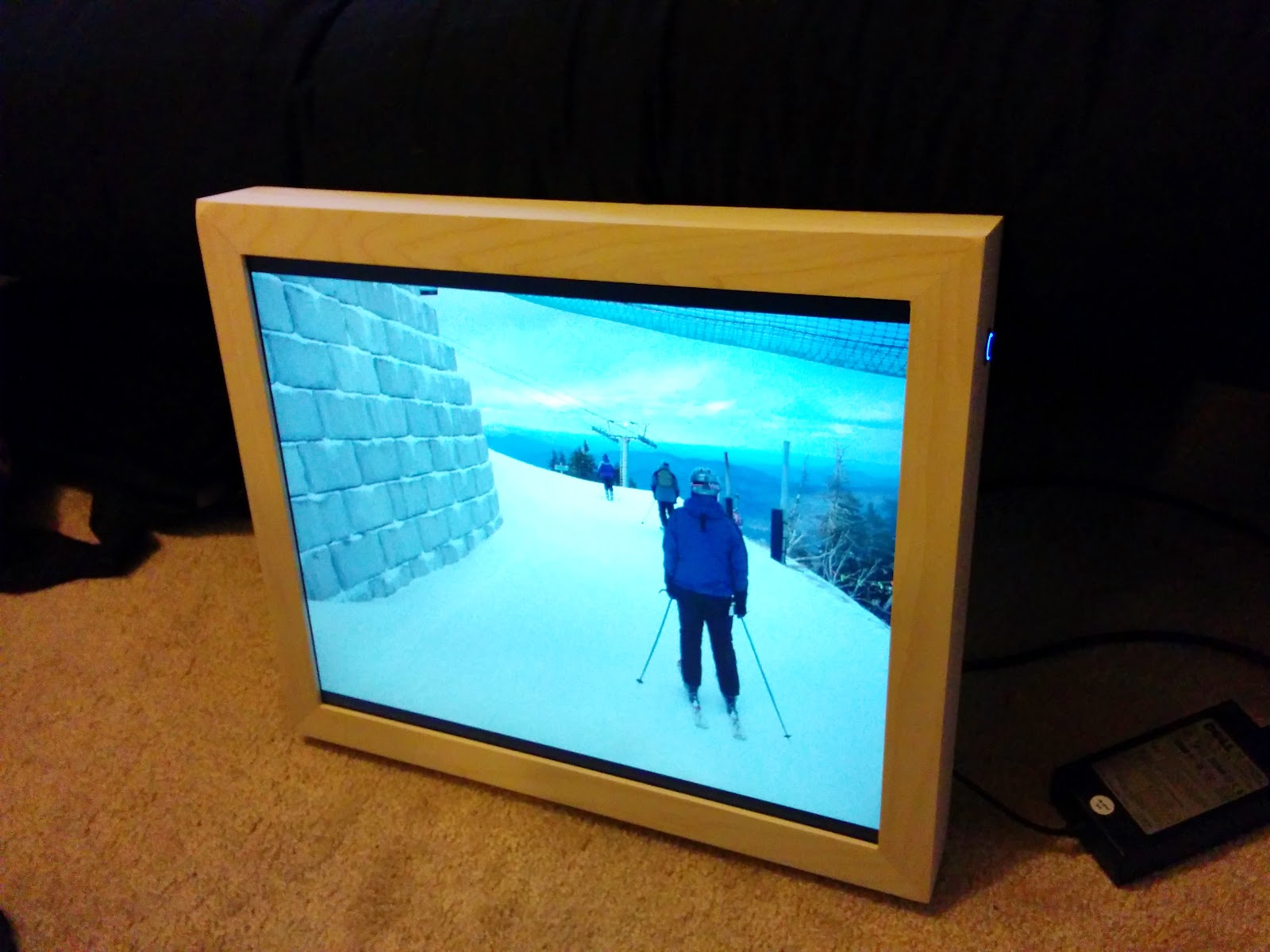

A Raspberry Pi powered super digital photo frame is what happens when a plain screen, a tiny computer, and a folder full of memories decide to stop being boring. Instead of buying a locked-down photo frame that complains about Wi-Fi, cloud subscriptions, or “unsupported file formats” like a tiny plastic diva, you can build your own smart display with a Raspberry Pi, a monitor, and software that actually listens to you.
The result can be wonderfully simple or delightfully overbuilt. At the basic level, it can rotate family photos in a clean slideshow. At the advanced level, it can pull albums from Google Photos, Dropbox, a home server, Immich, Nextcloud, or a network-attached storage drive. It can show the weather, calendar events, captions, art, old travel photos, or that one picture where everyone looks perfect except Uncle Mark, who somehow blinked with both eyes and his soul.
This guide explains what a Raspberry Pi digital photo frame is, why it is better than many off-the-shelf frames, which parts you need, what software options make sense, and how to build a polished frame that feels less like a weekend experiment and more like something you would proudly hang in the living room.
What Is a Raspberry Pi Powered Digital Photo Frame?
A Raspberry Pi powered digital photo frame is a display system that uses a Raspberry Pi single-board computer to show images, videos, dashboards, or web-based photo feeds. The Pi connects to a screen through HDMI or DSI, boots into Raspberry Pi OS or a specialized display system, and launches photo-frame software automatically.
Unlike a regular digital frame, this setup is flexible. You are not limited to the manufacturer’s app, storage limits, or a mysterious cloud service that may disappear faster than free snacks at a family gathering. You can decide where the photos live, how often they change, whether the screen sleeps at night, and how fancy the transitions look.
The “super” part comes from customization. A Raspberry Pi can run a lightweight image viewer, a full-screen browser in kiosk mode, a MagicMirror-style dashboard, a DAKboard layout, a Pi3D slideshow, or a self-hosted gallery interface. With the right setup, your photo frame can become part memory machine, part smart home dashboard, and part tiny museum of your favorite moments.
Why Build One Instead of Buying a Digital Frame?
Store-bought digital frames are convenient, but many are designed around simplicity rather than control. That is fine for people who want to upload ten vacation pictures and call it a day. But if you want local storage, private photo management, custom layouts, no monthly subscription, or a display that can do more than show JPEGs, a Raspberry Pi photo frame is much more interesting.
You Control the Photos
With a DIY Raspberry Pi photo frame, your images can live on a microSD card, USB drive, shared network folder, private server, or cloud-synced directory. You can sort photos by album, event, year, person, or mood. Want one playlist for holidays and another for “photos where the dog looks like he pays rent”? Done.
You Control the Software
You can use simple tools such as feh or fbi for local slideshows, Pi3D PictureFrame for elegant transitions, Chromium kiosk mode for web albums, MagicMirror for dashboard-style modules, or DAKboard for a polished smart display. The Raspberry Pi ecosystem gives you room to start basic and upgrade later.
You Control the Look
A Raspberry Pi digital picture frame can be mounted behind a recycled monitor, placed inside a wooden frame, built into a shadow box, or tucked behind a wall-mounted display. You can go rustic, modern, minimalist, or “mad scientist with cable management issues.” The frame can look like furniture instead of office equipment.
Best Raspberry Pi Models for a Super Digital Photo Frame
You do not need the most powerful Raspberry Pi for a photo frame, but the right model depends on the screen size, software, and features you want.
Raspberry Pi Zero 2 W
The Raspberry Pi Zero 2 W is a good low-cost option for a simple slideshow. It has built-in Wi-Fi, uses little power, and is small enough to hide behind many displays. It is best for local image playback or lightweight web dashboards. If you plan to show huge images, heavy transitions, or complex browser layouts, it may feel underpowered.
Raspberry Pi 3 or Raspberry Pi 4
A Raspberry Pi 3 or Raspberry Pi 4 is the sweet spot for many digital photo frame projects. These boards can handle full-screen slideshows, Wi-Fi syncing, web dashboards, and moderate background tasks. A Raspberry Pi 4 is especially useful if you want smoother performance, better browser behavior, or dual-display experimentation.
Raspberry Pi 5
A Raspberry Pi 5 is more power than a basic frame needs, but it makes sense for advanced builds. If your “photo frame” is also a smart home dashboard, family calendar, security camera viewer, weather station, or 4K display project, the extra performance is welcome. It is the difference between a polite slideshow and a tiny wall-mounted command center.
Essential Parts and Hardware Checklist
A great Raspberry Pi powered super digital photo frame starts with the right parts. You do not need rare components, but you do need to choose carefully if you want the final result to be reliable.
Core Components
- Raspberry Pi board, such as Pi Zero 2 W, Pi 3, Pi 4, or Pi 5
- microSD card, preferably 32GB or larger from a reliable brand
- Official or high-quality power supply
- HDMI display, portable monitor, recycled laptop panel with controller board, or Raspberry Pi touch display
- HDMI or micro-HDMI cable depending on the Pi model
- Frame, enclosure, wall mount, or stand
- Optional USB drive or network storage for large photo libraries
Choosing the Display
The display determines whether your project looks premium or like a forgotten airport information screen. A 1080p monitor is usually the best choice for a wall frame because it offers sharp images, good availability, and easy HDMI compatibility. Smaller official Raspberry Pi touch displays are useful for desks, shelves, smart home panels, or compact family photo stations.
For a living room frame, consider viewing angles and brightness. IPS panels usually look better from the side than cheap TN panels. Matte screens reduce reflections. If the frame will sit near a window, brightness matters. A dim screen in daylight looks less like a photo frame and more like a haunted rectangle.
Power and Heat
A digital photo frame may run for hours every day, so stable power matters. Use a proper power adapter, not a random cable from the drawer of forgotten electronics. Raspberry Pi boards can behave strangely when underpowered, and strange behavior is charming in cats, not computers.
Heat is usually manageable, especially on lightweight slideshow builds. Still, a small case with ventilation or a basic heatsink is smart. If you mount the Pi behind a display, leave airflow space. The goal is a polished frame, not a slow-cooking single-board computer.
Software Options for a Raspberry Pi Digital Photo Frame
The software is where your frame gets its personality. Some setups are simple and local. Others behave like smart displays with calendars, weather, and cloud albums. Here are the most practical options.
Raspberry Pi OS with a Local Slideshow
The most direct approach is to install Raspberry Pi OS, store photos in a local folder, and run a slideshow app. Tools such as feh are popular because they are lightweight and scriptable. This is a good setup for people who want reliability without building a whole web dashboard.
A local slideshow is also more private. Photos stay on the device or on your home network. If you are building a gift for grandparents, a local photo folder can be easier to maintain than explaining account permissions, cloud sync, and why the Wi-Fi password contains three symbols and emotional damage.
Pi3D PictureFrame
Pi3D PictureFrame is a strong option when you want smoother transitions and a more polished photo-frame feel. It is designed for digital picture frame use and can create attractive crossfades that look better than a sudden image change. This matters more than it sounds. A good transition makes the frame feel intentional; a bad one feels like a PowerPoint presentation from 2007.
Chromium Kiosk Mode
Kiosk mode launches a full-screen browser automatically when the Raspberry Pi starts. This is ideal if your photo frame uses a web-based dashboard, cloud album, calendar page, DAKboard layout, or self-hosted gallery. The Pi boots, Chromium opens, and the screen shows your selected page without needing a keyboard or mouse.
This approach is excellent for people who want a super digital photo frame with extras. You can combine photos with time, date, weather, family calendar, reminders, or inspirational quotes. Use inspirational quotes carefully, though. Too many and your photo frame may start sounding like a gym wall.
DAKboard
DAKboard is a popular choice for turning a screen into a smart family display. It can show photos, calendars, weather, news, and other widgets. For a Raspberry Pi photo frame, it offers a polished interface and relatively easy setup. It is especially useful when the project is meant for daily household use rather than tinkering.
MagicMirror
MagicMirror began as a smart mirror platform, but it also works beautifully as a photo-frame dashboard. Its module-based design lets you add calendars, weather, messages, and image sources. Some builds use Google Photos or similar modules, making it possible to turn a Raspberry Pi into a cloud-connected picture frame with personality.
Self-Hosted Photo Libraries
If you care about privacy and control, a self-hosted photo manager such as Immich or Nextcloud can be part of the system. In this setup, the Raspberry Pi displays photos from a home server or private gallery. It is more advanced, but it is excellent for people who already run home lab equipment or want to avoid depending entirely on third-party photo services.
How to Build the Frame: A Practical Workflow
The build process is not difficult, but it helps to think of it in stages: install the operating system, prepare the photos, configure the display, automate startup, and finish the physical frame.
Step 1: Install Raspberry Pi OS
Use Raspberry Pi Imager to write Raspberry Pi OS to a microSD card. During setup, configure Wi-Fi, username, password, hostname, and SSH access if you plan to manage the frame remotely. Remote access is useful because nobody wants to remove a wall-mounted frame just to fix a typo in a script.
Step 2: Add Your Photo Source
Decide where photos will live. A local folder is easiest. A USB drive is practical for large libraries. A network folder is great if you already have a NAS. A cloud-sync folder is convenient if you want family members to add photos from their phones. The best source depends on who will maintain the frame.
Step 3: Configure the Screen
Set the correct screen resolution and orientation. Many photo frames look better in portrait mode, especially for family portraits and phone photos. Landscape mode works better for travel, landscapes, and dashboard layouts. If your photos are mixed, choose a layout that avoids aggressive cropping.
Step 4: Choose the Display Software
For a basic local frame, use a lightweight image viewer. For a professional-looking slideshow, consider Pi3D PictureFrame. For a smart display, use Chromium kiosk mode with DAKboard, MagicMirror, or a web gallery. The best choice is the one that matches your patience level. Be honest. There is no shame in choosing the option that does not require three cups of coffee and a forum archaeology expedition.
Step 5: Auto-Start on Boot
A proper digital photo frame should recover automatically after a restart or power outage. Configure the Pi so the slideshow or kiosk page starts on boot. This turns the project from “cool demo” into “actual appliance.” Once it powers on and shows photos without help, you have crossed the sacred DIY line from experiment to useful object.
Step 6: Build or Install the Frame
Finally, mount the display and hide the electronics. A thin wooden frame can make a recycled monitor look surprisingly elegant. Use cable channels, short HDMI cables, right-angle adapters, and careful spacing behind the screen. The fewer visible wires, the more people will think you bought something expensive.
Design Tips for a Better Looking Photo Frame
A Raspberry Pi powered digital photo frame should not only work well; it should look good in the room. A few design decisions make a major difference.
Use High-Quality Images
Low-resolution photos look rough on modern displays. Use images that match or exceed your screen resolution. For a 1080p display, photos around 1920 pixels wide or larger usually look crisp. Avoid screenshots, heavily compressed social media downloads, and blurry images unless the memory is worth the pixels.
Crop With Care
Many phone photos are vertical, while monitors are often horizontal. If your software crops automatically, important parts of the image may disappear. Nothing says “family memories” like a perfectly centered photo of everyone’s torsos. Use software settings that fit images intelligently or prepare separate portrait and landscape albums.
Set a Comfortable Slideshow Speed
A photo changing every five seconds can feel restless. A photo changing every five minutes can feel calm and gallery-like. For home use, one to five minutes per photo often works well. For parties, a faster rotation can be fun. For grandparents, slower is usually better, especially if captions are included.
Schedule the Display
A frame does not need to glow at 3 a.m. unless it is also applying for a job as a lighthouse. Use a smart plug, software schedule, display power management, or dashboard settings to turn the screen off at night. This saves energy, reduces panel wear, and makes the frame feel more thoughtful.
Smart Features That Make It “Super”
Once the basic slideshow works, you can add features that turn the project into a super digital photo frame.
Weather and Calendar Widgets
A dashboard layout can show family photos beside the day’s weather and upcoming events. This is practical in kitchens, entryways, and home offices. A quick glance tells you whether to bring an umbrella, remember soccer practice, or pretend you did not see the dentist appointment.
Remote Photo Uploads
The best photo frame is one that stays fresh. Use cloud folders, shared albums, sync scripts, or a self-hosted library so family members can add pictures without touching the Pi. This is especially useful for relatives who live far away. New baby photo? Vacation snapshot? Dog wearing sunglasses? Straight to the frame.
Motion or Presence Awareness
Advanced builders can add motion sensing or smart home automation so the display wakes when someone enters the room. This makes the frame feel more alive and reduces unnecessary screen time. It also gives the frame a small dramatic flair, like it has been waiting all day to show you a beach photo from 2019.
Captions and Dates
Captions make old photos more meaningful. A date, location, or short note can turn a random image into a memory. “Lake Tahoe, 2018” is more useful than everyone arguing later about whether the trip was in 2017, 2018, or “before Dad bought those weird sandals.”
Common Problems and Easy Fixes
The Screen Goes Blank
Screen blanking is common on Raspberry Pi systems. Disable power-saving behavior if you want the frame to stay on during the day. If you use a dashboard service, check whether it has its own sleep schedule.
Photos Look Stretched
This usually means the slideshow software is forcing images to fill the screen. Change the fit mode to preserve aspect ratio, or prepare images in the same orientation as the display.
The Frame Does Not Start Automatically
Check your auto-start method. Depending on the setup, you may need a desktop autostart file, a systemd service, a shell script, or browser kiosk configuration. Test by rebooting several times before mounting the frame permanently.
Wi-Fi Drops
If the frame depends on cloud photos, weak Wi-Fi can ruin the experience. Place the Pi where it has a decent signal, use a reliable power supply, and consider local caching so photos still display when the internet acts like it needs a nap.
Privacy and Security Considerations
A photo frame often shows personal memories, so privacy matters. If you use cloud services, choose accounts and sharing settings carefully. If you enable SSH, use strong passwords or key-based access. Keep the system updated, especially if it connects to web dashboards or external services.
For families, the safest approach is usually a shared album with limited permissions or a private local library. Avoid exposing your frame directly to the public internet. A digital photo frame should display beach vacations, not become one.
of Real-World Experience: What Building One Actually Feels Like
The first thing you learn when building a Raspberry Pi powered super digital photo frame is that the technical part is only half the project. The other half is emotional archaeology. You start by copying a few nice photos into a folder, and suddenly you are looking at birthday parties, old apartments, long-gone pets, blurry road trips, and photos of meals that apparently felt extremely important at the time. The frame becomes less about hardware and more about rediscovering what was hiding in your digital attic.
In practice, the easiest build is not always the best build. A local slideshow can be wonderfully stable. It boots, it shows photos, and it does not care whether a cloud service changed its login page overnight. For a gift, especially for parents or grandparents, this simplicity is powerful. You can load a curated collection of images, set a slow transition, and deliver something that feels personal without requiring anyone to manage an app.
The more advanced version is more exciting but also more demanding. A web-based dashboard with weather, calendar events, and shared albums feels modern and useful. It is great in a kitchen or hallway because it becomes part of daily life. The trade-off is maintenance. Browser updates, authentication changes, Wi-Fi quirks, and display settings can occasionally need attention. This is not a dealbreaker, but it means the builder becomes the unofficial family Frame Administrator, a title with no salary and occasional emergency texts.
The display choice matters more than most beginners expect. A cheap monitor can work, but poor viewing angles make photos look washed out from the side. A glossy screen can turn a beautiful family portrait into a reflection of your ceiling fan. A good IPS display with a matte finish makes the whole project feel premium. Also, brightness should be adjusted for the room. Full brightness in a dark hallway feels like the frame is interrogating guests.
Cable management is another surprisingly important lesson. The Raspberry Pi is tiny, but HDMI cables, power bricks, USB adapters, and screen cables are not shy. Before building the final frame, lay everything out behind the display and measure the depth. Right-angle adapters can save a project. So can Velcro strips, cable clips, and a little humility.
The best experience comes from treating the frame like a living album. Update it monthly. Create seasonal folders. Add captions to older photos. Remove duplicates and near-identical shots. Nobody needs twelve versions of the same sunset unless the sunset is paying rent. When curated well, the frame becomes a quiet storytelling machine. People stop, smile, ask questions, and remember things they had not thought about in years.
That is the real magic. A Raspberry Pi digital photo frame is not just a screen running a slideshow. It is a small, always-on reminder that your best photos deserve better than being buried in a phone gallery between screenshots, receipts, and pictures of parking spots.
Conclusion
A Raspberry Pi powered super digital photo frame is one of the most satisfying maker projects because it is practical, personal, and endlessly customizable. It can be a simple local slideshow, a polished smart display, or a private cloud-connected memory wall. With the right Raspberry Pi, a good display, reliable power, and thoughtful software, you can build a frame that looks beautiful and works exactly the way you want.
The best version is not necessarily the most complicated. It is the one that fits your home, your photo habits, and your willingness to maintain it. Start simple, make it reliable, then add smarter features only when they genuinely improve the experience. Your photos already did the hard work by capturing the moment. The Raspberry Pi just gives them a better stage.
Note: This article is written for web publication and is based on practical Raspberry Pi display, kiosk, slideshow, dashboard, and digital photo frame build methods used across reputable maker and technology resources.