
Note: The steps below are written for Windows 10 and Windows 11 users. They also help with older Windows folders, external drives, shared folders, and network locations where Thumbs.db files tend to behave like tiny digital gremlins with administrative privileges.
What Is a Thumbs.db File?
A Thumbs.db file is a small database file Windows uses to store thumbnail previews for images, videos, and other visual files inside a folder. In plain English, it helps File Explorer show those little picture previews faster instead of rebuilding them every time you open a folder. Convenient? Yes. Mysterious? Also yes. Annoying when you are trying to delete a folder and Windows says the file is “in use”? Extremely yes.
On many modern Windows systems, thumbnail data is often stored in centralized thumbnail cache files, but Thumbs.db can still appear in older folders, copied archives, external drives, shared folders, and especially network folders. That is why people still search for how to delete Thumbs.db files even though Windows has changed how it handles thumbnail caching over time.
The good news is that Thumbs.db is usually safe to delete. Windows may recreate it later if thumbnail caching is still enabled and you browse the folder in a thumbnail view. The real trick is not just deleting the file once, but understanding why it comes back and how to stop it from locking folders at the worst possible moment.
Why You Might Want to Delete Thumbs.db Files
Most of the time, Thumbs.db files are harmless. They are small, hidden, and boring enough to be invited to a spreadsheet convention. Still, there are several good reasons to remove them:
- You cannot delete, move, or rename a folder because Windows says a file is open.
- You are cleaning up old folders before backing them up or uploading them.
- You are preparing files for a website, archive, client handoff, or ZIP package.
- You are troubleshooting corrupted thumbnails or broken preview images.
- You manage a shared folder or network drive where
Thumbs.dbkeeps reappearing.
Deleting the file will not delete your photos, videos, documents, or folders. It only removes the cached preview database. If Windows needs thumbnails again, it can rebuild them. Think of it like throwing away a restaurant menu, not the food.
Before You Start: A Few Safety Tips
Although Thumbs.db files are usually safe to remove, you should still be careful when changing hidden system-file settings or running delete commands. Make sure you are deleting only files named Thumbs.db. Do not casually delete random hidden files just because they look suspicious. Windows hides many files for a reason, and that reason is usually “please do not poke this with a stick.”
If you are working on a company computer, shared server, or managed network, check with your administrator before changing Group Policy, registry settings, or shared-folder behavior. For a personal PC, the steps below are practical, safe, and easy to reverse.
Easy Ways to Delete Thumbs.db Files: 12 Steps
Step 1: Open File Explorer and Go to the Folder
Start with the simplest method. Open File Explorer and navigate to the folder where the Thumbs.db file appears. If you are trying to delete a folder and Windows complains that something inside it is open, open that folder first and look for the hidden file.
In many cases, the file will not be visible right away. That is normal because Thumbs.db is commonly marked as hidden, system, or both. Windows is not trying to be dramatic; it is just trying to keep regular users from deleting background files by accident.
Step 2: Show Hidden Files
To see Thumbs.db, you may need to show hidden files. In Windows 11, open File Explorer, select View, choose Show, and then select Hidden items. In Windows 10, open File Explorer, go to the View tab, and check Hidden items.
If the file still does not appear, open Folder Options, go to the View tab, and look for settings related to protected operating system files. Be careful here. You only need this temporarily for troubleshooting. Once you are done, it is smart to hide protected system files again so your folders do not start looking like a backstage tour of Windows.
Step 3: Switch the Folder View to Details
One surprisingly effective trick is changing the folder view. If File Explorer is showing large icons, medium icons, extra-large icons, or picture thumbnails, it may actively read thumbnail data. That can keep Thumbs.db busy.
Switch the folder to Details or List view. This reduces the need for File Explorer to generate or read thumbnail previews. After switching views, wait a few seconds and try deleting the file again. Sometimes Windows just needs a moment to stop clutching the file like a raccoon holding a shiny spoon.
Step 4: Close the Preview Pane and Other Open Windows
The Preview Pane in File Explorer can also keep files active. If you have it enabled, turn it off before deleting Thumbs.db. In File Explorer, go to View and disable the Preview Pane. Also close any other File Explorer windows that are open to the same folder or nearby parent folders.
Next, close photo viewers, video editors, design tools, backup software, cloud-sync tools, and anything else that may be scanning that folder. If a program is looking at images inside the folder, Windows may continue touching the thumbnail database.
Step 5: Delete Thumbs.db Normally
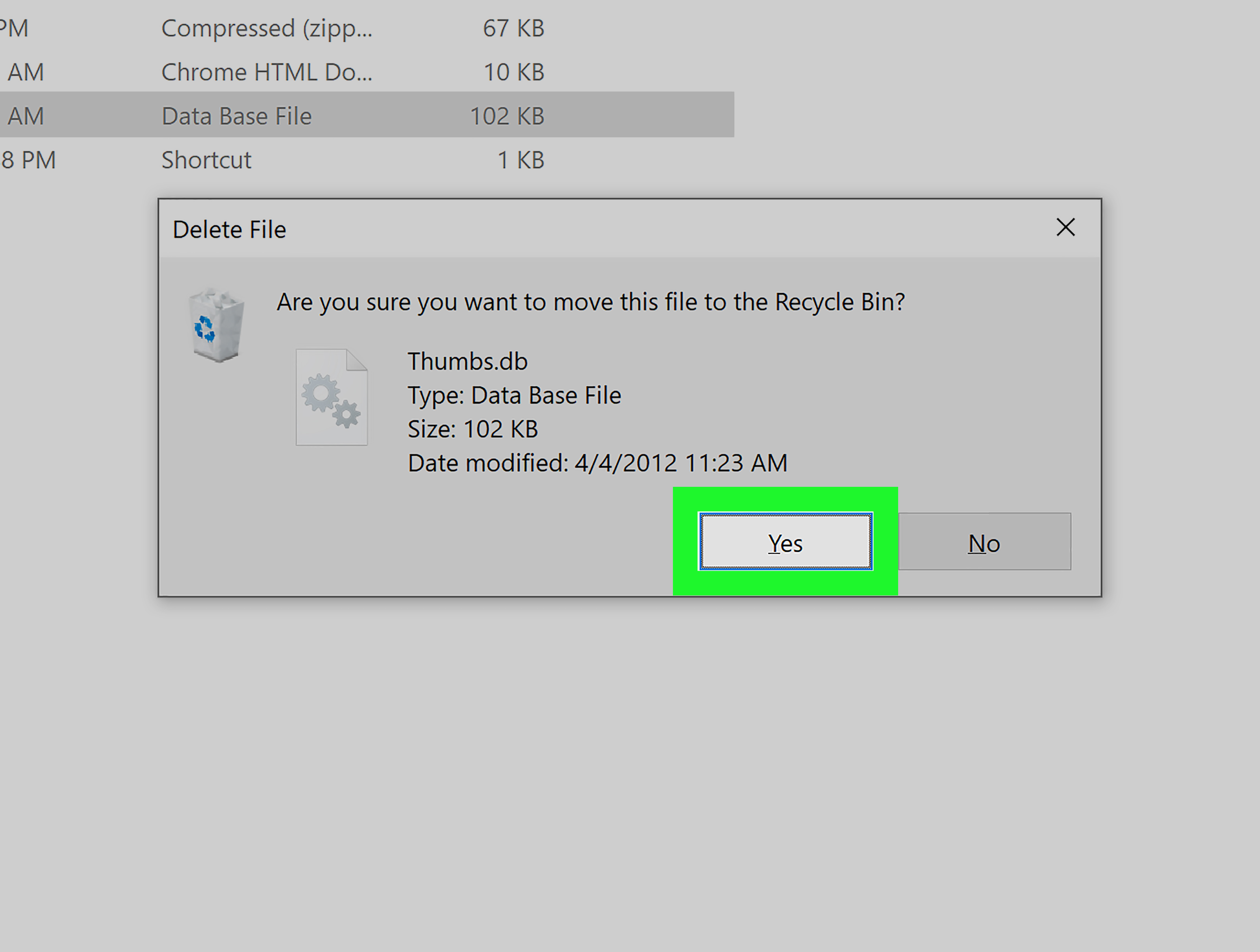
Once the file is visible and no longer in use, try the regular delete method. Right-click Thumbs.db and select Delete. You can also select it and press the Delete key.
If Windows asks for administrator permission, approve it only if you are sure the file is exactly Thumbs.db. If the delete works, empty the Recycle Bin afterward if you want it permanently removed. If you are preparing a folder for upload, compression, or delivery to someone else, check the folder again after refreshing File Explorer.
Step 6: Restart File Explorer
If Windows still says the file is in use, restart File Explorer. This often releases the lock without requiring a full system reboot.
- Press Ctrl + Shift + Esc to open Task Manager.
- Find Windows Explorer in the process list.
- Select it and click Restart.
Your taskbar and desktop may briefly disappear and return. That is normal. After File Explorer restarts, go back to the folder and try deleting Thumbs.db again.
Step 7: Use Disk Cleanup to Clear Thumbnail Cache
If your issue is not just one file but a messy thumbnail cache, use Disk Cleanup. Search for Disk Cleanup from the Start menu, choose your main drive, and select Thumbnails from the list of file types. Then confirm the cleanup.
This is useful when thumbnails look wrong, previews are broken, or Windows keeps showing outdated images. Disk Cleanup does not always remove every Thumbs.db file in every folder, especially on network locations, but it is a safe built-in tool for clearing thumbnail cache data on your PC.
Step 8: Delete Thumbs.db with Command Prompt
When File Explorer refuses to cooperate, Command Prompt can help. Open Command Prompt as administrator, then move to the folder that contains the file. For example:
Then run:
The attrib command removes hidden, system, and read-only attributes from the file. The del command deletes it. The /f switch forces deletion of read-only files, and /q keeps the command quiet so it does not ask for confirmation every two seconds like a nervous intern.
Step 9: Delete All Thumbs.db Files in a Folder Tree
If you have a large folder full of subfolders, deleting each Thumbs.db file manually is not a fun afternoon. Use a recursive command instead.
Open Command Prompt as administrator, then run this command after replacing the path with your folder location:
The /s switch tells Windows to search subfolders. The /a switch helps include files with attributes such as hidden or system. Use this only inside the folder tree you actually want to clean. Do not run broad delete commands from the root of your system drive unless you know exactly what you are doing.
Step 10: Use PowerShell for a Cleaner Bulk Delete
PowerShell is a strong option when you want more control. Open PowerShell as administrator and run:
This command searches the target folder and all subfolders for files named Thumbs.db, including hidden files, then removes them. The -Force parameter helps PowerShell handle hidden or read-only files, although it cannot override permissions you do not have.
If you want to preview what would be deleted before actually removing anything, run:
That shows the matching files without deleting them. It is the digital equivalent of measuring twice and cutting once.
Step 11: Stop Windows from Recreating Thumbs.db in Network Folders
If Thumbs.db keeps returning in shared folders or network drives, deletion alone will not solve the problem. You need to stop File Explorer from creating or using thumbnail databases in those locations.
On Windows Pro, Enterprise, or Education editions, you can use Local Group Policy Editor:
- Press Windows + R, type
gpedit.msc, and press Enter. - Go to User Configuration.
- Open Administrative Templates.
- Go to Windows Components, then File Explorer.
- Find Turn off the caching of thumbnails in hidden thumbs.db files.
- Set it to Enabled.
- Apply the change and restart File Explorer or sign out and back in.
This setting is especially helpful for offices, media teams, shared drives, and anyone who has ever yelled “Why won’t this empty folder delete?” at a perfectly innocent monitor.
Step 12: Turn Off Thumbnail Display Temporarily
If you only need to delete a stubborn folder, you can temporarily disable thumbnail previews. Open File Explorer Options, go to the View tab, and enable Always show icons, never thumbnails. Apply the setting, then try deleting the folder or Thumbs.db file again.
This does not always permanently stop every thumbnail cache behavior, but it often releases the file because File Explorer no longer needs to generate previews. After the cleanup, you can turn thumbnails back on if you prefer seeing image previews instead of generic icons.
What If Thumbs.db Still Will Not Delete?
If the file still refuses to leave, do not panic. It is probably locked by File Explorer, a background app, a sync service, or a permission rule. Try these fixes in order:
- Restart your computer and delete the file before opening the folder again.
- Pause OneDrive, Google Drive, Dropbox, or backup software temporarily.
- Move the folder to a local drive, then delete
Thumbs.db. - Boot into Safe Mode and remove the file there.
- Check folder permissions if the file is on a shared drive.
Safe Mode is useful because it starts Windows with fewer background processes. If a third-party app is locking the file, Safe Mode often gives you a clean chance to remove it. For network shares, permissions matter. You may need owner, modify, or administrator rights to delete files created by another user or process.
Can You Delete Thumbs.db Without Damaging Windows?
Yes, in normal situations, deleting Thumbs.db will not damage Windows. It is a cache file, not your actual photo collection. Windows can rebuild thumbnail information later if needed.
The bigger risk is not deleting Thumbs.db; it is accidentally deleting other hidden or system files while you have protected files visible. That is why you should re-enable normal hidden-file settings when you are finished. Keep your troubleshooting sharp and your curiosity on a leash.
How to Prevent Thumbs.db Problems in the Future
Prevention depends on where the file appears. For local personal folders, switching to Details view before deleting large image folders can help. For network folders, Group Policy is the cleaner long-term fix. For website projects, client files, ZIP archives, or cloud uploads, run a quick cleanup command before packaging files.
You can also create a simple habit: before compressing or uploading a folder, search inside it for Thumbs.db. If you find it, delete it. This keeps your folders cleaner and prevents unnecessary hidden files from traveling with your project.
Best Method for Most Users
For most home users, the best path is simple: show hidden files, switch to Details view, close File Explorer previews, and delete Thumbs.db. If it refuses, restart File Explorer or reboot the PC. If you have many folders, use PowerShell with Get-ChildItem and Remove-Item.
For business users or shared-folder managers, the best method is different. Use Group Policy to stop thumbnail caching in hidden Thumbs.db files on network folders. That prevents the same issue from returning every time someone opens a shared image folder.
Common Mistakes to Avoid
Deleting Random Hidden Files
Do not delete every hidden file you see. Some hidden files are important. Focus only on Thumbs.db unless you know what another file does.
Running Bulk Delete Commands Too Broadly
A recursive delete command is powerful. Aim it at the folder you want to clean, not your entire computer. Power tools are great until someone uses a chainsaw to slice a sandwich.
Forgetting Network Folder Policy
If the issue happens on a shared drive, deleting the file is often temporary. Disable thumbnail caching for network folders if you want a long-term fix.
Leaving Protected Files Visible
After troubleshooting, turn protected system-file hiding back on. This keeps everyday browsing cleaner and reduces the chance of accidental damage.
Real-World Experience: What Actually Works When Thumbs.db Gets Stubborn
In real use, Thumbs.db problems usually show up at the least convenient time. You are not calmly cleaning a folder on a peaceful Sunday morning. No, you are trying to rename a project folder five minutes before sending it to a client, and Windows suddenly announces that a mysterious database file is busy. It is the computer equivalent of someone standing in a doorway and saying, “You shall not pass.”
The fastest fix I have seen work again and again is switching the folder to Details view, closing every File Explorer window, and restarting Windows Explorer from Task Manager. This solves many “file in use” problems because Explorer itself is often the program holding the file open. Users sometimes assume a complicated background service is responsible, but the culprit is frequently the same window they are using to delete the folder.
For photographers, designers, and content teams, Thumbs.db files often appear in old archives, copied folders, USB drives, or shared image libraries. One practical workflow is to clean the folder before compressing it. Open PowerShell at the project root, preview matching files first, then delete only Thumbs.db. This is cleaner than hunting through dozens of nested folders manually. It also reduces the chance of accidentally shipping hidden Windows files in a client ZIP package.
For office networks, the story is a little different. If multiple people browse a shared folder full of images, PDFs, videos, or design assets, Windows may create or lock thumbnail database files repeatedly. One person deletes the folder, another person opens it in thumbnail view, and suddenly the problem returns like a sequel nobody asked for. In that environment, the Group Policy setting for turning off thumbnail caching in hidden Thumbs.db files is usually the most reliable fix. It prevents the file from becoming a recurring shared-drive headache.
Another lesson: do not underestimate reboots. Experienced users sometimes avoid restarting because it feels too basic. But if a process has locked the file and you do not want to spend ten minutes investigating handles, a restart can be the cleanest solution. After rebooting, delete the folder before opening it in thumbnail view again. It is not glamorous, but neither is arguing with a 20 KB database file.
Finally, remember that thumbnails are not the enemy. They make browsing image folders faster and friendlier. The goal is not to wage war on every thumbnail cache in Windows. The goal is to remove Thumbs.db when it blocks deletion, clutters deliverables, corrupts previews, or causes network-folder trouble. Treat it as maintenance, not a personal feud. Your computer has enough drama already.
Conclusion
Deleting Thumbs.db files is usually easy once you understand what they are: thumbnail cache files created by Windows to speed up preview display. The simplest fixes are showing hidden files, switching to Details view, closing preview panes, restarting File Explorer, and deleting the file normally. For tougher cases, Command Prompt and PowerShell can remove hidden or read-only Thumbs.db files across entire folder trees.
If the file keeps returning, especially in network folders, do not keep deleting it forever like you are playing digital whack-a-mole. Change the thumbnail caching behavior with File Explorer settings or Group Policy. That way, you solve the cause instead of repeatedly cleaning up the symptom.