
Learning easy ways use the Zoom app for meetings can save you from the modern workplace’s most awkward sentence: “Can everyone hear me?” Zoom is no longer just an emergency video-call tool people downloaded in a panic. It has become a regular part of school, business, coaching, interviews, webinars, remote work, family check-ins, online events, and hybrid team collaboration.
The good news is that Zoom is not hard to use once you understand the basics. The even better news is that you do not need to become a tech wizard, own three monitors, or speak fluent “IT department” to run a smooth meeting. You only need to know where the important buttons are, what to prepare before the call, and how to avoid the tiny mistakes that make online meetings feel longer than a Monday morning.
This guide walks through the practical, beginner-friendly, and professional ways to use the Zoom app for meetings. You will learn how to schedule a Zoom meeting, join a Zoom meeting, control your microphone and camera, share your screen, manage participants, improve security, use helpful features, and run meetings that do not make people secretly check their laundry.
Why the Zoom App Is Still a Go-To Meeting Tool
The Zoom app remains popular because it is simple enough for beginners but powerful enough for teams, teachers, consultants, healthcare offices, recruiters, creators, and organizations. You can use it on a desktop computer, laptop, smartphone, tablet, or browser. That flexibility matters because not everyone joins meetings from the same device. One person may be at a desk with a headset, another may be in an airport, and someone else may be joining from their phone while pretending their car is a “mobile office.”
Zoom meetings can support video, audio, chat, screen sharing, reactions, recordings, captions, waiting rooms, breakout rooms, calendar integrations, and AI-powered summaries depending on your account and settings. For everyday users, the main value is convenience. You can create a meeting link, invite others, and bring people into the same virtual room with only a few clicks.
How to Get Started With the Zoom App
1. Download and Sign In
Start by installing the Zoom Workplace app on your computer or mobile device. You can also join from a web browser, but the app usually gives you the best experience and access to more features. After installing, sign in with your email, Google, Apple, Facebook, Microsoft, or company single sign-on if your organization uses it.
Once you are signed in, take a minute to open your profile and settings. This is where you can update your name, upload a professional photo, set your time zone, test audio and video, and adjust privacy or meeting preferences. Do this before your first important call. Nobody wants to discover five seconds before an interview that their display name still says “Laptop User 93.”
2. Test Your Audio and Camera
Before joining a meeting, test your microphone and speaker. In Zoom, you can usually find audio testing options in settings or directly before entering a meeting. Choose the right microphone, especially if you use headphones, earbuds, a webcam microphone, or an external USB mic.
Next, check your camera. Make sure your face is visible, the lighting is decent, and the background does not reveal anything you would rather keep off the internet. A plain wall, bookshelf, office corner, or virtual background works fine. The goal is not Hollywood production quality. The goal is “clear, calm, and not filmed from inside a cave.”
How to Schedule a Zoom Meeting
Scheduling a Zoom meeting is one of the easiest ways to prepare a professional call. Open the Zoom app and look for the Schedule option. Add a meeting topic, choose the date and time, select the duration, and review the meeting settings.
Use a clear meeting title. “Marketing Review With Design Team” is better than “Meeting.” People receive dozens of calendar notifications, and vague titles create confusion. If the meeting has a specific goal, include it in the title or agenda. For example, “Q3 Budget Approval Call” tells people what to expect before they even click the link.
Important Scheduling Settings to Check
When scheduling, pay attention to these settings:
- Meeting ID: Use a generated meeting ID for most business or public meetings instead of your personal meeting ID.
- Passcode: Add a passcode to help prevent unwanted guests.
- Waiting Room: Enable it when you want to control who enters.
- Video: Decide whether host and participant video starts on or off.
- Audio: Allow computer audio, phone audio, or both depending on your audience.
- Calendar: Add the meeting to Google Calendar, Outlook, or another calendar tool if available.
If your team uses Outlook or Google Calendar, connect Zoom with your calendar system. This makes scheduling faster and reduces the chance of sending a calendar invite without the actual meeting link, which is the digital equivalent of inviting people to a restaurant and forgetting the address.
How to Join a Zoom Meeting Without Panic
Joining a Zoom meeting is simple. Click the meeting link from your email, calendar invite, chat message, or meeting list inside the Zoom app. If you are using the app, Zoom may open automatically. If you are joining from a browser, you may be asked whether you want to open the app or continue in the web version.
Before entering, Zoom often gives you a preview screen. Use it. This is your last chance to check your hair, mute your microphone, confirm your camera angle, and make sure your cat is not preparing a dramatic background cameo.
Join Early for Important Meetings
For casual meetings, joining on time is fine. For interviews, client presentations, webinars, online classes, or anything involving your boss’s boss, join three to five minutes early. This gives you time to handle updates, microphone permissions, slow Wi-Fi, or the classic “Why is my Bluetooth connected to a speaker in another room?” mystery.
Basic Zoom Meeting Controls Everyone Should Know
Once inside the meeting, your main controls are usually located along the bottom of the Zoom window. On mobile, the layout may vary slightly, but the same core tools are available.
Mute and Unmute
The microphone button controls whether others can hear you. Keep yourself muted when you are not speaking, especially in group meetings. This prevents keyboard tapping, barking dogs, snack wrappers, and unexpected background conversations from becoming part of the agenda.
When it is your turn to speak, unmute, make your point, then mute again. It is a small habit, but it instantly makes meetings more professional.
Start and Stop Video
The camera button lets you turn video on or off. Video helps build trust and connection, but it is not always required. If your bandwidth is weak, turning off video can improve audio quality. If you are in a noisy or distracting environment, turning off video briefly is better than broadcasting chaos in high definition.
Chat
The chat feature is useful for links, quick questions, reminders, and side notes. In large meetings, chat can keep discussion moving without interrupting the speaker. However, avoid turning chat into a second meeting happening inside the first meeting. That is how productivity goes to take a nap.
Reactions and Raise Hand
Reactions allow participants to respond quickly with icons such as thumbs-up or applause. The Raise Hand feature is useful in classes, webinars, and structured meetings where participants should not interrupt. It gives the host an easy way to manage turns.
How to Share Your Screen on Zoom
Screen sharing is one of Zoom’s most useful features. It lets you show a presentation, spreadsheet, website, document, whiteboard, or app window. To share your screen, click Share Screen, choose what you want to share, and confirm.
Whenever possible, share only the specific window or browser tab you need instead of your entire desktop. This keeps private messages, unrelated tabs, and surprise notifications away from the audience. Nobody needs to see your open tab titled “best excuses for being late to meetings.”
Screen Sharing Tips for Better Presentations
- Close unnecessary apps before sharing.
- Turn off notifications.
- Make text large enough to read.
- Have your file or website ready before the meeting starts.
- Use pause share if you need to switch documents privately.
- Ask viewers if they can see the correct screen before you begin.
If you are playing video or audio, enable the option to share computer sound. Without it, participants may see the video but hear nothing, creating the world’s least exciting movie night.
Easy Ways to Host a Better Zoom Meeting
Hosting a Zoom meeting is more than clicking Start. A good host creates structure, keeps people comfortable, and prevents the meeting from wandering into the wilderness.
Start With a Clear Purpose
Every meeting should answer one basic question: why are we here? Add a short agenda to the invite or say it at the beginning. For example, “Today we are reviewing the campaign timeline, approving the design direction, and assigning next steps.” That single sentence helps everyone focus.
Use the Waiting Room
The Waiting Room lets the host control when participants enter the meeting. This is helpful for private calls, interviews, office hours, coaching sessions, medical-style appointments, and public events. You can admit people one by one or all at once.
Manage Participants
As host, you can mute participants, remove disruptive users, manage screen sharing, assign a co-host, control chat, and lock the meeting when everyone has arrived. For larger meetings, assigning a co-host is a smart move. One person can present while the other watches chat, admits people from the waiting room, and handles technical issues.
Record Only When Appropriate
Zoom recording can be useful for training, webinars, interviews, lectures, and team members who cannot attend live. However, recording should be handled carefully. Tell participants when a meeting is being recorded and follow your organization’s privacy rules. Do not record sensitive conversations casually.
Zoom Meeting Security: Simple Settings That Matter
Meeting security does not need to be complicated. The easiest rule is this: treat your Zoom link like a key, not a flyer. Share it only with the people who need it.
Use a passcode, enable the Waiting Room for sensitive meetings, avoid posting meeting links publicly, and use a randomly generated meeting ID instead of your personal meeting ID for most scheduled calls. These steps reduce the risk of unwanted visitors.
When to Lock a Meeting
If all expected participants have joined, the host can lock the meeting so no one else can enter. This is useful for confidential meetings, small executive discussions, private tutoring, and closed training sessions.
Control Who Can Share
For public or large meetings, restrict screen sharing to the host unless participants need to present. This helps prevent accidental sharing and intentional disruption. If someone else needs to present, the host can allow sharing when needed.
Using Zoom on Mobile Devices
The Zoom mobile app is handy for meetings on the go. You can join, schedule, chat, mute, turn on video, share content, and manage meetings from your phone or tablet. Mobile Zoom is perfect for quick check-ins, travel days, field work, or moments when your laptop battery has chosen betrayal.
For best results, use earbuds or a headset. Hold the phone steady or place it on a stand. Avoid walking around unless the meeting is casual. Moving video can make viewers dizzy, and nobody wants a meeting that feels like a documentary filmed during an earthquake.
Helpful Zoom Features That Make Meetings Easier
Breakout Rooms
Breakout rooms split a larger meeting into smaller groups. They are excellent for classes, workshops, brainstorming sessions, team exercises, and networking events. Give clear instructions before opening rooms, including the task, time limit, and what each group should report when they return.
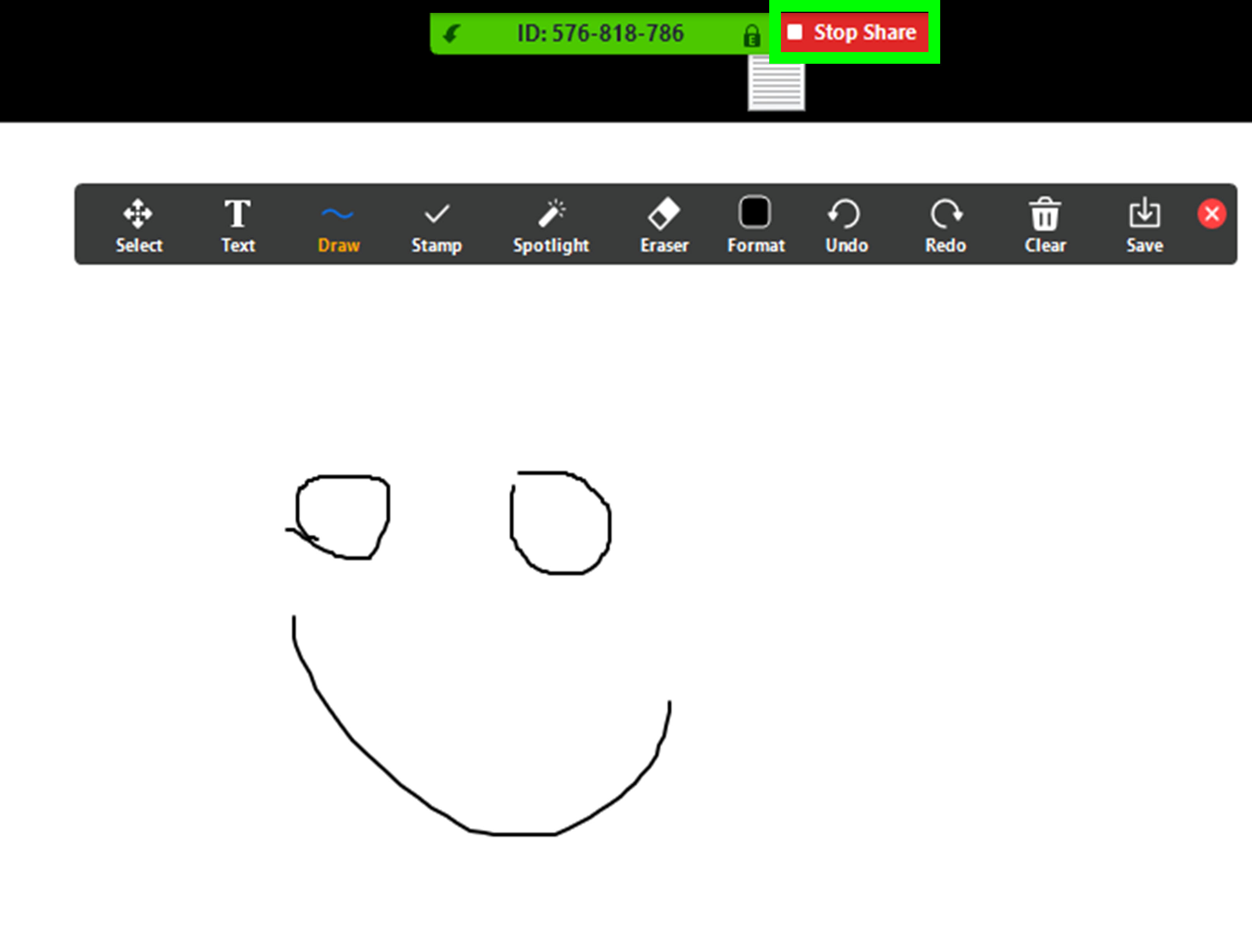
Whiteboard
Zoom Whiteboard can help teams brainstorm, map ideas, sketch workflows, or explain concepts visually. It is especially useful when a normal conversation becomes too abstract. A quick diagram can save ten minutes of “Wait, which process are we talking about?”
Captions and Transcripts
Captions improve accessibility and help participants follow along in noisy environments. Transcripts can make it easier to review decisions later, especially for training sessions or long discussions.
AI Meeting Summaries
Depending on your Zoom plan and account settings, Zoom AI Companion can help with meeting summaries, notes, questions, and follow-up support. AI tools are useful, but they should not replace thoughtful meeting leadership. Use them to capture details, then review the summary before sharing it as official notes.
Zoom Etiquette: Small Habits That Make You Look Professional
Zoom etiquette is mostly common sense, but common sense occasionally forgets to log in. Here are the habits that make meetings smoother:
- Mute yourself when not speaking.
- Look toward the camera when making key points.
- Use your real name or a recognizable display name.
- Avoid eating during formal meetings.
- Do not multitask visibly.
- Keep comments concise.
- Respect start and end times.
- Use chat for helpful links, not side conversations.
If you are hosting, set expectations early. Say whether people should use chat, raise hands, stay muted, turn cameras on, or participate verbally. People behave better when they know the rules of the room.
Troubleshooting Common Zoom Problems
Problem: Nobody Can Hear You
Check whether you are muted. Then check whether Zoom is using the correct microphone. If you use Bluetooth earbuds, make sure they are connected to the device running Zoom, not your phone across the room.
Problem: You Cannot Hear Anyone
Check your speaker output. Try leaving computer audio and joining again. Also make sure your system volume is not muted. This sounds obvious, but the mute button is a tiny villain.
Problem: Your Video Is Frozen
Turn off video, close unnecessary apps, move closer to your router, or switch networks if possible. If your internet is weak, audio matters more than video. A clear voice beats a frozen smile every time.
Problem: Screen Share Is Not Working
Make sure the host allows participant screen sharing. On some devices, you may also need to give Zoom screen recording or screen sharing permission in your system settings.
Best Practices for Productive Zoom Meetings
A productive Zoom meeting has three ingredients: preparation, participation, and follow-up. Before the meeting, send an agenda and invite only the people who need to attend. During the meeting, keep discussion focused and encourage the right voices to contribute. After the meeting, send action items, deadlines, and owners.
For example, instead of ending with “Let’s circle back,” say, “Maria will update the proposal by Tuesday, James will confirm pricing by Thursday, and we will review the final version Friday morning.” Specific follow-up turns a meeting from a conversation into progress.
Experiences Related to Easy Ways Use the Zoom App for Meetings
One of the most useful lessons from real Zoom experience is that the meeting usually succeeds or fails before it begins. A host who opens Zoom two minutes late, searches for a file while everyone watches, and says, “I know I had that slide somewhere,” has already lost the room. A host who prepares the agenda, tests the microphone, opens the presentation, and starts with a confident welcome creates instant calm.
In everyday work, the easiest Zoom habit is creating a repeatable pre-meeting checklist. Five minutes before the call, check your internet, plug in your laptop, open the right files, silence notifications, test audio, and clean your visible background. This small routine prevents most embarrassing problems. It also makes you feel more relaxed, which helps you speak better and listen better.
Another experience many users discover quickly is that shorter meetings are often better meetings. A 25-minute Zoom meeting with a clear agenda can accomplish more than a 60-minute meeting with no direction. People pay closer attention when they know the goal and the time limit. If a topic does not require live discussion, send a document or message instead. Zoom is powerful, but not every thought needs its own video call.
For teachers, coaches, and trainers, engagement matters more than perfect technology. A simple poll, chat question, breakout activity, or quick “type one takeaway in the chat” can wake up a quiet group. People are more likely to remember a meeting when they participate instead of only watch. The host does not need to become an entertainer, but a little interaction keeps the virtual room alive.
For business meetings, the best Zoom experience often comes from assigning roles. One person leads the agenda. Another watches the chat. Someone else takes notes. In larger meetings, a co-host can admit participants, mute background noise, and help presenters. This keeps the main speaker focused instead of juggling buttons like a circus act with Wi-Fi.
For interviews and client calls, professionalism shows in the details. Join early, use your real name, check your lighting, and keep your answers organized. If you need to share your screen, prepare the document in advance and close anything unrelated. A smooth screen share makes you look organized. A messy desktop full of random files makes people wonder whether your project folder is also named “final-final-really-final.”
For remote teams, Zoom works best when leaders respect energy levels. Back-to-back video calls can be draining, especially when every meeting requires cameras on. Build in breaks, avoid unnecessary meetings, and allow audio-only participation when video is not essential. Healthy meeting culture is not about using every Zoom feature. It is about using the right feature at the right time.
Perhaps the most important experience is learning that Zoom is not just a video tool. It is a communication space. The technology matters, but the human habits matter more. Be clear. Be prepared. Be respectful. Mute when needed. Share only what matters. End with next steps. Do that consistently, and your Zoom meetings will feel less like digital traffic jams and more like actual collaboration.
Conclusion
Using the Zoom app for meetings is easy once you understand the essentials: schedule with clear settings, join early, test audio and video, mute when not speaking, share your screen carefully, protect your meeting link, and keep the conversation focused. Whether you are hosting a team update, joining an online class, interviewing for a job, coaching a client, or presenting to a large group, Zoom can help you communicate clearly when used with intention.
The secret is not knowing every button. The secret is knowing the right buttons before you need them. With a little preparation and a few smart habits, you can turn Zoom from “that app with the mute drama” into a reliable meeting tool that helps people connect, collaborate, and actually get things done.