
PDF files are excellent at keeping a document’s layout intact. Unfortunately, they can also guard their images like a dragon sitting on a pile of office supplies. You can see the photograph, chart, diagram, or logo perfectly, but copying it into Microsoft Word is not always as simple as pressing Copy and Paste.
The good news is that there are several reliable ways to copy an image from PDF to Word on Windows and Mac. You can copy the original image directly, capture a selected area, export the image as a separate file, convert the PDF in Word, or use a screenshot when everything else refuses to cooperate.
This guide explains each method step by step, including which approach produces the best image quality, how to handle scanned or protected PDFs, and what to do when the copied picture looks blurry, incomplete, or surrounded by unwanted text.
Quick Answer: What Is the Best Method?
The best method depends on the type of PDF and what you need from it:
- For one selectable image: Copy it directly with Adobe Acrobat Reader or another desktop PDF editor.
- For part of a page: Use Acrobat’s Snapshot tool, Windows Snipping Tool, or Preview’s Rectangular Selection tool.
- For the highest available quality: Export the original image from the PDF and insert the saved file into Word.
- For many images: Use an “Export All Images” or “Extract Images” feature.
- For a PDF that is mostly text and pictures: Open the PDF in desktop Word and let Word convert it.
- For a stubborn or protected file: Check the PDF’s permissions and use an authorized screenshot only when appropriate.
Whenever image quality matters, saving or exporting the picture first is usually better than pasting it through the clipboard. The clipboard is fast, but it occasionally treats sharp graphics as though they have offended it personally.
Before Copying an Image from a PDF
Check Whether Copying Is Allowed
Some PDF creators disable copying through the document’s security settings. In Adobe Acrobat Reader, you can right-click the document, open Document Properties, and review the Security tab. Look for the document restrictions summary and confirm that content copying is permitted.
On a Mac, Preview may ask for a password before allowing content selection. If the file belongs to an employer, client, school, publisher, or subscription service, make sure you have permission to reuse its images. A screenshot does not magically turn copyrighted material into free confetti.
Decide Whether You Need the Image or the Whole Page
A PDF may contain a true embedded image, such as a JPEG photograph. It may also contain a chart assembled from text, lines, and vector objects. Direct selection often works for embedded pictures, while a rectangular capture works better for charts, diagrams, signatures, or mixed page elements.
If you need a complete page exactly as it appears, capture or export the page rather than attempting to copy its individual parts.
Zoom In Before Capturing
Screenshot-based methods capture what the computer displays. Increasing the PDF zoom level before making the selection can produce a sharper result, especially for small labels and diagrams. Keep the entire required area visible, but make it as large as reasonably possible.
How to Copy an Image from PDF to Word on Windows
Method 1: Copy the Image Directly in Adobe Acrobat Reader
This is the fastest option when the picture is stored as a selectable object inside the PDF.
- Open the PDF in the desktop version of Adobe Acrobat Reader.
- Right-click the document and choose Select Tool if it is not already active.
- Click the image you want to copy.
- Right-click the selected image and choose Copy Image or Copy.
- Open the destination document in Microsoft Word.
- Place the cursor where the image should appear.
- Press Ctrl+V or choose Home > Paste.
If clicking selects text instead of the picture, the image may be flattened into the page or combined with other graphic objects. Use the Snapshot method instead.
Method 2: Use Adobe Reader’s Snapshot Tool
The Snapshot tool copies a rectangular area of a PDF page as a single image. It is useful for charts, illustrations, tables, handwritten notes, and graphics that cannot be selected separately.
- Open the PDF in the Adobe Acrobat Reader desktop application rather than a browser tab.
- Navigate to the required page and adjust the zoom level.
- Choose Edit > More > Take a Snapshot. Menu wording may vary slightly by version.
- Drag a rectangle around the image or page area you need.
- Release the mouse button to copy the selected area.
- Open Word and press Ctrl+V.
- Press Esc in Acrobat to exit Snapshot mode.
Crop the selection carefully. Capturing extra borders, page numbers, or neighboring text means additional cleanup in Wordand nobody wakes up excited about trimming a mysterious half-sentence from a picture.
Method 3: Capture the Image with Windows Snipping Tool
Windows Snipping Tool is the universal fallback. It works even when the PDF is open in Microsoft Edge, Chrome, Firefox, Acrobat, or another viewer.
- Open the PDF and display the image at a clear, readable size.
- Press Windows+Shift+S.
- Select Rectangular Snip.
- Drag around the image.
- Open Word and press Ctrl+V.
You can also open Snipping Tool first, select New, capture the image, and save it as a PNG or JPEG. Saving the capture before inserting it is helpful when you want to reuse the picture in several documents.
Snipping Tool is convenient, but it captures screen pixels rather than necessarily extracting the original image. Use direct export for professional printing, detailed diagrams, or anything that must remain crisp at a large size.
Method 4: Open the PDF Directly in Microsoft Word
Desktop versions of Word can make a copy of a PDF and convert its contents into an editable Word document. This method is useful when you need several images along with surrounding text.
- Open Microsoft Word.
- Choose File > Open > Browse.
- Select the PDF file.
- Accept the message explaining that Word will convert a copy of the PDF.
- Wait for the converted document to open.
- Select the image and press Ctrl+C.
- Paste it into your destination Word document.
The original PDF remains unchanged. However, Word’s conversion works best with documents that are mostly text. Complex brochures, magazines, forms, and heavily designed reports may develop shifted images, altered page breaks, or creative formatting decisions that no human remembers approving.
If an entire converted page appears as one image, you may still copy that page image and crop it in Word.
Method 5: Export the Image from Adobe Acrobat
Exporting is generally the best choice when you need the highest available image quality or want to preserve the picture as a separate file.
- Open the PDF in Adobe Acrobat.
- Select the image with the Select tool.
- Right-click it and choose an export or save-image option, when available.
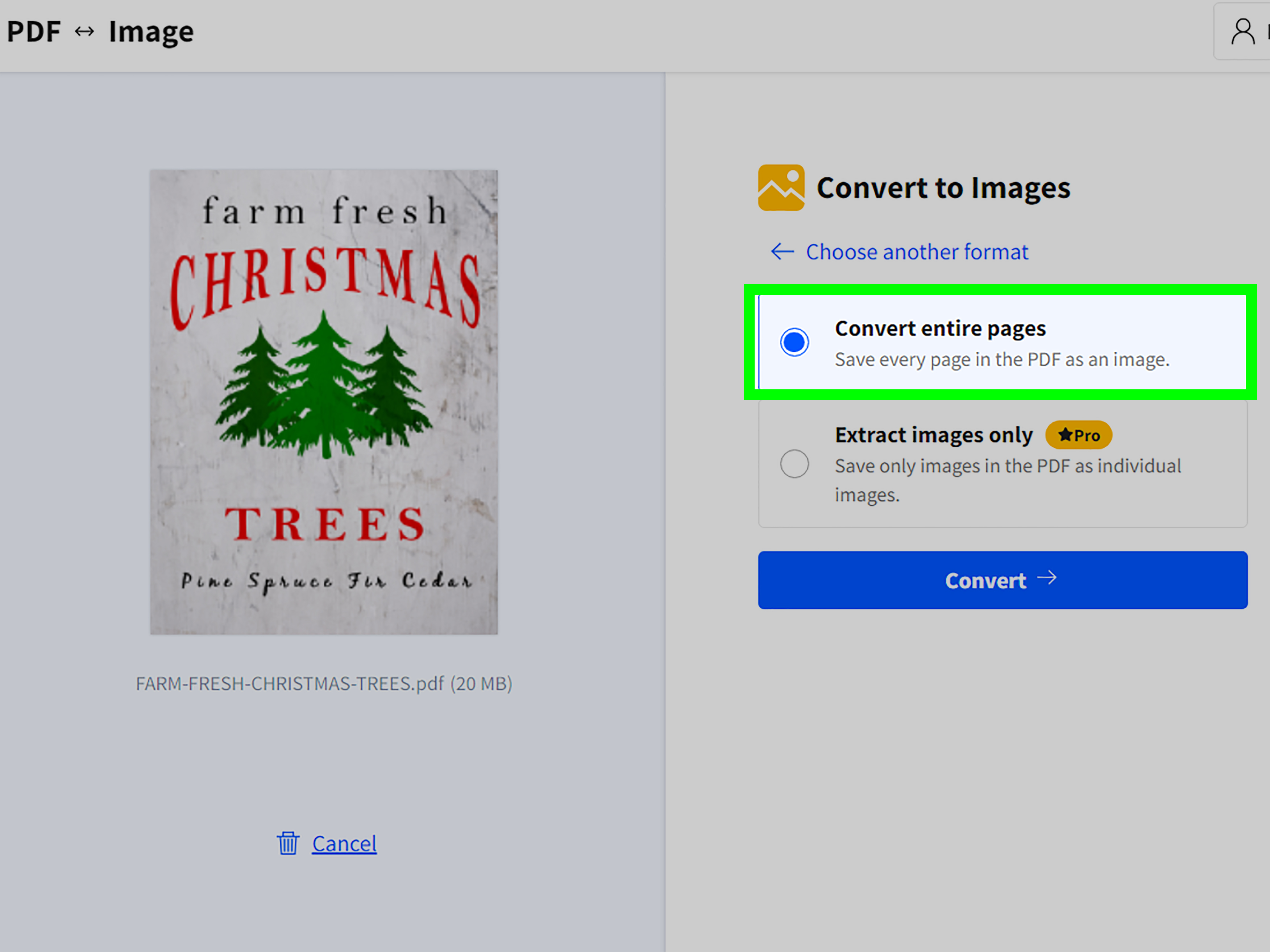
- Alternatively, open the Convert or Export a PDF tools.
- Choose an image format such as PNG, JPEG, or TIFF.
- Save the exported image to your computer.
- In Word, choose Insert > Pictures > This Device.
- Select the file and click Insert.
Acrobat can also export all raster images from a PDF into separate files. This is much faster than copying photographs one at a time from a long catalog or report. Vector objects may not be exported as individual raster images, so charts assembled from lines and text may still require a selection capture.
Method 6: Extract Images with Nitro PDF Pro
Nitro PDF Pro offers direct selection, snapshots, PDF-to-Word conversion, and batch image extraction.
For a single picture, activate Select Text/Graphic, click the image, and choose Copy Image. For a page region, choose Snapshot and drag over the required area. To extract multiple images, use the image extraction command in the Convert tools, select the relevant pages, choose an output folder, and save the files for insertion into Word.
How to Copy an Image from PDF to Word on Mac
Method 1: Use Rectangular Selection in Preview
Preview, the PDF viewer built into macOS, can copy part of a PDF page as a graphic image. This is often the quickest Mac method and does not require additional software.
- Double-click the PDF to open it in Preview.
- Go to the page containing the image.
- Choose Tools > Rectangular Selection.
- Drag around the image or page area.
- Choose Edit > Copy or press Command+C.
- Open Microsoft Word for Mac.
- Place the cursor at the destination and press Command+V.
This method copies the selected area as one graphic, making it especially useful for diagrams, tables, charts, and illustrations containing several elements.
Method 2: Export a PDF Page as an Image in Preview
When direct copying produces a fuzzy result, export the relevant PDF page as an image and crop it afterward.
- Open the PDF in Preview.
- Choose View > Thumbnails.
- Select the required page in the thumbnail sidebar.
- Choose File > Export.
- Select PNG, JPEG, or another suitable image format.
- Choose the available quality or resolution settings.
- Save the image.
- In Word, choose Insert > Pictures > Picture from File.
After inserting the page image, use Word’s Crop tool to remove everything except the desired picture. PNG is usually a strong choice for diagrams, screenshots, logos, and text-heavy graphics. JPEG is generally more efficient for photographs.
Method 3: Take a Partial Screenshot on Mac
For the fastest possible capture:
- Open the PDF and enlarge the image.
- Press Shift+Command+4.
- Drag the crosshair around the image.
- Release the mouse or trackpad button.
- Locate the screenshot, which is normally saved to the desktop unless your screenshot settings specify another location.
- Drag the file into Word or use Insert > Pictures > Picture from File.
You can press Shift+Command+5 to open the macOS Screenshot toolbar and choose additional capture options. To copy a screenshot directly to the clipboard, hold the Control key while using the screenshot shortcut, then paste it into Word with Command+V.
Method 4: Use Adobe Acrobat Reader on Mac
Adobe’s desktop PDF tools work similarly on Windows and macOS. Use the Select tool to click and copy an individual image, or use a rectangular snapshot to copy a larger page region. Paste the result into Word with Command+V.
For maximum quality, export the selected picture or all images from the PDF, save them as image files, and insert them through Word’s Pictures command.
Method 5: Convert the PDF in Word for Mac
You can also try opening the PDF through File > Open in a current desktop version of Word for Mac. Word creates a converted copy and attempts to reproduce the PDF’s text, pictures, and layout.
Once the conversion finishes, select the desired image and copy it into another document. Results vary with the PDF’s complexity, so this is most effective for reports, manuals, and other documents with a straightforward layout.
How to Keep the Copied Image Sharp
Prefer Exporting Over Screenshots
A screenshot records the image at its displayed size. Exporting may retrieve the image data stored inside the PDF, which can provide more pixels and better detail. Start with direct export when the image will be printed, enlarged, or used in a professional report.
Use the Right File Format
- PNG: Best for diagrams, logos, interface screenshots, line art, and graphics containing text.
- JPEG: Best for photographs and images with many color variations.
- TIFF: Useful in some professional print and archival workflows, although it may create a large file.
Resize from the Corners
After inserting the image into Word, drag a corner sizing handle rather than a side handle. This helps preserve the original proportions and prevents people in photographs from developing suspiciously wide heads.
Do Not Enlarge a Small Capture Too Much
Word can make a small screenshot physically larger, but it cannot invent real detail that was never captured. If labels become blurry, return to the PDF, increase the zoom, and make a new captureor export the image directly.
How to Format the Image in Word
After you copy a PDF image into Word, select it to open the Picture Format tab. You can then crop unwanted margins, adjust the size, add alt text, apply a border, correct brightness, or choose a text-wrapping style.
In Line with Text treats the image like a large character and is usually the most stable choice for reports. Square allows surrounding text to flow around the picture. Top and Bottom keeps text away from the image’s sides, while Behind Text and In Front of Text provide greater freedom but can create layout surprises.
For a clean document, use consistent image widths, add captions when necessary, and include descriptive alternative text for readers using assistive technology.
Troubleshooting Common PDF-to-Word Image Problems
The Image Cannot Be Selected
The page may be a single scanned image, the graphic may consist of multiple vector objects, or security settings may prevent copying. Try a rectangular selection, Snapshot, Snipping Tool, or macOS screenshot. For scanned pages, exporting the complete page as an image may provide better results.
Copy and Paste Does Nothing
Switch from a browser-based PDF viewer to a desktop application such as Acrobat Reader or Preview. Some browser and web-app combinations do not transfer pictures through the clipboard reliably. Save the image as a file and use Word’s Insert command instead.
The Copied Image Is Blurry
Increase the PDF zoom before taking a screenshot, export the picture directly, or convert the page to a higher-resolution PNG. Avoid repeatedly copying the image between several applications because each conversion can reduce quality.
The Image Includes Extra Text or Borders
Select the picture in Word and choose Picture Format > Crop. Drag the black crop handles inward until the unwanted material disappears. Cropping hides or removes the extra area without requiring a separate photo editor.
The Image Moves Whenever Text Changes
Select the picture and open Layout Options. Choose In Line with Text for predictable placement, or adjust the wrapping and position settings if you need the image to float beside a paragraph.
Word Converts the PDF Incorrectly
PDF-to-Word conversion is not guaranteed to reproduce every layout perfectly. Return to the original PDF and copy or export the image directly. For a complex chart, capture the entire chart as one image instead of depending on Word to reconstruct every label, arrow, and shape.
Practical Experiences and Lessons from PDF Image Workflows
In real document work, the technically fastest method is not always the method that saves the most time. Direct copy and paste may take five seconds, but a low-quality paste can create fifteen minutes of resizing, recapturing, and wondering why the company logo suddenly resembles a watercolor painting.
One useful habit is to examine the destination before extracting anything. If the image is going into a short internal memo and will appear only two inches wide, a clean screenshot is usually sufficient. If it is intended for a printed handbook, client proposal, academic paper, or large presentation, exporting the original image is worth the extra steps.
Charts require special attention. A chart that looks like one picture may actually be composed of dozens of vector objects, text labels, and lines. Clicking it may select only one title, one axis, or one tiny rectangle. In that situation, trying to copy each component is a fine way to spend the afternoon regretting your career choices. Capturing the entire chart as one rectangular image is faster and preserves its visual relationships.
Scanned PDFs create another common surprise. Because the whole page is essentially a photograph, there may be no independent image to select. The practical solution is to capture or export the page, crop the required region, and then insert the result into Word. When the scan is faint, slightly increasing contrast in an image editor before inserting it can improve readability.
It is also helpful to create a temporary image folder for larger projects. Give files descriptive names such as installation-diagram-page-12.png rather than accepting a collection of names like image1.png, image2.png, and final-final-really-final.png. Organized source files make later revisions much easier.
For documents containing many pictures, batch extraction is usually the winning strategy. Export all images, review them in File Explorer or Finder, and insert only the useful ones. This avoids repeating the same copy-and-paste routine across dozens of PDF pages. Be aware that batch extraction may also collect decorative icons, backgrounds, tiny logos, and other visual crumbs you never asked for.
Another practical lesson is to save the Word document before experimenting with text wrapping. Floating images can jump between pages when paragraphs are added or deleted. Keeping the image In Line with Text while drafting creates a stable layout. More elaborate wrapping can be applied after the surrounding text is nearly final.
For collaborative documents, inserting a saved image file is often more reliable than pasting directly from a clipboard. A properly inserted PNG or JPEG tends to survive cloud syncing, version changes, and sharing more predictably. It also gives the team a reusable source file if the picture needs to be placed elsewhere.
Finally, always compare the result with the original PDF at 100 percent zoom. Check labels, legends, numbers, cropped edges, and small footnotes. A picture can look acceptable at a glance while quietly missing the final column of a table or the bottom half of a caption. A thirty-second quality check is far less embarrassing than discovering the problem after the document has been published.
Conclusion
There is no single best way to copy an image from PDF to Word for every situation. On Windows, Adobe Acrobat Reader, Snapshot, Snipping Tool, Word conversion, and dedicated extraction tools provide several workable options. On Mac, Preview’s Rectangular Selection, page export, macOS screenshots, Acrobat, and Word conversion cover nearly every common scenario.
Use direct copy for speed, rectangular capture for mixed page content, and image export for maximum quality. When a PDF refuses to cooperate, check its permissions, switch to a desktop viewer, and insert a saved image file instead of relying entirely on the clipboard. With the right method, moving a picture from PDF to Word becomes a straightforward task rather than an unexpected test of emotional resilience.
SEO Metadata