
Note: This guide is written for Windows 10 and Windows 11 users. The shortcuts below are built into Windows, although some keyboards, laptop function-key settings, or third-party utilities may slightly change how keys behave.
Every Windows user eventually reaches that moment: your screen is buried under a heroic pile of browser tabs, file folders, chat windows, spreadsheets, and one random Notepad file named “final-final-really-final.txt.” You need the desktop now, not after clicking the tiny minimize button on twelve separate windows like you are defusing a digital bomb.
Good news: Windows has several fast ways to minimize all windows at once. The easiest method is a keyboard shortcut, but you can also use the taskbar, restore minimized windows, or focus on one active window while hiding the rest. This guide walks you through the most practical options in four simple steps, with clear examples for everyday work, school, gaming, and general computer cleanup.
The main keyword here is simple: how to minimize all windows at once on Windows. But by the end, you will also understand related tricks such as showing the desktop, restoring minimized windows, using Windows keyboard shortcuts, and fixing the missing Show Desktop button in Windows 11.
Why You Might Want to Minimize All Windows at Once
Minimizing every open window is not just about having a cleaner screen. It is about saving time and reducing friction. When your workspace is crowded, a quick shortcut can help you reach a file on the desktop, start a new app, drag something into a folder, or simply regain control when your monitor looks like a software yard sale.
This feature is especially useful if you use your desktop as a temporary parking lot for screenshots, downloads, meeting notes, or project files. It also helps when you are sharing your screen and need to quickly hide unrelated windows. Of course, minimizing is not the same as closing. Your apps keep running, your documents stay open, and your work is not lost. Windows simply tucks everything down to the taskbar so you can see the desktop.
Step 1: Press Windows + D to Show the Desktop Instantly
The fastest and most popular way to minimize all windows at once is to press Windows + D. Hold the Windows logo key, then tap the D key. In most cases, every open window disappears from view and the desktop appears immediately.
This shortcut is best described as “show desktop” rather than strictly “minimize all windows,” because it works like a toggle. Press Windows + D once, and Windows shows your desktop. Press it again, and your windows usually return to where they were. That makes it perfect when you need to grab one desktop file and jump right back into your previous workflow.
Example: Using Windows + D During a Busy Workday
Imagine you are writing an email, editing a spreadsheet, and checking a browser tab. Suddenly, you need to attach a PDF saved on your desktop. Instead of minimizing each window one by one, press Windows + D, drag the PDF into your email, then press Windows + D again to bring your workspace back. It feels like your computer suddenly learned manners.
For most people, this is the shortcut to memorize first. It is quick, reliable, and easy to use with one hand. If your goal is to show the desktop temporarily, Windows + D is usually the best choice.
Step 2: Press Windows + M to Minimize All Windows
Another official Windows shortcut is Windows + M. This command minimizes all windows and sends them to the taskbar. It is similar to Windows + D, but there is an important difference: Windows + M is more of a one-way minimize command, while Windows + D is a show/hide desktop toggle.
In plain English, use Windows + M when you want to clear the screen and keep the windows minimized. Use Windows + D when you want to peek at the desktop and then quickly bring everything back.
How to Restore Windows After Using Windows + M
If you press Windows + M and then decide you want your windows back, use Windows + Shift + M. This restores minimized windows on the desktop. Think of it as the “undo” button for the Windows + M shortcut.
Here is the simple version:
- Windows + M: Minimize all windows.
- Windows + Shift + M: Restore minimized windows.
- Windows + D: Show or hide the desktop as a toggle.
These shortcuts are small, but they can save a surprising amount of time. If you spend hours a day on a Windows PC, learning them is like finding an extra pocket in your favorite jacket.
Step 3: Click the Show Desktop Button on the Taskbar
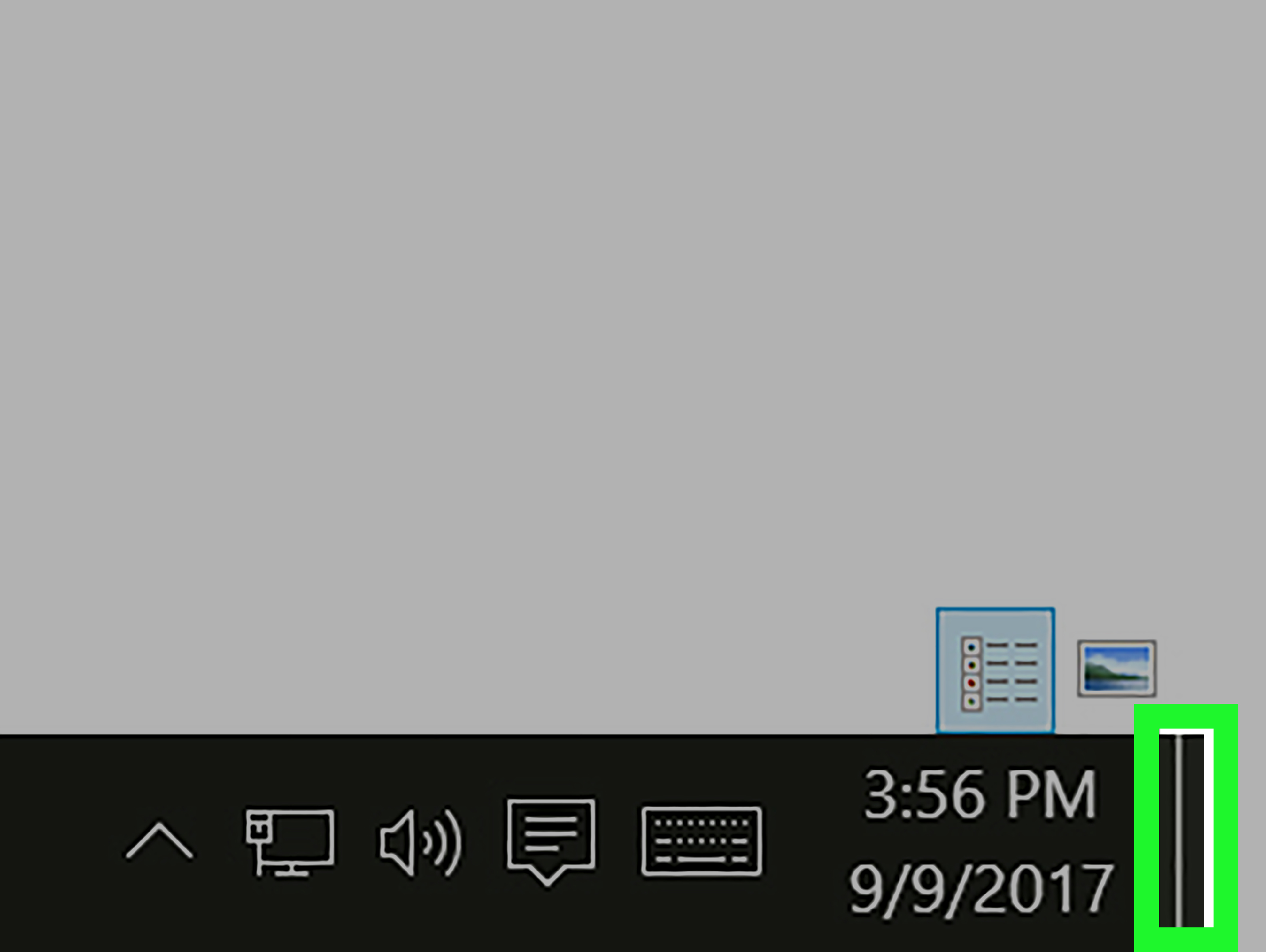
If you prefer using the mouse, Windows includes a taskbar shortcut for showing the desktop. Look at the far-right edge of the taskbar, near the clock and notification area. On many Windows setups, there is a thin, almost invisible button at the very end. Click it, and Windows shows the desktop by minimizing or hiding open windows. Click it again, and your windows can return.
This small button is easy to miss. It does not shout for attention. It is more like a secret door in a library wall, except instead of leading to treasure, it leads to your wallpaper and that folder you forgot to rename.
What If the Show Desktop Button Is Missing?
On Windows 11, the Show Desktop area may need to be enabled in taskbar settings, depending on your version and configuration. To check it, right-click an empty area of the taskbar, choose Taskbar settings, open Taskbar behaviors, and look for the option that allows you to select the far corner of the taskbar to show the desktop.
If that option is turned off, the far-right taskbar click may not work the way you expect. Turn it on, then move your pointer to the extreme right edge of the taskbar and click. This is especially handy for users who prefer mouse navigation or who work on a desktop PC with a large monitor.
Step 4: Use Windows + Home to Keep One Window Open
Sometimes you do not want to minimize everything. You may want to keep one active window open and clear away the rest. For that situation, try Windows + Home. This shortcut minimizes all windows except the one you are currently using.
This is useful when you are focused on one document, browser page, or app and want to remove distractions from the background. Press Windows + Home again, and Windows may restore the other windows, depending on your setup and window state.
Example: Cleaning Up Without Losing Focus
Suppose you are writing a report in Microsoft Word while five other windows are open behind it. You do not need the desktop; you just need visual peace. Click your Word document to make it active, then press Windows + Home. Everything else gets minimized, and your main document stays front and center. It is the digital version of clearing your desk by pushing everything into a drawer. Elegant? Maybe. Effective? Absolutely.
Windows + D vs. Windows + M: Which Shortcut Should You Use?
The difference between Windows + D and Windows + M can confuse new users because both seem to clear the screen. The easiest way to remember the difference is this:
- Use Windows + D when you want to quickly show the desktop and then return to your windows.
- Use Windows + M when you want to minimize all windows and keep them minimized.
- Use Windows + Shift + M when you want to restore windows after using Windows + M.
- Use Windows + Home when you want to keep only the active window visible.
For most everyday tasks, Windows + D is the most flexible. It works well when you need a quick desktop peek. For a more deliberate “clear everything away” action, Windows + M feels more intentional.
Does Minimizing All Windows Close Apps?
No. Minimizing all windows does not close your apps, delete your files, or stop most running programs. It simply hides the windows from your desktop and places them on the taskbar. You can click any taskbar icon to reopen a minimized window.
This matters because many users worry that pressing a shortcut might close unsaved work. Minimizing is safe. Still, if you are working on an important document, it is always smart to save regularly. Keyboard shortcuts are powerful, but they are not magical insurance against coffee spills, power outages, or that one browser tab that decides it has had enough of society.
Troubleshooting: Why the Shortcut Might Not Work
If Windows + D or Windows + M does not work, start with the basics. Make sure your Windows key is not disabled. Some gaming keyboards include a “game mode” that turns off the Windows key to prevent accidental interruptions during play. That is great during a boss fight, less great when you are trying to reach the desktop.
Next, check whether keyboard software is remapping your keys. Apps from keyboard manufacturers, macro tools, accessibility utilities, and remote desktop software can sometimes change shortcut behavior. If you are using a laptop, also check whether your keyboard layout or function-key settings are unusual.
If the taskbar Show Desktop button does not work, open taskbar settings and confirm that the far-right corner is enabled for showing the desktop. On some Windows 11 systems, this option can be turned off, making the old familiar corner click seem like it vanished into witness protection.
Best Practices for Managing Many Open Windows
Minimizing all windows is useful, but it is even better when paired with good window management habits. For example, use Alt + Tab to switch between open apps quickly. Use Windows + Tab to open Task View and see desktops and open windows. Use Snap Layouts in Windows 11 to arrange apps side by side instead of stacking them like pancakes.
You can also use virtual desktops to separate tasks. Keep work apps on one desktop, personal browsing on another, and creative projects on a third. Then, when your main workspace gets messy, you are not trying to organize the entire universe on one screen.
Another helpful habit is to close apps you no longer need. Minimizing is not the same as cleaning. If you minimize twenty windows and never return to them, you are not organizing your computer; you are hiding the laundry under the bed. Close unused apps, save important files, and use shortcuts to move fasternot to avoid cleanup forever.
Quick Reference: The Best Shortcuts to Minimize Windows
| Action | Shortcut or Method | Best For |
|---|---|---|
| Show or hide the desktop | Windows + D | Quickly reaching desktop files |
| Minimize all windows | Windows + M | Clearing the screen completely |
| Restore minimized windows | Windows + Shift + M | Undoing Windows + M |
| Show desktop with mouse | Click far-right taskbar corner | Mouse-first users |
| Minimize everything except the active window | Windows + Home | Reducing distractions |
Extra Experience: Real-Life Tips for Minimizing All Windows on Windows
After using Windows for years across laptops, office desktops, dual-monitor setups, and the occasional “why is this printer still here?” workstation, one lesson becomes clear: the best shortcut is the one you actually remember under pressure. For most users, that shortcut is Windows + D. It is fast, forgiving, and easy to repeat. When someone asks how to minimize all windows at once on Windows, this is usually the first answer worth giving.
In real daily use, Windows + D works beautifully when your desktop is part of your workflow. Many people save downloads, screenshots, invoices, school files, and quick project folders there. Maybe the desktop is not the most organized place in the world, but it is convenient. Pressing Windows + D gives you instant access without interrupting your open programs. Press it again, and you are back where you started. It feels smooth because you are not rebuilding your workspace from scratch.
Windows + M, on the other hand, feels better when you want a more decisive reset. I like it when the screen is too crowded and I do not necessarily want everything to pop back immediately. It gives you a blank visual field. That can be useful before screen sharing, opening a sensitive file, starting a presentation, or taking a screenshot of the desktop. Just remember the restore shortcut: Windows + Shift + M. Without it, you may end up clicking each taskbar icon like you are playing a very boring piano.
The taskbar Show Desktop button is also underrated. It is great for users who keep one hand on the mouse or trackpad. However, because the clickable area is tiny, it can feel awkward at first. On a large monitor, you may need to fling the pointer to the bottom-right corner with confidence. Do not aim timidly. The corner rewards commitment.
For laptops, touchpads, and smaller keyboards, the experience can vary. Some compact keyboards have a smaller Windows key, and some users accidentally press Alt or Fn instead. If a shortcut fails, slow down and test the key combination in a simple situation. Open two windows, press Windows + D, and see what happens. Once the motion becomes familiar, it becomes muscle memory.
For people who work with many apps at once, minimizing all windows can also become a mental reset. A cluttered screen can make a simple task feel heavier than it is. Clearing the desktop for a moment gives your brain a clean visual break. It is not quite meditation, but for a Monday morning inbox, we take what we can get.
One final practical tip: do not use minimizing as your only organization system. Shortcuts help you move quickly, but they do not replace closing unused windows, naming files clearly, or using folders. Think of Windows + D and Windows + M as quick windshield wipers for your screen. They clear the view, but they do not clean the garage.
Conclusion
Learning how to minimize all windows at once on Windows is one of those small skills that makes your computer feel faster and less chaotic. The easiest shortcut is Windows + D, which shows the desktop and can bring your windows back with another press. If you want to truly minimize everything, use Windows + M, then restore with Windows + Shift + M. Mouse users can click the Show Desktop area at the far-right edge of the taskbar, while focused workers can use Windows + Home to keep only the active window visible.
These shortcuts are simple, but they make a big difference. Whether you are finding a file, cleaning up before a meeting, organizing your workspace, or just trying to see your wallpaper again, Windows gives you several quick ways to clear the screen without closing your work.