
If your Acer Aspire One feels like it is powered by a tired hamster jogging through oatmeal, you are not alone. These small netbooks were built for basic computing: email, documents, web browsing, light media, and school or office tasks. They were never meant to wrestle with modern browser tabs, cloud sync tools, video calls, heavyweight antivirus suites, and Windows updates all at once. Yet with the right cleanup, a few smart upgrades, and realistic expectations, an Acer Aspire One can still become surprisingly useful.
This guide explains how to speed up Acer Aspire One laptops and netbooks without falling for fake “one-click turbo” tools. We will look at software fixes, startup cleanup, storage upgrades, RAM limits, browser tuning, malware scans, cooling, lightweight operating systems, and practical habits that make an old Acer feel less like a museum exhibit and more like a dependable little machine.
First, Know What You Are Working With
Before you start changing settings, check your exact Acer Aspire One model. The name “Aspire One” covers many small laptops, including older models like the Aspire One ZG5, D255, D257, D270, 722, and others. Some came with Intel Atom processors, 1GB or 2GB of RAM, and mechanical hard drives. Others shipped with small SSDs or flash storage. That matters because the best speed fix depends on the hardware.
Check your model and specifications
In Windows, open Settings > System > About to view the processor, RAM, and Windows version. You can also press Windows + R, type msinfo32, and press Enter for deeper system details. Write down the model number, installed memory, storage type, and operating system.
Then visit Acer’s official support page and search by serial number, SNID, or model number. This helps you find the correct BIOS, drivers, and manuals. Do not guess. Installing the wrong BIOS or driver on an old netbook is like giving coffee to a goldfish: exciting for a second, then very bad.
1. Restart the Acer Aspire One Before Doing Anything Fancy
It sounds too simple, but restarting clears stuck background processes, memory leaks, pending updates, and sleeping apps that refuse to behave. If your Acer Aspire One has been waking from sleep for days or weeks, it may be dragging around digital clutter like a backpack full of bricks.
Click Start > Power > Restart. Do not just close the lid. After restarting, test the same task again: opening the browser, launching File Explorer, or loading a document. If the machine feels faster, the issue may be background software rather than hardware failure.
2. Disable Startup Programs That Eat Memory
One of the fastest ways to speed up an Acer Aspire One is to stop unnecessary programs from launching at startup. Many apps quietly add themselves to startup: cloud storage, chat tools, printer helpers, update checkers, media players, browser assistants, and mysterious utilities with names that sound like rejected robot villains.
How to disable startup apps in Windows
- Right-click the taskbar and open Task Manager.
- Click Startup apps or the Startup tab.
- Sort by Startup impact.
- Disable apps you do not need immediately after signing in.
- Restart and compare boot time.
Keep security software enabled, but disable nonessential helpers. For example, you probably do not need Spotify, Teams, Skype, Adobe helpers, printer monitors, and three cloud drives launching before you even touch the keyboard. On a machine with 1GB or 2GB of RAM, every background app matters.
3. Free Up Disk Space
Low storage can make Windows sluggish, especially on older hard drives. When free space gets tight, Windows struggles with updates, temporary files, browser caches, and virtual memory. The result is a laptop that pauses dramatically, as if considering its life choices.
Use Disk Cleanup
- Click Start and search for Disk Cleanup.
- Select the main drive, usually C:.
- Check temporary files, Recycle Bin, thumbnails, and other safe cleanup items.
- Click Clean up system files for deeper cleanup.
- Remove old Windows update files if available.
Use Storage Sense on Windows 10 or newer
Open Settings > System > Storage and turn on Storage Sense. This tool can automatically remove temporary files and help manage clutter. It is safer than random registry cleaners, which often promise a race car and deliver a shopping cart with one wobbly wheel.
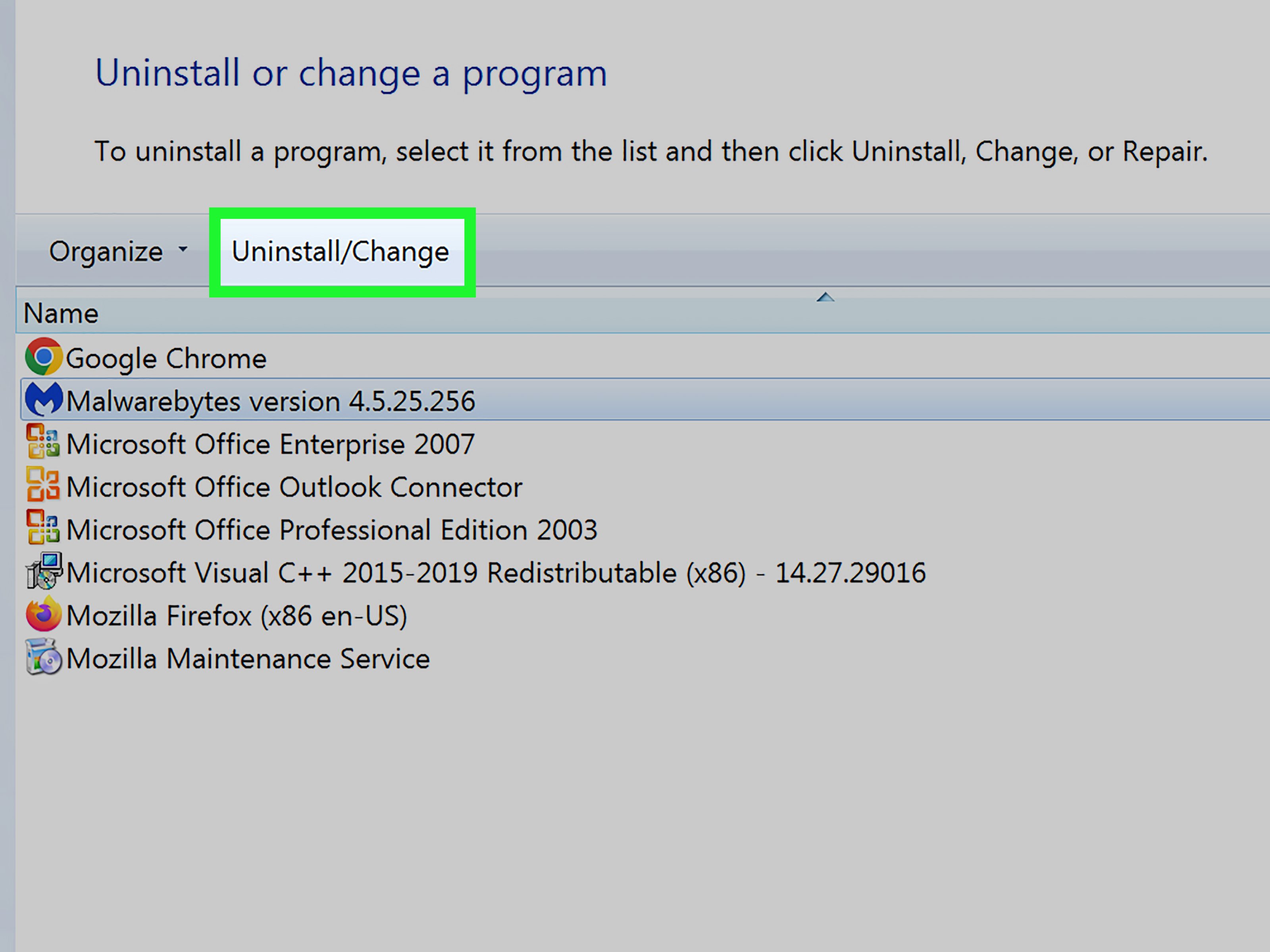
4. Uninstall Software You Do Not Use
Old Acer Aspire One laptops often carry years of abandoned programs: trial antivirus tools, outdated games, browser toolbars, old printer packages, DVD utilities, and “PC optimizer” apps that optimize mostly by asking for money. Remove anything you no longer need.
Go to Settings > Apps or Control Panel > Programs and Features. Sort by size or installation date. Uninstall software carefully. When in doubt, search the program name before removing it, especially if it mentions Intel, Acer, Microsoft, Realtek, Synaptics, or driver components.
5. Scan for Malware, Adware, and Browser Hijackers
A slow Acer Aspire One may not simply be old; it may be infected or overloaded with adware. Browser hijackers, unwanted extensions, fake search tools, and pop-up generators can destroy performance. They are the glitter of the software world: easy to acquire, impossible to enjoy, and surprisingly hard to remove.
Run a Windows Security scan
Open Windows Security > Virus & threat protection and run a full scan. For stubborn problems, use Microsoft Defender Offline scan, which restarts the computer and checks for threats before Windows fully loads.
Check browser extensions
Open your browser’s extension page and remove anything unfamiliar. Keep only the extensions you truly use. On old netbooks, even legitimate extensions can slow browsing. One password manager and one ad blocker may be fine. Fifteen coupon tools, PDF converters, and “search enhancers” are a tiny circus you do not need.
6. Replace the Hard Drive With an SSD
If your Acer Aspire One has a mechanical hard drive, upgrading to a solid-state drive is often the single biggest performance improvement. A hard drive uses spinning platters and a moving read/write head. An SSD uses flash memory, which makes booting, launching apps, opening files, and waking from sleep much faster.
Many Aspire One models use a 2.5-inch SATA drive, but not all models are equally easy to open. Some require removing the keyboard, palm rest, motherboard, or several tiny screws that appear to have been designed by someone with a grudge against humans. Before buying parts, confirm the drive type for your exact model.
SSD upgrade checklist
- Confirm your Acer Aspire One model number.
- Check whether it uses a 2.5-inch SATA drive, mSATA, or soldered storage.
- Back up your files to an external drive or cloud service.
- Decide whether to clone the old drive or install a fresh operating system.
- Use the correct screwdriver and anti-static precautions.
A budget SATA SSD is usually enough. The Aspire One’s older interface may not use the full speed of a modern SSD, but the improvement over a 5400 RPM hard drive can still feel dramatic. Boot times shrink, apps open faster, and the whole system stops sounding like it is searching a filing cabinet in a windstorm.
7. Upgrade RAM If Your Model Allows It
RAM is the computer’s short-term workspace. When RAM fills up, Windows uses the drive as overflow memory, which is much slower. Many Acer Aspire One models came with 1GB or 2GB of RAM. That was acceptable in the netbook era, but modern browsing can eat that for breakfast and ask for dessert.
Some Aspire One models can be upgraded to 2GB or more, while others are limited by soldered memory, chipset support, or a single slot. Check your exact model before buying RAM. A 2GB upgrade can make Windows XP, Windows 7 Starter, lightweight Linux, or a stripped-down Windows installation feel smoother, but it will not turn an Atom netbook into a gaming laptop. It will still be a small netbook, just one that has stopped gasping as loudly.
8. Use a Lightweight Browser Setup
Modern browsers are powerful, but they are also hungry. On an Acer Aspire One, the browser is usually the main performance battlefield. Five tabs may be fine. Twenty tabs, two streaming sites, a spreadsheet, and a video call? That poor netbook is going to need a motivational speech.
Browser speed tips
- Keep only one browser installed if storage is tight.
- Remove unnecessary extensions.
- Enable memory-saving features when available.
- Close tabs you are not using.
- Use mobile or lightweight versions of websites when possible.
- Clear cache only when it becomes bloated or corrupted; do not obsessively wipe it every hour.
For very old Aspire One models, try a lighter browser or a Linux-friendly browser if you switch operating systems. Avoid keeping web apps open all day unless you need them.
9. Adjust Visual Effects
Windows animations, transparency effects, shadows, and visual flourishes look nice, but older integrated graphics and Atom processors do not always appreciate the decoration. Turning down visual effects can improve responsiveness.
How to reduce Windows visual effects
- Press Windows + R, type sysdm.cpl, and press Enter.
- Open the Advanced tab.
- Under Performance, click Settings.
- Select Adjust for best performance, or manually disable animations and shadows.
The desktop may look plainer, but the machine may respond faster. Think of it as removing unnecessary jewelry before running a race.
10. Keep Drivers and BIOS Sensible, Not Obsessive
Correct drivers can fix glitches with Wi-Fi, graphics, touchpads, and power management. Acer’s support site is the safest starting point. Search by SNID, serial number, or model number. For very old models, official updates may be limited, and that is normal.
Do not use random driver updater programs. Many are unreliable, push ads, or install incorrect drivers. If your system is stable, do not update BIOS just for fun. BIOS updates can help specific problems, but a failed BIOS update can turn a slow netbook into a silent paperweight.
11. Clean the Cooling System
Heat can slow a laptop because the processor reduces speed to protect itself. If your Acer Aspire One becomes hot, the fan runs constantly, or performance drops after a few minutes, dust may be blocking airflow.
Power off the laptop, unplug it, and gently clean vents with compressed air. Hold the fan still if you can access it safely, so it does not spin wildly. Use the laptop on a hard surface, not a blanket, pillow, or your pet’s favorite nap zone. Better airflow means more consistent performance and less fan noise.
12. Consider a Clean Windows Installation
If the laptop has years of clutter, failed updates, suspicious programs, and mystery errors, a clean installation may be faster than endless troubleshooting. Back up your files first. Then reinstall Windows from trusted media and install only what you need.
For older machines, choose the lightest practical version you legally own and can safely maintain. Windows 10 support ended on October 14, 2025, so continuing to use Windows 10 online requires careful security planning, extended security updates where available, or a serious look at alternatives. Many Acer Aspire One models do not meet Windows 11’s official hardware requirements, so forcing Windows 11 onto them is usually not the best path for speed or stability.
13. Try a Lightweight Linux Distribution
If Windows is too heavy, a lightweight Linux distribution can give an Acer Aspire One a second life. Lubuntu, Linux Mint Xfce, Debian with Xfce, antiX, and similar systems are popular choices for older computers. They use fewer resources than modern Windows and are well suited for browsing, writing, email, PDFs, and basic media playback.
Lubuntu is especially friendly for older hardware because it uses a lightweight desktop environment and comes with everyday apps. ChromeOS Flex is another option for some older PCs, especially if you mainly use web apps, but it generally expects more modern 64-bit hardware and enough RAM. Always check compatibility before installing.
When Linux makes sense
- You mostly use web browsing, documents, email, and basic media.
- Your Windows version is unsupported or too slow.
- You do not rely on Windows-only software.
- You are comfortable learning a slightly different interface.
Test Linux from a USB drive before installing. This lets you check Wi-Fi, sound, display, touchpad, and battery behavior. If everything works, installation can transform the Aspire One from “ancient Windows survivor” into a lean writing and browsing machine.
14. Use the Acer Aspire One for the Right Jobs
The fastest way to feel disappointed is to ask an old netbook to do modern heavy work. Video editing, large spreadsheets, 25-tab research sessions, HD video calls, and modern games are not realistic. But writing, note-taking, email, simple browsing, retro computing, lightweight coding, and offline reading are perfect jobs.
Use lightweight apps. Replace heavy office suites with simpler editors when possible. Download videos instead of streaming in high resolution. Keep one task open at a time. Old netbooks reward focus. They are basically productivity monks with keyboards.
Practical Speed-Up Plan for Acer Aspire One
Start with free fixes
- Restart the laptop.
- Disable startup apps.
- Uninstall unused programs.
- Run Disk Cleanup or Storage Sense.
- Scan for malware and adware.
- Remove browser extensions.
- Reduce visual effects.
- Clean the vents.
Then consider upgrades
- Add RAM if your model supports it.
- Replace a mechanical hard drive with an SSD.
- Install a clean operating system.
- Try lightweight Linux if Windows remains too slow.
This order matters. Do the free maintenance first. If the machine still crawls, then invest in hardware. An SSD is usually more noticeable than a small RAM upgrade, but RAM helps if the system constantly swaps memory to disk. The best result often comes from both: an SSD plus the maximum supported RAM.
Common Mistakes to Avoid
Installing too many “speed booster” apps
Most speed booster apps do not solve the real problem. Some add background services, notifications, scheduled scans, and ads. That is not optimization. That is hiring a marching band to help you meditate.
Running unsupported software online
Old operating systems can be risky on the internet. If your Acer Aspire One still runs Windows XP, Windows 7, or unsupported Windows 10, avoid sensitive tasks like banking unless you have a secure, updated environment. Consider Linux or ChromeOS Flex where compatible.
Expecting miracles from RAM alone
More RAM helps multitasking, but it does not make an old Atom processor modern. If the processor is the bottleneck, keep expectations realistic.
Ignoring backups
Before upgrades, cleanup, or operating system changes, back up important files. Old drives fail. Tiny screws disappear. Mistakes happen. Backups are boring until the day they become heroic.
Extra Experience: What Actually Makes an Acer Aspire One Feel Faster
After working with older netbooks and low-powered laptops, one lesson becomes obvious: speed is not just about raw specifications. It is about reducing friction. The Acer Aspire One does not have much processing power to spare, so every unnecessary background task feels larger than it would on a modern laptop. A cloud sync tool that is harmless on a new Core i5 machine can feel like a concrete block tied to an Atom netbook.
The biggest real-world improvement usually comes from switching from a hard drive to an SSD. Even when the CPU remains slow, the system feels more awake because it spends less time waiting for storage. Booting, opening the Start menu, launching a browser, and saving documents all become smoother. The Aspire One still will not become fast in the modern sense, but it becomes less frustrating. That matters.
The second most important habit is using fewer browser tabs. On an old Acer Aspire One, tabs are not innocent rectangles; they are tiny resource goblins. Keep one main tab open, bookmark pages instead of leaving them loaded, and close streaming sites when finished. If you use Google Docs, Gmail, and YouTube at once, expect slowdowns. If you use one at a time, the machine behaves much better.
A clean operating system also helps. Many slow Aspire One machines are not slow only because they are old. They are slow because they have a decade of software leftovers: expired antivirus trials, update managers, browser helpers, printer utilities, toolbars, and old startup entries. A clean install removes years of digital dust in one move. Pair that with an SSD, and the little laptop can feel almost cheerful again.
Linux is often the best final chapter for these machines. A lightweight Linux desktop can make old hardware feel useful without fighting modern Windows requirements. It is excellent for writing, studying, browsing simple websites, managing files, and learning basic computing. The key is choosing lightweight apps. Use a simple text editor, a lightweight office suite, and a modest browser setup. Do not install every shiny app just because it is free.
Heat is another hidden issue. Many old netbooks run hot because their vents are clogged or their fans are tired. When the CPU gets hot, it slows down. Cleaning dust from vents and using the laptop on a hard surface can make performance more consistent. It may not increase benchmark numbers dramatically, but it prevents the annoying pattern where the laptop starts fine and then slows to a crawl after ten minutes.
Finally, the best experience comes from giving the Acer Aspire One a focused job. Use it as a writing laptop, a distraction-free study machine, a lightweight travel computer, a retro project device, or a Linux learning box. Do not treat it like a modern workstation. When you respect its limits, it becomes charming. When you ask it to run modern multitasking chaos, it becomes a tiny plastic protest.
Conclusion
Speeding up an Acer Aspire One is about smart triage. Start with software cleanup: disable startup apps, remove junk programs, free disk space, scan for malware, reduce browser load, and lower visual effects. Then check hardware: add RAM if supported and replace a slow hard drive with an SSD. If Windows remains too heavy or unsupported, try a lightweight Linux distribution or another compatible lightweight operating system.
The Acer Aspire One is not a powerhouse, but it can still be useful. With the right setup, it can handle writing, email, research, simple documents, and everyday light tasks. It may never sprint like a new laptop, but it can stop crawlingand sometimes that is exactly the upgrade you need.