
Changing your picture on Yahoo! Mail sounds like one of those tiny tasks that should take twelve seconds and zero emotional energy. Then you open Yahoo Mail, click a few icons, stare at your profile bubble, and suddenly you are negotiating with the internet like it owes you a favor. Good news: updating your Yahoo Mail profile picture is still simple once you know where Yahoo hides the right setting.
Your Yahoo Mail picture is connected to your broader Yahoo Account profile. That means the image you upload may appear in places beyond your inbox, including certain Yahoo properties and account areas. It is not the same thing as an email attachment, and it is not the same thing as your Yahoo Mail signature. Think of it as your account avatar: the small image that helps people recognize your Yahoo identity without forcing them to guess whether “CoolCat1987” is you, your cousin, or a mysterious newsletter from 2009.
This guide walks you through how to change your picture on Yahoo! Mail using a desktop browser and the Yahoo Mail mobile app. You will also learn what image types work, why the picture sometimes does not update right away, how to choose a better photo, and what to do if Yahoo keeps showing the wrong image.
What Is a Yahoo Mail Profile Picture?
A Yahoo Mail profile picture is the image linked to your Yahoo Account. When you add or change it, Yahoo uses that picture as part of your account identity. Depending on where you use Yahoo services, the same image may appear near your profile name, in account menus, on some Yahoo community features, or inside Yahoo Mail for users who can see account profile images.
It is important to understand one small but mighty detail: your Yahoo profile picture is not automatically “sent” inside every email the way a photo attachment is. However, Yahoo Mail may display your public profile image to recipients who view your email in Yahoo Mail. In other words, your picture can help personalize your account, but it should still be something you are comfortable having associated with your email address.
Before You Start: Choose the Right Photo
Before clicking anything, choose a clean, recognizable image. Yahoo supports common image formats, including JPG, JPEG, PNG, GIF, and SVG. The file should be no larger than 15MB and should be at least 192 by 192 pixels. A small, blurry image may technically upload, but it can look like it was photographed through a potato. Your inbox deserves better.
Best Photo Ideas for Personal Yahoo Mail Accounts
For a personal account, a simple headshot works well. Use a photo where your face is clear, the lighting is decent, and the background is not stealing the spotlight. You do not need a studio portrait. A bright window, a neutral wall, and a normal expression can do the job. If your profile picture will appear to family, friends, schools, landlords, or customer support teams, choose something friendly and easy to recognize.
Best Photo Ideas for Business or Freelance Accounts
If you use Yahoo Mail for work, client messages, job applications, or side projects, choose a polished image. A professional headshot, simple brand logo, or clean initials-style graphic is better than a vacation photo cropped from a group picture. For small businesses, a square version of your logo often works best because profile images are usually shown in a round frame.
Photos to Avoid
Avoid images with tiny text, heavy filters, cluttered backgrounds, or multiple people. If the photo is too busy, it may become unreadable once Yahoo shrinks it into a small circle. Also avoid using private documents, IDs, school records, addresses, or anything you would not want connected to your public-facing account identity. Your profile picture should say “this is me,” not “please zoom into my sensitive information.”
How to Change Your Picture on Yahoo! Mail on Desktop
The desktop method is usually the easiest because you get more screen space and a clearer upload interface. Use a modern browser such as Chrome, Edge, Firefox, or Safari, then follow these steps.
Step-by-Step Desktop Instructions
- Open Yahoo Mail in your web browser and sign in to your Yahoo account.
- Move your mouse over your name or profile icon in the Yahoo Mail interface.
- Select Manage your account.
- Open the Personal info tab.
- Click the plus icon or camera/profile image area above your name.
- Choose Upload from device.
- Select the image file you want to use from your computer.
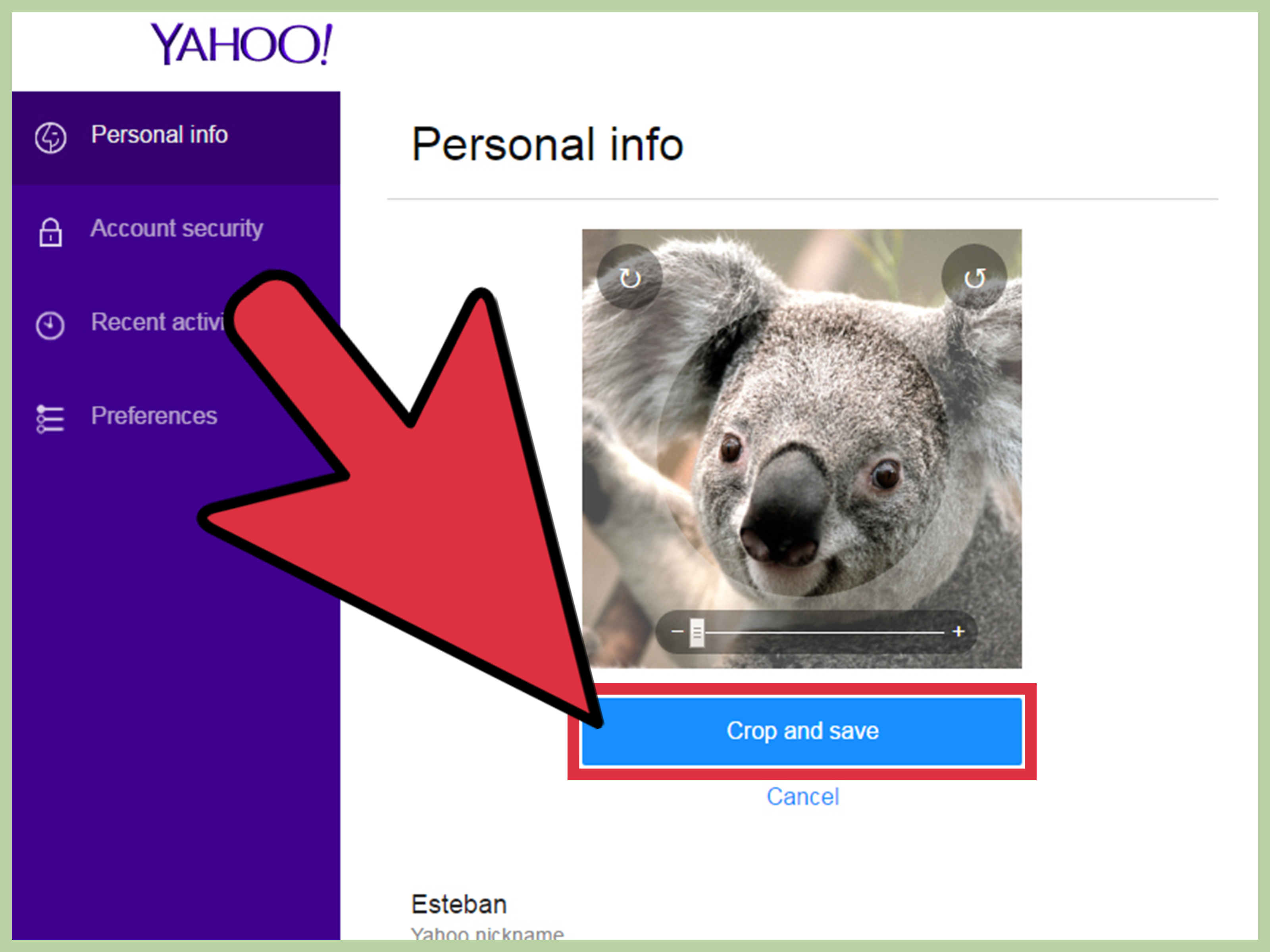
- Adjust the crop so the photo fits neatly inside the frame.
- Click Done to save your new Yahoo profile picture.
After saving, give Yahoo a little time to refresh the image across its services. Sometimes the new photo appears immediately. Other times, your browser or the Yahoo Mail app may keep showing the older version for a while because of cached data. That does not always mean the upload failed.
How to Change Your Picture in the Yahoo Mail App
You can also update your Yahoo Mail picture from most Yahoo mobile apps. The exact wording may vary slightly depending on your device, app version, and region, but the general path is similar.
Step-by-Step Mobile Instructions
- Open the Yahoo Mail app on your phone or tablet.
- Tap your Profile icon, usually in the upper-left corner.
- Tap Manage Accounts.
- Select the Yahoo account you want to update.
- Tap Account or Account info.
- Tap the camera icon near your current profile picture.
- Choose a photo from your gallery or take a new one.
- Crop and position the image.
- Save the change.
If you do not see the account info or camera option inside the app, do not panic. Some Yahoo app versions may not offer the feature in every situation. In that case, use the desktop browser method. Desktop Yahoo Mail is often the most reliable route when the app decides to play hide-and-seek with settings.
How to Crop Your Yahoo Mail Picture Correctly
Most profile pictures appear in a circular or rounded frame, so start with a square image if possible. A 1:1 ratio gives you the most control and reduces the chance that your forehead, logo, or dog’s ear gets chopped off in the final display.
When cropping a headshot, keep your face centered with a little space above your head and around your shoulders. For logos, make sure the main symbol sits in the center and is not too close to the edges. If your logo has words, create a simplified version with just the icon or initials. Full horizontal logos often become unreadable at profile-picture size.
Why Your Yahoo Mail Picture May Not Change Right Away
If you changed your picture but still see the old one, the most likely explanation is caching. Browsers and apps store temporary files to load pages faster. Usually, that is helpful. Occasionally, it means your old profile picture hangs around like an unwanted guest who missed the hint.
Try These Fixes
- Refresh Yahoo Mail and sign out, then sign back in.
- Open Yahoo Mail in a different browser to check whether the new image appears there.
- Clear your browser cache and cookies if the old image keeps showing.
- Update the Yahoo Mail app to the latest version.
- Force close and reopen the Yahoo Mail app.
- Restart your device if the app still displays the old image.
- Remove and reinstall the app only if simpler fixes do not work.
Also remember that different Yahoo areas may update at different speeds. Your account page may show the new image before the inbox menu does. Give it a bit of time before assuming something is broken.
Can You Remove Your Yahoo Mail Profile Picture?
Yahoo’s current guidance says that once you add a profile picture, you cannot make it blank again. If you no longer want to show a personal photo, replace it with a generic image instead. For example, you could upload a plain initials graphic, a neutral icon, a simple color background, or a business logo.
This is worth knowing before you upload a highly personal picture. If you are unsure, start with a neutral image. You can always upgrade to a professional photo later, but you may not be able to return the profile area to a completely blank state.
Profile Picture vs. Sending Name vs. Email Signature
Many people confuse these three settings, but they do different jobs.
Your Profile Picture
This is the image connected to your Yahoo Account. It may appear in Yahoo account areas and some Yahoo Mail views.
Your Sending Name
Your sending name is the name recipients see when you send an email. For example, your email address might be [email protected], but your sending name could be Alex Carter. Changing your profile picture does not automatically change your sending name.
Your Email Signature
Your email signature is the block of text, links, or contact details that appears at the bottom of your outgoing messages. A signature can include your name, title, phone number, website, or business tagline. It is separate from your Yahoo profile picture.
For the most professional result, update all three when needed: use a clear profile picture, a recognizable sending name, and a simple signature. That combination makes your emails look more trustworthy without turning every message into a digital billboard.
What If Yahoo Shows the Wrong Picture for a Contact?
Sometimes the picture you see next to someone else’s email is not your profile picture at all. It may come from your Yahoo Contacts. Yahoo Mail lets users edit contact details and contact images, so an outdated or incorrect contact photo can appear even when the other person has changed their own account image.
To fix a contact image in Yahoo Mail, open the Contacts area, select the contact, choose the edit option, and use the camera icon to update the contact’s image. Save the changes, then refresh Yahoo Mail. If the problem continues, clear your browser cache or check the same contact on another device.
Privacy Tips Before Updating Your Yahoo Picture
Because your Yahoo profile picture can be public in certain Yahoo services, choose an image with privacy in mind. A photo that is fine for close friends may not be ideal for a public account identity. Avoid images that reveal your home address, school name, license plate, daily routine, or workplace security details.
If you use Yahoo for comments, finance, sports, or news features, remember that your account identity may appear in more places than your inbox. A neutral profile picture is a smart choice if you want personalization without oversharing. For business, use a logo or professional headshot. For personal use, use a friendly but not overly private photo.
Common Problems and Quick Solutions
The Upload Button Is Missing
Try updating your browser, disabling private browsing, or switching to another browser. If you are using the mobile app, try the desktop version of Yahoo Mail instead.
The Image File Will Not Upload
Check the file type and file size. Use JPG, JPEG, PNG, GIF, or SVG, keep the image under 15MB, and make sure it is at least 192 by 192 pixels.
The Photo Looks Crooked or Too Zoomed In
Edit the picture before uploading. Crop it into a square and leave space around the main subject. Then use Yahoo’s crop frame to fine-tune the position.
The Old Photo Still Appears
Refresh, sign out and back in, clear cache and cookies, or check the account from a different browser. If the app is the problem, update it or reinstall it after confirming the new image appears correctly on desktop.
Recipients Do Not See the New Picture
Recipients may use a different email service, cached contact data, or their own address book image for you. Your Yahoo profile picture does not control every image shown in every email app.
Best Practices for a Better Yahoo Mail Profile Picture
A good Yahoo Mail picture should be clear, simple, and appropriate for the way you use the account. If you email teachers, employers, customers, or official services, keep it professional. If you use the account mainly for personal messages, you have more room for personality.
Use bright natural lighting, avoid heavy filters, and make sure the image still looks good when small. If you use a logo, test it by shrinking it on your screen. If it turns into a colorful blur, simplify it. Profile pictures are tiny stages; do not try to put an entire Broadway musical on them.
Also consider consistency. If you use the same email for LinkedIn, business cards, online forms, and client communication, a consistent profile image helps people recognize you faster. That small recognition boost can make your email feel more legitimate and less like it wandered out of a spam folder wearing sunglasses.
Experience Notes: What Changing a Yahoo Mail Picture Is Really Like
In real-world use, the easiest way to change a Yahoo Mail picture is usually from a desktop browser. The larger screen makes it easier to find the account menu, choose the Personal info section, and crop the image without accidentally turning your headshot into a close-up of one eyebrow. The app method is convenient, but it can vary depending on the device and Yahoo Mail version. When the mobile option is missing or confusing, desktop is the calm, sensible adult in the room.
One common experience is that the change appears successful on the account page but does not show instantly in the inbox. This can be annoying, especially if you changed the picture because the old one was outdated, embarrassing, or from a hairstyle era you no longer publicly acknowledge. In most cases, the problem is not that Yahoo ignored you. It is usually a refresh or cache issue. Checking the account in another browser is a quick way to see whether the new photo actually saved.
Another practical lesson: prepare the image before uploading it. A photo may look great in your gallery but awkward inside a circular profile frame. Pictures taken from far away often become too small, while tight selfies can become too intense. Nobody wants their profile picture to look like they are leaning through the recipient’s screen to ask about the meeting agenda. A square crop with your face or logo centered solves most display problems before they begin.
For business users, the biggest mistake is uploading a full-size logo with tiny words. Email profile images are small, and small text disappears quickly. A simplified icon, initials mark, or clean brand symbol works better. If you run a local service business, freelance brand, or online shop, a simple logo can make your Yahoo Mail account look more intentional. Pair it with a clean sending name and a tidy signature, and your messages instantly feel more trustworthy.
For personal users, privacy matters more than people think. A fun vacation photo may be fine, but check the background before using it. Photos can reveal school names, street signs, house numbers, workplace badges, or other details you did not mean to share. A profile picture does not need to tell your whole life story. It only needs to help people recognize you.
Finally, do not judge the process by the first refresh. Yahoo profile images can take a little time to appear consistently across browser, app, account, and contact views. Save the photo, confirm it on the account page, refresh the inbox, and give it a moment. If the old picture continues to cling to existence like a dramatic movie villain, clear the cache, update the app, or use desktop Yahoo Mail to reset the image. Most profile picture problems are fixable with patience, a clean image file, and the willingness to click “refresh” more than once.
Conclusion
Changing your picture on Yahoo! Mail is really a Yahoo Account profile update. On desktop, you can do it through Yahoo Mail by opening account management, choosing Personal info, and uploading a new image. On mobile, you can usually start from the profile icon, go to Manage Accounts, and tap the camera icon for your account. Use a supported file type, keep the image clear and properly cropped, and remember that once a profile picture is added, replacing it with a generic image is the better option if you no longer want to use a personal photo.
The best Yahoo Mail profile picture is simple, recognizable, and appropriate for your account’s purpose. Whether you choose a friendly headshot, a business logo, or a neutral initials graphic, the goal is the same: make your Yahoo identity look polished without sharing more than you intended. Small picture, big impression.