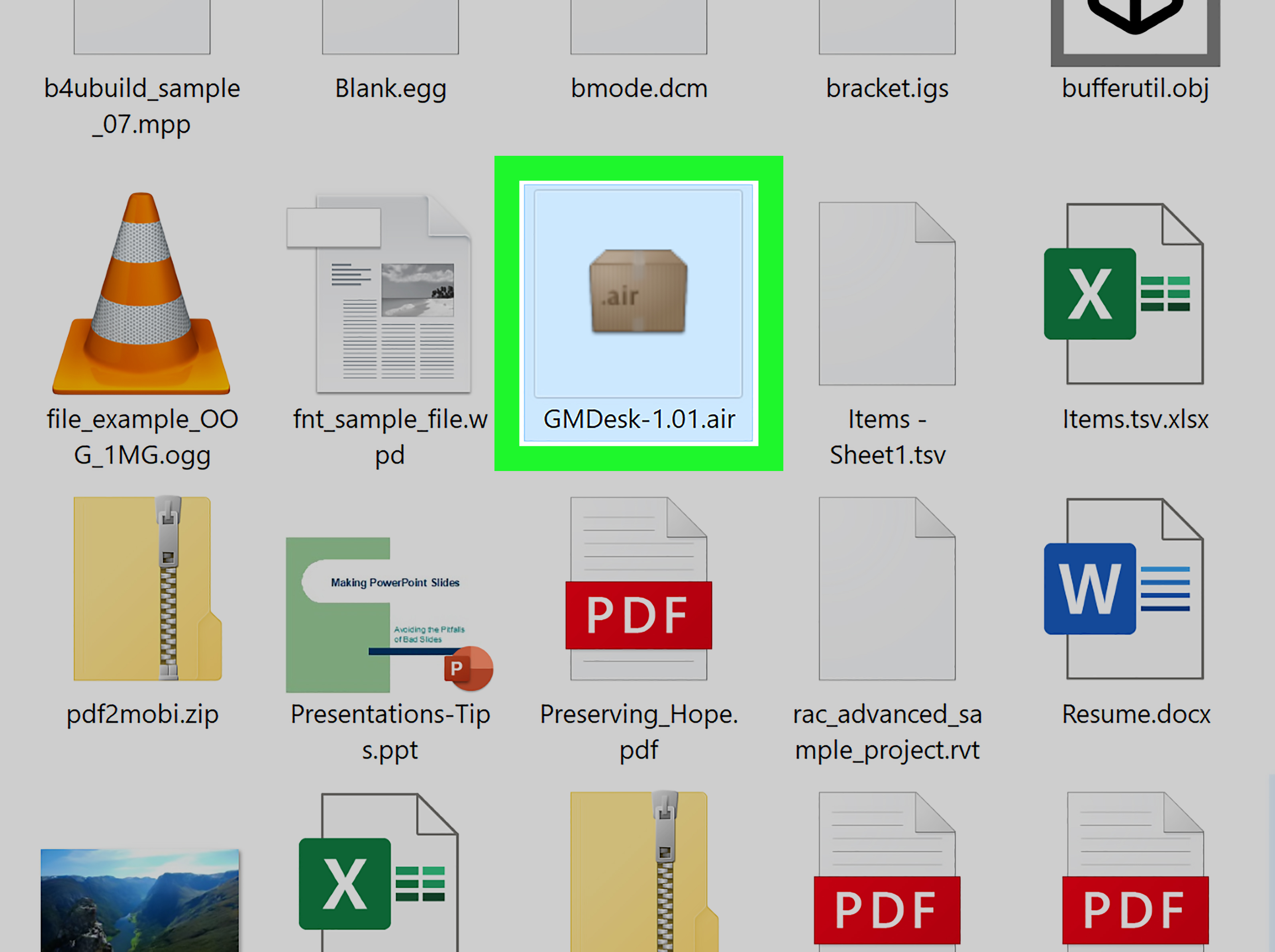

Finding an AIR file on your computer can feel like discovering a tiny digital suitcase with no obvious handle. You double-click it, your PC shrugs, your Mac raises an eyebrow, and suddenly you are wondering whether “AIR” means software, aviation, or a mysterious file from a parallel universe. Good news: in most cases, an .air file is simply an Adobe AIR application installer package. With the right runtime installed, opening it is usually straightforward.
This guide explains how to open AIR files on PC or Mac in six practical steps. You will learn what an AIR file is, how to install the correct runtime, how to open the file safely, what to do when it refuses to cooperate, and how to avoid the classic trap of downloading the wrong thing. Let’s make your computer stop acting dramatic.
What Is an AIR File?
An AIR file is most commonly an installation package for an application built with Adobe AIR, short for Adobe Integrated Runtime. Adobe AIR was designed to let developers create desktop applications using technologies such as ActionScript, Adobe Animate, Apache Flex, HTML, JavaScript, and related web-based tools. In plain English, it helped web-style apps behave more like normal desktop programs.
Many older productivity tools, educational programs, business utilities, and indie games were distributed as .air files. When you install the correct AIR runtime, the .air package can install and run much like a regular app on Windows or macOS.
However, there is one important modern update: Adobe no longer leads active AIR development. Ongoing AIR SDK and runtime support moved to HARMAN, which now maintains Adobe AIR SDK technology. That means users looking for current AIR software should generally look for the HARMAN AIR runtime or related AIR SDK resources rather than old, random Adobe AIR downloads floating around the internet like digital tumbleweeds.
Before You Open an AIR File: Check Where It Came From
An AIR file can install software on your computer, so treat it like any other executable installer. If the file came from a trusted developer, a known software vendor, your school, your workplace, or a legitimate app archive, you are probably on safer ground. If it arrived as an email attachment from “TotallyRealSupport123,” please do not reward that creativity with a double-click.
Before opening the file, ask three quick questions:
- Do I know who created this AIR file?
- Did I download it from the official developer or a trusted source?
- Does my antivirus or system security show any warning?
If anything feels suspicious, scan the file first or avoid opening it. AIR applications may use a runtime security model, but that does not magically make every installer safe. Software safety still starts with common sense, which remains undefeated when people actually use it.
How to Open AIR Files on PC or Mac: 6 Steps
Step 1: Confirm That the File Really Ends in .AIR
Start by checking the file extension. On Windows, right-click the file, choose Properties, and look at the file type. On a Mac, Control-click the file, choose Get Info, and check the name and extension.
The extension should be .air. Be careful with similar-looking extensions such as .ari, .airi, or other file types that only look related. A file named example.air is not the same as example.ari. Computers are very literal creatures; one letter can change everything.
Also remember that not every AIR file belongs to Adobe AIR. Some programs and games have used the .air extension for other purposes, including animation settings or game data. But for most everyday users searching how to open an AIR file on Windows or Mac, the file is usually an Adobe AIR application package.
Step 2: Download the Current AIR Runtime From a Trusted Source
To open and install a standard Adobe AIR application package, your computer needs the AIR runtime. The runtime is the environment that allows AIR apps to run. Without it, your computer may stare at the file like it has been handed a sandwich written in Latin.
Because AIR support has moved to HARMAN, look for the current HARMAN AIR runtime or AIR SDK download from an official or trusted source. Avoid outdated third-party installers unless you have a specific reason to use them and you trust the site. Old downloads may be unsupported, modified, bundled with unwanted extras, or simply incompatible with modern operating systems.
For most users, the key idea is simple: install the runtime first, then open the .air file. Developers may need the full AIR SDK, while regular users usually only need the runtime required by the application.
Step 3: Install the AIR Runtime on Windows or macOS
Once you have downloaded the runtime installer, run it like a normal application installer.
On Windows, double-click the installer file, approve any User Account Control prompt, and follow the setup instructions. When the installation finishes, Windows should understand what to do with .air files.
On Mac, open the downloaded installer package and follow the prompts. Depending on your macOS version and security settings, you may need to confirm that you trust the app. If macOS blocks the installer because the developer cannot be verified, only override the warning if you are certain the file came from a legitimate source. You can usually do this through System Settings > Privacy & Security, then choosing the available option to open the app anyway.
Do not disable Mac security settings broadly just to install one old app. That is like removing your front door because the pizza delivery person knocked softly. Use the safest temporary approval option available.
Step 4: Double-Click the AIR File
After the runtime is installed, return to your .air file and double-click it. In many cases, the AIR Application Installer will open automatically. You should see an installation window showing the app name, publisher information if available, and install options.
Review the details before continuing. If the publisher name looks wrong, the app name is unfamiliar, or the source does not match what you expected, stop and investigate. If everything checks out, proceed with the installation.
Once installed, the AIR app should appear like other applications on your computer. On Windows, check the Start menu or installed apps list. On Mac, check the Applications folder or Launchpad. Some AIR apps may also create desktop shortcuts, because apparently shortcuts still enjoy popping up like mushrooms after rain.
Step 5: Choose the AIR Installer Manually If the File Does Not Open
If double-clicking the file does nothing, opens the wrong program, or shows a message such as “Windows can’t open this file,” your operating system may not have associated .air files with the AIR installer correctly.
On Windows, right-click the .air file, choose Open with, then select the AIR Application Installer if it appears. If it does not appear, choose another app and browse for the installed AIR runtime or AIR installer component. You can also choose to always use that app for .air files if you are confident it is correct.
On Mac, Control-click the .air file, choose Open With, and select the AIR installer if available. If macOS still blocks the file, check System Settings > Privacy & Security shortly after attempting to open it. macOS often provides an Open Anyway option for apps it has blocked.
If you cannot find the AIR installer at all, reinstall the runtime from a trusted source. Sometimes the runtime installs but the file association does not register properly. Annoying? Yes. Fixable? Also yes.
Step 6: Follow the App Installation Prompts and Launch the Program
When the AIR installer opens successfully, follow the on-screen prompts. You may be asked where to install the app, whether to create shortcuts, and whether to launch the program after installation.
After installation, open the program from your applications list. If it runs normally, congratulations: you have opened your AIR file, installed the AIR app, and survived a file extension that sounds like it belongs in a weather forecast.
If the app fails to launch, crashes immediately, or displays an error, the issue may not be the .air file itself. It could be an outdated app, a damaged installer, a missing runtime component, or incompatibility with your current Windows or macOS version.
Troubleshooting: Why Won’t My AIR File Open?
The AIR Runtime Is Missing
The most common reason an AIR file will not open is simple: the runtime is not installed. Install the current AIR runtime from a trusted source, then try again. If you already installed it, restart your computer and test the file once more.
The File Association Is Broken
Sometimes Windows or macOS does not know that .air files should open with the AIR installer. Use the Open with option and manually choose the correct installer. This is especially common on older systems or computers that previously had an outdated Adobe AIR installation.
The AIR File Is Damaged
If you see an error saying the installer file is damaged, download the file again from the original source. A partial download, interrupted transfer, or modified package can prevent installation. If the same error appears after a fresh download, contact the app developer.
The App Is Too Old
Some AIR applications were built years ago and may not behave perfectly on modern Windows or macOS systems. If the developer has released a newer version, use that instead. If not, you may need an older compatible environment, though that is usually best handled by advanced users or IT staff.
macOS Security Blocks the Installer
Modern macOS versions are strict about apps from unidentified or unverified developers. This is a good thing, even if it occasionally feels like your Mac is acting as your overly cautious aunt. If you trust the app, use the built-in privacy and security controls to approve it temporarily. Do not permanently weaken your security settings for one file.
Can You Open an AIR File Without Installing It?
Sometimes, yes, but with limits. Many Adobe AIR files are structured like compressed packages, so archive tools may let you inspect their contents. On Windows, tools such as 7-Zip may show what is inside. On Mac, some archive utilities may also open the package.
However, inspecting the contents is not the same as running the application. To actually install and use the app, you still need the AIR runtime. Opening the package manually is mostly useful for developers, analysts, or advanced users trying to understand what the file contains.
Regular users should avoid editing files inside an AIR package. Changing internal files can break the installer or invalidate signatures. That is the software equivalent of opening a microwave, moving parts around, and then wondering why your burrito is still frozen.
Is Adobe AIR Still Safe to Use?
AIR can still be used, especially when an app comes from a trusted source and depends on the runtime. Many older educational tools, internal company apps, and niche utilities still rely on AIR. The important thing is to use current runtime sources, avoid abandoned downloads from suspicious websites, and keep your operating system protected.
For businesses, the decision is more serious. If an AIR app supports important operations, confirm whether the developer still maintains it. If the app is no longer supported, consider planning a replacement or migration. Old software can keep working for years, but unsupported software has a talent for failing at the worst possible moment, usually ten minutes before a deadline.
PC vs. Mac: What Is Different?
The basic process is similar on both systems: install the runtime, open the .air file, install the app, and launch it. The differences are mostly in security prompts and file association behavior.
On Windows, you may deal with User Account Control, antivirus warnings, SmartScreen-style alerts, or “Open with” settings. On Mac, you are more likely to see Gatekeeper warnings, privacy settings, or blocked-app messages. Neither system is wrong; they are trying to protect you from questionable installers. Sometimes they are helpful. Sometimes they are as dramatic as a cat seeing a cucumber.
Best Practices for Opening AIR Files Safely
- Download AIR files only from trusted developers or official sources.
- Install the current AIR runtime from a reputable source.
- Scan unfamiliar AIR files before opening them.
- Do not ignore publisher warnings or damaged-file messages.
- Keep Windows, macOS, and security software updated.
- Use newer versions of AIR apps when available.
- Ask the developer for help if an old AIR app fails repeatedly.
These habits take only a few minutes and can save you from hours of troubleshooting. Software problems are already annoying enough without inviting malware to the party.
Related File Types That May Confuse Users
While researching AIR files, you may run into other extensions that look similar or serve related purposes. For example, an EXE file is a Windows executable installer or program. A DMG file is commonly used to distribute Mac apps. A ZIP file is a compressed archive. An ARI file may be associated with camera images or other unrelated formats.
This matters because the correct program depends on the actual file type. If your file is not really an Adobe AIR package, installing the AIR runtime will not help. Always verify the extension before troubleshooting.
Real-World Experience: What It Is Actually Like to Open AIR Files Today
In real life, opening AIR files today is usually less about technical wizardry and more about patience, source-checking, and knowing that the Adobe AIR world has changed. Years ago, many users simply downloaded Adobe AIR, double-clicked the .air file, and moved on with their day. Today, the process can still be easy, but there are more security prompts, more outdated tutorials, and more confusion around whether Adobe or HARMAN is the right source.
One common experience is the “I installed something, but nothing happened” moment. A user downloads what they think is Adobe AIR, opens an installer or SDK folder, and then wonders why the .air file still does not launch. This often happens when someone downloads developer tools instead of the runtime needed for regular app installation. The SDK is useful for developers building AIR apps, but everyday users usually just want the runtime that lets an existing AIR app run.
Another frequent situation happens on Mac. A user double-clicks the AIR file, macOS blocks it, and the message makes it sound as if the computer has discovered a villain in a trench coat. In many cases, the app is simply old or not notarized according to modern Apple standards. That does not automatically mean it is dangerous, but it does mean you should slow down. Confirm the developer, check the download source, and only use the “Open Anyway” option when you are confident the app is legitimate.
On Windows, the adventure is slightly different. Users may see a prompt asking what program should open the file. This usually means the .air extension is not associated with the AIR installer. The fix is often to reinstall the AIR runtime or manually choose the AIR installer through the Open With menu. It is not glamorous, but it works. Most file association problems are less “computer disaster” and more “Windows forgot where it put its keys.”
Old educational software is another place where AIR files still appear. Some schools, training programs, language-learning packages, and offline course materials were built with AIR because it allowed interactive content to run outside a browser. If you are opening an AIR file from a textbook publisher, school portal, or company training system, follow the organization’s instructions first. They may require a specific version or provide a packaged installer designed for their software.
For business users, the best experience comes from documenting the process. If your team depends on an AIR app, keep notes about which runtime version works, where the installer came from, and what security steps are required. That way, the next person does not have to rediscover the entire process while muttering at a progress bar.
My practical takeaway is this: opening an AIR file is usually simple once you know what the file is and which runtime you need. The hard part is avoiding outdated advice, mystery downloads, and confusing security messages. Take it step by step, trust official sources, and do not panic when the first double-click fails. Your computer is not haunted; it just needs the right runtime and a little encouragement.
Conclusion
Opening an AIR file on a PC or Mac comes down to six simple actions: confirm the extension, get the correct AIR runtime, install it, double-click the .air file, manually select the installer if needed, and follow the app installation prompts. The process is not difficult, but it does require care because AIR files can install software on your computer.
Use trusted sources, respect security warnings, and remember that AIR is now maintained through HARMAN rather than Adobe’s old AIR distribution path. If an AIR file still will not open, the problem is usually a missing runtime, broken file association, damaged installer, outdated app, or operating system security block.
Once everything is set up, AIR apps can run like regular desktop software. And yes, you may now confidently explain to someone else that an AIR file has nothing to do with airplane snacks.