
Uploading homework to Google Classroom sounds simple until the deadline is staring at you like a tiny digital alarm clock with attitude. Maybe your essay is saved on your laptop. Maybe your math worksheet is a photo on your phone. Maybe your teacher gave you a Google Doc and you are wondering whether “Turn in” is the same as “Share.” Good news: once you understand where the buttons live, submitting homework in Google Classroom is usually fast, tidy, and much less dramatic than searching your backpack for a missing worksheet.
This guide explains how to upload homework to Google Classroom using four quick methods: attaching a file from your computer, choosing a file from Google Drive, creating a new Google Docs, Slides, Sheets, or Drawings file, and submitting work from the mobile app. You will also learn how to check whether your assignment was actually turned in, how to fix common upload problems, and what to do if you need to unsubmit and resubmit your work before your teacher grades it.
What “Uploading Homework” Means in Google Classroom
In Google Classroom, uploading homework usually means adding your completed work to the “Your work” section of an assignment and then clicking or tapping Turn in. The file can be a PDF, image, Word document, Google Doc, Google Slides presentation, spreadsheet, link, video, or another file type your teacher allows. In many classes, teachers create assignments in the Classwork tab, add instructions, attach materials, and wait for students to submit their responses digitally.
The most important thing to remember is this: attaching a file is not always the final step. In many assignments, you still need to click Turn in after the file appears under “Your work.” Think of attaching the file as placing your homework on the teacher’s desk, and clicking Turn in as saying, “Yes, this is my final answer.” Without that final click, your homework may sit there looking innocent but remain unsubmitted.
Before You Upload: A 30-Second Checklist
Before you submit homework to Google Classroom, take a quick moment to prevent the classic “Oops, wrong file” problem. Open the file and check that it is complete, readable, and named clearly. A file called English_Essay_Final_Jordan.pdf is much better than document(7).finalfinalREALfinal.pdf, although we have all met that file before.
Check these details first:
- Make sure you are signed in with the correct school Google account.
- Open the correct class and assignment under the Classwork tab.
- Confirm the file is finished and not blank.
- Use a clear file name with your name, subject, or assignment title.
- Check your internet connection before uploading larger files.
- Read the teacher’s instructions for file type, format, and due date.
This small habit can save you from late-night panic, especially if your school uses Google Classroom heavily for essays, lab reports, slideshows, worksheets, projects, and online quizzes.
Quick Way 1: Upload a Homework File From Your Computer
The most common way to upload homework to Google Classroom is by attaching a file from your computer. This works well for PDFs, Word documents, PowerPoint files, images, screenshots, scanned worksheets, and other saved files.
How to upload a file from a computer
- Go to classroom.google.com and sign in with your school account.
- Click the correct class.
- Open the Classwork tab.
- Click the assignment title, then choose View assignment.
- In the Your work box, click Add or create.
- Select File.
- Choose the file from your computer and upload it.
- Wait until the file appears under “Your work.”
- Click Turn in, then confirm.
This method is perfect when your homework was created outside Google Drive. For example, you might upload a PDF worksheet, a photo of handwritten math problems, a Microsoft Word essay, or a presentation created in PowerPoint. If your teacher requested a specific format, such as PDF, make sure you convert the file before submitting it. PDFs are often a safe choice because they keep your formatting stable across different devices.
Best file-upload tip
After uploading, click the file preview if possible. If it opens correctly for you, there is a better chance your teacher can view it too. If the preview looks blank, sideways, blurry, or incomplete, remove the file and upload a better version before turning it in.
Quick Way 2: Attach Homework From Google Drive
If your homework is already saved in Google Drive, attaching it to Google Classroom is even easier. This method is especially useful for Google Docs essays, Google Slides presentations, Google Sheets data projects, PDFs saved in Drive, or files you uploaded from another device.
How to attach a Google Drive file
- Open the assignment in Google Classroom.
- Look for the Your work section.
- Click Add or create.
- Select Google Drive.
- Find the correct file using Recent, My Drive, Shared with me, or search.
- Select the file and click Add.
- Confirm the attachment appears under “Your work.”
- Click Turn in.
Drive is helpful because it keeps your work connected to your school account. If you started an essay on a Chromebook, edited it later on your home computer, and finished it on a tablet, the newest version should still be available in Drive as long as it synced properly.
Important Drive permission note
Google Classroom generally handles sharing permissions when you submit work through the assignment. That is why students should usually submit through Classroom instead of only sharing a document with the teacher. Sharing a Google Doc by email may let your teacher see the file, but it may not mark the assignment as turned in. To keep grades, deadlines, and feedback organized, attach the file directly in Google Classroom and use the Turn in button.
Quick Way 3: Create a New Google Doc, Slide, Sheet, or Drawing Inside the Assignment
Sometimes you do not need to upload an existing file at all. Google Classroom lets you create a new Google Docs, Slides, Sheets, or Drawings file directly from the assignment page. This is useful when your teacher says, “Write your response in a Google Doc,” or “Create a Slides presentation.”
How to create a new file in Google Classroom
- Open the assignment in Google Classroom.
- Go to the Your work section.
- Click Add or create.
- Choose Docs, Slides, Sheets, or Drawings.
- Google Classroom creates and attaches a new file to your assignment.
- Click the file to open it.
- Complete your homework in the new file.
- Return to Google Classroom and click Turn in.
This method is clean because the file is connected to the assignment from the beginning. You do not have to hunt through folders later or wonder whether you attached the right document. For writing assignments, Google Docs is usually the easiest option. For visual projects, Google Slides gives you more room for images, headings, and layouts. For data, calculations, or charts, Google Sheets is the better tool. For diagrams, labels, or simple visuals, Google Drawings can work nicely.
When your teacher already attached a file
Sometimes your teacher attaches a template, worksheet, or starter document. Depending on how the teacher set up the assignment, you may receive your own copy to edit. In that case, open the attached file, complete the work, and return to Classroom to turn it in. Once you turn in a Google Docs, Sheets, or Slides file, you may lose editing access until the teacher returns it, so proofread before you submit.
Quick Way 4: Upload Homework From the Google Classroom Mobile App
The Google Classroom app is very handy when your homework is on your phone or tablet. It is also great for uploading photos of handwritten work, scanned worksheets, art projects, notebook pages, or physical assignments. If your teacher allows photo submissions, the mobile app can save the day when your laptop is unavailable.
How to upload homework on a phone or tablet
- Open the Google Classroom app.
- Tap the correct class.
- Open Classwork.
- Tap the assignment.
- Open the Your work area.
- Tap Add attachment.
- Choose the source, such as Drive, Link, File, camera, or photos.
- Select or capture your homework.
- Wait for the attachment to upload.
- Tap Turn in and confirm.
On mobile, the scan option can be especially useful because it can combine photos into a single document, crop the edges, rotate pages, and improve lighting. That matters when you are submitting handwritten homework. A neat scan is much easier for your teacher to grade than a shadowy photo taken at a dramatic 47-degree angle next to a half-eaten snack.
Mobile submission tips
- Place paper homework on a flat surface.
- Use bright, even lighting.
- Keep your camera directly above the page.
- Check that every page is included.
- Preview the image before turning it in.
- Use Wi-Fi for large files or videos.
How to Know Your Homework Was Actually Submitted
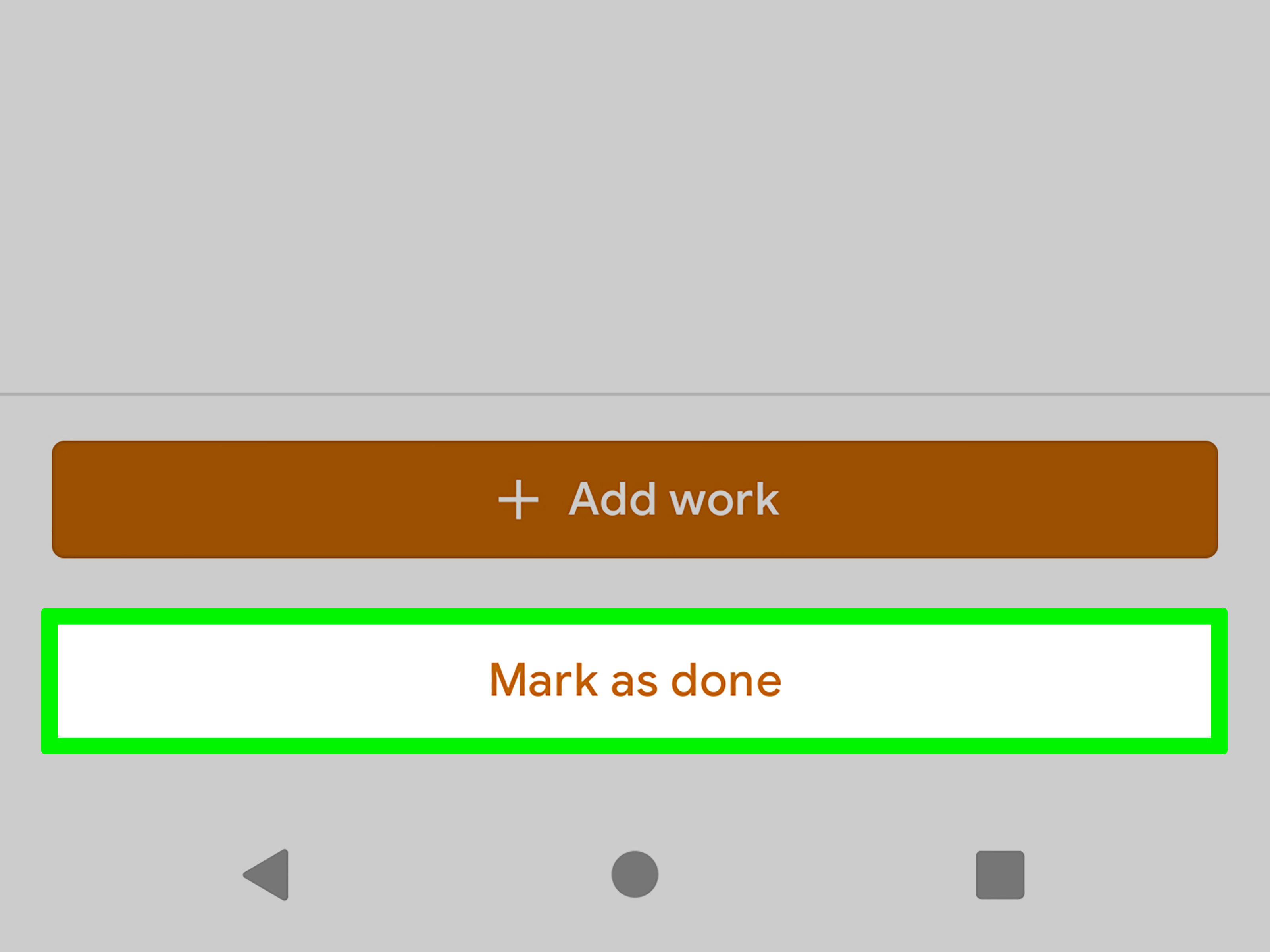
After you turn in an assignment, Google Classroom should show a submitted status. You may see words like Turned in, Submitted, or Done, depending on your device and school settings. If the assignment still says Assigned, you probably have not turned it in yet.
Open the assignment again and check the “Your work” section. Your file should still be attached, and the button may now say Unsubmit instead of Turn in. That is usually a good sign because it means Classroom received your submission. If you see Resubmit, it may mean you previously unsubmitted the work or the assignment is available for another submission.
Do not rely only on the file being attached
This is one of the most common student mistakes. A file can appear in the assignment without being officially turned in. Always look for the confirmation step. If Google Classroom asks, “Turn in your work?” click or tap the confirmation button. The extra click matters.
How to Unsubmit and Resubmit Homework
If you notice a mistake after submitting, Google Classroom may let you unsubmit the assignment, make changes, and resubmit it. This depends on timing, teacher settings, and school policy. If the due date has not passed or your teacher still allows changes, this feature can rescue you from small errors like attaching the wrong file, forgetting a page, or spotting a typo that somehow survived seventeen proofreads.
How to unsubmit work
- Open the assignment in Google Classroom.
- Look for the Unsubmit button.
- Click or tap it.
- Confirm that you want to unsubmit.
- Edit or replace your file.
- Click or tap Turn in again.
Be careful: unsubmitted work may be marked late if you resubmit after the due date. If you are unsure, leave a private comment for your teacher explaining what happened. Keep it polite, clear, and short. Teachers appreciate messages that sound like, “I noticed I attached the wrong file and have now resubmitted the correct PDF,” not “The internet goblin did it.”
Common Google Classroom Upload Problems and Fixes
Even when you know how to submit homework in Google Classroom, technology occasionally decides to wear tap shoes in a library. Here are common problems and practical fixes.
Problem 1: The file will not upload
Check your internet connection first. Large files, especially videos, can take longer to upload. If you are on mobile data, switch to Wi-Fi if possible. You can also try refreshing the page, closing and reopening the app, or uploading the file to Google Drive first and then attaching it from Drive.
Problem 2: You cannot find your file
Use Google Drive search and look for keywords from the file name. Check Recent, My Drive, Downloads, and Shared with me. If the file is on a different device, upload it to Drive from that device or email it to yourself only if your school allows that. Make sure you are using the same school account connected to Google Classroom.
Problem 3: Google Classroom says you do not own the file
Some assignments may not allow you to attach files that belong to someone else. Make your own copy of the file in Google Drive, rename it, and attach your copy. If your teacher provided a template, use the copy connected to the assignment whenever possible.
Problem 4: Your teacher says the file is blank
Open the submitted file from the assignment page and check it yourself. If it is blank, you may have attached an empty template instead of the completed document. Unsubmit if allowed, attach the correct file, and resubmit. If the deadline has passed, send a private comment explaining the correction.
Problem 5: The Turn in button is missing
You may be looking at a material post instead of an assignment, or the assignment may have different settings. Check the Classwork tab and make sure you opened the actual assignment. If you still cannot find the button, contact your teacher and include a screenshot if your school allows it.
Best Practices for Students Submitting Homework Online
Submitting work online is not only about pressing buttons. Good digital habits make your school life easier and help teachers review your work faster. Start by naming files clearly. Include your first name or last name, class period, and assignment title if your teacher prefers that format. For example, Maya_Period3_CellProject.pdf is easy to identify.
Second, avoid submitting unreadable photos. If you are uploading handwritten homework, make sure the page is bright, flat, and in focus. Crop out the desk, your sleeve, and any mysterious background objects that do not belong in a math assignment. Third, submit early when possible. Uploading five minutes before the deadline is bold, but boldness and school Wi-Fi are not always friends.
Finally, use private comments wisely. A private comment is a direct note to your teacher about that assignment. You can use it to explain a correction, mention a technical problem, or ask a specific question. Do not use it for unrelated messages. Keep it professional and helpful.
When Should You Use Each Upload Method?
Use the computer file upload method when your homework is saved locally on a laptop or desktop. Use Google Drive when your work is already stored online or shared across devices. Use the create-new-file option when you are starting from scratch and want the assignment to stay organized from the beginning. Use the mobile app when your work is a photo, scan, or file saved on your phone.
For example, if you wrote a history essay in Microsoft Word, upload the Word file or export it as a PDF. If your science presentation is in Google Slides, attach it from Drive. If your teacher asks for a one-page reflection, create a Google Doc inside the assignment. If you solved geometry problems on paper, scan the pages with the mobile app and submit them as one clean attachment.
Extra Experience: What Students Learn After Submitting Homework in Google Classroom Many Times
After using Google Classroom for a while, most students develop a personal system. The first lesson is that “I attached it” and “I turned it in” are not the same thing. Many students learn this the mildly painful way: they attach a file, close the laptop, and later discover the assignment still says Assigned. The fix is simple but important. Always stay on the page long enough to see the submitted status. That tiny confirmation can protect your grade and your peace of mind.
Another real-world experience is that file names matter more than students expect. When you have five documents called Untitled document, choosing the correct one becomes a guessing game. A better habit is to rename the file as soon as you create it. Use a format like Name_Assignment_Subject. It feels boring for three seconds, then incredibly useful later. Teachers also appreciate clear names because they can identify work quickly, especially when grading dozens or hundreds of submissions.
Students also learn that photos of homework need care. A blurry image may technically count as an upload, but it does not help your teacher read your answers. The best approach is to scan pages in good light, check every page before submitting, and make sure the writing is facing the right direction. If the assignment has multiple pages, combining them into one file is usually cleaner than uploading a parade of separate images. Your teacher should not need detective skills to find page three.
One helpful habit is submitting a little earlier than necessary. Even ten extra minutes can make a difference if your Wi-Fi slows down, your file is too large, or your browser decides it needs a dramatic refresh. Students who wait until the last minute often discover that technology has a talent for bad timing. Uploading early gives you room to fix mistakes calmly instead of negotiating with the spinning loading circle like it is a final boss.
Another lesson is to use private comments responsibly. If something goes wrong, a short message can help your teacher understand the situation. For example: “I accidentally attached the wrong file first, but I resubmitted the correct version.” That is much better than sending five panicked messages or saying nothing at all. Teachers are more likely to help when they can clearly see what happened.
Finally, students learn that Google Classroom is not just a place to submit homework; it is also a record of assignments, feedback, due dates, and learning progress. Checking returned work matters. Your teacher may leave comments, grades, rubrics, or suggestions that help you improve the next assignment. Turning in homework is the finish line for one task, but feedback is where the next improvement begins. In other words, do not just upload and vanish like a digital magician. Go back, read the comments, and use them.
Conclusion
Learning how to upload homework to Google Classroom is a basic digital school skill, but it can make a big difference in staying organized and avoiding late-work stress. The four fastest methods are uploading a file from your computer, attaching a file from Google Drive, creating a new Google file inside the assignment, and submitting work through the mobile app. Each method works best in a different situation, so choose the one that matches where your homework is saved and what your teacher requested.
The golden rule is simple: attach the correct file, check that it opens properly, and click Turn in. If you need to fix something, use Unsubmit and Resubmit when available. If a technical problem happens, communicate clearly with your teacher. With a little practice, Google Classroom submissions become quick, reliable, and almost boringwhich, honestly, is exactly what homework uploads should be.