
Note: This guide is written for real-world gaming setups on Windows and macOS, using common behavior from modern games, operating system display settings, Steam launch options, and GPU control panels. Menu names can vary slightly by game, launcher, driver version, and operating system update.
Moving a full-screen game to another monitor sounds like it should be simple. You have two screens. You have one game. Surely the solution is just “drag it over,” right? Unfortunately, full-screen games often behave like a stubborn cat sitting in the exact chair you need. They may lock themselves to the primary display, ignore your mouse, black out during transitions, or reopen on the wrong screen every single time.
The good news: you do not need to unplug monitors, chant at your graphics card, or accept a lifetime of gaming on the wrong display. Whether you want your game on a larger monitor, a higher-refresh-rate screen, a TV, or the display directly in front of your face, there are several reliable ways to move a full-screen game to another monitor.
This easy guide walks through the best methods, starting with the fastest shortcuts and moving into deeper fixes for stubborn games. We will cover Windows display settings, keyboard shortcuts, in-game monitor options, borderless windowed mode, Steam launch options, NVIDIA and AMD settings, and macOS tips.
Why Full-Screen Games Open on the Wrong Monitor
Before fixing the problem, it helps to know why it happens. A full-screen game usually chooses a monitor based on one of three things: your operating system’s primary display, the game’s own monitor setting, or the last display the game used. If those settings disagree, your game may launch wherever it feels like taking a vacation.
Many games default to the primary monitor in Windows. That is usually Display 1, but not always. If your smaller side monitor is set as the main display, a game may open there even if your expensive gaming monitor is sitting in the center like royalty waiting to be served.
Some games also use exclusive full-screen mode. This gives the game direct control over the display, which can improve performance or reduce input lag in certain cases. However, it also means the game may resist normal window movement. Borderless windowed mode is usually easier to move between screens because the game behaves more like a regular desktop window while still looking full-screen.
Quick Answer: The Fastest Ways to Move a Full-Screen Game
If you want the shortest possible solution, try these methods in order:
- Press Alt + Enter to switch the game into windowed mode, then drag it to the other monitor.
- Press Windows + Shift + Left Arrow or Windows + Shift + Right Arrow to move the active window to another monitor.
- Change the game’s display mode to Borderless Windowed, then move it using Windows shortcuts.
- Go to Settings > System > Display and make your gaming monitor the main display.
- Use the game’s own Monitor, Display, or Output Device setting if it has one.
For many players, one of these solves the issue in under a minute. For games that behave like they were coded by a raccoon with a grudge, keep reading.
Method 1: Use Windows + Shift + Arrow Keys
The easiest keyboard shortcut for moving a game to another monitor is:
Windows + Shift + Left Arrow or Windows + Shift + Right Arrow
This shortcut moves the active window from one monitor to the next. It works best when the game is running in windowed mode or borderless windowed mode. If the game is in true exclusive full-screen mode, Windows may not treat it like a movable window, so the shortcut may do nothing.
How to use it
- Open the game.
- Click once inside the game window so it becomes active.
- Press Windows + Shift + Left Arrow or Windows + Shift + Right Arrow.
- If the game moves, switch back to full-screen or borderless mode if needed.
If nothing happens, try pressing Alt + Enter first. That often changes the game from full-screen to windowed mode. Then use the Windows shortcut again.
Method 2: Switch to Windowed Mode with Alt + Enter
Alt + Enter is one of the classic PC gaming shortcuts. In many games, it toggles between full-screen and windowed mode. Once the game becomes a normal window, you can drag it to the monitor you want.
Step-by-step
- Launch the game.
- Press Alt + Enter.
- If the game shrinks into a window, drag it to the other monitor.
- Press Alt + Enter again, or select full-screen/borderless mode in the game settings.
This method is simple, but it does not work for every title. Some modern games ignore Alt + Enter, while others use a different shortcut or require you to change display mode through the settings menu.
Method 3: Change the Main Display in Windows
If your full-screen game always opens on the wrong screen, your primary display may be set incorrectly. Windows uses the main display for the taskbar, default app placement, and many full-screen games.
How to set your gaming monitor as the main display
- Right-click an empty area on your desktop.
- Select Display settings.
- Click Identify to see which number belongs to each monitor.
- Select the monitor you want to use for gaming.
- Scroll down and check Make this my main display.
- Launch the game again.
This is one of the best fixes for games that refuse to remember your preferred monitor. It is especially useful if your setup includes a laptop screen plus an external monitor, or a desk monitor plus a TV.
One small warning: changing the main display also affects where the taskbar, Start menu, notifications, and some applications appear. If you use one screen for work and one for gaming, you may want to switch it back later.
Method 4: Use the Game’s Built-In Monitor Setting
Many newer games include a monitor selector inside the graphics or video settings. It may be labeled Monitor, Display, Screen, Output Display, or something equally obvious after you have already spent 20 minutes looking for it.
Where to look
- Settings > Video
- Settings > Graphics
- Display Mode
- Monitor Selection
- Output Device
Choose the monitor you want, apply the changes, and restart the game if prompted. Some games only apply monitor changes after a restart, especially when switching between exclusive full-screen and borderless modes.
If your game has this setting, use it. It is usually cleaner than forcing the game through Windows or launch commands.
Method 5: Use Borderless Windowed Mode
Borderless windowed mode is often the sweet spot for multi-monitor gaming. It looks like full-screen, but it behaves more like a window. That makes it easier to move the game, alt-tab, check Discord, adjust music, or panic-search “how to beat this boss” without your display having an emotional breakdown.
How to enable borderless windowed mode
- Open the game’s settings menu.
- Go to Video or Graphics.
- Find Display Mode.
- Select Borderless Windowed or Windowed Fullscreen.
- Apply the settings.
- Use Windows + Shift + Arrow if the game is still on the wrong screen.
For most players, borderless windowed mode is the most convenient setting for dual-monitor or triple-monitor setups. The tradeoff is that some competitive players still prefer exclusive full-screen for the lowest possible latency, although the difference is often small on modern systems.
Method 6: Move the Game with Steam Launch Options
If you play through Steam, launch options can help force some games into windowed or borderless mode. This is useful when the game opens on the wrong monitor and you cannot reach its settings menu.
How to add Steam launch options
- Open Steam.
- Go to your Library.
- Right-click the game and choose Properties.
- Under General, find Launch Options.
- Enter a supported command such as -windowed, -borderless, or -fullscreen.
- Close the window and launch the game.
Not every game supports the same launch commands. A Source engine game, an Unreal Engine game, and a custom-built indie game may all behave differently. If one command does not work, remove it and check the game’s community page, official support page, or PC gaming wiki-style documentation for supported arguments.
Method 7: Use NVIDIA Control Panel
If you have an NVIDIA GPU, the NVIDIA Control Panel can help confirm that your displays are detected, arranged correctly, and connected to the right GPU. This matters because some desktop PCs have motherboard display ports and graphics card display ports. For gaming, your monitor should generally be connected to the graphics card, not the motherboard output.
Helpful NVIDIA checks
- Right-click the desktop and open NVIDIA Control Panel.
- Go to Display > Set up multiple displays.
- Make sure your gaming monitor is enabled.
- Drag the display icons into the same physical order as your desk setup.
- Apply the changes.
You can still use Windows Display Settings to choose the main display, but NVIDIA Control Panel is useful when monitors are missing, arranged incorrectly, or behaving strangely after a driver update.
Method 8: Use AMD Software for Multi-Monitor Setups
AMD users can use AMD Software: Adrenalin Edition to check display configuration, refresh rate support, FreeSync settings, and multi-monitor features. Windows Display Settings should still handle the main display choice, but AMD’s software can help when the issue is connected to GPU detection or advanced display behavior.
If you use AMD Eyefinity, remember that it can group multiple monitors into one large desktop. That is great for racing sims and flight sims, but it may confuse players who simply want one game on one monitor. If your game stretches across displays unexpectedly, check whether Eyefinity or a similar multi-display spanning feature is enabled.
Method 9: Move a Full-Screen Game on macOS
Gaming on macOS is different from Windows, but the basic idea is similar: arrange your displays correctly, choose the main display, and use Mission Control or in-game settings when available.
How to arrange displays on Mac
- Open System Settings.
- Go to Displays.
- Arrange your displays to match their physical positions.
- Choose which display should act as the main display.
- Open the game and check its display settings.
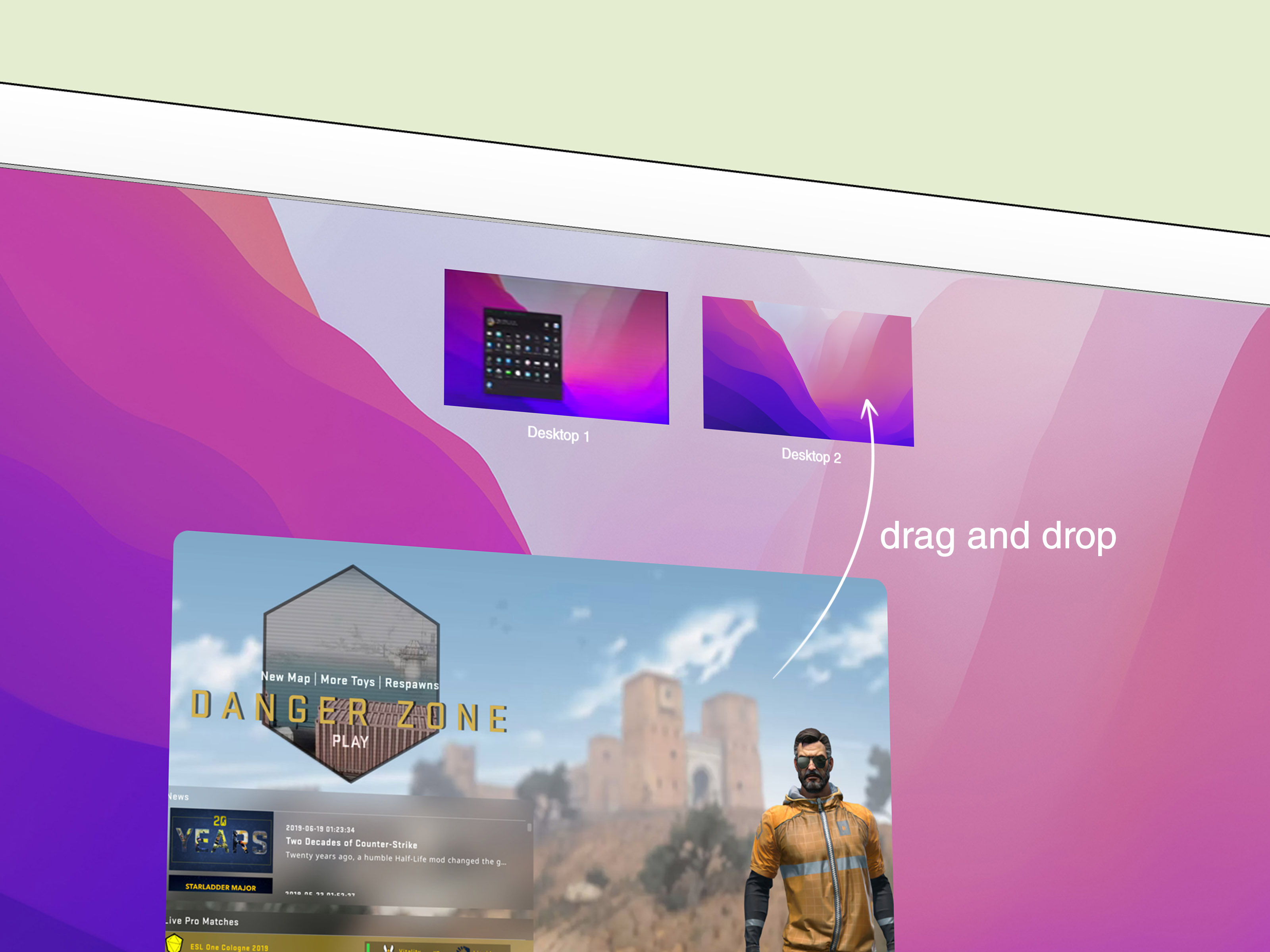
For apps using macOS full-screen spaces, Mission Control can help you manage which display or space the app occupies. If a game supports windowed or borderless mode, switching to that mode can make moving it much easier.
Troubleshooting: What If the Game Still Opens on the Wrong Monitor?
If the simple methods fail, do not panic. Full-screen display issues are common, and most have a practical fix.
Restart the game after changing display settings
Some games only read monitor settings when they start. If you change your primary display while the game is already open, it may not care. Close the game completely, then relaunch it.
Match the game resolution to the target monitor
If your target monitor is 2560×1440 but the game is trying to launch at 3840×2160, it may fail, shrink, or jump to another display. Set a resolution supported by the monitor you want to use.
Check refresh rate settings
If your gaming monitor supports 144Hz, 165Hz, or 240Hz, make sure Windows is actually using that refresh rate. Go to Settings > System > Display > Advanced display and confirm the correct refresh rate is selected.
Disable duplicate display mode
Press Windows + P and choose Extend. If Windows is set to Duplicate, both screens mirror the same image, which can make monitor selection confusing or impossible.
Delete or reset the game’s configuration file
Some games store display preferences in a local configuration file. If the game is stuck opening on the wrong monitor, resetting the config may help. Look in the game’s settings folder under Documents, AppData, Saved Games, or the game installation directory. Back up files before deleting anything, because “oops” is not a great troubleshooting strategy.
Update graphics drivers
Outdated GPU drivers can cause display detection problems, black screens, incorrect refresh rates, or games launching on the wrong display. Update through NVIDIA, AMD, Intel, or your laptop manufacturer’s support tool.
Best Setup for Multi-Monitor Gaming
For the smoothest experience, use this setup:
- Set your best gaming monitor as the main display.
- Use Extend mode instead of Duplicate.
- Choose Borderless Windowed for easy alt-tabbing and monitor movement.
- Use exclusive full-screen only if you need maximum performance or lower latency.
- Keep your GPU drivers updated.
- Connect your gaming monitor directly to the dedicated graphics card.
This setup works well for most players who use one monitor for the game and another for chat, streaming tools, walkthroughs, music, hardware monitoring, or pretending to be productive while a game downloads a 90GB patch.
Common Mistakes to Avoid
Dragging an exclusive full-screen game
You usually cannot drag an exclusive full-screen game like a normal window. Switch to windowed or borderless mode first.
Using the wrong HDMI or DisplayPort connection
On a desktop PC, plug your monitor into the graphics card, not the motherboard, unless your system is specifically configured for integrated graphics.
Forgetting to click Apply
Windows, games, and GPU software often require you to click Apply. If you close the menu too quickly, your settings may not save.
Assuming Display 1 is always the best monitor
Display numbers are not rankings. Display 1 might be your old side monitor, while Display 2 is your beautiful high-refresh gaming screen. Use Identify to check.
Extra Experience: Real-World Tips for Moving Full-Screen Games to Another Monitor
After dealing with enough multi-monitor gaming setups, one lesson becomes obvious: the best fix depends on the type of game. Competitive shooters, old RPGs, emulators, racing sims, and modern open-world games can all handle monitors differently. A method that works instantly in one game may do absolutely nothing in another. That is not your fault. PC gaming is wonderful, but sometimes it has the organizational skills of a junk drawer.
For modern games, the first thing I recommend is checking the in-game video menu before changing Windows settings. Many newer titles include a monitor selector, and that is usually the cleanest solution. Choose the right display, apply the setting, and restart the game. Restarting matters because some games pretend they changed monitors but do not fully commit until launch. Very dramatic behavior for software, but here we are.
For older games, borderless windowed mode may not exist. In that case, Alt + Enter is your best friend. If Alt + Enter works, move the window manually, then return to full-screen. If the game snaps back to the original monitor, set your preferred monitor as the main display in Windows before launching it. Older games often obey the primary display more than any fancy setting.
For gamers using a laptop with an external monitor, the problem often comes from the built-in screen remaining the main display. The game opens on the laptop screen, even though the external monitor is larger, faster, and clearly the star of the show. In Windows Display Settings, select the external monitor and check Make this my main display. Also make sure the laptop is set to Extend, not Duplicate. Duplicate mode is fine for presentations, but it is usually not ideal for gaming.
Streamers should be extra careful. If you move a full-screen game after setting up OBS, Streamlabs, or another capture tool, your capture source may go black or capture the wrong display. For streaming, borderless windowed mode is often easier because capture software can follow the game more reliably. Test your stream layout before going live, unless your audience enjoys watching you troubleshoot display settings in real time. Some do, but they are a special crowd.
Players with high-refresh monitors should also check refresh rate after moving the game. Sometimes the game lands on the right monitor but uses the wrong refresh rate. A 165Hz monitor running at 60Hz is like buying a sports car and driving it only in a parking lot. Open Windows Advanced Display settings and confirm the correct refresh rate. Then check the game’s video settings to make sure it matches.
If a game keeps forgetting the monitor, look for a configuration file. Many games store display settings in text files, often inside Documents, AppData, or Saved Games. You can sometimes change the monitor index, fullscreen mode, resolution, or window position there. Before editing, make a backup copy. A tiny typo in a config file can turn “move to monitor two” into “why is everything broken?”
Finally, do not underestimate the simple restart. Restart the game, restart the launcher, or restart the PC after major display changes. It sounds basic, but display settings are sometimes loaded at startup and ignored afterward. A restart gives Windows, the GPU driver, and the game a fresh chance to agree on where things should appear. It is not glamorous, but neither is crawling behind a desk to swap cables, and we are trying to avoid that lifestyle.
Conclusion
Moving a full-screen game to another monitor is usually easy once you know which setting is controlling the game. Start with the fast fixes: Windows + Shift + Arrow, Alt + Enter, and borderless windowed mode. If the game still refuses to move, set your preferred gaming monitor as the main display, check the game’s own monitor selector, and confirm your GPU software sees the displays correctly.
The best long-term setup is simple: make your gaming monitor the primary display, use Extend mode, choose borderless windowed mode for convenience, and keep your graphics drivers current. Once everything is configured, your game should open where it belongs: on the big, beautiful monitor you actually bought for gaming.